
ETM ETM770-9 User manual

1
For Support Contact +46 8 25 28 75, [email protected] or +61 2 9956 7377, [email protected]
Top View
Features:
•
Cat NB & Cat M1 Connectivity
•
2G (GSM/EGPRS) Connectivity
•
Select the most suitable antenna
•
OLED display
•
Send measured data to EWO server
•
Rechargeable battery
•
Sleep Mode for super low power
consumption
•
Includes antenna, hard case and
charger
USER
GUIDE
ETM770-9
CELLULAR NETWORK MONITORING TOOL
2G/CAT-M1/CAT-NB
1802–20180005 01, 2020-05-05

2
For Support Contact +46 8 25 28 75, [email protected] or +61 2 9956 7377, [email protected]
TABLE OF CONTENTS
Connecting the sim card ...................................................................................................................... 3
Get started scanning a signal with ETM770 ....................................................................................... 4
2G Mode ............................................................................................................................................. 5
CAT-M1 Mode ..................................................................................................................................... 6
CAT-NB Mode ..................................................................................................................................... 6
Additional Settings ............................................................................................................................... 8
Select Radio Band .............................................................................................................................. 8
Select which operator to scan amongst available operators ............................................................... 8
View Current Network Data .............................................................................................................. 10
View last scan ................................................................................................................................... 14
Communication Test ......................................................................................................................... 15
Send Data to Server ......................................................................................................................... 16
Device Data ...................................................................................................................................... 17
Select APN ........................................................................................................................................ 18
Select User/Password for ISP ........................................................................................................... 18
Server Address ................................................................................................................................. 19
Restart Device .................................................................................................................................. 20

3
For Support Contact +46 8 25 28 75, [email protected] or +61 2 9956 7377, [email protected]
CONNECTING THE SIM CARD

4
For Support Contact +46 8 25 28 75, [email protected] or +61 2 9956 7377, [email protected]
GET STARTED SCANNING A
SIGNAL WITH ETM770
1. Insert SIM card as shown in picture above.
2. Insert the charger into the mini USB connector. The battery is charged with 5V.
3. To turn the device on, press the power button for a minimum of 3 seconds. When
the device is turned on and the charger is successfully connected, the screen
shall look as follows:
The battery is fully charged. The network connection is 10/10 bars. We are connected to a 2G network with the
frequency 900 MHz R means that the device is logged into the home network.
4. Put on chosen antenna.
5. The device will automatically scan the network signal once turning it on. If not,
find your way to the main menu by pressing the up- button several times. Once
pressing "Signal Scanning" you will be redirected to the second menu. Press
"Scan Signal".
6. Validate your result. The pictures below show a typical scan for a 2G, CatM1 and
CAT-NB connection.
7. By pressing the up button, you will jump to next menu. If you press the up button
multiple times you will finial enter the main menu.
8. By pressing the down button multiple times, you will rotate back to the first row in
the present menu.
9. By pressing the power button for more than 5 seconds, the device will go into
sleep mode.
10. By pressing both the up and the down key for 5 second, the device will restart.

5
For Support Contact +46 8 25 28 75, [email protected] or +61 2 9956 7377, [email protected]
I. The device is connected to a 2G band. The channel is 82 and the frequency is
900 MHz
II. Empty space
III. Received Signal Strength Indicator (The signal strength including noise and
interference) measured in dBm. The corresponding value is in the parenthesis. Also
shows Signal Quality (Weak, Low, Medium, High or Strong)
IV. Signal Strength Bar. Measured in dBm.
V. Signal Quality Min and Max values
VI. Empty space
VII. Empty space
VIII. Different data rolls in the bottom bar. CH, PLMN, the scanned network and RSSI.
2G Mode
Scan Menu 2G mode

6
For Support Contact +46 8 25 28 75, [email protected] or +61 2 9956 7377, [email protected]
I. The device is connected to a CatM1 band. The channel is 20 and the frequency is
800 MHz.
II. Reference Signal Received Power (the signal strength without noise and interference)
measured in dBm. The signal is visualized in the signal bar below the data. Also
shows Signal Quality (Weak, Low, Medium, High or Strong)
III. Signal Quality Bar.
IV. Reference Signal Received Quality (how well the signal is coded) measured in dB.
The signal is visualized in the signal bar below the data.Signal Quality Bar.
V. Signal Quality Bar
VI. Signal to Interference plus Noise Ratio (SINR) used to give theoretical upper bounds
on channel capacity (or rate of information transfer)
VII. Signal Quality Bar
VIII. Different data rolls in the bottom bar. CH, PLMN, the scanned network and RSSI.
I. The device is connected to a NB band. The band is 20 and the frequency is 800 MHz.
II. Reference Signal Received Power (the signal strength without noise and interference)
measured in dBm. The signal is visualized in the signal bar below the data. Also
shows Signal Quality (Weak, Low, Medium, High or Strong)
III. Signal Quality Bar.
IV. Reference Signal Received Quality (how well the signal is coded) measured in dB.
The signal is visualized in the signal bar below the data.
V. Signal Quality Bar.
VI. Signal to Interference plus Noise Ratio (SINR) used to give theoretical upper bounds
on channel capacity (or rate of information transfer)
CAT-M1 Mode
CAT-NB Mode
Scan Menu CAT-M1 mode
Scan Menu CAT-NB mode

7
For Support Contact +46 8 25 28 75, [email protected] or +61 2 9956 7377, [email protected]
VII. Signal Quality Bar
VIII. Different data rolls in the bottom bar. CH, PLMN, the scanned network and RSSI.
8
For Support Contact +46 8 25 28 75, [email protected] or +61 2 9956 7377, [email protected]
ADDITIONAL SETTINGS
With ETM770 it is possible to make several additional settings.
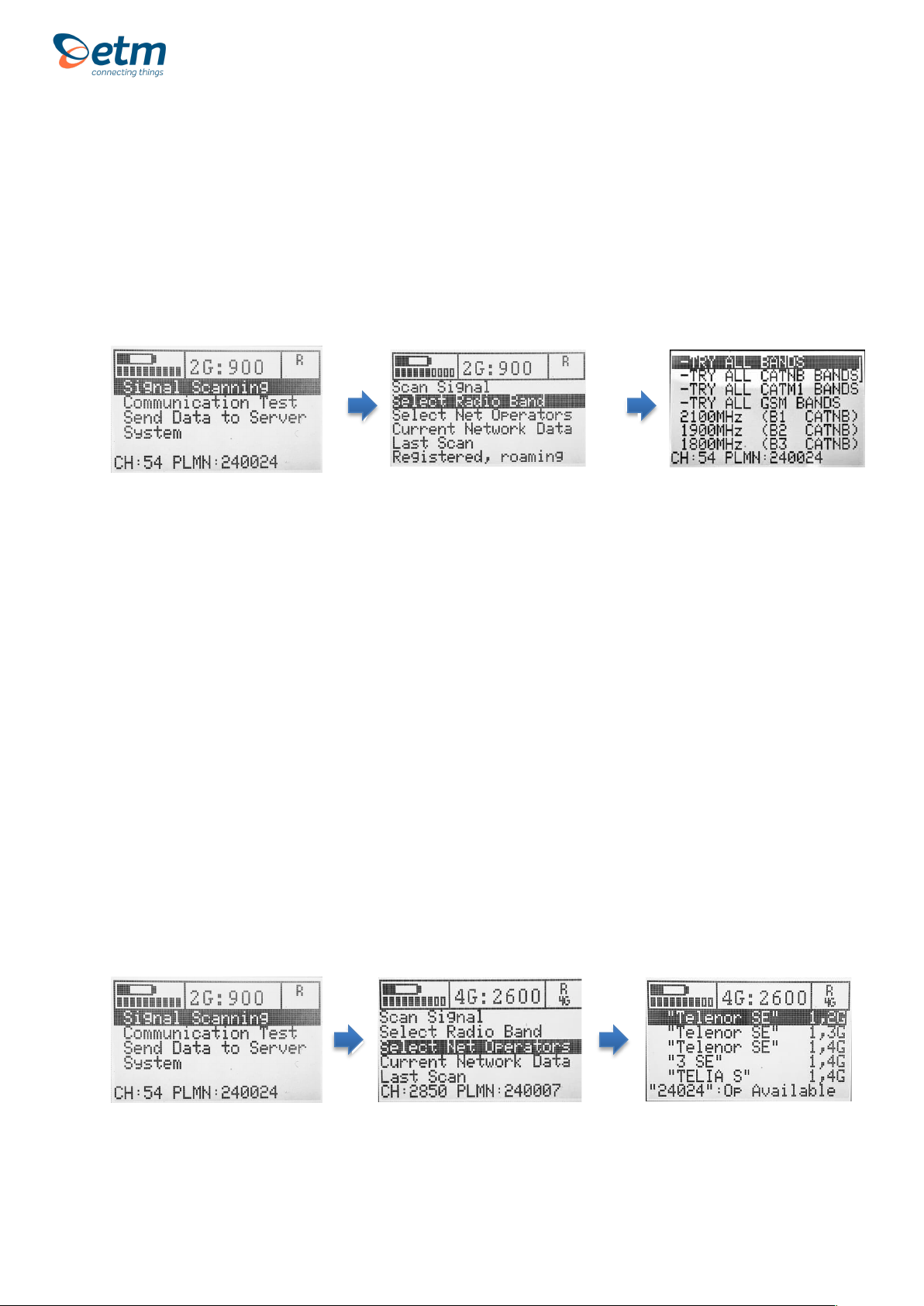
Select Radio Band
1. Starting at the main menu, press "Signal Scanning"
2. Press "Select Radio Band"
3. Select the radio band you want to scan and press OK. By pressing the down
button, more alternatives are visible.
4. Note! When searching for CAT-NB Bands, do not scan all bands at once. This
may cause long scanning time and risk of timeout. If located in Sweden,
band20 is activated for use.
Tip! Check which bands are deployed locally in CAT-M1 and especially CAT-
NB then proceed to only select those bands in order to make scanning faster.
Once the radio band is selected you will automatically be directed back to the Signal
scan menu
Select which operator to scan amongst available operators
1. Starting at the main menu, press "Signal Scanning"
2. Press "Select Net Operators"
1.
2.
3.
1.
2.
3.
Signal Scan Menu
Select Radio Band Menu
Main Menu
Signal Scan Menu
Main Menu
Net Operator Menu

9
For Support Contact +46 8 25 28 75, [email protected] or +61 2 9956 7377, [email protected]
3. A list of operators is shown. To see which operators are available please see
the numbers on the right of the display. First letter means Operator status and
the second letter means Radio Access Technology (RAT). Operator Status:
0: Unknown, 1: Operator available, 2: Current operator, 3: Operator forbidden

10
For Support Contact +46 8 25 28 75, [email protected] or +61 2 9956 7377, [email protected]
View Current Network Data
1. Starting at the main menu, press "Signal Scanning"
2. At the Signal Scan menu, select "Current Network Data"
3. The first view will look similar to the following:
I. The channel is 2850 and the frequency is 2600 MHz.
II. E-UTRA frequency band: Download bandwidth: Upload bandwidth
III. Mobile Country Code (first part of the PLMN code): Mobile Network Code
(second part of the PLMN code)
IV. FDD or TDD: Physical Cell ID
V. Reference Signal Received Power (RSRP) is -91 dBm.
VI. Reference Signal Received Quality (RSRQ) is -7 dB
VII. Tracking Area Code: Global Cell ID
VIII. The channel is 2850: Public Land Mobile Network (PLMN) is 240007
1.
3.
2.
Main Menu
Signal Scan Menu
Current Network Data
3.
This manual suits for next models
1
Table of contents
Other ETM Measuring Instrument manuals


