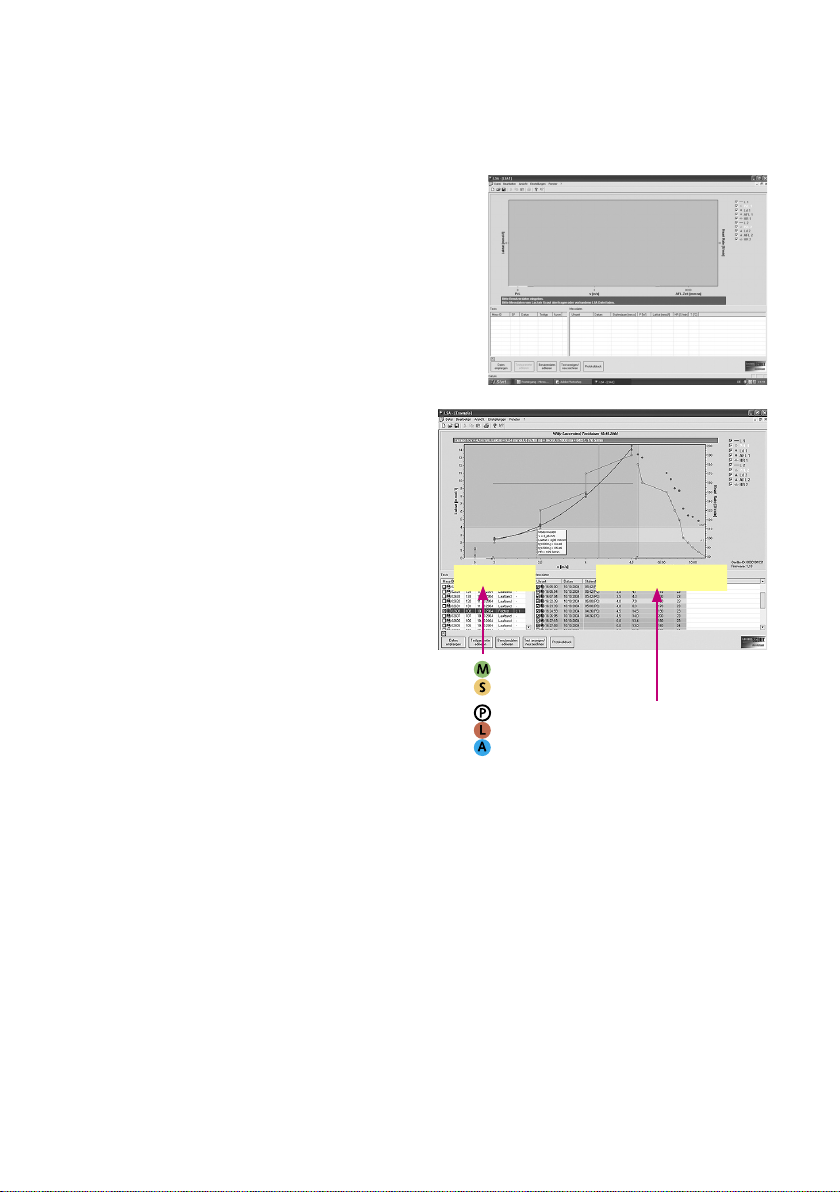
4. USER INTERFACELaunching the Lactate Scout Assistant (by double click on the desktop icon or selecting from the Start menu), a new blank application window will appearopen the sample file „example.lsa“ by menu „File/open“. Within this func-tion you can also open existing lsa-files for editing their data. For data trans-fer from the device, the Lactate Scout must be switched on and connected to the PC: Clicking the button „Receive data“, the Lactate Scout Assistant checks all data ports automatically, to load data from the connected device. Please note, all Lactate Scout devices have an unique, internally stored ID: To avoid data conflicts by using different devices, you can open, view and edit the data from one device in one window only (no merging of data).Now the data will be shown in a new application window, listed in the directory in the left corner („test list“). The latest readings are at the top, structured in columns: Selection, type of measurement (single „M“, step test „S“), ID (unlimited registration number of data set), storage place in device memory (1 - 250), date, test type and display (curve L1 or L2).• Single measurement• Step test:• Resting value / Preload (PrL)• Exercise value / Load (Ld)• „Cool down“ value / After load (AFL)TEST LIST VALUE DIRECTORY
The biggest part is taken by the graphic display, where the lactate curves and other elements will be draft. Clicking in the check box on the right side, the display of separa-te parameters can be switched on or off.Below this area, sometimes a red box with problem reports (e.g. „curve cannot be ap-proximated“) or special notes for required data entries will appear (e.g. „Please import data from Lactate Scout or open existing LSA-file“: This message will usually appear while launching the software).To get in touch with the main functions, without any data. At the beginning, please make familiar with the essential control elements and display areas of the user interface: As usual for Windows applications, a menu bar is placed at the top for access to frequently used operations. Essential functions (as „new file“, „open“, „save“ and „print“ etc.) are additionally available as control symbols below.T