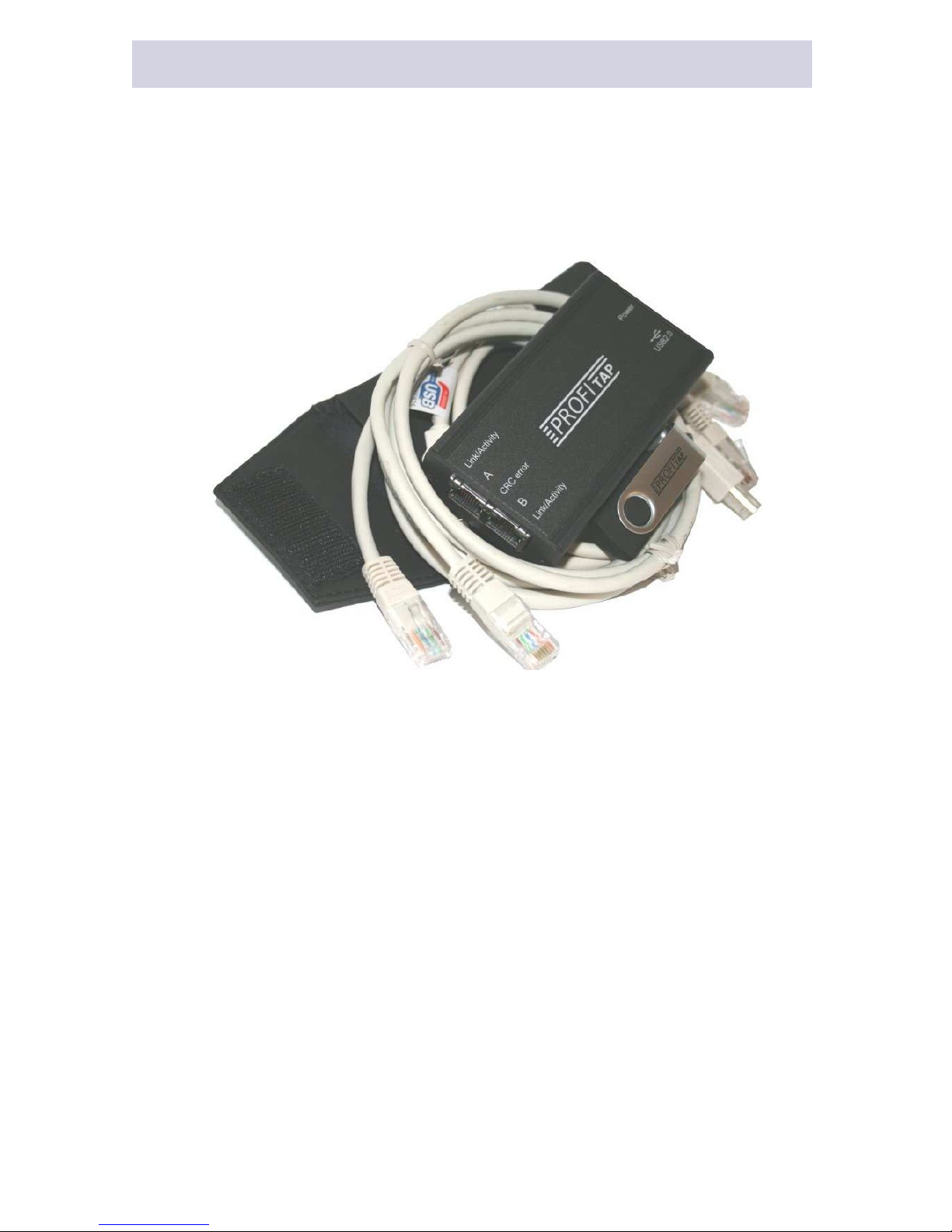
While plugging the USB cable, the CRC LEDs should light for approximately
one second to show what is your ProfiTAP factory configuration.
Right LED lightning indicates whether filter setup is available or not.
Left LED lightning indicates whether timestamp is enabled or not.
d. Install the driver
Install the driver according to your Operating System. The current available
drivers are located on the USB key at the driver section or within your installa-
tion directory on your hard disk.
Supported O.S. are :
Windows ME/98/CE 5.0
Windows XP/2000/Vista 32-bit
Windows XP/2003/Vista 64-bit
MAC OS X 32-bit/64-bit/x86/PowerPC
Linux kernel 2.6.0 ~ 2.6.13
Linux kernel 2.6.14 ~ 2.6.22
Please check the latest driver released for your Operating System in the User
Section at www.profitap.com. You need to be a registered User to access this
area. Registering is free and will let you participate on ongoing product im-
provements.
e. Setup the TAP Network Card
After the installation PROFISHARK presents itself as a virtual Network Inter-
face Card (NIC) to your Operating System and to any Analyzer.
The following settings are for internal communication only - there is no exter-
nal effect nor are these settings presented or exposed to the monitored link.
In any case we recommend to set an IP address. The installed TAP driver (as
under section d.) is represented as a Network Interface Card (NIC) to your
Operating System.
Configure the IP Protocol Stack :
IP address : 192.168.0.1
Submask : 255.0.0.0
Note : Gateway or DNS settings must be undefined.
PROFISHARK is now ready to use as source for your installed Analyzer or for
use with Easy Stat Tool
www.profitap.com Page 9