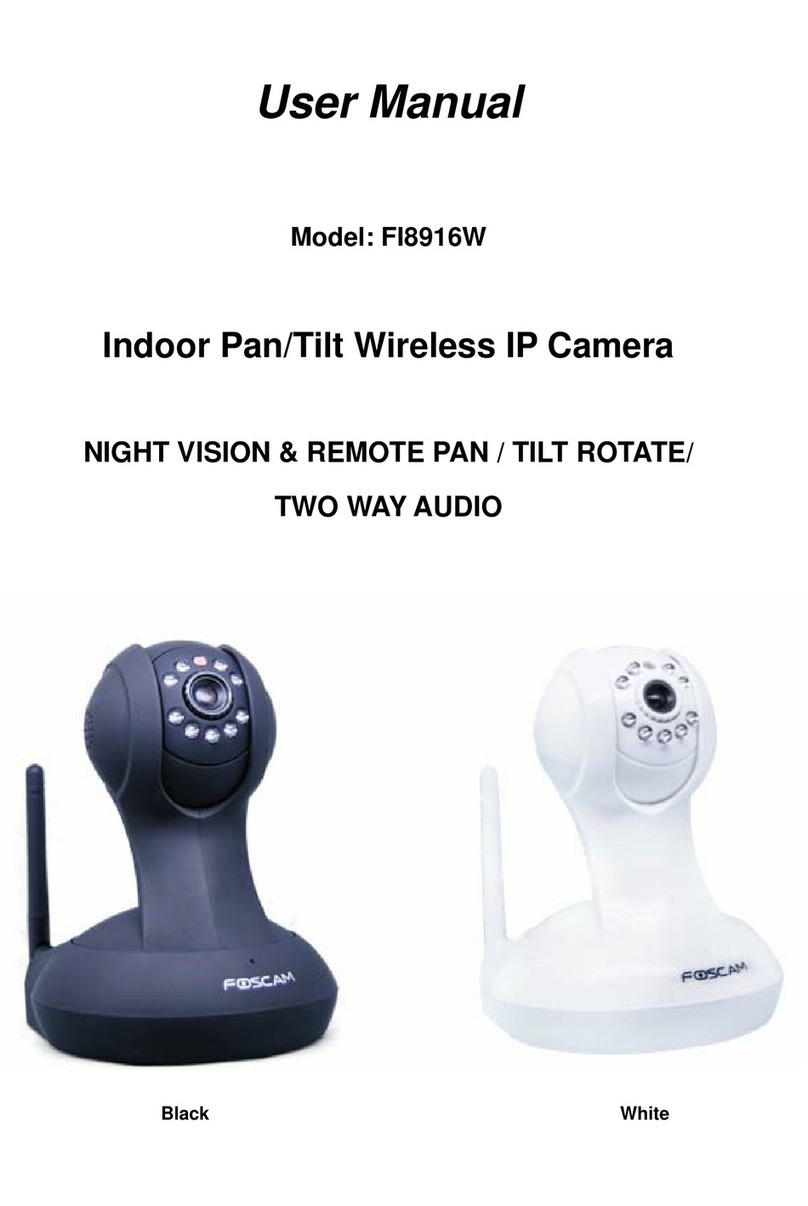
Foscam FI8906W User manual

User
User Manual
Manual
Model: FI8906W
Outdoor Wireless IP Camera
V1.6

1
w
w
w
www.foscam.
ww.foscam.com
com
Shenzhen
Shenzhen Foscam
Foscam Intelligent
Intelligent Technology
Technology Co.,
Co., Limited
Limited
Tel:
Tel: 86
86 755
755 2674
2674 5668
5668 Fax:
Fax: 86
86 755
755 2674
2674 5168
5168 1
Table of Contents
1
1Overviews
Overviews................................................................................................................................................. 2
1.1
1.1 Key
Key Features
Features.......................................................................................................................................................................3
1.2
1.2 Read
Read Before
Before Use
Use................................................................................................................................................................ 3
1.3
1.3 Packing
Packing Contents
Contents............................................................................................................................................................... 4
1.4
1.4 Physical
Physical Description
Description.......................................................................................................................................................... 4
2
2Surveillance
Surveillance Software
Software GUI
GUI..................................................................................................................... 5
2.1
2.1 Login
Login Window
Window..................................................................................................................................................................... 5
2.2
2.2 Surveillance
Surveillance Window
Window......................................................................................................................................................... 8
3
3Advanced
Advanced Camera
Camera Settings
Settings................................................................................................................. 13
3.1
3.1 Device
Device Status
Status....................................................................................................................................................................13
3.2
3.2 Alias
Alias Settings
Settings.................................................................................................................................................................... 15
3.3
3.3 Date
Date &
&Time
Time Settings
Settings.......................................................................................................................................................15
3.4
3.4 User
User Settings
Settings.................................................................................................................................................................... 16
3.5
3.5 Multi-Device
Multi-Device Settings
Settings.......................................................................................................................................................17
3.6
3.6 Basic
Basic Network
Network Settings
Settings................................................................................................................................................... 23
3.7
3.7 Wireless
Wireless Settings
Settings............................................................................................................................................................. 26
3.8
3.8 ADSL
ADSL.................................................................................................................................................................................. 30
3.9
3.9 UPnP
UPnP Settings
Settings.................................................................................................................................................................. 31
3.10
3.10 DDNS
DDNS Service
Service Settings
Settings.................................................................................................................................................32
3.11
3.11 Mail
Mail Service
Service Settings
Settings..................................................................................................................................................... 37
3.12
3.12 MSN
MSN Setting
Setting....................................................................................................................................................................39
3.13
3.13 FTP
FTP Service
Service Settings
Settings.....................................................................................................................................................41
3.14
3.14 Alarm
Alarm Service
Service Settings
Settings..................................................................................................................................................43
3.15
3.15 Upgrade
Upgrade Device
Device Firmware
Firmware............................................................................................................................................49
3.16
3.16 Backup
Backup &
&Restore
Restore Settings
Settings.......................................................................................................................................... 51
3.17
3.17 Restore
Restore Factory
Factory Settings
Settings.............................................................................................................................................. 51
3.18
3.18 Reboot
Reboot Device
Device................................................................................................................................................................ 52
3.19
3.19 Log
Log................................................................................................................................................................................... 52
3.20
3.20 Back
Back................................................................................................................................................................................. 52
4
4APPENDIX
APPENDIX..............................................................................................................................................53
4.1
4.1 Frequently
Frequently Asked
Asked Questions
Questions.......................................................................................................................................... 53
4.2
4.2 Default
Default Parameters
Parameters..........................................................................................................................................................57
4.3
4.3 Specifications
Specifications....................................................................................................................................................................57
5
5OBTAINING
OBTAINING TECHNICAL
TECHNICAL SUPPORT
SUPPORT................................................................................................ 58

2
w
w
w
www.foscam.
ww.foscam.com
com
Shenzhen
Shenzhen Foscam
Foscam Intelligent
Intelligent Technology
Technology Co.,
Co., Limited
Limited
Tel:
Tel: 86
86 755
755 2674
2674 5668
5668 Fax:
Fax: 86
86 755
755 2674
2674 5168
5168 2
1
1Overviews
Overviews
FI8906W is an integrated wireless IP Camera with a color CMOS sensor. It combines a high
quality digital video camera, with a powerful web server, to bring clear video to your desktop from
anywhere on your local network or over the Internet.
The IPCAM supports IR-CUT, when light conditions turns poor, the IR cut filter will be
automatically removed to accept IR illumination. Meanwhile, the camera switches itself
automatically from color to black and white, assuring optimal image quality at all times.
The IPCAM is based on the TCP/IP standard. There is a WEB server inside which could support
Internet Explore. Therefore the management and maintenance of your device is simplified by
using the network to achieve the remote configuration, start-up and to upgrade the firmware.
This camera is designed for outdoor surveillance applications such as gardens, courtyards or
parks. Controlling the IPCAM and managing images are simplified by using the provided web
interface across the network utilizing wireless connectivity.
FOSCAM provides Phone APPs for Android and iPhone users, please search “Foscam ip cam
viewer” and install it through APP Store, then you can view your camera directly as a computer.

3
w
w
w
www.foscam.
ww.foscam.com
com
Shenzhen
Shenzhen Foscam
Foscam Intelligent
Intelligent Technology
Technology Co.,
Co., Limited
Limited
Tel:
Tel: 86
86 755
755 2674
2674 5668
5668 Fax:
Fax: 86
86 755
755 2674
2674 5168
5168 3
1.1
1.1 Key
Key Features
Features
● Powerful high-speed video protocol processor
● High Definition Color CMOS Sensor
● 300K Pixels
● IR night vision (Range: 30m)
● Optimized MJPEG video compression for transmission
● Multi-level users’ management and passwords definition
● Embedded Web Server for users to visit by IE
● Wi-Fi compliant with wireless standards IEEE 802.11b/g/n
● Supports IR_CUT and the filter change automatically
● Supports Dynamic IP (DDNS) and UPnP LAN and Internet (ADSL, Cable Modem)
● Embedded FOSCAM DDNS (dynamic domain name service ) Service
● Motion detection activates alarm
● Supports image snapshot
● Supports multiple network protocols: HTTP/TCP/IP/UDP/STMP/DDNS/SNTP/DHCP/FTP
● Supports WPS(Wi-Fi Protected Set-up)
● Supports WEP/WPA/WPA2 encryption
● Supports Daylight Saving Time
● Supports MSN
● Supports Gmail as sender on mail service settings
● Providing Phone APPs for Android and iPhone users
● Providing Central Management Software to manage or monitor multi-cameras
1.2
1.2 Read
Read Before
Before Use
Use
Please first verify that all contents received are complete according to the Package Contents
listed below. Before the Network Camera is installed, please carefully read and follow the
instructions in the Quick Installation Guide to avoid damage due to faulty assembly and
installation. This also ensures the product is used properly as intended.

4
w
w
w
www.foscam.
ww.foscam.com
com
Shenzhen
Shenzhen Foscam
Foscam Intelligent
Intelligent Technology
Technology Co.,
Co., Limited
Limited
Tel:
Tel: 86
86 755
755 2674
2674 5668
5668 Fax:
Fax: 86
86 755
755 2674
2674 5168
5168 4
1.3
1.3 Packing
Packing Contents
Contents
● IPCAM×1
● CD×1
● Wi-Fi Antenna×1 (only available for wireless
model)
● Quick Installation Guide×1
● DC Power Supply×1
● Warranty Card×1
● Mounting bracket×1(option)
● Network Cable×1
1.4
1.4 Physical
Physical Description
Description
Front Panel
Figure 1.1
1 WIFI Antenna: Wireless Antenna
2 LENS: CMOS sensor with fixed focus lens
3 Infrared LED: 60 IR LEDs
1
2
3

5
w
w
w
www.foscam.
ww.foscam.com
com
Shenzhen
Shenzhen Foscam
Foscam Intelligent
Intelligent Technology
Technology Co.,
Co., Limited
Limited
Tel:
Tel: 86
86 755
755 2674
2674 5668
5668 Fax:
Fax: 86
86 755
755 2674
2674 5168
5168 5
Back View
Figure 1.2
LAN: RJ-45/10-100 Base T
Power: DC 5V/2A Power supply
RESET BUTTON:
1) Press and hold down the RESET BUTTON for 10 seconds. Release the power button and IP
camera will be reset back to the factory default parameter.
2) Press and hold down the RESET BUTTON about 4 seconds, then press the WPS button on
the router, then you can use the WPS function. (For more details: please read Wireless Settings
in the User Manual)
Bottom View
There are some labels located of the camera; this is an important feature of original Foscam
cameras. If your camera does not have labels, it may be a clone. Cloned Foscam cameras can
not use original firmware and are not eligible for warranty or technical services.
2
2Surveillance
Surveillance Software
Software GUI
GUI
Please refer to the Quick Installation Guide if you install the camera at first time. After finishing
quick installation, you can take time to learn the operation of the software.
2.1
2.1 Login
Login Window
Window
RJ45 Port
DC 5V Power Jack
Reset

6
w
w
w
www.foscam.
ww.foscam.com
com
Shenzhen
Shenzhen Foscam
Foscam Intelligent
Intelligent Technology
Technology Co.,
Co., Limited
Limited
Tel:
Tel: 86
86 755
755 2674
2674 5668
5668 Fax:
Fax: 86
86 755
755 2674
2674 5168
5168 6
Figure 2.1
Section1 Select Language
FOSCAM camera supports up to multi-languages, such as English, Spanish, Deutsch and so on.
You can select the language you need via pull down the dropdown toolbar and click on the
language to switch.
Section2 User / Password
The default administrator username is admin with a blank password, please reset the password
at first using and prevent unauthorized users login the camera.
NOTE:
When you log in for the first time, it will request that you modify the default username and/or
password . Input the New username, New password and Confirm the password, click “Confirm”
to complete the modification. You will now use the new username and password to log in to the
camera in the future.
Figure 2.2

7
w
w
w
www.foscam.
ww.foscam.com
com
Shenzhen
Shenzhen Foscam
Foscam Intelligent
Intelligent Technology
Technology Co.,
Co., Limited
Limited
Tel:
Tel: 86
86 755
755 2674
2674 5668
5668 Fax:
Fax: 86
86 755
755 2674
2674 5168
5168 7
Figure 2.3
Section3 FOSCAM Website Link
There is an access link to Foscam website homepage, if you need tech support you can contact
Foscam directly.
Section4 ActiveX Mode
If your PC is windows based OS, such as Windows XP, Windows7, Windows Vista and you are
using IE-based browsers like IE6, IE7, IE8, please choose IE ActiveX Mode login mode.
.
Section5 Server Push Mode
If you are using non-IE based browser, like Firefox, Safari, Google Chrome please choose
Server Push Mode.
Section6 Mobile Phone
If you are using the Mobile to access the camera, here you need to select Mobile Phone login
mode.
Section7 Note
Note that when you login the camera, please select the corresponding login mode.

8
w
w
w
www.foscam.
ww.foscam.com
com
Shenzhen
Shenzhen Foscam
Foscam Intelligent
Intelligent Technology
Technology Co.,
Co., Limited
Limited
Tel:
Tel: 86
86 755
755 2674
2674 5668
5668 Fax:
Fax: 86
86 755
755 2674
2674 5168
5168 8
2.2
2.2 Surveillance
Surveillance Window
Window
Select the ActiveX mode and you will enter the surveillance window.
Figure 2.4
Section1 Device Name
Default device name is Anonymous. You can define a name for your camera as you like (Please
go to chapter 3.1 and read how to set it)
Section2 Multi-Device Window
The firmware inside the camera supports up to maximum of 9 cameras being monitoring at the
same time. You can add other cameras in multi-device setting (read chapter 3.5).
1
2
3
6
4
7
5

9
w
w
w
www.foscam.
ww.foscam.com
com
Shenzhen
Shenzhen Foscam
Foscam Intelligent
Intelligent Technology
Technology Co.,
Co., Limited
Limited
Tel:
Tel: 86
86 755
755 2674
2674 5668
5668 Fax:
Fax: 86
86 755
755 2674
2674 5168
5168 9
.Figure 2.5
Section3 Image Parameters Settings
OSD
OSD is used to add timestamp on the video. There are five text colors to choose from: Black, red,
yellow, white, blue.
Other manuals for FI8906W
2
Table of contents
Other Foscam IP Camera manuals

Foscam
Foscam FI8904W User manual

Foscam
Foscam FI8919W User manual

Foscam
Foscam FI9821W User manual

Foscam
Foscam C1 Lite User manual

Foscam
Foscam FI9818W User manual

Foscam
Foscam FI9828P User manual

Foscam
Foscam FI9803EP User manual

Foscam
Foscam FI8918W User manual

Foscam
Foscam FI8919W User manual

Foscam
Foscam FI8918W User manual

Foscam
Foscam FI8918W User manual

Foscam
Foscam FI8909W Original operating instructions

Foscam
Foscam FI9821W User manual

Foscam
Foscam R2 User manual

Foscam
Foscam FI8905W User manual

Foscam
Foscam FI8918E User manual

Foscam
Foscam FI9803P User manual

Foscam
Foscam FI8905W User manual

Foscam
Foscam FI8916W User manual

Foscam
Foscam C1 Lite User manual