Dericam H501W User manual

Shenzhen Dericam Technology Co.,LTD H501W User Manual
www.dericam.net Copyright @ Shenzhen Dericam Technology Co., Limited [email protected]
1
User Manual
Model: H501W
Megapixel Indoor Pan/Tilt IP Camera
-Contents-
Chapter 1. Introduction of Camera……………………………………… 2
Chapter 2. Package Contents…………………………………………………2
Chapter 3. Physical Descriptions………………………………………….3
Chapter 4. Surveillance Software GUI………………………………….5
Chapter 5. Camera Advanced Settings………………………………..10

Shenzhen Dericam Technology Co.,LTD H501W User Manual
www.dericam.net Copyright @ Shenzhen Dericam Technology Co., Limited [email protected]
2
1 Introducing Mega Pixel IP Camera H501W
Dericam Megapixel Indoor Pan/tilt IP camera H501W is designed to meet the demands for High Definition indoor IP
video surveillance in the DIY Home & SME & Small business security markets. This camera is specially designed to
offer you a way to view what is going on inside your home, warehouse, shops or office.
Key Features
1/3" CMOS image sensor, 1.0 Mega pixels
Auto IR-LED illumination
10 IR LEDs IR Night vision range (up to 8 meters)
Bundled with 32 Channel Surveillance Software
User-friendly & Multi-lingual UI
Giving alarm in cause of motion detection
Wireless networks connection ( IEEE 802.11b/g/n)
Support WEP/WPA/WPA2 encryption
Control Panel add-in, i.e. snapshot, image setup, PT control
Support Mac OS Safari browser
Support iPhone through Safari browser
Mobile Phone Streaming Live Video through Phone View APP
Multi-level Password Protection for Restricting Camera Access
DDNS, UPnP Supported
H.264 video compression format
2 Package Contents
IR IP Camera H501W x 1
PowerAdapter5V-2A x1
NetworkCable x1
WiFi Antenna (Wireless Version H501W) x 1
CD-ROM with Setup Software and User Guide x 1

Shenzhen Dericam Technology Co.,LTD H501W User Manual
www.dericam.net Copyright @ Shenzhen Dericam Technology Co., Limited [email protected]
3
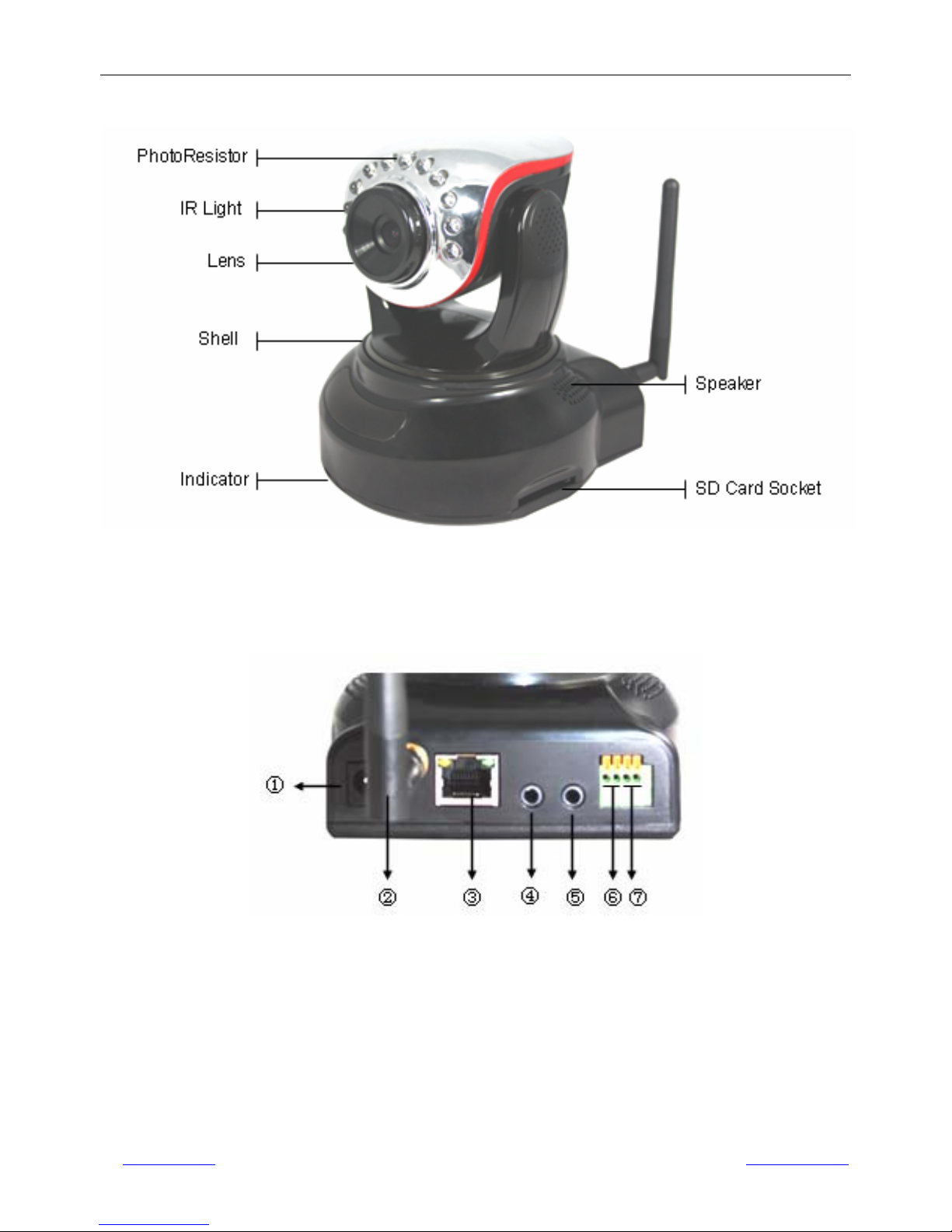
3 Physical Descriptions
Fig3.1 Physical parts description
Fig3.2 Interface description
1-----DC Power Input Socket
2------WIFI Antenna
3------RJ45 Ethernet Socket
4------Audio Input Socket
5------Audio Output Socket

Shenzhen Dericam Technology Co.,LTD H501W User Manual
www.dericam.net Copyright @ Shenzhen Dericam Technology Co., Limited [email protected]
4
6------Alarm Output Socket
The alarm output socket is connected with a relay in the IP camera. IP camera will control the switch to trigger
the alarm bell or buzzer to alarm. The relay is able to control the switch of an alarm whose voltage is no more than
36V, and current is lower than 2A. Please refer to the Figure 3.3 for the connection of an external alarm.
Figure 3.3
7-----Alarming Input Pin
Please refer to the schematic Diagram of Figure 3.4 for how external detector collects alarm information.
Figure 3.4
The detector should be switched type (always on or always off). If the detector has detected the smoke or people or
animal to enter the area, the detector will switch on or switch off. And it will send the external alarm signal into the IP
camera.
8----RESET Button
Reset button located in WIFI antenna installation holes below Press the RESET button and hold on more than 10
seconds, the camera will restart and recover to the factory default settings.
Please never press reset button unless you have forget the password to login the camera.
PIR
PIR Power
Input
pins
Switch
Output Pins
Alarm power
Alarm
Switch
Note

Shenzhen Dericam Technology Co.,LTD H501W User Manual
www.dericam.net Copyright @ Shenzhen Dericam Technology Co., Limited [email protected]
5
4 Surveillance Software GUI
Please refer to the Quick Installation Guide if you install the camera at first time. After finishing quick installation, you
can take time to learn the operation of the software.
4.1 Login Window
Fig4.1 Login window of Dericam H501W
Please check the login window above, it was divided to 5 sections from no. 1 to 5.
4.1.1 Section 1 Select Language
Dericam M series camera supports up to 8 languages, such as English, Spanish, Deutsch and so on. You can select
the language you need via click on the select language bar to switch.
4.1.2 Section 2 Dericam Website Link
There is an access link to Dericam website homepage, if you need tech support you can contact Dericam directly.
4.1.3 Section 3 Live Video View
If you are using IE-based browsers like IE6, IE, IE8, and standard browser like Firefox, Google chrome, please
choose Live Video View login method.
4.1.4 Section 4 Mobile View
If you are using mobile phone to access the camera, please choose Server Push Mode method.
4.1.5 Section 5 Note / Download OCX Controls
Please download the OCX and install it if you are access the camera for the first time. You can get tech support
directly from the reseller where you bought Dericam camera or refer to our tech engineer for help. Dericam provide
good after-sales tech support service to help customers complete the installation successfully.

Shenzhen Dericam Technology Co.,LTD H501W User Manual
www.dericam.net Copyright @ Shenzhen Dericam Technology Co., Limited [email protected]
6
4.2 Surveillance Window
Fig4.2 Surveillance Window of Dericam H501W
Please check the surveillance window above, it was divided to 5 sections from no. 1 to 6.
4.2.1 Section 1 Definition /Resolution
Fig4.3 High Definition options
Fig4.4 Standard Definition options
There are two definition options, one is High Definition which has two resolutions 1280*720,960*540, and the other
is Standard Definition which has two resolutions 640*480, 320*240. Please choose lower resolution if you want to
get faster video stream, especially if you are accessing the camera via internet remotely.

Shenzhen Dericam Technology Co.,LTD H501W User Manual
www.dericam.net Copyright @ Shenzhen Dericam Technology Co., Limited [email protected]
7
4.2.2 Section 2 Pan/Tilt Control
1------Up control button, You can also left click the surveillance window up to control the camera move up.
2------Down control button, You can also left click the surveillance window down to control the camera move down.
3------Left control button, You can also left click the surveillance window left to control the camera move left.
4------Right control button, You can also left click the surveillance window right to control the camera move right.
5------Vertical Patrol control button,
6------Stop vertical patrol control button,
7------Horizontal Patrol control button,
8------Stop horizontal patrol control button,
C------Restore center position
Dericam indoor PTZ IP camera M801W supports movement by 4 directions, Up, Down, Left and Right.
4.2.3 Section 3 Record/Snap/Playback/SD buttons
The four buttons from left to right is Record, Snap, Playback, SD entry.
4.2.4 Section 4 Preset Position Settings
1) Preset----------Support 8 preset position, which is considered enough for DIY home & small business surveillance
market
2) Set----------- Click Set to save the position you need the camera to remember
3) Go----------- Click Go to make the camera move the preset position
4) Number button from 1 to 8--------You can click the number button with preset position, and the camera will go to
the preset position.

Shenzhen Dericam Technology Co.,LTD H501W User Manual
www.dericam.net Copyright @ Shenzhen Dericam Technology Co., Limited [email protected]
8
How to do preset position?
We can start preset settings from position 1.
Firstly, select no. 1 within the menu of Preset on the panel.
Secondly, move the camera and stop at a place where you want make preset position.
Thirdly, click set button to save it as position 1 and you have done preset of position 1.
After that, you can select no. 2 within the menu of Preset on the panel, and move the camera and stop at another
place, and set as preset position 2. You can do all the 8 preset positions with this method showed as Fig.4.5 & 4.6.
Fig4.5 Preset position 1
Fig4.6 Preset position 2

Shenzhen Dericam Technology Co.,LTD H501W User Manual
www.dericam.net Copyright @ Shenzhen Dericam Technology Co., Limited [email protected]
9
4.2.5 Section 5 For Administrator
For Administrator------Path to Administrator Control Panel, Click it, and it will lead toAdministrator Control Panel.
Fig4.7 Administrator Control Panel
4.2.6Section 6 Digital Zoom & Record save path & Talk & Listen buttons
1--------Digital Zoom- out; 2------------Digital Zoom+ In;
3--------Original image; 4------------- Set recoding save path
5--------Talk button; 6-------------- Listen button
For Advanced settings, please go to chapter five Advanced Camera Settings.
Note

Shenzhen Dericam Technology Co.,LTD H501W User Manual
www.dericam.net Copyright @ Shenzhen Dericam Technology Co., Limited [email protected]
10
5 Advanced Camera Settings
Click the bar “For Administrator”, goes to Administrator Control Panel to make advanced camera settings.
5.1 Device Information
Fig5.1 Device Information
DeviceID FactoryDevicename
NetworkConnection LAN
Softwareversion Firmwareversion
MacAddress MACIDofthecamera
IPAddress LAN IP address of the camera
Subnet Mask Subnet Mask of the LAN network
Gateway GatewayoftheRouter
Primary DNS Primary DNS of the LAN network
Secondary DNS Secondary DNS of the LAN network
SDStatus BrowserSDCardorFormatSDCard
Table of contents
Other Dericam IP Camera manuals

Dericam
Dericam Sx Series User manual

Dericam
Dericam H201C User manual

Dericam
Dericam B-xE Series User manual

Dericam
Dericam H502W User manual

Dericam
Dericam CGI User manual

Dericam
Dericam H218W User manual

Dericam
Dericam B A Series User manual

Dericam
Dericam M501W User manual

Dericam
Dericam M801W User manual