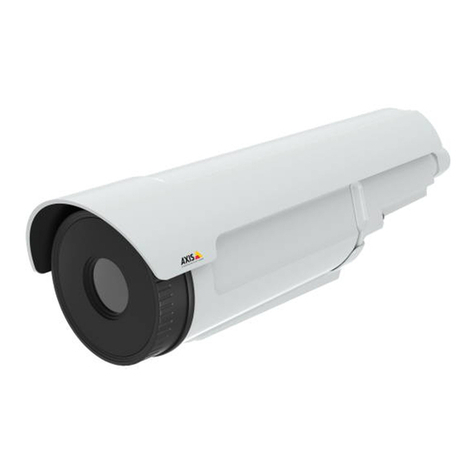
Axis B User manual

Dear users, the configuration for this camera
is professional, so please read the user
manual carefully before using the camera.
I
IP
P
C
Ca
am
me
er
ra
a
(
(B
B
s
se
er
ri
ie
es
s)
)
U
Us
se
er
r
m
ma
an
nu
ua
al
l
2012-11 V4.19

Statement
If the user manual can not help you to solve the problem, please call our technology center
about the solutions. We will update the content for the new functions without notice.
Notice
1、Installation Environment
,Keep away from the places for high-temperature, heat source and direct sunlight;
,Keep away from water and when get wet, cut off the power immediately.
,Avoid to use in damp environment, the reference range for operation humidity is below
85%RH.
,Avoid to use in overheating and too cold environment, the reference range for operation
temperature is -10℃~ +50℃
,Please install it horizontally or wall mounting, avoid to strenuous vibration place and not
put other equipments onto the item
2、Transport and Handling
,The package is well-designed to ensure the security during the delivery, so please do
not change the package at random.
,Do not move the ip cameras from overheated to supercooled condition frequently,
otherwise it will frost and shorten the service life.
,Do not move the item when is power on, otherwise the main board might be damaged.
Notice:
1. Please check the power supply before it is working
2. Be careful not to bang the camera or subject it to strong impacts or shocks.
3. Do not directly touch the optical components for the image sensor, if necessary, please
place a clean and moistened cloth with alcohol and wipe the dirt gently; When not in use,
please place the dust cover on to the item to protect the image sensor.
4. Do not aim the camera directly into the sun or at other intense light sources that could
affect the image quality (it is not the problem for the ip camera), also shorten the service
life for the image sensor.
5. Keep away from laser when it is working, otherwise the image sensor can be damaged.
6. If the equipment is not working properly, please contact the store or the service center,
do not disassemble or modify the equipment in any way. (Problems caused by
unauthorized modification or repair should be at your own risk.)

B SERIES IP CAMERA USER MANUAL
2
Index
1PRODUCT INTRODUCTION ......................................................................................................4
1.1 PRODUCT SUMMARY.................................................................................................................4
1.2 PACKAGE FOR TYPICAL PRODUCTION........................................................................................4
2INSTALLATION GUIDE ...............................................................................................................6
2.1 OPERATION OF CONNECTING TO LAN.......................................................................................6
2.2 STEP FOR WIFI CONNECTING....................................................................................................9
2.3 OPERATION OF CONNECTING TO WAN ......................................................................................9
3OPERATION OF IE BROWSER...............................................................................................10
3.1 VIEW VIDEO............................................................................................................................10
3.2 NETWORK SETTINGS...............................................................................................................12
3.2.1 Basic network setting.........................................................................................................12
3.2.2 WIFI setting.......................................................................................................................13
3.2.3 ADSL setting......................................................................................................................13
3.2.4 UPnP setting......................................................................................................................13
3.2.5 DDNS Setting.....................................................................................................................13
3.2.6 MSN setting........................................................................................................................14
3.3 ALARM SETTINGS...................................................................................................................14
3.3.1 Alarm Setting.....................................................................................................................14
3.3.2 Mail Service Setting...........................................................................................................16
3.3.3 FTP Service Setting ...........................................................................................................17
3.4 ADVANCED .............................................................................................................................17
3.4.1 User Setting .......................................................................................................................17
3.4.2 Multi-Device Setting..........................................................................................................18
3.4.3 Other settings.....................................................................................................................18
3.5 MAINTAIN...............................................................................................................................19
3.5.1 Device Information............................................................................................................19
3.5.2 Alias Setting.......................................................................................................................19
3.5.3 Time Setting .......................................................................................................................20
3.5.4 Firmware upgrade.............................................................................................................20
3.5.5 Restore Factory Default.....................................................................................................20
3.5.6 User browsing Log.............................................................................................................20
4OPERATION OF OTHER SOFTWARE...................................................................................21
4.1 OTHER WEB BROWSER ............................................................................................................21
4.2 MOBILE PHONE SOFTWARE .....................................................................................................21
4.3 CENTRALIZATION CONTROL...................................................................................................22
4.4 OTHER SOFTWARE ..................................................................................................................22
5PRODUCT FAMILY FOR B SERIES.......................................................................................23
5.1 CARD CAMERA .......................................................................................................................23
5.2 PTZ CAMERA (MODELA)....................................................................................................23
5.3 PTZ CAMERA(MODEL B)..................................................................................................24

B SERIES IP CAMERA USER MANUAL
3
5.4 PTZ CAMERA(MODEL C)..................................................................................................24
5.5 PTZ CAMERA(MODEL D)..................................................................................................25
5.6 WATERPROOF CAMERA ...........................................................................................................26

B SERIES IP CAMERA USER MANUAL
1 Product introduction
1.1 Product summary
Thank you for choosing our company’s B series IP camera, the IP Camera combines a
high quality digital video camera with network connectivity and a powerful web server to
bring clear video to your desktop from anywhere on your local network or over the
Internet. It is very suitable for family, shops, office building and so on.
Main features for B series:
♦The video is compressed by MJPEG. There are VGA/QVGA/QQVGA three video
resolutions optional. User can changes some parameters according to their
demands to satisfy his own visual prefer;
♦Infrared LED for night vision covers 5m area, to realize 24 hours monitoring;
♦Support mobile phone to view;
♦Support 802.11b/g/n protocol, can build up wireless monitoring;
♦Alarming record can be stored by email, FTP server. External alarm will be active
when detecting unusuality;
♦Built in web server,All data is transferred through one port; it is easy for user to
do the network setting;
♦Manufacture attached a label at the bottom of each IP Camera, it include Device
ID, DDNS. When IP Camera is connected to the internet, this URL can be used
to visit the device;
♦Manufacturer provides free software, support Multi-view, Long time recording,
video playback etc;
♦Manufacturer provides free mobile phone software.
1.2 Package for typical production
Accessory
Type
Power
adaptor CD Cable
Stand
of
plastic
Antenna
Card camera
5V √√√Built-in
4

B SERIES IP CAMERA USER MANUAL
5
PTZ camera
(Model A)
5V √√√Optional
PTZ camera
(Model B)
5V √√√Optional
PTZ camera
(Model C)
5V √√√Optional
PTZ camera
(Model D)
5V √√√√
Waterproof camera
5V √√√Optional
Notice:
♦If you choose IP camera with wireless function, so it includes wifi module inside
the camera and antenna in package.
♦Please check carefully if all listed items are included in the package, if anything
missing, please contact vendor in time.

B SERIES IP CAMERA USER MANUAL
2 Installation guide
2.1 Operation of connecting to LAN
Power on the IP camera(please check carefully the voltage of power adaptor, don’t
insert incorrect power, otherwise it will damage the device), connect IP camera to
router by network cable, meanwhile, connect computer to the same router, example
of figure 1.
Figure 1
Insert CD to computer driver, double click “BSearch_en.exe” in the CD, will pop up
the interface as figure 2, please operate as the following steps:
6

B SERIES IP CAMERA USER MANUAL
Figure 2
1) Click ‘Search (F3)’;
2) Choose a camera;
3) Change the ip address of the ip camera according to the information in the red frame
on the left. The numbers in the red circle should not be the same. Http port should be
a number between 80~65535;
4) Enter user name and password for the device, the default is “admin” and “123456”;
5) Click ‘update’;
6) After updating successfully, click “Search (F3)”, choose the device again and click
“Browse (F4)”. Then you can run the web browser, enter user name and password
and login IP camera to view the video, example of figure 3.
Notice:
1) Please check carefully the “Local PC information” in top left corner of the interface, if
the computer has several network cards, please selects the one you are using.
2) If you installed the firewall software in your PC, when you run the BSearch_en.exe, it
may pop up a window to say “whether you want to block this program or not”, then
you should choose not to block。
3) The default ip address is 192.168.0.178 and default http port is 80。
7

B SERIES IP CAMERA USER MANUAL
Figure 3 Interface for view video
We suggest using IE kernel browser to view the video (it can provide more functions),
but user needs to install video player before viewing the video. Click “download and
install player (first use)” link, it will popup dialogue box as Figure 4, click Run, it will
download player and install automatically.
Figure 4
Notice:
♦You can hold on reset button on the camera for 10 seconds to restore factory default
if you forget user name and password, during the process, don’t disconnect the
power, otherwise the camera maybe damaged;
♦If the camera has status indicator LED, you can view the status of camera via the
LED: slow flicker( every two seconds), indicate the camera is searching network;
flicker(one to two times per second) indicate it uses wired network; fast flicker(three
to four times per second) indicator it uses wireless network.
8

B SERIES IP CAMERA USER MANUAL
2.2 Step for WIFI connecting
After finishing the wired connection as chapter 2.1, you can connect the camera with wifi
by wireless connection.
Login camera in wired connection and enter wifi setting, and then operate as the
following step, example of figure 5.
Figure5
Enter the Wireless LAN Setting, just as Figure 5 shown, click the “Scan” button, it will
show you all the wireless networks detected in the Wireless Network List column. Select
one of them and tick “Using Wireless Lan”, then the relevant data of the selected
wireless network will be shown in the following blanks. Input the password and click “Set”,
then the WIFI setting is finished.
Notice:When the device is connected both WIFI and wired, it will firstly connect to the
wired network, if it can’t be connected, then it will changed to connect to the wifi. The IP
address and port is the same, either wireless or wired network.
2.3 Operation of connecting to WAN
9
You should connect the LAN network first and do the port forwarding, connect as figure 6.
Other manuals for B
1
This manual suits for next models
4
Table of contents
Other Axis IP Camera manuals

Axis
Axis Q1932-E User manual

Axis
Axis Q3505-V User manual

Axis
Axis AXIS M-1004W User manual

Axis
Axis XP40-Q1942 User manual

Axis
Axis VANDALPROOF 3 User manual

Axis
Axis Q8414-LVS User manual

Axis
Axis M3004-V User manual

Axis
Axis M3007-P User manual

Axis
Axis AXIS P3224-LVE Mk II User manual

Axis
Axis M3007-PV User manual

Axis
Axis M3026-VE User manual

Axis
Axis Q1635 User manual

Axis
Axis P5534-E User manual

Axis
Axis Camera Station Quick setup guide

Axis
Axis P3367-VE User manual

Axis
Axis F1005-E User manual

Axis
Axis Network Camera AXIS 221 User manual

Axis
Axis P3915-R User manual

Axis
Axis P1405-E User manual

Axis
Axis P3346-V User manual