
QNAP QSW-M2106-4C User manual

QSW-M2106
QSW-M2106-4C
QSW-M2106-4S
User Guide
Document Version: 1
16/06/2022

Contents
1. Preface
About This Guide........................................................................................................................................................3
Audience..................................................................................................................................................................... 3
Document Conventions.............................................................................................................................................3
2. Product Overview
About the QSW-M2106..............................................................................................................................................4
Hardware Specications............................................................................................................................................4
Package Contents...................................................................................................................................................... 5
Components............................................................................................................................................................... 5
Front Panel.............................................................................................................................................................5
Front Panel LEDs................................................................................................................................................... 6
3. Installation and Access
Installation Requirements........................................................................................................................................ 8
Setting Up the Switch................................................................................................................................................ 8
Connecting the Switch to a Computer or Network................................................................................................8
Connecting the Switch to a Computer................................................................................................................8
Connecting the Switch to a Network................................................................................................................ 10
Switch Access............................................................................................................................................................11
Accessing the Switch Using a Browser.............................................................................................................11
Accessing the Switch Using Qnder Pro.......................................................................................................... 12
4. Basic Operations
LEDs...........................................................................................................................................................................13
Reset Button.............................................................................................................................................................14
5. QSS
About QSS.................................................................................................................................................................15
Parts of the User Interface..................................................................................................................................... 15
Getting Started.........................................................................................................................................................16
Network Management............................................................................................................................................ 16
Conguring Port Settings.................................................................................................................................. 16
Adding a VLAN.....................................................................................................................................................17
Adding a Link Aggregation Group (LAG).......................................................................................................... 17
Managing Rapid Spanning Tree Protocol (RSTP) Settings..............................................................................18
Conguring the LLDP Settings.......................................................................................................................... 19
Adding a Static MAC Address.............................................................................................................................19
Conguring IGMP Snooping..............................................................................................................................20
Conguring QoS Settings...................................................................................................................................20
Managing Access Control List (ACL) Entries.....................................................................................................22
Deleting a Network Setting................................................................................................................................23
Monitoring Network Settings............................................................................................................................ 23
System Management.............................................................................................................................................. 24
System Settings...................................................................................................................................................24
Firmware Update................................................................................................................................................ 29
6. Support and Other Resources
7. Glossary
QSW-M2106 User Guide
1

myQNAPcloud.......................................................................................................................................................... 33
Qnder Pro............................................................................................................................................................... 33
QSS.............................................................................................................................................................................33
QuNetSwitch.............................................................................................................................................................33
8. Notices
Limited Warranty..................................................................................................................................................... 34
Disclaimer................................................................................................................................................................. 34
GNU Public License..................................................................................................................................................34
CE Notice...................................................................................................................................................................42
FCC Notice.................................................................................................................................................................42
VCCI Notice............................................................................................................................................................... 43
BSMI Notice.............................................................................................................................................................. 43
SJ/T 11364-2006........................................................................................................................................................43
EU Directive 2002/96/EC Waste Electronic and Electrical Equipment (WEEE)...................................................44
EU RoHS Statement................................................................................................................................................. 44
UKCA Notice..............................................................................................................................................................44
2
1. Preface
About This Guide
This guide provides information on the QNAP QSW-M2106 network switch and step-by-step instructions on
installing the hardware. It also provides instructions on basic operations and support information.
Audience
This document is intended for consumers and storage administrators. This guide assumes that the user has
a basic understanding of storage and backup concepts.
Document Conventions
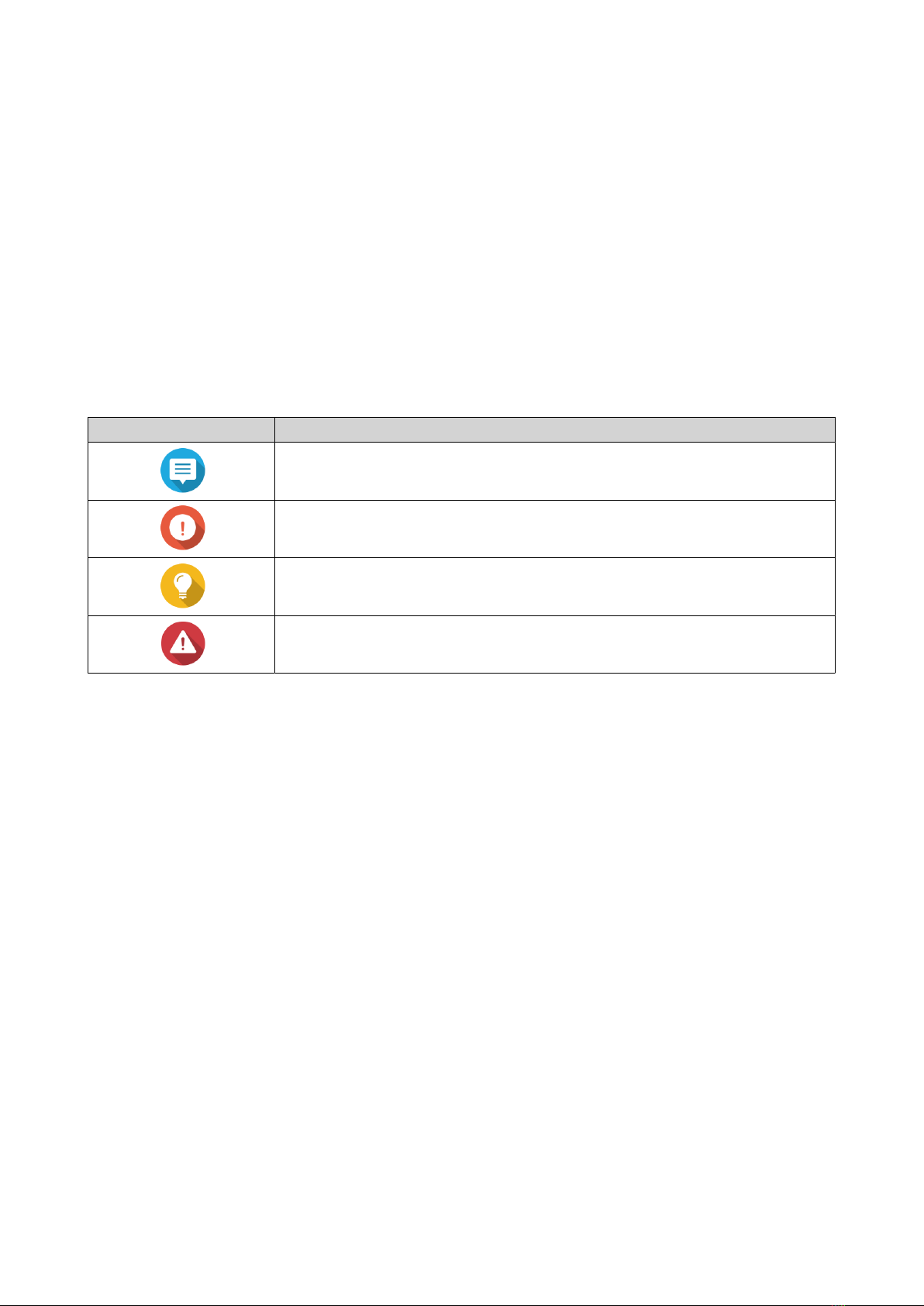
Symbol Description
Notes provide default conguration settings and other supplementary
information.
Important notes provide information on required conguration settings and
other critical information.
Tips provide recommendations or alternative methods of performing tasks or
conguring settings.
Warnings provide information that, when ignored, may result in potential loss,
injury, or even death.
QSW-M2106 User Guide
Preface 3

2. Product Overview
This chapter provides basic information about the QNAP device.
About the QSW-M2106
The QSW-M2106 is a multi-gigabit Ethernet switch that provides Layer 2 network management. The QSW-
M2106-4C is equipped with four 10 GbE SFP+/RJ45 combo ports and six 2.5 GbE RJ45 ports, and the QSW-
M2106-4S features four 10 GbE SFP+ ports and six 2.5 GbE RJ45 ports for enhanced network scalability
and operational productivity. The switch can be accessed using the RJ45 console port for ecient device
management and switch operations.
Hardware Specications
Warning
If your QNAP product has hardware defects, return the product to QNAP or a QNAP-
authorized service center for maintenance or replacement. Any attempt to repair or
perform maintenance procedures on the product by you or an unauthorized third party
invalidates the warranty.
QNAP is not responsible for any damage or data loss caused by unauthorized
modications and installation of unsupported third-party applications.
For details, see the QNAP Warranty Terms and Conditions.
Tip
Model specications are subject to change without prior notice. To see the latest
specications, go to https://www.qnap.com.
Ordering P/N CPU Power supply
QSW-M2106-4C Marvell® Prestera® 98DX2528 Single
QSW-M2106-4S
Component QSW-M2106-4C QSW-M2106-4S
Processor
CPU Marvell ® Prestera® 98DX2528
Frequency Dual-core
Architecture ARM 32-bit
Network interfaces • 6 x 10M/100M/1G/2.5G RJ45 ports
• 4 x 10GbE SFP+/RJ45 combo ports
• 6 x 10M/100M/1G/2.5G RJ45 ports
• 4 x 1G/10G SFP+ ports
Management
interfaces
1 x RJ45 console port
Interface
Buttons Switch reset button
LEDs
System Status
Dimensions
Form factor Compact
Dimensions (H x W
x D)
42.5 x 290 x 127 mm
(1.67 x 11.41 x 5 in)
QSW-M2106 User Guide
Product Overview 4

Component QSW-M2106-4C QSW-M2106-4S
Net weight 1.14 kg (2.51 lbs) 1.08 kg (2.38 lbs)
Operating
temperature
0˚C to 40˚C (32˚F to 104˚F)
Relative humidity • Non-condensing relative humidity: 5% to 95%
• Wet-bulb temperature: 27˚C (80.6˚F)
Package Contents
Item Quantity
QSW-M2106-4C/QSW-M2106-4S 1
Power cord 1
AC power adapter 1
Quick Installation Guide (QIG) 1
Components
Front Panel
QSW-M2106-4C
No. Component No. Component
1 Status LED 4 10 GbE SFP+/RJ45 combo ports
2 RJ45 console port 5 Switch reset button
3 2.5 GbE RJ45 ports - -
QSW-M2106 User Guide
Product Overview 5

QSW-M2106-4S
No. Component No. Component
1 Status LED 4 10 GbE SFP+ ports
2 RJ45 console port 5 Switch reset button
3 2.5 GbE RJ45 ports - -
Front Panel LEDs
QSW-M2106-4C
No. Component No. Component
1 Switch status LED 5 10GbE SFP+/RJ45 combo (SFP+, 1G) LED
2 2.5 GbE RJ45 (2.5G speed) LED 6 10GbE SFP+/RJ45 combo (RJ45, 10G) LED
QSW-M2106 User Guide
Product Overview 6

No. Component No. Component
3 2.5 GbE RJ45 (1G/100M/10M speed) LED 7 10GbE SFP+/RJ45 combo (RJ45, 5G/
2.5G/1G/100M speed) LED
4 10GbE SFP+/RJ45 combo (SFP+, 10G
speed) LED
- -
QSW-M2106-4S
No. Component No. Component
1 Switch status LED 4 10 GbE SFP+ (10G speed) LED
2 2.5 GbE RJ45 (2.5G speed) LED 5 10 GbE SFP+ (1G speed) LED
3 2.5 GbE RJ45 (1G/100M/10M speed) LED - -
QSW-M2106 User Guide
Product Overview 7

3. Installation and Access
This chapter provides specic hardware installation and switch access steps.
Installation Requirements
Category Item
Environment • Room temperature: 0˚C to 40˚C (32˚F to 104˚F)
• Non-condensing relative humidity: 5% to 95%
• Wet-bulb temperature: 27˚C (80.6˚F)
• Flat, anti-static surface without exposure to direct sunlight, liquids,
or chemicals
• Free from objects that may obstruct the switch ventilation or apply
pressure to the switch or power cord.
Hardware and peripherals • Computer or NAS
• Network cable
Tools • Phillips #1 or #2 screwdriver
• Flat head screwdriver
• Anti-static wrist strap
Setting Up the Switch
1. Place your switch in an environment that meets the requirements.
For details, see Installation Requirements.
2. Power on the switch.
3. Connect the switch to a computer or network.
For details, see Connecting the Switch to a Computer.
4. Log in to QSS.
Connecting the Switch to a Computer or Network
You can connect the QSW-M2106 can be connected to a computer or local area network. For details, see the
following topics:
•Connecting the Switch to a Computer
•Connecting the Switch to a Network
Connecting the Switch to a Computer
Connecting the switch to a QNAP NAS allows you to expand storage capacity and backup data to another
NAS through network cable connections to a PoE or host port on the switch. However, you must connect the
switch to a computer to congure the settings.
1. Connect the power adapter to the switch.
QSW-M2106 User Guide
Installation and Access 8

a. Align the power adapter with the power input of the switch.
b. Connect the power adapter to the power input.
2. Power on the switch.
3. Connect the switch to a computer.
a. Connect a network cable to the host port on the switch.
b. Connect the network cable to a Gigabit network port on the computer.
c. Optional: Connect the switch to the NAS.
QSW-M2106 User Guide
Installation and Access 9
This manual suits for next models
2
Table of contents
Other QNAP Switch manuals

QNAP
QNAP QGD-1602P-C3558 User manual

QNAP
QNAP QSW-M2108R-2C User manual

QNAP
QNAP QSW-1105-5T User manual

QNAP
QNAP QSW-M2108 Series User manual

QNAP
QNAP QSW-M2106R User manual

QNAP
QNAP QSW-M408 Series User manual

QNAP
QNAP QSW-M2106PR User manual

QNAP
QNAP QSW-M3212R User manual

QNAP
QNAP QSW-M5216-1T User manual

QNAP
QNAP QGD-1600P User manual


