Planet BT-200U User manual

USB Bluetooth Adapter
BT-200U
User s Manual

ii
Copyright
Copyright (C) 2003 PLANET Technology Corp. All rights reserved.
The products and programs described in this User sManual are licensed products of PLANET
Technology, This User sManual contains proprietary information protected by copyright, and
this User sManual and all accompanying hardware, software, and documentation are copy-
righted.
No part of this User sManual may be copied, photocopied, reproduced, translated, or reduced
to any electronic medium or machine-readable form by any means by electronic or mechanical.
Including photocopying, recording, or information storage and retrieval systems, for any pur-
pose other than the purchaser's personal use, and without the prior express written permission
of PLANET Technology.
Disclaimer
PLANET Technology does not warrant that the hardware will work properly in all environments
and applications, and makes no warranty and representation, either implied or expressed, with
respect to the quality, performance, merchantability, or fitness for a particular purpose.
PLANET has made every effort to ensure that this User sManual is accurate; PLANET dis-
claims liability for any inaccuracies or omissions that may have occurred.
Information in this User sManual is subject to change without notice and does not represent a
commitment on the part of PLANET. PLANET assumes no responsibility for any inaccuracies
that may be contained in this User s Manual. PLANET makes no commitment to update or keep
current the information in this User sManual, and reserves the right to make improvements to
this User sManual and/or to the products described in this User sManual, at any time without
notice.
If you find information in this manual that is incorrect, misleading, or incomplete, wewould
appreciate your comments and suggestions.
CE mark Warning
The is aclass Bdevice, In adomestic environment, this product may cause radio interference,
in which case the user may be required to take adequate measures.
Trademarks
The PLANET logo is atrademark of PLANET Technology. This documentation may refer to
numerous hardware and software products by their trade names. In most, if not all cases, these
designations are claimed as trademarks or registered trademarks by their respective compa-
nies.
Revision
User s Manual for PLANET USB Bluetooth Adapter:
Model: BT-200U
Rev: 2.0 (October 2003)
Part No. EM-BT200Uv2

i
TABLE OF CONTENTS
CHAPTER 1 INTRODUCTION......................................................................................1
1.1 BT-200U FEATURES ..............................................................................................1
1.2 PACKAGE CONTENTS..............................................................................................1
CHAPTER 2 INSTALLATION........................................................................................2
2.1 SOFTWARE INSTALLATION.......................................................................................2
2.2 HARDWARE INSTALLATION.......................................................................................5
2.3 GETTING HOOKED UP.............................................................................................6
2.4 INITIAL BLUETOOTH CONFIGURATION.......................................................................8
CHAPTER 3 BLUETOOTH SOFTWARE....................................................................12
3.1 BLUETOOTH TRAY...........................................................................................12
3.2 ACCESS MYBLUETOOTH PLACES................................................................12
3.3 ICONS USED FOR BLUETOOTH DEVICES AND SERVICES.........................13
CHAPTER 4 BASIC OPERATIONS............................................................................17
4.1 STARTOR STOP BLUETOOTH.......................................................................17
4.2 CREATE A CONNECTION FROM THE BLUETOOTH ICON IN THE SYSTEM
TRAY........................................................................................................................17
4.3 CREATE A CONNECTION USING THE BLUETOOTH SETUP WIZARD........17
4.4 CREATE A CONNECTION FROM ENTIRE BLUETOOTH NEIGHBORHOOD18
4.5 FIND BLUETOOTH DEVICES...........................................................................18
4.5.1 Periodic Search for Devices.........................................................................18
4.6 FIND A SERVICE...............................................................................................19
4.7 BLUETOOTH CONNECTION STATUS.............................................................20
4.8 SEND TO BLUETOOTH.....................................................................................20
CHAPTER 5 CONFIGURE BLUETOOTH...................................................................22
5.1 ACCESS THE BLUETOOTH CONFIGURATION PANEL.................................22
5.2 BLUETOOTH SERVICES VERSUS BLUETOOTH APPLICATIONS................22
5.3 BLUETOOTH EXCHANGE FOLDER.................................................................22
5.4 GENERAL CONFIGURATION SETTINGS........................................................23
5.5 BLUETOOTH APPLICATIONS..........................................................................23
5.5.1 Overview......................................................................................................23
5.5.2 General Configuration..................................................................................23
5.5.3 Human Interface Device..............................................................................24
5.5.4 Audio Gateway.............................................................................................25
5.5.5 Bluetooth Serial Port....................................................................................25
5.5.6 Dial-up Networking.......................................................................................26
5.5.7 Fax...............................................................................................................27
5.5.8 Headset........................................................................................................28
5.5.9 File Transfer.................................................................................................29
5.5.11 PIMSynchronization..................................................................................30
5.5.12 PIMItem Transfer......................................................................................32
5.5.13 Printer.........................................................................................................33
5.6 BLUETOOTH SERVICES..................................................................................34
5.6.1 Notifications..................................................................................................34
5.6.2 Audio Gateway.............................................................................................35
5.6.3 Bluetooth Serial Port....................................................................................36
5.6.4 Dial-up Networking Service..........................................................................37
5.6.5 Fax Service..................................................................................................37
5.6.6 File Transfer Service....................................................................................37

ii
5.6.7 Headset Service...........................................................................................38
5.6.8 Network Access...........................................................................................38
5.6.9 PIMItem Transfer........................................................................................40
5.6.10 PIMSynchronization..................................................................................42
5.7 HARDWARE SETTINGS...................................................................................42
5.7.1 Advanced Settings.......................................................................................43
5.8 ACCESSIBILITYSETTINGS..............................................................................44
5.9 DISCOVERYSETTINGS....................................................................................45
CHAPTER 6 SECURITY..............................................................................................47
6.1 AUTHENTICATION............................................................................................47
6.2 AUTHORIZATION..............................................................................................47
6.3 BLUETOOTH DEVICE IDENTITY......................................................................47
6.4 ENCRYPTION....................................................................................................47
6.5 LINK KEY............................................................................................................47
6.6 PAIRING DEVICES............................................................................................48
6.7 PASSKEY...........................................................................................................48
6.8 SECURE CONNECTION...................................................................................48
6.9 SECURITYREQUESTDIALOG BOX................................................................48
CHAPTER 7 TROUBLESHOOTING...........................................................................49
7.1 CANNOTCONNECTTO A PAIRED DEVICE...................................................49
7.2 CANNOTDISCOVER SERVICES ON AN UN-PAIRED REMOTE DEVICE.....49
7.3 DIAL-UP NETWORKING SERVICE DOES NOTSTART..................................49
7.4 DETERMINE THE BLUETOOTH DEVICE ADDRESS (BDA) OF MY
HARDWARE.............................................................................................................49
7.5 DETERMINE THE VERSION OF THE HOSTCONTROLLER INTERFACE (HCI)
..................................................................................................................................49
7.6 DETERMINE THE VERSION OF THE LINK MANAGER PROTOCOL (LMP)..50
7.7 FIND INFORMATION ABOUTTHE BLUETOOTH HARDWARE ATTACHED TO
MYCOMPUTER.......................................................................................................50
7.8 INTERNETCONNECTION SHARING DOES NOTWORK...............................50
7.9 TESTA NETWORK ACCESS CONNECTION..................................................50
7.10 UNKNOWN PORTMESSAGE WHEN USING A BLUETOOTH SERIAL PORT
..................................................................................................................................50
7.11 BLUETOOTH HEADSETDOESNTALWAYS FUNCTION UNDER WIN 98..51
APPENDIX ASPECIFICATION...................................................................................52

1
Chapter 1
Introduction
This USB Bluetooth Adapter, BT-200U, is specificallydesigned to plug into an avail-
able Universal Serial Bus port connecting to adesktop or laptop PC. It allowsyou to
makeshort-range wireless connections between Bluetooth devices such as cellular
phones, personal digital assistants (PDA), and desktop and notebookcomputers.
BT-200U uses radio transmission, voice and data are thus transmitted almost immedi-
ately.Bluetooth transmission ensures both protection frominterference and secures
data transfers. It helps people share and access the information that's important to
themmore easily.
Linkyour notebookwith your handheld, mobile phone, printer and other Bluetooth
devices within your personal area network(PAN) via asecure short-range wireless
radio link.Get rid ofall those hassle cables and automaticallyshare documents,
browse the Internet and synchronize calendars, address books and more.
1.1 BT-200U Features
Ø Follows world wide standard which compatible to other Bluetooth devices
Ø Bluetooth Manager Utilityeases the difficulties ofconfiguration and management
Ø Various services provided: Virtual Serial Port, Dial-up Networking, Fax, File Trans-
fer, Information Exchange, Information Synchronization, and NetworkAccess
Ø Connection protection and data securityenhanced mechanism
Ø Most popular OS support: Windows 98SE, ME, 2000, XP
Ø Up to 8 devices Point-to-MultiPoint topologyexpands your PAN coverage
1.2 Package Contents
The following items should be included:
•USB Bluetooth Adapter x 1
•USB Adapter Cable x 1
•CD-ROM (includes Driver, Utility, Manual) x 1
•QuickInstallation Guide x 1
Ifanyofthe above items are damaged or missing, please contact your dealer immedi-
ately.
.
1
2
Chapter 2
Installation
2.1 Software Installation
Note: The Bluetooth Software should be installed well prior to the hardware
installation.
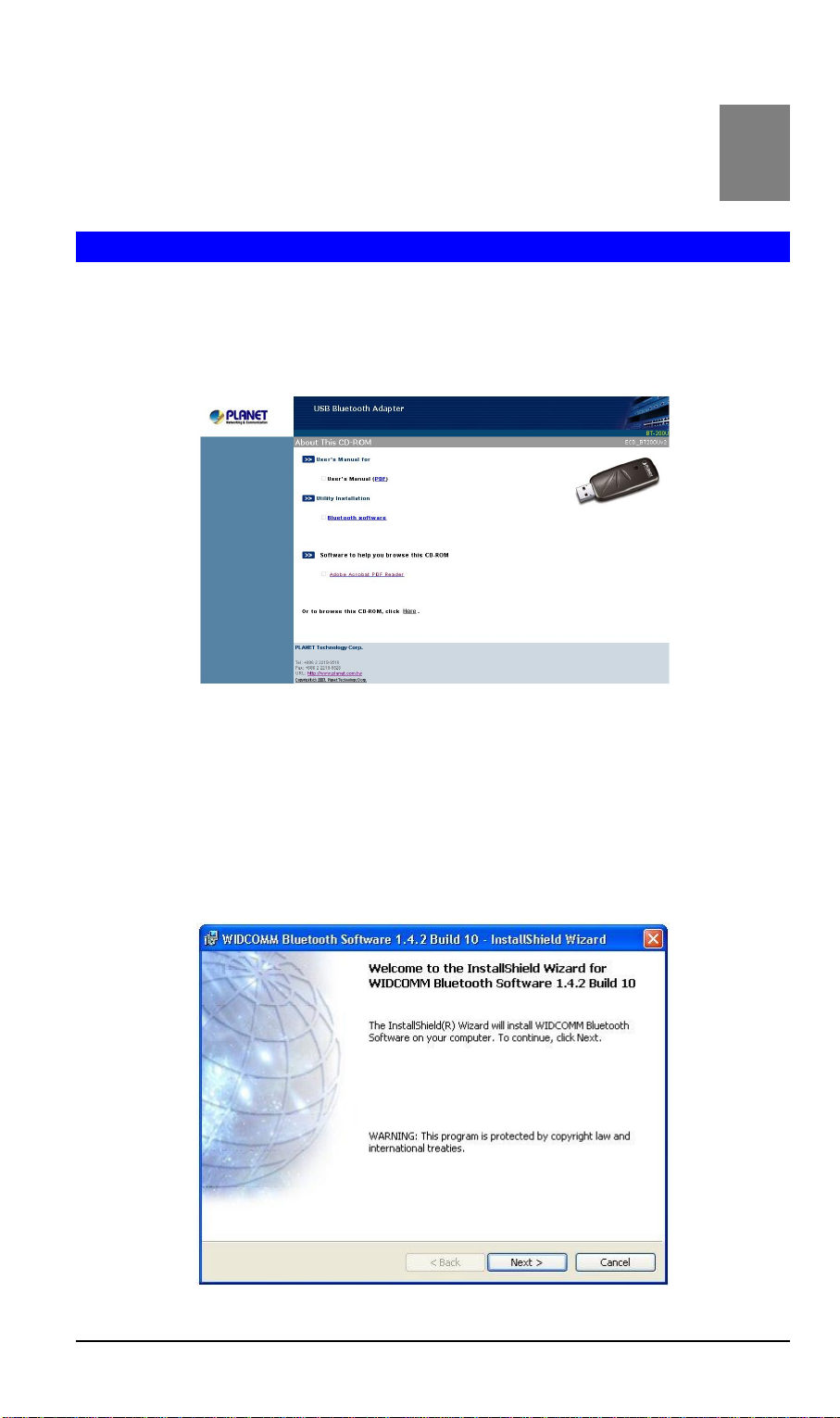
1. Insert the CD-ROM into the CD-ROM drive to initiate the autorun program.Once
completed, a menu screen will appear as follows:
2. Toinstall the Bluetooth software, clickon the "Bluetooth Software" hyperlinkto
activate the installation procedure for the application program.
Ifthe above screen is not shown, you can start the installation as follows.
•Clickon Start Menu/ Run.
•Enter “D:\Utility\setup.exe”in the appeared box, where “D”is the letter ofyour
CD-ROM drive.
•Clickon “OK”button.
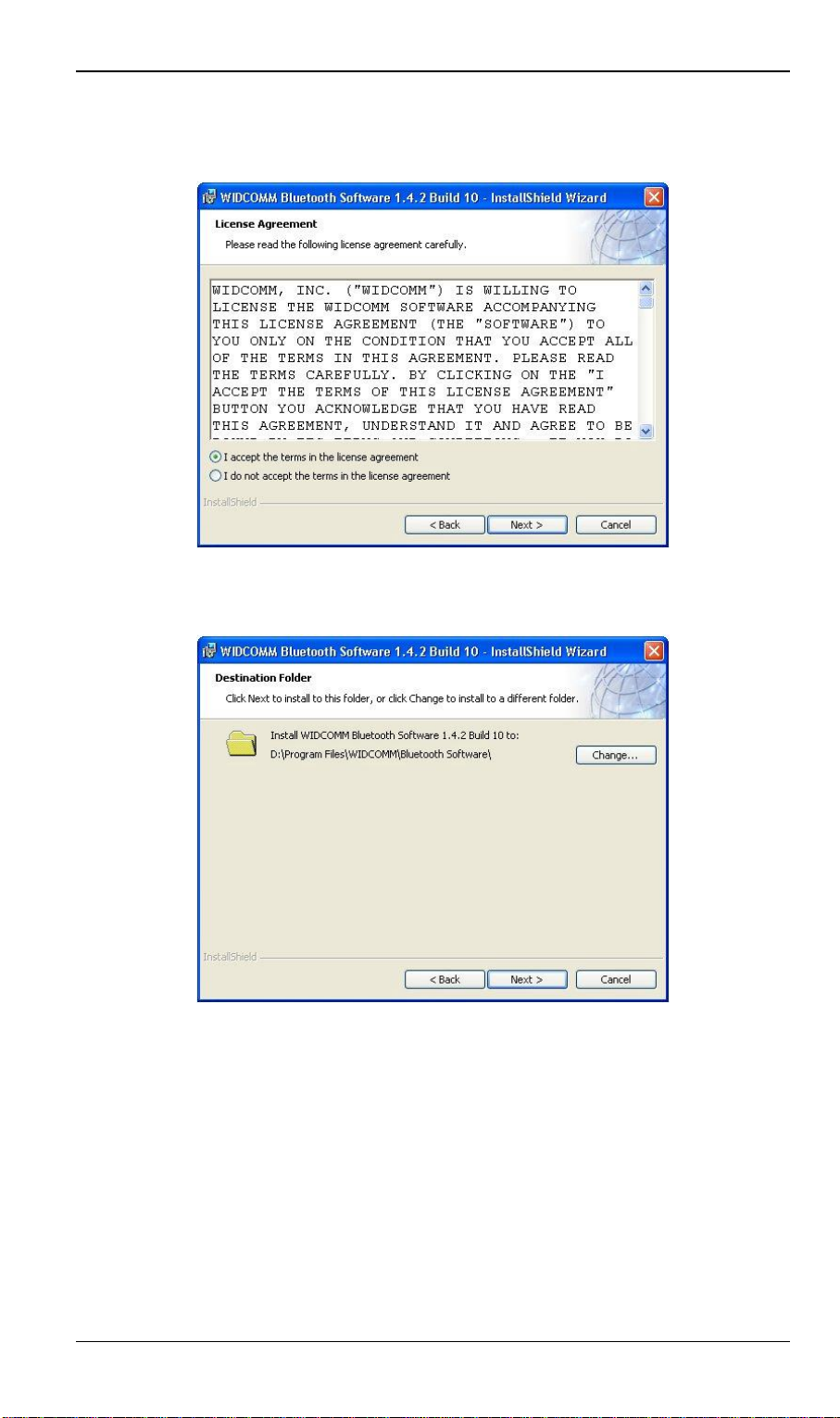
3. On the Welcome screen, clickthe Next button.
2
Installation
3
4. When the License Agreement screen is displayed, read the License Agreement,
then clickthe radio button to the leftof “Iaccept the terms in the license agree-
ment”and clickthe Next button.
5. On the Destination Folder screen, clickthe Change button to browse to anew
destination folder for the Bluetooth software. Otherwise, click the Next button to ac-
cept the default folder.
6. The InstallShield Wizard is readyto install the Bluetooth software. Ifyou need to
reviewor change anysettings, clickthe Back button. Clickthe Cancel button to exit
the Wizard. Otherwise, clickthe Install button.

Broadband Router User Guide
4
7. Click OK at the following message (onlyfor Windows 2000/XP installation).
8. The Installing Bluetooth Software screen displaysthe installation progress. If
prompted to insert the Windows CD, do so and followthe on-screen instructions.
9. The following message is shownto prompt that you have not installed the Bluetooth
USB adapter. Click Cancel to continue.
10.When finished, click Finish to end the Installation Wizard.

Installation
5
11.Remember to restart your computer to have the newconfiguration takeeffect ifthe
following message is shown.
2.2 Hardware installation
Note: The hardware installation should be only performed when the software is
well installed.
Precaution
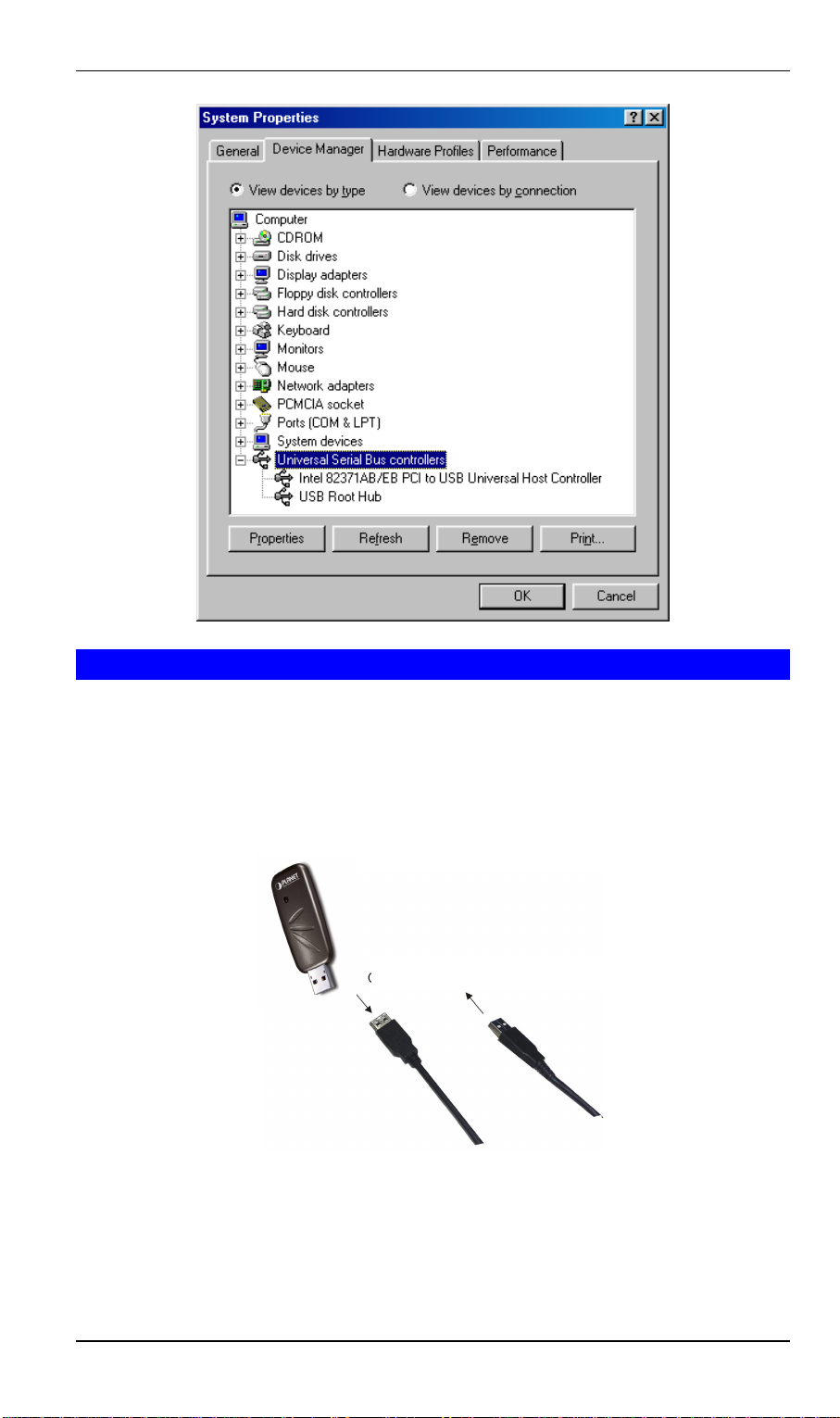
Before the installation, makesure the USB port exists in your computer and is enabled.
To checkthis, go to MyComputeràControl Panel àSystem. Open the Device
Manager tab. Ifthe Universal Serial Bus controller device is found, it means your
USB port is installed and enabled. Ifnot, either no USB port is installed or the USB
bios is not properlyenabled. In this case, consult your computer dealer for USB sup-
port.
Broadband Router User Guide
6
2.3 Getting Hooked Up
1. Locate the USB host port ofyour system.Align the USB connector (the thinner
end) ofthe USB adapter toward the USB host port, push evenlyand steadilyuntil
it is seated.
2. Plug your BT-200U into the thicker end ofthe USB adapter cable.
3. As soon as the device is properlyplugged to your computer, Windowswill auto-
maticallydetect the device and prompt the following message. Select “Install the
software automatically(Recommended)”And press Next to continue.
Connects to the USB host port
Other manuals for BT-200U
1
Table of contents
Other Planet Adapter manuals

Planet
Planet VIP-156 User manual

Planet
Planet WL-U351 User manual

Planet
Planet WDL-U700 User manual

Planet
Planet ENW-9501 PLUS User manual

Planet
Planet WL-U356 User manual

Planet
Planet POE-150 User manual

Planet
Planet ENW-9605 User manual

Planet
Planet ENW-9801 User manual

Planet
Planet WDL-U601AC User manual

Planet
Planet ENW-9801 User manual

Planet
Planet WDL-U700 User manual

Planet
Planet WL-U356A User manual

Planet
Planet ENW-9700 User manual

Planet
Planet WNL-U555HA User manual

Planet
Planet ENW-9801 User manual

Planet
Planet ENW-9801 User manual

Planet
Planet PL-551 User manual

Planet
Planet POE-100 User manual

Planet
Planet WNL-U556M User manual

Planet
Planet VIP-161W User manual