Medion AKOYA E63003 User manual

MULTIMEDIA PC
MEDION® AKOYA® E63003
User Manual

Dok./Rev.-Nr. EN 34255 ALDI UK Cover 2006 7703 final
Overview ......................................................................................... 3
Device parts.....................................................................................6
Information about these operating instructions ..........................9
Safety information .........................................................................12
Setting up the PC............................................................................17
Connection......................................................................................19
First use.......................................................................................... 25
Mouse............................................................................................. 27
Keyboard ....................................................................................... 28
Hard drives .................................................................................... 29
Optical drive*................................................................................. 32
Card reader.................................................................................... 35
Sound system ................................................................................ 36
Network operation ....................................................................... 36
System recovery/settings.............................................................38
FAQ – frequently asked questions.................................................41
Customer services ......................................................................... 42
Transport ....................................................................................... 43
Cleaning and care ......................................................................... 43
Storage ..........................................................................................44
Upgrades/modifications and repairs...........................................44
Recycling and disposal .................................................................45
Service information ...................................................................... 47
Legal Notice ...................................................................................48
Privacy statement .........................................................................48
Index.............................................................................................. 49
Contents

3
A
Overview
1
3
4
7
8
9
13
9
12

4
B
5
27
16
15
14
11
9
23
24
10
Overview

5

6
Device parts
Device parts
1On/off switch/operating mode
3Optical drive
4Optical drive eject button
5Power supply (mains cable socket & mains switch)
7Hot-swap mobile rack
8Card reader
9USB 3.0 ports
10 USB 3.1 ports
11 USB 2.0 ports
12 Headphones socket
13 Microphone socket
14 Audio input / Speaker RS (rear out)*
15 Headphones socket / Speaker FS (front out)*
16 Microphone socket / Speaker CC/SS (center/subwoofer out)*
23 DisplayPort
24 HDMI connection
27 LAN network (RJ45)
*Ports with dual function. Configuration is set with the included software.

7
Table of Contents
Overview ................................................................................................................. 3
Device parts ............................................................................................................ 6
1. Information about these operating instructions...................................... 9
1.1. Key to symbols .......................................................................................................9
1.2. Proper use..............................................................................................................11
1.3. Trademark information .....................................................................................11
2. Safety information .................................................................................... 12
2.1. Dangers for children and people with reduced ability to operate
devices ....................................................................................................................12
2.2. Operating safety..................................................................................................12
2.3. Never carry out repairs yourself.....................................................................14
2.4. Data backup..........................................................................................................14
2.5. Mains cable and power supply ......................................................................14
2.6. Mouse......................................................................................................................15
2.7. Audio connections..............................................................................................16
2.8. Optical drive..........................................................................................................16
3. Setting up the PC ....................................................................................... 17
3.1. Installation location............................................................................................17
3.2. Ambient conditions............................................................................................17
3.3. Ergonomics............................................................................................................17
4. Connection................................................................................................. 19
4.1. Connecting the cables ......................................................................................19
4.2. Connecting the monitor...................................................................................20
4.3. Connecting HDMI devices ...............................................................................20
4.4. Connecting USB devices*.................................................................................20
4.5. Connecting audio output/headphones/speakers* ................................21
4.6. Connecting a microphone*.............................................................................22
4.7. Connecting audio input/recording source*..............................................23
4.8. Connecting a network (LAN)...........................................................................23
4.9. Connecting the power supply........................................................................23
5. First use ...................................................................................................... 25
5.1. Operating LED responses.................................................................................25
5.2. Starting up the PC...............................................................................................25
5.3. Activating antivirus software*........................................................................27
6. Mouse ......................................................................................................... 27
6.1. Left button.............................................................................................................27
6.2. Right button..........................................................................................................27
6.3. Scroll wheel ...........................................................................................................27

8
7. Keyboard .................................................................................................... 28
7.1. The Alt, Alt Gr and Ctrl buttons......................................................................28
7.2. The F1 to F12 and Fn keys................................................................................28
8. Hard drives................................................................................................. 29
8.1. Important directories.........................................................................................30
8.2. Hot-swap mobile rack*......................................................................................31
9. Optical drive*............................................................................................. 32
9.1. Load disc.................................................................................................................32
9.2. Removing the disc ..............................................................................................33
9.3. Emergency removal of a blocked disc.........................................................33
9.4. Playing/reading discs.........................................................................................34
9.5. Handling blank CDs and DVDs.......................................................................34
10. Card reader................................................................................................. 35
10.1. Inserting the memory card..............................................................................35
10.2. Removing memory cards.................................................................................35
11. Sound system............................................................................................. 36
12. Network operation .................................................................................... 36
12.1. Network connection ..........................................................................................36
12.2. Wireless LAN (wireless network)*..................................................................36
12.3. Bluetooth®* ...........................................................................................................38
13. System recovery/settings.......................................................................... 38
13.1. Resetting the PC to its factory settings .......................................................38
13.2. System recovery with Windows recovery options ..................................39
13.3. UEFI firmware configuration ...........................................................................40
14. FAQ – frequently asked questions............................................................ 41
15. Customer services...................................................................................... 42
15.1. Initial help in the event of hardware problems........................................42
15.2. Finding the cause................................................................................................42
15.3. Faults and possible causes...............................................................................42
15.4. Do you need more help?..................................................................................43
15.5. Driver support ......................................................................................................43
16. Transport.................................................................................................... 43
17. Cleaning and care ...................................................................................... 43
18. Storage ....................................................................................................... 44
19. Upgrades/modifications and repairs ....................................................... 44
19.1. Information for service technicians..............................................................44
20. Recycling and disposal.............................................................................. 45
21. Service information................................................................................... 47
22. Legal Notice ............................................................................................... 48
23. Privacy statement...................................................................................... 48
24. Index ........................................................................................................... 49
9
1. Information about these operating
instructions
Thank you for choosing our product. We hope you enjoy using this
device.
Read the operating instructions and safety instructions carefully before
using the device for the first time. Note the warnings on the device and
in the operating instructions.
Always keep the operating instructions close to hand. If you sell the device or give it
away, please ensure that you also pass on these operating instructions. They are an
essential component of the product.
These instructions include descriptions for various PC models and their features.
Device-specific specifications for your model are detailed in the supplied
supplementary sheet.
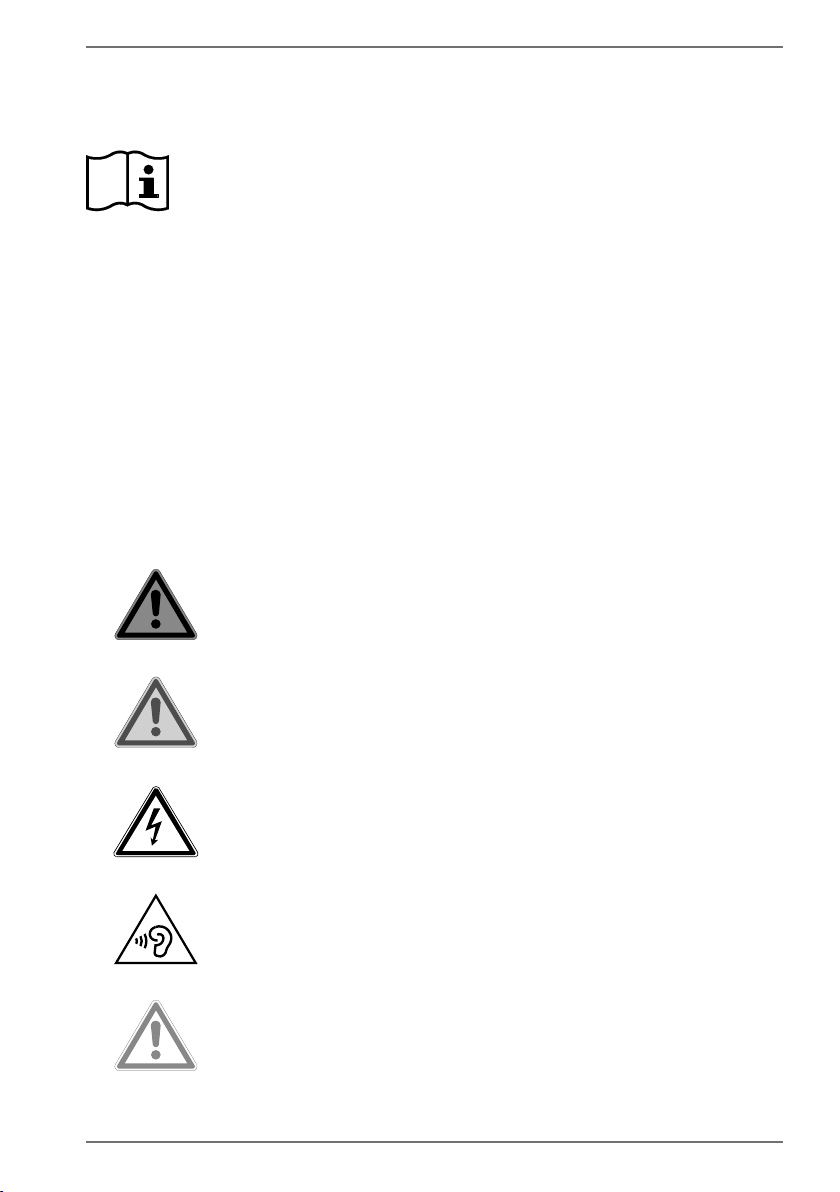
1.1. Key to symbols
If a block of text is marked with one of the warning symbols listed below, the hazard
described in that text must be avoided to prevent the potential consequences
described there from occurring. Depending on the model, warning symbols may
not apply or may not be present.
DANGER!
Warning: risk of fatal injury!
WARNING!
Warning: risk of possible fatal injury and/or
serious irreversible injuries!
WARNING!
Warning: risk of electric shock!
WARNING!
Warning: danger due to loud volume!
CAUTION!
Warning: risk of minor and/or moderate injuries!

10
Due to the 5 GHz frequency range of the wireless LAN solution
used, the device may only be used inside buildings in the EU.
NOTICE!
Follow these instructions to prevent damage to
the device!
Additional information on using the device!
Comply with the notes in the operating
instructions.
Pull out the mains plug before opening
To avoid short-circuits and electric shocks, the mains plug
must always be disconnected from the power supply when
cleaning or carrying out maintenance and repairs to electrical
equipment.
CE labelling
Products that feature this symbol meet the requirements of the
EU directives (see chapter entitled“Declaration of conformity”).
Symbol for direct current
Symbol for AC current
• Bullet point/information on steps during operation
Instruction to be carried out
Table of contents
Other Medion Desktop manuals

Medion
Medion PC User manual

Medion
Medion P2130 D User manual

Medion
Medion X67015 User manual

Medion
Medion AKOYA P9614 User manual

Medion
Medion AKOYA E42019 User manual

Medion
Medion MD 34140 User manual

Medion
Medion MD 8322 User manual

Medion
Medion E27401 User manual

Medion
Medion AKOYA P5350 E User manual

Medion
Medion E27301 User manual

Medion
Medion AKOYA E2225 D User manual

Medion
Medion PC User manual

Medion
Medion PC User manual

Medion
Medion AKOYA P66095 User manual

Medion
Medion Nettop User manual

Medion
Medion P56000 User manual

Medion
Medion MD8825 User manual

Medion
Medion ERAZER Series User manual

Medion
Medion PC User manual

Medion
Medion P5130 D User manual