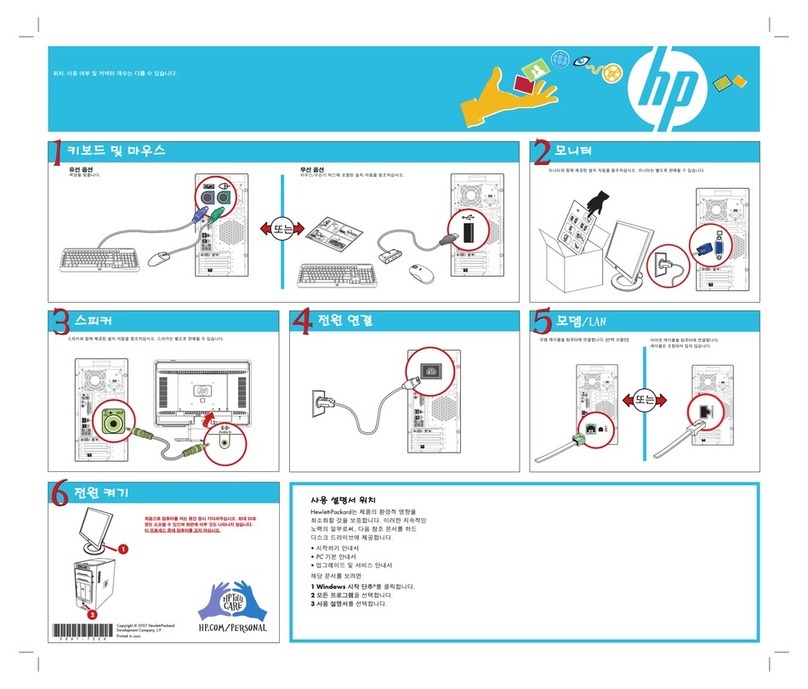
Asus E210 Series User manual

Mini Desktop PC
(Thin Client)
User Guide
E210 Series
E13175
Revised Edition V5
June 2017

Mini Desktop PC User Guide
2
COPYRIGHT INFORMATION
No part of this manual, including the products and software described in it, may be
reproduced, transmitted, transcribed, stored in a retrieval system, or translated into any
language in any form or by any means, except documentation kept by the purchaser for
backup purposes, without the express written permission of ASUSTeK COMPUTER INC. (“ASUS”).
ASUS PROVIDES THIS MANUAL “AS IS”WITHOUT WARRANTY OF ANY KIND, EITHER EXPRESS
OR IMPLIED, INCLUDING BUT NOT LIMITED TO THE IMPLIED WARRANTIES OR CONDITIONS
OF MERCHANTABILITY OR FITNESS FOR A PARTICULAR PURPOSE. IN NO EVENT SHALL ASUS,
ITS DIRECTORS, OFFICERS, EMPLOYEES OR AGENTS BE LIABLE FOR ANY INDIRECT, SPECIAL,
INCIDENTAL, OR CONSEQUENTIAL DAMAGES (INCLUDING DAMAGES FOR LOSS OF PROFITS,
LOSS OF BUSINESS, LOSS OF USE OR DATA, INTERRUPTION OF BUSINESS AND THE LIKE), EVEN
IF ASUS HAS BEEN ADVISED OF THE POSSIBILITY OF SUCH DAMAGES ARISING FROM ANY
DEFECT OR ERROR IN THIS MANUAL OR PRODUCT.
Products and corporate names appearing in this manual may or may not be registered
trademarks or copyrights of their respective companies, and are used only for identication or
explanation and to the owners’ benet, without intent to infringe.
SPECIFICATIONS AND INFORMATION CONTAINED IN THIS MANUAL ARE FURNISHED FOR
INFORMATIONAL USE ONLY, AND ARE SUBJECT TO CHANGE AT ANY TIME WITHOUT NOTICE,
AND SHOULD NOT BE CONSTRUED AS A COMMITMENT BY ASUS. ASUS ASSUMES NO
RESPONSIBILITY OR LIABILITY FOR ANY ERRORS OR INACCURACIES THAT MAY APPEAR IN THIS
MANUAL, INCLUDING THE PRODUCTS AND SOFTWARE DESCRIBED IN IT.
Copyright © 2017 ASUSTeK COMPUTER INC. All Rights Reserved.
LIMITATION OF LIABILITY
Circumstances may arise where because of a default on ASUS’ part or other liability, you are
entitled to recover damages from ASUS. In each such instance, regardless of the basis on which
you are entitled to claim damages from ASUS, ASUS is liable for no more than damages for
bodily injury (including death) and damage to real property and tangible personal property;
or any other actual and direct damages resulted from omission or failure of performing legal
duties under this Warranty Statement, up to the listed contract price of each product.
ASUS will only be responsible for or indemnify you for loss, damages or claims based in
contract, tort or infringement under this Warranty Statement.
This limit also applies to ASUS’suppliers and its reseller. It is the maximum for which ASUS, its
suppliers, and your reseller are collectively responsible.
UNDER NO CIRCUMSTANCES IS ASUS LIABLE FOR ANY OF THE FOLLOWING: (1) THIRD-
PARTY CLAIMS AGAINST YOU FOR DAMAGES; (2) LOSS OF, OR DAMAGE TO, YOUR RECORDS
OR DATA; OR (3) SPECIAL, INCIDENTAL, OR INDIRECT DAMAGES OR FOR ANY ECONOMIC
CONSEQUENTIAL DAMAGES (INCLUDING LOST PROFITS OR SAVINGS), EVEN IF ASUS, ITS
SUPPLIERS OR YOUR RESELLER IS INFORMED OF THEIR POSSIBILITY.
SERVICE AND SUPPORT
Visit our multi-language web site at https://www.asus.com/support

Mini Desktop PC User Guide
3
Table of Contents
About this user guide ....................................................................................... 6
Conventions used in this user guide ......................................................... 7
Typography......................................................................................................... 7
Icons ............................................................................................................... 7
Safety information ............................................................................................. 8
Setting up your system................................................................................... 8
Care during use................................................................................................. 9
Proper disposal.................................................................................................. 9
Package contents.............................................................................................11
Chapter 1: Mini Desktop PC parts and features
Getting to know your Mini Desktop PC ...................................................14
Front view..........................................................................................................14
Rear view ...........................................................................................................16
Chapter 2: Hardware setup
Positioning your Mini Desktop PC .............................................................20
Mounting your Mini Desktop PC on the stand ....................................20
Installing your Mini Desktop PC to a monitor......................................21
Using your Mini Desktop PC.........................................................................25
Connecting to an external display ...........................................................25
Connecting to a USB device .......................................................................26
Connecting the wireless antenna.............................................................27
Turning on your Mini Desktop PC ............................................................28
Conguring the audio output via an HDMI device............................29
Chapter 3: Supported operating systems
Working with Windows®Embedded 7......................................................32
Starting for the rst time .............................................................................32
Using the Start menu ....................................................................................33
Using the taskbar............................................................................................34
Using the notication area..........................................................................35
Using Windows® Explorer............................................................................36
Backing up les ...............................................................................................38
Restoring your system settings .................................................................38

Mini Desktop PC User Guide
4
Using Windows® Embedded 7 Action Center ......................................39
Using Windows® Update..............................................................................39
Setting up a user account and password...............................................40
Using Windows® Help and Support.........................................................40
Connecting on Windows® Embedded 7.................................................41
Wired connection...........................................................................................42
Working with Windows®Embedded 8......................................................45
Starting for the rst time .............................................................................45
Windows® Embedded 8 lock screen........................................................45
Windows® UI.....................................................................................................46
Working with Windows® apps ...................................................................50
Charms bar........................................................................................................54
Snap feature .....................................................................................................56
Other keyboard shortcuts ...........................................................................58
Connecting to wireless networks .............................................................60
Bluetooth ..........................................................................................................62
Airplane mode.................................................................................................64
Connecting to wired networks..................................................................65
Conguring a dynamic IP/PPPoE network connection ....................65
Turning your Mini Desktop PC o ............................................................68
Putting your Mini Desktop PC to sleep...................................................68
Working with Windows®Embedded 8.1...................................................69
Starting for the rst time .............................................................................69
Windows® UI.....................................................................................................70
Start button ......................................................................................................74
Customizing your Start screen...................................................................76
Working with Windows® apps ...................................................................77
Customizing apps...........................................................................................77
Accessing the Apps screen..........................................................................79
Charms bar........................................................................................................81
Snap feature .....................................................................................................83
Other keyboard shortcuts ...........................................................................85
Connecting to the Internet.........................................................................87
Turning your Mini Desktop PC o ............................................................92
Putting your Mini Desktop PC on sleep mode.....................................92
Windows® Embedded 8.1 lock screen.....................................................93
Customizing your lock screen....................................................................94

Mini Desktop PC User Guide
5
Working with Windows® 10..........................................................................96
Starting for the rst time .............................................................................96
Using the Windows® 10 UI...........................................................................97
Start menu ........................................................................................................98
Start screen.......................................................................................................99
Taskbar 100
Snap feature .................................................................................................. 101
Keyboard shortcuts..................................................................................... 102
Chapter 4: BIOS
Entering the BIOS Setup ............................................................................. 106
Quickly enter the BIOS............................................................................... 107
Chapter 5: Recovering your system
Recovery options on Windows®Embedded 8.1 ................................. 110
Removing everything and reinstalling Windows............................. 110
Recovery options on Windows®10 ......................................................... 111
Removing everything and reinstalling Windows®........................... 111
Appendices
Regulatory notices........................................................................................ 114
ASUS contact information ......................................................................... 119

Mini Desktop PC User Guide
6
About this user guide
This user guide provides information about the hardware and
software features of your Mini Desktop PC, organized through the
following chapters:
Chapter 1: Mini Desktop PC parts and features
This chapter details the hardware components of your Mini
Desktop PC.
Chapter 2: Hardware setup
This chapter provides you with information on how to prepare
and setup your Mini Desktop PC for usage.
Chapter 3: Supported operating systems
This chapter provides an overview of using operating systems in
your Mini Desktop PC.
Chapter 4: BIOS
This chapter provides information on how to enter BIOS mode
in your Mini Desktop PC.
Chapter 5: Recovering your system
This chapter provides recovery options for your Mini Desktop
PC.
Appendices
This section includes notices and safety statements your Mini
Desktop PC.
NOTE: For Windows® Embedded 8.1 OS, the user manual is located
in the following folder in your PC: C:\Program Files(X86)\ASUS\
eManual

Mini Desktop PC User Guide
7
Conventions used in this user guide
To highlight key information in this user guide, some text are
presented as follows:
IMPORTANT! This message contains vital information that must be
followed to complete a task.
NOTE: This message contains additional information and tips that can
help complete tasks.
WARNING! This message contains important information that must
be followed to keep you safe while performing tasks and prevent
damage to your Mini Desktop PC's data and components.
Bold = This indicates a menu or an item that must be selected.
Italic = This indicates sections that you can refer to in this user
guide.
Icons
The icons below indicate the devices you can use for completing
a series of tasks or procedures while working on the Windows®
Embedded 8.1 operating system of your Mini Desktop PC.
= Use a mouse.
= Use a keyboard.
Typography

Mini Desktop PC User Guide
8
Safety information
Your Mini Desktop PC is designed and tested to meet the latest
standards of safety for information technology equipment. However,
to ensure your safety, it is important that you read the following
safety instructions.
Setting up your system
• Readandfollowallinstructionsinthedocumentationbefore
you operate your system.
• Donotusethisproductnearwateroraheatedsourcesuchasa
radiator.
• Setupthesystemonastablesurfacewiththeprovidedstand.
Never use the system alone without the stand.
• Openingsonthechassisareforventilation.Donotblockor
cover these openings. Make sure you leave plenty of space
around the system for ventilation. Never insert objects of any
kind into the ventilation openings.
• Usethisproductinenvironmentswithambienttemperatures
between 0°C and 35°C.
• Ifyouuseanextensioncord,makesurethatthetotalampere
rating of the devices plugged into the extension cord does not
exceed its ampere rating.
• Thisequipmentshouldbeinstalledandoperatedwitha
minimum distance of 20cm between the radiator and your
body.
NOTE: While working on your Mini Desktop PC, ensure that you
mount it in an upright position using its stand. For more details, refer
to the Mounting your Mini Desktop PC on the stand section in this
manual.

Mini Desktop PC User Guide
9
Proper disposal
DO NOT throw your Mini Desktop PC in municipal waste. This
product has been designed to enable proper reuse of parts and
recycling. The symbol of the crossed out wheeled bin indicates
that the product (electrical, electronic equipment and mercury-
containing button cell battery) should not be placed in municipal
waste. Check local regulations for disposal of electronic products.
DO NOT throw the battery in municipal waste. The symbol of the
crossed out wheeled bin indicates that the battery should not be
placed in municipal waste.
Care during use
• Donotwalkonthepowercordorallowanythingtorestonit.
• Donotspillwateroranyotherliquidsonyoursystem.
• Whenthesystemisturnedo,asmallamountofelectrical
current still ows. Always unplug all power, modem, and
network cables from the power outlets before cleaning the
system.
• Ifyouencounterthefollowingtechnicalproblemswiththe
product, unplug the power cord and contact a qualied service
technician or your retailer.
• Thepowercordorplugisdamaged.
• Liquidhasbeenspilledintothesystem.
• Thesystemdoesnotfunctionproperlyevenifyoufollow
the operating instructions.
• Thesystemwasdroppedorthecabinetisdamaged.
• Thesystemperformancechanges.

Mini Desktop PC User Guide
10
NO DISASSEMBLY
The warranty does not apply to the products that
have been disassembled by users
Lithium-Ion Battery Warning
CAUTION: Danger of explosion if battery is incorrectly
replaced. Replace only with the same or equivalent type
recommended by the manufacturer. Dispose of used batteries
according to the manufacturer’s instructions.
CLASS 1 LASER PRODUCT
Other manuals for E210 Series
1
Table of contents
Other Asus Desktop manuals

Asus
Asus BM6835 User manual

Asus
Asus Essentio ES5100 User manual

Asus
Asus V221 Series User manual

Asus
Asus AS-D830 User manual

Asus
Asus TW100-E5 - iQuadro - 0 MB RAM User manual

Asus
Asus S500MC User manual

Asus
Asus Eee Box User manual

Asus
Asus Essentio CM6331 User manual

Asus
Asus P5G43 User manual

Asus
Asus V200IB User manual

Asus
Asus ProArt PA Series User manual

Asus
Asus G10AC User manual

Asus
Asus Essentio CG8250 User manual

Asus
Asus TW300-E5/PI4 User manual

Asus
Asus ZN242IF User manual

Asus
Asus Essentio CM1730 User manual

Asus
Asus Essentio CM6340 User manual

Asus
Asus AS-D770 User manual

Asus
Asus Essentio CM6830 User manual

Asus
Asus V2-M3A3200 User manual