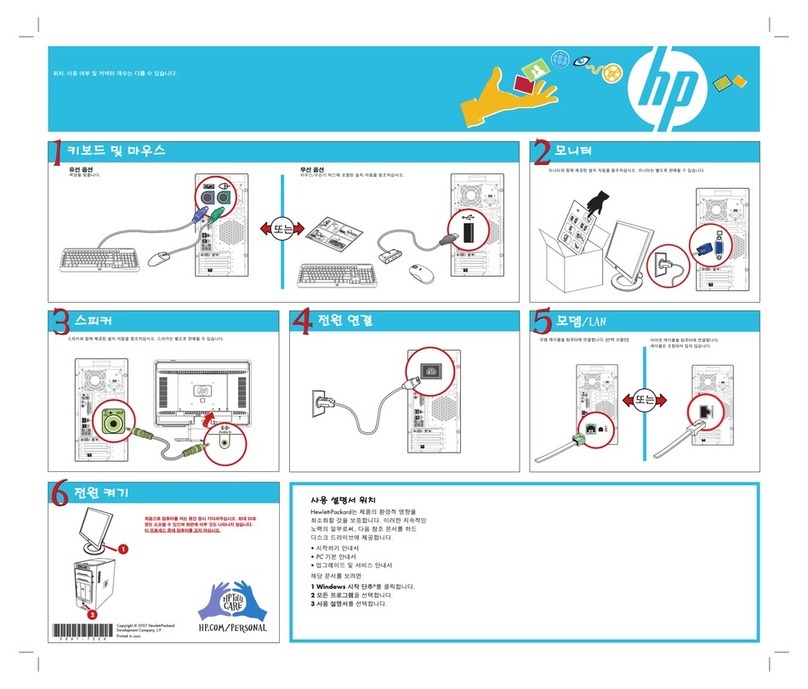
Medion PC User manual

NOTES ON THIS MANUAL
Keep these instructions with your computer at all times. The
proper set up, use and care can help extend the life of your com-
puter. In the event that you transfer ownership of this computer,
please provide these instructions to the new owner.
This manual is divided into sections to help you locate the infor-
mation you require. Along with the Table of Contents at the be-
ginning of this manual, an Index has been provided to help you
find topical information.
If you want to start up your PC immediately, please read the
chapters Operational Safety (page 3) and Setting up and Get-
ting Started (page 8).
We strongly recommend you read this entire manual to ensure
the proper set-up and operation of your PC.
Many application programs incorporate extensive help functions.
As a general rule, you can access help functions by pressing F1 on
the keyboard. These help functions will be available to you while
you are using the Microsoft Windows®operating system or the
respective application program.
We strongly recommend that you read the Online Manual for
your PC, which can be found in the Start Menu.
Information about your PC
This interactive manual is designed to provide additional informa-
tion about your PC as well as useful links accessible via the World
Wide Web.
Windowsxp invites you to a tour (notes on the task bar) to familiar-
ize yourself with the operating system. We listed further useful
sources of information starting on page 60.

ii
AUDIENCE
These instructions are intended for both the novice and advanced user.
Regardless of the possible professional utilisation, this PC is designed for
day-to-day household use. The functions and applications for use with
this PC have been designed with the entire family in mind.
PURCHASE DETAILS
Enter your purchase details below for quick reference.
Serial Numbers ......................................
(i.e. Microsoft®)......................................
Place and date of Purchase ......................................
You will find the PC serial number on the Service Hotline card. The serial
number also appears on the rear of the PC.
QUALITY
Medion has selected the components in this computer for their high level of
functionality, ease of use, safety and reliability.
Through balanced hardware and software design we are able to provide you
with an innovative personal computer useful for applications relating to both
work and leisure.
We are pleased to welcome you as our newest customer. Thank you for
choosing our products.
©2005 Medion®. All rights reserved. Microsoft®, MS-DOS®, and Windows are registered
trademarks of Microsoft Corporation in the U.S. and other countries. Pentium® is a registered
trademark of Intel Corporation. The names of actual companies and products mentioned
herein may be the trademarks of their respective owners.
Information in this document is subject to change without notice.
MAKING COPIES OF THIS MANUAL
This manual contains information protected by law. All rights reserved. Duplicating
this information in mechanical, electronic, or any other form, without the written ap-
proval by the manufacturer, is prohibited by copyright law.

iii
Table of Contents
Notes on This Manual ................................................. i
Audience ................................................................. ii
Purchase Details....................................................... ii
Quality.................................................................... ii
Making Copies of This Manual..................................... ii
Safety and Maintenance .............................................. 1
Operational Safety.................................................... 3
Data Security........................................................... 4
Setting Up & Getting Started ....................................... 5
Included with Your PC ............................................... 7
Setting Up ................................................................. 8
Positioning the Monitor .............................................. 8
Working in Comfort ................................................ 9
Set-Up Location...................................................... 11
Ambient Temperature ........................................... 11
Connecting .............................................................. 12
Cabling ................................................................. 12
Front connectors .................................................... 13
Connecting the Monitor ......................................... 14
Installing Wireless Keyboard & Mouse ..................... 15
Connecting a USB Keyboard/Mouse......................... 18
Connecting a PS/2 Keyboard/Mouse........................ 18
Connecting Parallel Devices ................................... 18
Modem/ISDN Connection....................................... 19
Connecting Serial Devices...................................... 20
LAN Connection ................................................... 20
Connecting Speakers/Audio Output......................... 21
Connecting a Sound Source/Audio Input.................. 22
Connecting a Microphone....................................... 22
Antenna connection for TV / radio receiver............... 22
Connecting the PC to a Television ........................... 23
Connecting a recording source / Video inlet.............. 23
USB/IEEE 1394 .................................................... 24
Connecting the Power Supply................................. 25

iv
Getting Started......................................................... 26
Switch ................................................................ 26
Main Power Switch ............................................... 26
Short description of the Windows® Desktop ................ 28
Operation .................................................................. 31
Operation ................................................................ 33
The Mouse............................................................. 33
The Keyboard ........................................................ 33
Neigungswinkel der Tastatur .................................. 33
The Alt and Ctrl Keys ............................................ 34
Multimedia Functions ............................................ 35
Readjustment of the Mouse/Keyboard ..................... 36
The Hard Drive....................................................... 37
Important directories ............................................ 38
The optical drive..................................................... 39
Loading a Disk:.................................................... 40
Playing Back and Retrieving Data from Discs ............ 41
How to remove a Disc:.......................................... 41
The CD-Rom/DVD drive as Boot Drive ..................... 41
DVD Technology................................................... 42
Subjects Concerning the CD/DVD-Rewriter................. 44
Recordable/Rewriteable Discs................................. 44
The Card Reader .................................................... 45
The Graphics Card .................................................. 46
Performance characteristics ................................... 46
Current image playback frequencies........................ 46
Connecting the PC to a Television ........................... 47
The Sound Card ..................................................... 49
USB Port ............................................................... 49
IEEE 1394 (Fire Wire) ............................................. 50
Application Options for IEEE1394............................ 50
Technical Specifications......................................... 50
The Radio-/TV- Tuner Card ...................................... 51
Software for your Radio/TV Tuner Card ................... 51
The Network .......................................................... 52
What is a Network? .............................................. 52
What Do You Need for Networking? ........................ 53
Wireless LAN ....................................................... 55
Bluetooth ............................................................ 56
Enabling and disabling Bluetooth/WLAN................... 57

v
Troubleshooting within the Network ........................ 58
Modem / ISDN ....................................................... 59
What is a Modem? ................................................ 59
Serial COM-Port...................................................... 59
Software ............................................................... 60
Getting to Know Windows XP ................................. 60
Writing CDs/DVDs ................................................ 62
Installation of Software ......................................... 63
Windows Activation .............................................. 65
BIOS Setup ......................................................... 66
Customer Service & Self-Help.................................... 67
Self-Help ................................................................. 69
Data and System Security........................................ 69
Data Security ...................................................... 69
Maintenance Programs.......................................... 69
Password Reset File .............................................. 69
System Recovery.................................................... 70
Correction ........................................................... 70
Windows®Update ................................................ 71
Restoring the Factory Settings.................................. 73
Limits of the Recovery .......................................... 73
Carrying out a Restore .......................................... 74
FAQ – Frequently Asked Questions ............................ 75
Customer Service ..................................................... 77
Troubleshooting ..................................................... 77
Localise the Cause................................................ 77
Errors And Possible Causes .................................... 78
Additional Support .................................................. 79
Driver Support ....................................................... 79
Transporting the PC.............................................. 80
Cleaning and Care .................................................. 80
Recycling and Disposal ............................................ 80
Battery treatment................................................... 81
Upgrades and Repairs ............................................. 83
Notes for Service Engineers ................................... 83

vi
Appendix ................................................................... 85
Standards.............................................................. 87
Electromagnetic Compatibility ................................ 87
Electrical Safety ................................................... 87
Ergonomics ......................................................... 87
Noise Emission..................................................... 88
Information about the regulatory compliance of
the modem ......................................................... 88
Information about the regualtory compliance of wireless
keyboard / mouse, Bluetooth and wireless LAN........ 88
FCC Compliance Statement.................................... 89
Warranty............................................................... 90
Liability limitations ............................................... 91
Copying this manual ............................................. 91
Index.................................................................... 92

SafetyConnectingOperationHelpAppendix
C
Ch
ha
ap
pt
te
er
r
1
1
Safety and Maintenance
Subject Page
Operational Safety ........................................3
Data Security ................................................4

S
SA
AF
FE
ET
TY
Y
A
AN
ND
D
M
MA
AI
IN
NT
TE
EN
NA
AN
NC
CE
E
2

SafetyConnectingOperationHelpAppendix
O
OP
PE
ER
RA
AT
TI
IO
ON
NA
AL
L
S
SA
AF
FE
ET
TY
Y
3
OPERATIONAL SAFETY
Please read this chapter carefully and observe all listed notes. This en-
sures a reliable operation and long life expectancy of your PC.
Do not allow children to play unattended with electrical
equipment. Children are incapable of judging potential risks
properly.
Do not open the PC casing or use the PC with the casing
removed. When the casing is open there is a danger to life
from electric shock.
CD-ROM-/CDRW-/DVD-drives are Laser Class 1 devices.
These lasers must remain in their sealed PC casing. Do not
remove the drive covers, as exposure to the lasers may
prove harmful.
Do not insert objects through the slots and openings of
the PC. This may lead to electric shock or an electrical short-
circuit or fire that will damage your PC.
Do not cover the slots and openings in the PC casing.
These openings are for ventilation purposes. Covering these
vents may lead to overheating.

S
SA
AF
FE
ET
TY
Y
A
AN
ND
D
M
MA
AI
IN
NT
TE
EN
NA
AN
NC
CE
E
4
Switch off your PC immediately or do not switch it on at all
and contact customer service …
… if the power cord or the connectors attached to it are burnt
or damaged. Replace the defective power cord with an origi-
nal power cord. Under no circumstances may a defective
power cord be repaired.
... if the housing of the PC is damaged or fluids have
leaked into it. Have the PC checked by customer service
first, because the PC may not be safely operated otherwise
and there may be a life-threatening risk of electrocution!
DATA SECURITY
Every time you update your data make back-up
copies on an external storage medium. The sup-
plier does not assume liability for data loss or
damage to data storage units, and no claims can
be accepted for damages resulting from the loss
of data or consequential losses.
Other manuals for PC
12
Table of contents
Other Medion Desktop manuals

Medion
Medion P2125 D User manual

Medion
Medion MD 8332 User manual

Medion
Medion Hunter X30 User manual

Medion
Medion PC TITANIUM MD 8000 User manual

Medion
Medion PC User manual

Medion
Medion AKOYA P2120 D User manual

Medion
Medion MD 8818 User manual

Medion
Medion AKOYA E32014 User manual

Medion
Medion Nettop User manual

Medion
Medion P5130 D User manual

Medion
Medion AKOYA P5320 E User manual

Medion
Medion AKOYA P66095 User manual

Medion
Medion AKOYA P9614 User manual

Medion
Medion Akoya E4055 D User manual

Medion
Medion PC User manual

Medion
Medion AKOYA P5330 E User manual

Medion
Medion E27301 User manual

Medion
Medion PC User manual

Medion
Medion MD 8881 User manual

Medion
Medion E27401 User manual