LinkSprite pcDuino V2 User manual

1
pcDuino V2
Thank you for purchasing your Single-Board Computer from LinkSprite. Please read this user
’
s guide
before setting up and using your new Single-Board Computer.

2
Contents
Board Overview.........................................................................3
System Features........................................................................4
Single-Board Computer Configuration.................................. .....5
Pin Assignments........................................................................7
Single-Board Computer Setup............................................ ......9
Required Hardware.......................................................... ......9
Optional Hardware........................................................... .....9
Adjusting Screen Settings......................................... ............9
The Ubuntu Operating System....................................... .........10
Accessing the Debug Port............................................ ............10
Re-Installing the Operating System........................... ...............11
Glossary................................................................... ..................12
FCC Information...................................................................... ...15

3
Board Overview
You can use the Single-Board Computer with various open-source projects, but you can do much more.
The Single-Board Computer features a fully functional operating system (OS) that can simultaneously
run multiple processes, giving you a much more robust and versatile experience than a dedicated
microprocessor board.
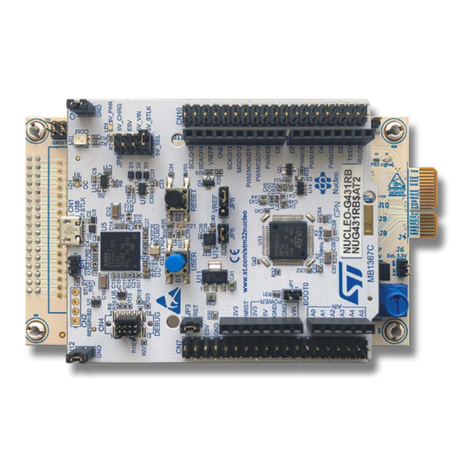
The Single-Board Computer provides several ports so you can quickly and easily set up a monitor,
keyboard, and mouse to create a complete computing solution.
The HDMI port lets you connect to any HDTV or monitor with an HDMI port.
The USB A port lets you connect USB peripherals. For example, you can use a USB hub to connect a
keyboard, mouse, and other USB devices. The Micro USB port provides additional connectivity.
The MicroSD slot provides an easy way to add additional memory (up to 32 GB).
Note: Your Single-Board Computer is shipped in protective anti-static packaging. The board must not be
subjected to high electrostatic potentials. A grounding strap or similar protective device should be used
when handling the board.

4
System Features
System on a Chip (SoC)
All Winner A10
Central Processor (CPU)
1 GHz ARMv7 Cortex A8 Single Core
Graphics Processor (GPU)
Mali 400
SDRAM Memory
1 GB, DDR3-800
Flash Memory
2 GB NAND
Mass Storage
Max
32 GB
Type
MicroSDHC
Video Output
HDMI Up to 720p, 60 Hz
Network Interface
Ethernet 10/100M via RJ45
Wireless Connectivity
802.11b/g/n
Communications I/O
USB 2.0
Extension Interfaces
ADC, UART, GPIO, PWM, I2C, SPI, Power
(via Stackable 0.100”Connection Headers)
Operating System
Ubuntu

5
Single-Board Computer Configuration

6

7
Pin Assignments
J8
1
GPIO8
2
GPIO9/PWM9
3
SPI_SS (Subordinate/Chip Select)/GPIO10/PWM10
4
SPI0_MOSI (Master Output, Subordinate Input)/GPIO11/PWM11
5
SPI0_MISO (Master Input, Subordinate Output)/GPIO12
6
SPI0_CLK (Clock)/GPIO13
7
GND
8
AREF
9
TWI2_SDA (Data)
10
TWI2_SCK (Clock)
J11
1
GPIO0/UART2 RX
2
GPIO1/UART2 TX
3
GPIO2
4
GPIO3/PWM3
5
GPIO4
6
GPIO5/PWM5
7
GPIO6/PWM6
8
GPIO7
P6
1
SPI1_MISO (Master Input, Subordinate Output)
2
+5 VDC
3
SPI1_CLK (Clock)
4
SPI1_MOSI (Master Output, Subordinate Input)
5
RESET
6
GND

8
J9
1
(NC)
2
IOREF
3
RESET
4
3.3 VDC output
5
5 VDC output
6
GND
7
GND
8
+5VIN
J12
1
A0
2
A1
3
A2
4
A3
5
A4
6
A5
P10
1
GPIO14
2
GPIO15
3
GPIO16
4
GPIO17
P3
(Debug Port)
1
TX (Square Pad)
2
GND
3
RX

9
Single-Board Computer Setup
Make USB and HDMI connections before connecting power to the Single-Board Computer. If the board
does not recognize your keyboard or mouse, unplug the device and plug it back in.
Note: To ensure that your Single-Board Computer boots properly, use a short, heavy-gauge USB cable
and a power supply that delivers at least 2 A.
Required Hardware Optional Hardware
•Monitor •MicroSD card for additional memory storage
•HDMI cable
•USB hub
•Keyboard/Mouse
•DC power (Micro USB)

10
Adjusting Screen Settings
In some cases, the Ubuntu desktop may extend beyond the visible area of your monitor.
To adjust the size of your desktop:
1. Open LX Terminal.
2. At the command prompt, type: sudo setwindow 95 1 0 0
3. Press Enter.
Note: The “95”parameter sets the percentage of screen size, and the “1”activates auto-center; the
remaining values are inactive for auto-center, but are still necessary for the command.12
Table of contents