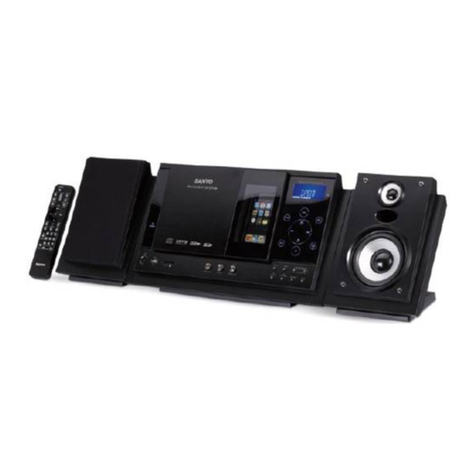
Jensen JWM40 Installation instructions

JWM40
MOBILE AUDIO SYSTEM
Installation and Owner's Manual

JWM40
ii
CONTENTS
Introduction ................................................................................................................ 1
Disc Notes.................................................................................................................. 2
Installation.................................................................................................................. 3
Wiring......................................................................................................................... 4
Basic Operation.......................................................................................................... 5
Tuner Operation ......................................................................................................... 8
Disc Operation ........................................................................................................... 9
CD Operation ............................................................................................................. 9
DVD/VCD Operation ................................................................................................ 10
MP3/USB Operation................................................................................................. 12
Bluetooth Operation ................................................................................................. 14
Remote Control Operation ....................................................................................... 16
DVD Settings............................................................................................................ 18
Care and Maintenance............................................................................................. 19
Troubleshooting ....................................................................................................... 19
Specifications........................................................................................................... 20
FCC Notes ............................................................................................................... 20

JWM40
1
INTRODUCTION
Thank You!
Thank you for choosing a Jensen product. We hope you will find the instructions in
this owner’s manual clear and easy to follow. If you take a few minutes to look
through it, you’ll learn how to use all the features of your new Jensen receiver for
maximum enjoyment.
Features
Features of Jensen JWM40 mobile audio system include:
Digital AM/FM Tuner/30 Preset stations (12 AM/18 FM)
Bluetooth Ready with A2DP/AVRCP Streaming Audio
Electronic Bass, Treble, Balance and Fader Controls
Skip Protected Disc Mechanism
DVD/CD-R/RW and MP3 Compatible
Time/Alarm Clock
LCD Backlight Control
1/8" Front Auxiliary Audio/Video Input
Rear Audio RCA Inputs/Outputs
USB Playback of MP3 Files
2 Zone / 4 Speaker Output
Wireless Remote Control Included
Precautions
Use the Proper Power Supply
This product is designed to operate with a 12 volt DC, negative ground battery
system (the standard system in a North American vehicle).
Protect the Disc Mechanism.
Avoid inserting any foreign objects into the slot of this player. Failure to observe
this may cause malfunction due to the precise mechanism of this unit.
Use Authorized Service Centers
Do not attempt to disassemble or adjust this precision product; contact a
professional for assistance.
Avoid Moisture
To reduce the risk of fire or electric shock, do not expose this equipment to rain
or moisture.
Avoid Cleaning Products
The front of this unit should only be cleaned with a slightly damp cloth. Do not
use cleansers.
Use Recommended Accessories.
TO REDUCE THE RISK OF FIRE OR ELECTRIC SHOCK AND ANNOYING
INTERFERENCE, USE ONLY THE RECOMMENDED ACCESSORIES.
CAUTION: This mobile DVD player is a Class I laser product that uses a
visible/invisible laser beam which could cause hazardous radiation exposure if
improperly directed. Be sure to operate the mobile DVD player as instructed.
Use of controls or adjustments or performance of procedures other than those
specified herein may result in hazardous radiation exposure. Do not open
covers and do not attempt to repair the unit yourself.
Refer servicing to qualified personnel.
Packing List
JWM40
20-PIN Speaker Wire
Remote Control

JWM40
2
DISC NOTES
Depending on the recording status, conditions of the disc, and the equipment used for
recording, some CD-Rs/CD-RWs may not play on this unit. For more reliable
playback, please adhere to the following recommendations:
Use CD-RWs with speed 1x to 4x and write with speed 1x to 2x.
Use CD-Rs with speed 1x to 8x and write with speed 1x to 2x.
Do not play a CD-RW which has been written more than 5 times.
Compatible Disc Types
Table 1: General Disc Information
Symbol
12cm Disc Properties
Max Play time
Single side single layer (DVD-5)
Single side double layer (DVD-9)
Double side single layer (DVD-10)
Double side double layer (DVD-18)
(MPEG 2 Method)
133 minutes
242 minutes
266 minutes
484 minutes
Single side single layer (VCD)
MPEG 1 Method
74 minutes
Single side single layer
74 minutes
NOTE: CD-R and CD-RW discs will not play unless the recording session is
closed and the CD is finalized.
Disc Maintenance
A dirty or defective disc may cause sound dropouts while playing. Before playing,
wipe the disc using a clean cloth, working from the center hole towards the
outside edge. Never use benzene, thinners, cleaning fluids, anti-static liquids or
any other solvent.
Insert label side
up,
Do not bend.
Never touch the
underside of the
disc
Wipe clean from
this center to the
edge.
Be sure to use only round CDs for this unit and do not use any special shape
CDs. Use of special shape CDs may cause the unit to malfunction.
Do not stick paper or tape on the disc. Do not use CDs with labels or stickers
attached or that have sticky residue from removed stickers.
Do not expose discs to direct sunlight or heat sources such as hot air-ducts, or
leave them in a vehicle parked in direct sunlight where there can be a
considerable rise in temperature inside the vehicle.
NOTE: A disc may become scratched (although not enough to make it unusable)
depending on how you handle it and other conditions in the usage environment.
These scratches are not an indication of a problem with the player.

JWM40
3
INSTALLATION
It’s a good idea to read all of the instructions before beginning the installation. We
recommend having your Jensen JWM40 installed by a reputable RV dealership.
Tools and Supplies
You will need these tools and supplies to install your JWM40:
Phillips screwdriver
Wire cutters and strippers
Tools to remove existing radio (screwdriver, socket wrench set or other tools)
Electrical tape
Crimping tool
Volt meter/test light
Crimp connections
16 gauge wire for power connections
16 - 18 gauge speaker wire
Four M3x20mm (3/32 x 0.75") screws
Disconnecting the Battery
To prevent a short circuit, be sure to turn off the ignition and remove the negative (-)
battery cable prior to installation.
NOTE: If the JWM40 is to be installed in a vehicle equipped with an onboard
drive or navigation computer, do not disconnect the battery cable. If the cable
is disconnected, the computer memory may be lost. Under these conditions,
use extra caution during installation to avoid causing a short circuit.
Selecting the Mounting Location
Select a mounting location, taking care to avoid the following:
Places exposed to heat-radiating appliances such as electric heaters
Adjacent to other equipment that radiates heat
Poorly-ventilated or dusty places
Moist or humid locations
Preparing the Opening
Use the mounting hole diagram (below) to measure and cut a mounting hole, then
mount the unit using four M3x20mm screws.
NOTE: Before cutting the mounting hole, make sure the area behind the
mounting location is clear of wires, fuel and vacuum or brake lines.

JWM40
4
WIRING
The wiring diagram depicts all the wiring connections required for proper operation of
the unit.
WARNING: Wiring harness comes with stripped and tinned leads to aid in the
installation process. Any unused speaker wires must have their exposed ends cut off
or insulated individually.
CONNECTIONS
The diagram below depicts all the available audio/video connections available to use
with your system.
DETAIL A
SHOWN FROM PIN VIEW
PIN NO.
WIRE COLOR
DESCRIPTION
1
VIOLET/BLACK
REAR RIGHT SPEAKER (-)
2
VIOLET
REAR RIGHT SPEAKER (+)
3
GREEN
REAR LEFT SPEAKER (+)
4
GREEN/BLACK
REAR LEFT SPEAKER (-)
5
N/A
N/A
6
GRAY
FRONT RIGHT SPEAKER (+)
7
GRAY/BLACK
FRONT RIGHT SPEAKER (-)
8
N/A
N/A
9
WHITE/BLACK
FRONT LEFT SPEAKER (-)
10
WHITE
FRONT LEFT SPEAKER (+)
11
N/A
N/A
12
N/A
N/A
13
N/A
N/A
14
BLUE
AMP REMOTE (+12VDC 100mA)
15
RED
+12VDC SWITCHED
16
BLACK
GROUND
17
N/A
N/A
18
N/A
N/A
19
N/A
N/A
20
N/A
N/A
AUDIO OUTPUT
AM/FM
ANTENNA SOCKET
AUDIO INPUT
WIRING HARNESS
CONENCTOR

JWM40
5
BASIC OPERATION
Power
Press the POWER button (16) to turn the unit on or enter standby mode. The unit will
resume at the last mode (Tuner, Aux, etc.) after turn on.
Volume control
Rotate the VOL encoder knob control clockwise to increase or counter- clockwise to
decrease the volume output.
The maximum volume setting is “40”. While adjusting the volume, the LCD displays
numerical representation of the level.
Audio Menu Setting
Press the AUDIO button (22) to step through the following audio adjustment options.
Rotate the VOL/ENTER encoder knob control to adjust the selected audio feature.
Audio Adjustment
BAS: Adjust the Bass level from "-7" to "+7".
TRE: Adjust the treble from "-7" to "+7".
BAL: Adjust the speaker output balance between "L7" (left) and "R7" (right).
"BAL 0" indicates an equal balance between the left and right speakers.
FAD: Adjust the speaker fade between “R7” (rear) and “F7” (front). “FAD 0”
indicates and equal balance between the rear and front speakers.
This function will time out after ten seconds of inactivity and the unit will
resume normal operation.
Loudness
Press the LOUD button (22) to toggle the loudness function on/off.
Mute
Press the MUTE button (3) to silence the audio output in tuner, CD, DVD, BT, USB or
auxiliary input mode. Press again to restore the previous volume level.
Liquid Crystal Display (LCD)
The liquid crystal display (LCD) panel (20) displays the frequency, time and activated
functions.
Press the BRIGHT UP button (34) to increase the LCD brightness and press the
BRIGHT DOWN button (32) to decrease the LCD brightness from “LEVEL 0” (off) to
“LEVEL 9” (brightest).
NOTE: When subjected to cold temperatures for an extended period of time,
LCD panels will take longer to illuminate and the display visibility may slightly
decrease. Optimal LCD operation will return to normal when the temperature
increases to a normal range.
System menu setting
1. Press the SETTING button (23) to enter the system menu.
2. Press SETTING button or press the |<< or >>| ( 2,5) to choose the following
system menu list:
3. Once the desired menu item appears on the display, adjust that option by
rotating the volume encoder knob clockwise or counter-clockwise within 10
seconds.
4. Press the ENTER knob button (4) to confirm your selection and exit system
menu. The unit will automatically exit the audio menu after 10 seconds of
inactivity.
The following items can be adjusted:
Beep On/Off: Turn the audible beep On/Off (heard when functions /buttons are
selected).
Note: Beep tone off will not affect the audible tone of the alarm clock.
LCD Brightness: Adjust the brightness of the LCD backlight from “BRI 0” (off) to
“BRI 9” (Brightest).

JWM40
6
Setting the Bluetooth
Bluetooth (On/Off): Choose “Bluetooth On” or “Bluetooth Off”.
Bluetooth Device (Locked/Unlocked, Disconnect/Connect, Delete): view, lock
and delete from a list of previously paired mobile device models.
Bluetooth Pair: Press “ENTER” knob to automatically pair a device.
PRESET Volume (PVOL): Select an automatic turn on volume
Reset
Press ENTER knob button to reset the JWM40 to factory default.
Auxiliary Input Function
Press the AUX button (14) to directly access auxiliary input modes (AUX IN1 and
AUX IN2) from any other mode when a portable audio device is connected to the unit.
To connect a portable audio device, insert a standard 3.5mm (audio line output or
headphone output from your portable CD / MP3 / iPod or other media player) into the
AUX A/V IN connector (AUX IN1) (36) on the front of the unit or the AUDIO IN (AUX
IN2) on the back of the unit (see “Wiring” on page 4).
Auxiliary Input Connector
For front panel A/V input, an external audio/video (A/V) source such as a video game
player, camera, etc. can be connected to the front panel A/V input with the provided
3.5mm A/V cable adapter (Please note that there are several different A/V cable
"standards"). Connect the device to the AUX A/V IN connector (36) on the front panel.
In addition to front panel auxiliary input source, the unit can also be connected to the
RCA audio input through the AUX AUDIO INPUT jack on the rear of the unit.
Press the AUX button (14) to directly access auxiliary input modes (AUX 1 IN and
AUX 2 IN) from any other mode when a portable audio device is connected to the
unit.
USB Interface Connector
You can connect a USB device directly to USB interface (19) on the front of the
JWM40 for playback of compatible files. Playback begins automatically. Press the
USB button (12) to switch to USB mode from another source. Refer to “MP3/USB
Operation” on page 12 for additional operating instructions.
NOTE: USB will not support Apple device playback. The USB input supplies up
to 1A of charging current.
Clock Display
Press the VIEW button (25) to alternate between playing time and clock time while in
Tuner, CD, DVD, USB or auxiliary input mode.
Clock Setup
Press and hold the clock HOUR or MINUTE button (28, 30) to access clock setup
mode. The number representing the hours and minutes will flash. Press the HOUR
button (28) to adjust the hour and press the MINUTE button (30) to adjust minutes.
The new time will be saved five seconds after the last adjustment is made.
Sleep Mode
The Sleep Timer will automatically turn off the JWM40 in the designated number of
minutes. To set the Sleep Time, press the SLEEP button (26) and the sleep time will
appear in the display with the number representing the minutes (SLEEP 0). Press
SLEEP button repeatedly to change the sleep time from 0 (OFF), 15, 30, 45 or 60
minutes.
Alarm Setting
To set the alarm, press and hold the ALARM button (24) for 2 seconds and the clock
digits will be flashing. Press the HOUR button to adjust the hour once at a time or
press and hold to advance rapidly. Repeatedly press the MINUTE button to adjust the
minute one digit at a time, or press and hold to advance rapidly.
Press the ALARM SET or ENTER knob button to save the alarm time.
Once a time is set, press ALARM (24) to turn the alarm function on or off.
Remote Sensor
Infrared receiver (18) is located on the upper left of front panel to receive infrared
signal emitted by the remote control.
Speaker Output
The two speaker output buttons (15, 17) (Zone A, Zone B) control speaker zones
output from the radio. Press any of the two buttons to turn the corresponding speaker
zone on or off. SPK A (Zone A), SPK B (Zone B) will appear on the display.

JWM40
7
Reset
The reset button should be activated for the following reasons:
Initial installation of the unit when all wiring is completed
Function buttons do not operate
Error symbol on the display
Use a ball point pen or similar object to press the RESET button (21). This may be
necessary should the unit display an error code.

JWM40
8
TUNER OPERATION
Select a Band
1. Press AM button (7) repeatedly to select the band (AM1, AM2)
2. Press FM button (8) repeatedly to select the band (FM1, FM2 and FM3) Manual
Tuning
Manual Tuning
Press the >>| or |<< buttons (5, 2) to seek stations up/down step by step.
Auto Seek Tuning
Press and hold the >>| or |<< buttons (5, 2) to automatically seek the next or previous
strong station.
Preset Stations
Six numbered preset buttons store and recall stations for each AM and FM band.
Store a Station
Select a band (if needed). Press a 1-6 preset button to select the corresponding
stored station.
Automatically Store / Preset Scan (AS/PS)
Automatically Store
Select an AM or FM band. Press and hold the AS/PS button (6) for more than 3
seconds and the unit will automatically scan for and store 12 or 18 strongest station
for all bands. To stop this function before the automatic storing is complete, press
AS/PS again.
Preset Scan
Select a band. Press AS/PS button to scan stations stored in the current band. The
unit will pause for 10 seconds at each preset station. Press AS/PS again to stop
scanning when the desired station is reached.
Other manuals for JWM40
2
Table of contents
Other Jensen Stereo System manuals

Jensen
Jensen Heavy Duty JHD40BT User manual

Jensen
Jensen CD-565 User manual

Jensen
Jensen SMPS-628 User manual

Jensen
Jensen JWM9A User manual

Jensen
Jensen JTA-980 User manual

Jensen
Jensen JWM10A User manual

Jensen
Jensen JCR-390 User manual

Jensen
Jensen JWM22 User manual

Jensen
Jensen JWM9ABK User manual

Jensen
Jensen JBS-300 User manual

Jensen
Jensen JMS32 User manual

Jensen
Jensen JWM40 User manual

Jensen
Jensen AWM965 User manual

Jensen
Jensen JBS-210 User manual

Jensen
Jensen JBS-230 User manual

Jensen
Jensen JMC-1000 User manual

Jensen
Jensen JWM6A User manual

Jensen
Jensen JMC-1100 User manual

Jensen
Jensen AWM914 User manual

Jensen
Jensen CD-785 User manual