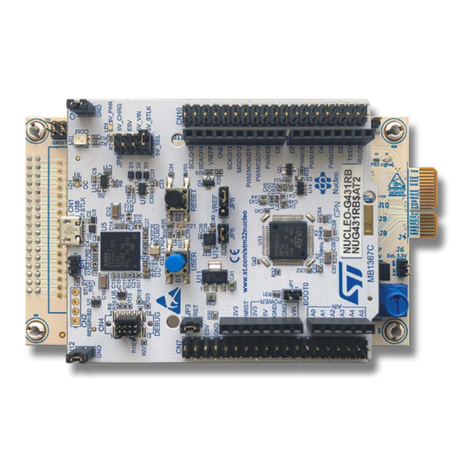
Giada MI-E350 User manual

www.giadatech.com User’s Manual
MI-E350
All right reserved
Version 001
Motherboard

21
Contents
www.giadatech.com
Gratitude ……………………………………………………………………………
I. About the product ………………………………………………………………
1. Picture of the motherboard ………………………………………………
2. Features ……………………………………………………………………
2.1 Processor ………………………………………………………………
2.2 Memory …………………………………………………………………
2.3 BIOS ……………………………………………………………………
2.4 Interfaces of peripherals ………………………………………………
2.5 Power management……………………………………………………
2.6 Expansion slot …………………………………………………………
II. Hardware installation……………………………………………………………
1. Layout of motherboard ……………………………………………………
2. Installing memory …………………………………………………………
3. Install expansion slot card …………………………………………………
4. Motherboard jumper setting ………………………………………………
4.1 SATA1/SATA2 (Serial ATA flat-cable sockets) ………………………
4.2 CPU_FAN (CPU FAN socket) ………………………………………
4.3 SYS_FAN (system FAN socket) ……………………………………
4.4 CLR_CMOS(CMOS pin) ………………………………………………
4.5 F_USB1/F_USB2 (frond-end USB pin) ……………………………
4.6 F_ AUDIO(Pins for front-end audio adapter) ………………………
4.7 ATX 24+4PIN (ATX Power receptacle) ………………………………
4.8 F_ PANEL (Front-end control panel) …………………………………
4.9 F_COM (Front end COM port) ………………………………………
4.10 SPKR …………………………………………………………………
5. Rear panel interface ………………………………………………………
III. BIOS setting ……………………………………………………………………
1. Main menu …………………………………………………………………
2. Main (standard CMOS setup) ……………………………………………
3. Advanced (Advanced BIOS setup) ……………………………………
3.1 CPU configuration ……………………………………………………
3.2 IDE configuration ……………………………………………………
3.3 Super IO configuration ………………………………………………
3.4 H/W Monitor …………………………………………………………
3.5 LAN configuration ……………………………………………………
4. Power ………………………………………………………………………
5. Chipset Configuration ……………………………………………………
5.1 NB chipset configuration ……………………………………………
5.2 SB chipset configuration ……………………………………………
6. Boot configuration …………………………………………………………
7. Security Setup ……………………………………………………………
8. Save&Exit …………………………………………………………………
IV. Software installation ……………………………………………………………
1. Install driver for motherboard ……………………………………………
1.1 Install driver for chipset ………………………………………………
1.2 Install sound card driver ………………………………………………
1.3 Install driver for on-board LAN chip …………………………………
1.4 Install driver for graphic card …………………………………………
2. HD_AUDIO and sound card setup ………………………………………
3
4
5
5
5
5
5
6
7
8
9
10
10
11
11
12
13
14
15
17
18
19
19
4
5
5
20
22
23
24
24
25
26
26
27
28
29
29
30
30
3 1
32
34
34
36
37
38
39
39

4
3
Gratitude I. About the product
1. Picture of the motherboard
Thank you for choosing Giada motherboard.
Giada MI-E350 is based on AMD® Dual-Core Processor E-350 with AMD
Radeon™ HD 6310 Discrete-Class Graphics and “Hudson” M1 FCH.
Through the latest VISION(Tier) Technology and HD Internet Technology from
AMD®, MI-E350 support full 1080P video play and DirectX® 11 games.
It supports USB3.0 High Speed Transmission, DDR3 1066MHz memory, on-board
HD-AUDIO sound card and gigabit LAN. Support HDMI digital display output.
Any question about the product, please send e-mail to our support center.
Headquarter:
USA office: [email protected]
www.giadatech.com
NOTE:This is Giada real product photo show for your reference only, Product
appearance depends on goods.

6
5
2.1 Processor
·
·
2.2 Memory
·
·
2.3 BIOS
·
·
·
·
2.4 Interfaces for peripherals
·
·
·
·
·
·
·
·
·
·
2.5 Power management
·
·
2.6 Expansion slot
· Two MINI-PCIe slots.
2. Features
On-board AMD® E-Series “Zacate” APU E-350;
APU integrated AMD Radeon™ HD 6310 Discrete-Class Graphics.
Supports 204-Pin DDR3 1066MHz memory;
4GB at maximum.
Supports PNP, APM and ATAPI;
Supports ACPI and DMI;
Automatic detection and supporting hard disk whose LBA mode is over 160G;
End-users can easily upgrade the motherboard with BIOS.
Two SATA2 HDD port;
One HDMI digital interface;
One DVI interface;
Two USB3.0 high-speed transmission ports and are compatible with USB1.1;
Six USB2.0 high-speed transmission ports and are compatible with USB1.1;
One RJ45 network interface (PCIe Gigabit Ethernet);
On-board HD-AUDIO audio adapter;
Interfaces on panels can be compatible with HDD LED, Speaker, etc;
One CMOS contact pin;
One system FAN socket.
Support APM and ACPI;
Compatible with energy star “Green PC”.
II. Hardware installation
www.giadatech.com
Warning
·
·
·
·
·
The motherboard consists of a great number of ICs and other components. These
ICs might be damaged by the static charge. Therefore, the user must make the
following preparations before installation:
Turn off the power of the computer. It is preferable the power cord be unplugged.
Take care not to contact the metal wires and theirs joints on the motherboard
when handling it.
It is preferable that the operator wear the anti-static wrist strap when handling
the IC components.
Before the ICs are installed, the components of the motherboard should be
placed on the anti-static mat or bag.
When you remove the plug on the ATX power supply of the motherboard, make
sure the switch of the power supply is in OFF state.
Installing the motherboard onto the computer case:
For most of the computer cases, the multiple fixing holes left on their bottoms can
be used for securing the motherboard and preventing short circuit. During your
operation, take care not to allow the screws to contact any circuit or part on PCB.
When circuits on the surface of the motherboard get close to the fixing holes, you
can use the plastic sheet to separate the screws from the board surface so as to
avoid damage or failure of the motherboard.

8
7
1. Layout of motherboard 2. Installing memory
Please install the memory in accordance with the following procedures:
· Align the golden finger of the memory to the groove of the interface slot and
pay attention the concave hole of golden finger should be aligned to the
convex point of the slot.
· Finally, insert the memory into the interface slot gently. If no error occurs at
the moment, insert the card forward in the slot till the white buckle is
automatically engaged in the concave hole at the two sides of the memory.
NOTE: In order to avoid damages to the motherboard or the components, the
user must make sure the power supply to the computer is turned off before the
memory or other component is installed or removed. As the groove is set at the
golden finger of the DDR DIMM, the memory can only be inserted into the slot
with one direction. During installation, the user only needs to align the golden
finger and the dual-channel groove of the interface slot and insert it gently. To
avoid damage, never apply excessive force in that process.
www.giadatech.com
12
3
4
5
67
8
9
10
11
12
14
15 17 1816 19
22
23
1. 2*Antenna hole
2. 2*USB2.0 port
3. 1*PS/2 KB + 2*USB2.0 port
4. 1*DVI port
5. 1*HDMI port
6. 1*RJ45 port + 2*USB3.0 port
7. 5jack Audio-out/Mic-in
(includes 1*optical S/PDIF-out)
8. CLR_CMOS
9. Front Audio
10. Front COM
11. Front USB1
12. Front USB2
13. Mini PCIe 2
14. Mini PCIe 1
15. Front Panel
16. ATX 24PIN power socket
17. SATA2 Socket
18. 3PIN SYS_FAN
19. DDR3 DIMM Slot
20. 3PIN CPU_FAN
21. AMD E-350
22. AMD Hudson M1
23. 4PIN ATX power socket
13
20
21

10
9
www.giadatech.com
3. Install expansion slot card
Installing extended devices
At the top side of motherboard are two Mini-PCIE extended slots support
PCIe 1X signal, can use mini PCIe WiFi module etc.
4. Motherboard jumper setting
Note:
The user should notice that all sockets are marked with PIN1. The mark “#”
indicates the ex-factory default values.
4.1. SATA1/SATA2 (Serial ATA flat-cable sockets)
Serial ATA sockets can reach a transmission speed of 300MB/s, and you
can connect your Serial ATA device to this socket.
71
PIN Definition
1
2
3
4
5
6
7
GND
TXP
TXN
GND
RXN
RXP
GND
12.Mini PCIe 2
13.Mini PCIe 1
12
13

12
11
4.2. CPU_FAN (CPU FAN socket)
This receptacle can be used for connecting CPU fan. Its pins are defined
below. The user shall make sure the fan is conforming.
4.3. SYS_FAN (system FAN socket)
This receptacle can be used for connecting chassis fan. Its pins are defined
below. The user shall make sure the fan is conforming.
Pin#
Pin#
Pin#
Definition
Definition
Definition
1
2
3
1
2
3
1-2#
2-3
VSS
VDD
TAC
VSS
VDD
TAC
Normal
CLR_CMOS
www.giadatech.com
4.4. CLR_CMOS(CMOS pin)
The correct time, system hardware and other information are saved in the
CMOS memory of the motherboard. The interruption the computer's power
won't cause the loss of this information, for the CMOS is powered by the
battery on the motherboard. The port is defined as follows:
123
123
123

14
13
Definition
VCC
USB D1-
USB D1+
GND
NULL
PIN
2
4
6
8
10
Definition
VCC
USB D0-
USB D0+
GND
NULL
PIN
1
3
5
7
9
Definition
GND
PRESENCE# (Dongle present)
MIC_SENSE_RETURN
NULL
OUT_SENSE_RETURN
PIN
2
4
6
8
10
Definition
MIC_L
MIC_R
OUT_R
SENSE_SEND (Jack detection)
OUT_L
PIN
1
3
5
7
9
www.giadatech.com
4.5. F_USB1/F_USB2 (frond-end USB pin)
In case the USB ports on the rear panel of the machine case are not enough,
the user can use the two sets of extension USB pins provided by this
motherboard. These ports support USB 2.0 devices. The definitions of the
ports are described below:
210
1
4.6. F_ AUDIO(Pins for front-end audio adapter)
These audio adapter ports allow you to connect to the wire harness of the
audio adapter. After connection, you can easily control the audio
output/microphone through the front panel of the host (Note: Don't connect
the wire to Pin 4).
The definitions of the ports are described below:
2 10
1 9

16
15
4.7.ATX 24+4PIN (ATX Power receptacle)
This socket is used for connecting the 24-pin outlet of the power supply. The
definitions of the pins are described below (when power supply with 20-pin
outlet is used, please make sure the numbers are matched correctly):
This board has special 4PIN 12V power receptacle for CPU. For better and
more stable processor power supply, we suggest keeping the connection on
this socket. The definitions of the pins are described below:
www.giadatech.com
1
PIN Definition
1
2
3
4
GND
GND
12V
12V
1
2
23
24
3.3V
5V
5V
PG
12V
3.3V
-12V
PS-ON
GND
-5V
5V
GND
Definition
PIN
2
4
6
8
10
12
14
16
18
20
22
24
Definition
3.3V
GND
GND
GND
5VSB
12V
3.3V
GND
GND
GND
5V
5V
PIN
1
3
5
7
9
11
13
15
17
19
21
23

18
17
1
2
9
10
4.9 F_COM (Front end COM port)
www.giadatech.com
RXD1
DTR1
DSR1
CTS1
NC
DCD1
TXD1
GND
RTS1
RI1
2
4
6
8
10
1
3
5
7
9
Signal
PIN
Signal
PIN
4.8. F_ PANEL (Front-end control panel)
This socket is used to connect the flat cables on the front-end panel.
PIN
1
3
5
7
9
Definition
HDLED+
GND
RST+
GND
NULL
PIN
2
4
6
8
10
2
1
PLED+(VCC)
GND
NULL
PWBT
GND
Definition
4
3
6
5
8
7
10
9
Table of contents
Other Giada Motherboard manuals

Giada
Giada MI-ION2 User manual

Giada
Giada N30M-VA User manual

Giada
Giada ION2 User manual

Giada
Giada N70E-DR ITX NAS User manual

Giada
Giada Mini-ITX User manual

Giada
Giada MI-E350T User manual

Giada
Giada N70E-DR ITX NAS User manual

Giada
Giada MI-D2700D User manual

Giada
Giada MI-D525 User manual

Giada
Giada NI-R3188 User manual