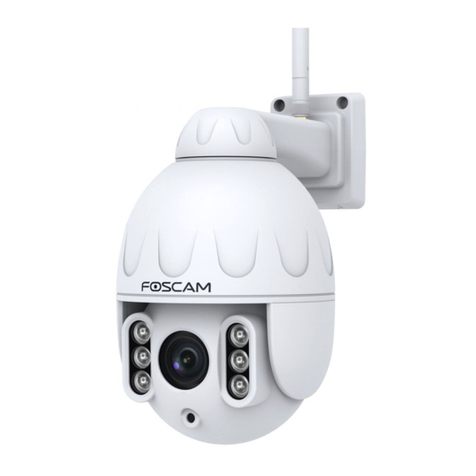
Foscam G4EP-W User manual

Table of Contents
Security Warning..................................................................................................................................................1
1 Overview ...........................................................................................................................................................1
1.1 Key Features...........................................................................................................................................1
1.2 PoE .........................................................................................................................................................2
1.3 Read before Use.....................................................................................................................................2
1.4 Packing Contents....................................................................................................................................2
1.5 Physical Description................................................................................................................................3
1.6 SD Card Management............................................................................................................................4
1.7 Wall Installation.......................................................................................................................................5
2 Access the IP Camera.......................................................................................................................................6
2.1 Hardware Connection & Software Installation........................................................................................ 6
2.2 Access the Camera In LAN.....................................................................................................................6
2.3 Access the Camera in WAN....................................................................................................................8
2.4 Using the VLC Player .............................................................................................................................8
2.5 IP Camera Connection to the Server.................................................................................................... 11
3 Surveillance Software GUI..............................................................................................................................12
3.1 Login Window .......................................................................................................................................12
3.2 Surveillance Window.............................................................................................................................15
4 Advanced Camera Settings.............................................................................................................................21
4.1 Setup Wizard ........................................................................................................................................21
4.2 Device Status........................................................................................................................................21
4.3 Basic Settings.......................................................................................................................................23
4.4 Network................................................................................................................................................. 29
4.5 Video.....................................................................................................................................................34
4.6 Detector.................................................................................................................................................37
4.7 Record...................................................................................................................................................41
4.8 Firewall..................................................................................................................................................44
4.9 System................................................................................................................................................44
5 Playback..........................................................................................................................................................48
6 Appendix..........................................................................................................................................................50
6.1 FrequentlyAsked Questions.................................................................................................................50
6.2 Default Parameters...............................................................................................................................59
6.3 Specification..........................................................................................................................................60
6.4 CE & FCC .............................................................................................................................................62
6.5 WARRANTY..........................................................................................................................................63

6.6 Statement..............................................................................................................................................66
7 Obtaining Technical Support...........................................................................................................................67

1
Security Warning
1.Please change the password of your camera regularly, using a combination of numbers, letters and special
characters.
2.We recommend that you regularly update your camera to the latest available software and firmware versions
to help ensure the best experience for your camera.
1 Overview
FOSCAM Outdoor FHD IP Camera is an integrated wireless IP Camera with a color CMOS sensor enabling
viewing in High Definition resolution.It combines a high quality digital video camera, with a powerful web server,
to bring clear video to your desktop from anywhere on your local network or over the Internet.
The IP Camera supports the industry-standard H.264 compression technology, drastically reducing file sizes
and conserving valuable network bandwidth.
The IP Camera is based on the TCP / IP standard. There is a WEB server inside which could support Internet
Explorer. Therefore the management and maintenance of your device is simplified by using the network to
achieve the remote configuration and start-up.
The camera is designed for outdoor surveillance applications such as courtyards, supermarket, and school.
Controlling the IP camera and managing images are simplified by using the provided web interface across the
network utilizing wireless connectivity.
FOSCAM provides Phone apps forAndroid and iPhone users, please search and install app on app Store and
Google Play for iOS andAndroid devices, then you can view your camera anywhere, anytime on your smart
mobile devices.
1.1 Key Features
Standard H.264 video compression algorithm to satisfy the transmission of high definition video in narrow
bandwidth network
2.0 Mega-Pixel (QJ2, FI9912EP, G2EP) / 4.0 Mega-Pixel (G4EP QJ4)
Supports IE / Firefox / Google / Safari browser or any other standard browsers
Supports WPA and WPA2 Encryption
IR LEDs for IR range up to 20m / 66ft
Supports image snapshot
Supports dual-stream
Supports IR-Cut and the filter change automatically
Supports remote viewing & record from anywhere anytime
Multi-level users management with password protection
Motion detection alert via email or upload image to FTP

2
Supporting Third Party Domain name
Providing Phone apps forAndroid and iPhone users
Supports multiple network protocols: HTTP / HTTPS / RTSP / TCP / IP / UDP / FTP / DHCP / ONVIF
Providing Central Management Software to manage or monitor multi-cameras
6X Digital Zoom
Supports High Dynamic Range
1.2 PoE
The Network Camera is PoE-compliant, allowing transmission of power and data via a single Ethernet cable.
Such as the following picture: connect the Network Camera to a PoE-enabled router / switch via Ethernet cable.
1.3 Read before Use
Please first verify that all contents received are complete according to the Package Contents listed below.
Before the Network Camera is installed, please carefully read and follow the instructions in the Quick Setup
Guide to avoid damage due to faulty assembly and installation. This also ensures the product is used properly
as intended.
1.4 Packing Contents
IP Camera * 1
Quick Setup Guide * 1
DC Power Supply * 1

3
1.5 Physical Description
1.5.1 Front Panel
1 Infrared LED: 30 IR LEDs
2 LENS: All Glasses Material
1.5.2 Interface
1LAN
10/100M adaptive Ethernet interface. Through this interface, IP camera can be connected with various network
devices, such as hub, router, etc.
2Audio input interface
The jack is used to plug external input device such as sound pick up device directly. Here microphone cannot
directly insert to the interface, it must connect to adapter first.
2
1
1
2
3
4
5

4
3Audio output interface
The jack is used to plug external output device such as loud speaker directly. Here microphone cannot directly
insert to the interface, it must connect to adapter first.
4Power Interface
Connect the external power adapter, request for 12V / 1A power.
5Reset button
Press and hold on the reset button for 5 seconds. Releasing the reset button, the password will back to the
factory default administrator password. The default administrator user is admin with no password.
1.5.3 Bottom View
There are up to two labels located at the bottom of the camera, this is an important feature of original Foscam
cameras. If your camera does not have labels, it may be a clone. Cloned Foscam cameras can not use original
firmware and are not eligible for technical services.
1.6 SD Card Management
The record files of the IPC can be stored in the Micro SD Card.
You need open the IP Camera, then plug the Micro SD card Micro into SD card slot inside the IP Camera.
When you plug in the Micro SD card during the camera work process, please reboot the camera again, or else
the SD Card may be cannot work well.
Insert Micro SD Card in the location shown below.

5
1.7 Wall Installation
Fixate the camera on your preferred location and use screws to mount it. We have provided screws in the
Packaging.
NOTE: Ensure that the rain or water will not reach the connector ports at the end of the pig tail wiring. These
connectors are not weather-resistant.
The cable of an outdoor camera should, from the position where the cable is divided into several cables, be
fitted dry. Install the cable into a waterproof junction box (1) or bring the cable indoors (2).

6
2 Access the IP Camera
2.1 Hardware Connection & Software Installation
1. Connect the camera to the LAN network (Router or Switch) via network cable.
2. Connect the power adapter to the camera.
4. Download the“Equipment Search Tool” from foscam.com/tools to your computer, then access the camera directly.,
the icon shows as below:
NOTES:
If your computer (Windows OS) supports autorun function, you can find the corresponding file in the
opened control panel.
2.2 Access the Camera In LAN
2.2.1 Wired Connection
The camera supports HTTP and HTTPS protocols, you can access the camera in two ways.
(1) Http:// LAN IP + Http Port No.
The default HTTP port NO. is 88. Double click the Search Tool icon to run, and it should find the camera's IP
address automatically after you plug in the network cable.

7
Double click the IP address of the camera; the camera login page should be open in your default browser.
(2) Https:// LAN IP + Https Port no.
The default HTTPS port NO. is 443. You can use the URL to access the camera: https:// LAN IP + HTTPS port
NO.
Go to Settings - Network - Port panel, you can see and change the HTTP and HTTPS port NO.
NOTE: When logging in for the first time, you will need to download and install the add-on.
Click Run
This manual suits for next models
5
Table of contents
Other Foscam Security Camera manuals

Foscam
Foscam FI9903P User manual

Foscam
Foscam FI9805W User manual

Foscam
Foscam FI8905E User manual

Foscam
Foscam FI9926P/Z2 User manual

Foscam
Foscam FI8918 User manual

Foscam
Foscam SD4 User manual

Foscam
Foscam FN3108XE-B4-1T User manual

Foscam
Foscam B4 User manual

Foscam
Foscam FI9961EP User manual

Foscam
Foscam FI9828P User manual

Foscam
Foscam E1 Instruction Manual

Foscam
Foscam G4C User manual

Foscam
Foscam FI9828W User manual

Foscam
Foscam C2M User manual

Foscam
Foscam SD2X User manual

Foscam
Foscam FI8608 User manual

Foscam
Foscam HUNTVISION P2 User manual

Foscam
Foscam FI8919W User manual

Foscam
Foscam FI9803P V2 User manual

Foscam
Foscam G2EP User manual