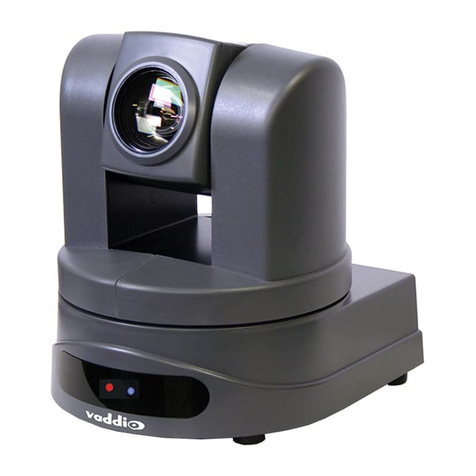
DW MEGApix DWC-VSBD04Bi User manual

User’s Manual Ver.04/23
Before installing and using the camera, please read this manual carefully.
Be sure to keep it handy for future reference.
MEGApix® 4MP Bullet IP Camera
DWC-VSBD04Bi - Bullet Camera with Fixed Lens
DWC-VSBD04Mi - Bullet Camera with Vari-Focal Lens

Safety Notes
This product is intended to be supplied by a Listed Power Unit, marked with 'Limited Power Source', 'LPS' on the
unit, output rated minimum 12V/2 A or POE 48V/ 350mA or AC24V (depending on models), no more than 2000m
altitude of operation and 60 degrees C.
As for the modes with PoE function, the function of the ITE being investigated to IEC 60950-1 standard is considered
not likely to require connection to an Ethernet network with outside plant routing, including campus environment
and the ITE is to be connected only to PoE networks without routing to the outside plant.
Do not try to disassemble the camera; to prevent electric shock, do not remove screws or covers.
There are no user-serviceable parts inside. Please contact the nearest service center as soon as possible if there is
any failure.
Avoid incorrect operation, shock vibration, heavy pressing which can cause damage to the product.
Do not use a corrosive detergent to clean the main body of the camera. If necessary, please use a soft dry cloth to
wipe dirt; for hard contamination, use neutral detergent. Any cleanser for high-grade furniture is applicable.
Avoid aiming the camera directly towards extremely bright objects, such as the sun, as this may damage the image
sensor.
Please follow the instructions to install the camera. Do not reverse the camera, or the reversing image will be
received.
Do not work the camera in case temperature, humidity and power supply are beyond the limited stipulations.
Keep away from heat sources such as radiators, heat registers, stoves, etc.
Do not expose the product to the direct airflow from an air conditioner.
This manual is for using and managing the product. We may reserve the right of amending the typographical errors,
inconsistencies with the latest version, software upgrades and product improvements, interpretation and
modification. These changes will be published in the latest version without special notification.
All pictures, charts, images in this manual are only for description and explanation of our products. In this manual, the
trademarks, product names, service names, company names, products that are not owned by our company are the
properties of their respective owners.
•
Disclaimer
Concerning the product with internet access, the use of the product shall be wholly at your own risk. Our company
shall be irresponsible for abnormal operation, privacy leakage, or other damages resulting from cyber-attack, hacker
attacks, virus inspection, or other internet security risks; however, our company will supply timely technical support if
necessary.
Surveillance laws vary from country to country. Check all laws in your local region before using this product for
surveillance purposes. We shall not take the responsibility for any consequences resulting from illegal operations.
Cybersecurity Recommendations
Use a strong password. At least 8 characters or a combination of characters, numbers and upper- and lower-case
letters should be used in your password.
Change the passwords periodically to ensure that only authorized users can access the system (recommended time
is 90 days).
It is recommended to change the service default ports (like HTTP-80, HTTPS-443, etc.) to reduce the risk of
outsiders being able to access.
It is recommended to set a security system for your router. Important ports such as HTTP, HTTPS and dual ports
cannot be closed.
It is not recommended to expose the device to the public network. When it is necessary to be exposed to the public
network, please set the external hardware security system and the corresponding security system policy.
It is not recommended to use the v1 and v2 functions of SNMP.
To enhance the security of WEB client access, please create a TLS certificate to enable HTTPS.
Use black- and white- lists to filter the IP address. This will prevent everyone, except those specified IP addresses
from accessing the system.
If you add multiple users, limit the functions of guest accounts.
If you enable UPnP, it will automatically try to forward ports in your router or modem. It is very convenient for users,
but this will increase the risk of data leakage when the system automatically forwards ports. Disabling UPnP is

recommended when the function is not used in real applications.
Check the log. If you want to know whether your device has been accessed by unauthorized users or not, you can
check the log. The system log will show you which IP addresses were used to log in to your system and what was
accessed.
Regulatory Information
FCC Information
1. FCC compliance
The products have been tested and found in compliance with the council FCC rules and regulation’s part 15 subpart B. These
limits are designed to provide reasonable protection against harmful interference. This equipment generates uses and can
radiate radio frequency energy and, if not installed and used following the instruction manual, may cause harmful
interference to radio communication. However, there is no guarantee that interference will not occur in a particular
installation. The user will be required to correct the interface at his own expense in case harmful interference occurs.
2. FCC conditions:
The operation of this product is subject to the following two conditions: (1) this device may not cause a harmful interface and
(2) this device must accept any interference received, including interference that may cause undesired operation.
CE Information
The products have been manufactured to comply with the following directives.
EMC Directive 2014/30/EU
RoHS
The products have been designed and manufactured following Directive EU RoHS Directive 2011/65/EU and its amendment
Directive EU 2015/863 on the restriction of the use of certain hazardous substances in electrical and electronic equipment.
2012/19/EU (WEEE directive): The Directive on waste electrical and electronic equipment (WEEE Directive).
To improve the environmental management of WEEE, the improvement of collection, treatment and recycling
of electronics at the end of their life is essential. Therefore, the product marked with this symbol must be
disposed of responsibly.
Directive 94/62/EC: The Directive aims at the management of packaging and packaging waste and
environmental protection. The packaging and packaging waste of the product in this manual refers to must be disposed of
at designated collection points for proper recycling and environmental protection.
REACH(EC1907/2006): REACH concerns the Registration, Evaluation, Authorization and Restriction of Chemicals, which
aims to ensure a high level of protection of human health and the environment through better and earlier identification of
the intrinsic properties of chemical substances. The product in this manual refers to conforms to the rules and regulations of
REACH. For more information on REACH, please refer to DG GROWTH or ECHA websites.

Table of Contents
1Introduction .......................................................................................................... 1
1.1 Product and Accessories....................................................................................... 1
1.2 Parts identification ................................................................................................. 1
2Installation.............................................................................................................2
2.1 Powering the Camera........................................................................................... 2
2.2 Installation........................................................................................................... 2
2.3 Cabling................................................................................................................. 4
2.4 Managing the SD Card.................................................................................... 4
2.5 Resetting the Camera ..................................................................................... 4
3Network Setup.....................................................................................................5
3.1 IP Finder.................................................................................................................... 5
4Live View ...............................................................................................................7
5Network Camera Configuration..................................................................... 9
5.1 Camera Configuration.......................................................................................... 9
5.1.1 Camera Parameters ............................................................................... 9
5.1.2 Video Configuration ..............................................................................11
5.1.3 Audio Configuration .............................................................................13
5.1.4 OSD Configuration................................................................................14
5.1.5 Privacy Mask ...........................................................................................15
5.1.6 ROI Configuration .................................................................................16
5.1.7 Zoom/Focus ...........................................................................................17
5.2 Network Configuration ..................................................................................19
5.2.1 IPv4 and IPv6..........................................................................................19
5.2.2 Port ............................................................................................................19
5.2.3 ONVIF ..................................................................................................... 20
5.2.4 DDNS.........................................................................................................21
5.2.5 SNMP........................................................................................................22
5.2.6 802.1x........................................................................................................23
5.2.7 RTSP .........................................................................................................24
5.2.8 UPNP ........................................................................................................25
5.2.9 SMTP ........................................................................................................26
5.2.10 FTP.......................................................................................................27
5.2.11 HTTPS ......................................................................................................29
5.2.12 QoS ...........................................................................................................32
5.3 Event Configuration.......................................................................................33
5.3.1 Tampering Detection...........................................................................33

5.3.2 Line Crossing .........................................................................................35
5.3.3 Perimeter Intrusion ..............................................................................37
5.4 Alarm Configuration ......................................................................................39
5.4.1 Motion Detection..................................................................................39
5.4.2 Other Alarms ........................................................................................ 40
5.5 Security Configuration..................................................................................42
5.5.1 User Configuration...............................................................................42
5.5.2 Online User............................................................................................ 44
5.5.3 Block and Allow Lists..........................................................................45
5.5.4 Security Service ................................................................................... 46
5.5.5 Password Security............................................................................... 46
5.5.6 Authentication.......................................................................................47
5.6 System Configuration................................................................................... 48
5.6.1 Basic Information ................................................................................ 48
5.6.2 Time Zone & DST................................................................................. 49
5.6.3 Date and Time ...................................................................................... 49
5.6.4 Micro SD Management ...................................................................... 50
5.6.5 Record.......................................................................................................51
5.6.6 Snapshot .................................................................................................53
5.7 Maintenance Configuration .........................................................................54
5.7.1 Backup and Restore ............................................................................54
5.7.2 Reboot .....................................................................................................55
5.7.3 Upgrade...................................................................................................56
5.7.4 Operation Log .......................................................................................56
6Playback.............................................................................................................. 58
6.1 Image Playback....................................................................................................58
6.2 Video Playback................................................................................................59
6.3 Specifications.................................................................................................. 60
Warranty Information ................................................................................................ 65
Limits and exclusions.................................................................................................66

1
1Introduction
1.1 Product and Accessories
Make sure that you have the following items supplied with your camera. If any of
these items are missing or damaged, notify your vendor immediately. Keep the
packing utilities for moving or storage purposes afterward.
1.2 Parts identification
Number
Description
Number
Description
1 Tilting Arm 5 Power Cable
2 Mounting Base 6 SD Card Slot
3 Network Cable 7 Reset Button
4 Audio Input (3.5mm) 8 Sunshield Cover

2
2Installation
2.1 Powering the Camera
Pass the wires through and make all necessary connections.
Use a PoE Switch or PoE Injector to
connect data and power to the camera
using a single Ethernet cable.
Use a non-PoE Switch to connect data
using an Ethernet cable and use a
power adapter to power the camera.
Power requirements
Power
consumption
DC12V, PoE (IEEE 802.3af class 3).
Adapter not Included. <8W
2.2 Installation
1. The mounting surface must bear at least five times the weight of your camera.
2. Using the mounting sheet or the camera itself, mark and drill the necessary holes
in the wall or ceiling.
3. Pass wires through and make all necessary connections. See 2.2
Cabling for more information.
4. To use the camera’s waterproof wiring:
In extreme environments, use an outdoor-rated sealer.

3
5. Attach the camera to the mounting surface using the mounting screws and
anchors included with the camera.
6. Adjust the camera’s tilt and angle by loosening the tilting ring at the base of the
camera’s bracket.

4
2.3 Cabling
Use the diagram below to connect power, network and audio to the camera.
2.4 Managing the SD Card
1. Remove the external control panel cover to access the SD card slot.
2. Insert class 10 SD/SDHC/SDXC card into the SD card slot (max 256GB).
3. Press the card inward until it
clicks to release from the card
slot.
2.5 Resetting the Camera

5
3Network Setup
3.1 IP Finder
Use the DW® IP Finder™ software to scan the network and detect all MEGApix® cameras,
set the camera’s network settings or access the camera’s web client.
1. To install DW IP Finder, use a web browser and go to:
http://www.digital-watchdog.com.
2. Enter “DW IP Finder” on the search box at the top of the page.
3. Go to the “Software” tab on the DW IP Finder page to download
and install the installation file.
4. Open DW IP Finder and click ‘Scan Devices’. It will scan the selected
network for all supported devices and list the results in the table.
During the scan, the DW® logo will turn gray.
5. When connecting to the camera for the first time, a password must
be set. To use DW IP Finder for
Bulk Password Assignment
:
This manual suits for next models
1
Table of contents
Other DW Security Camera manuals

DW
DW MEGApix CaaS DWC-MF4Wi4C6 User manual

DW
DW DWC-V6563D User manual

DW
DW MEGApix DWC-MV95Wi28TW User manual

DW
DW MEGApix DWC-MVA2WiAT User manual

DW
DW DWC-B6263WTIR User manual

DW
DW DWC-MPTZ30X User manual

DW
DW DWC-MB72I4V User manual

DW
DW DWC-MVT4WiA User manual

DW
DW DWC-VSDG04Bi User manual

DW
DW Snapit DWC-V4363DB User manual

DW
DW DWC-MB74Wi4 User manual

DW
DW DWC-HF21M4TIR User manual

DW
DW megaPix DWC-MV950TIR User manual

DW
DW STAR-LIGHT AHD DWC-V7753WTIR User manual

DW
DW DWC-BL2651TIR User manual

DW
DW DWC-V6763TIR User manual

DW
DW DWC-B6763WTIR User manual

DW
DW x39 User manual

DW
DW DWC-PPVF9Di2TW User manual

DW
DW DWC-MPTZ30X User manual