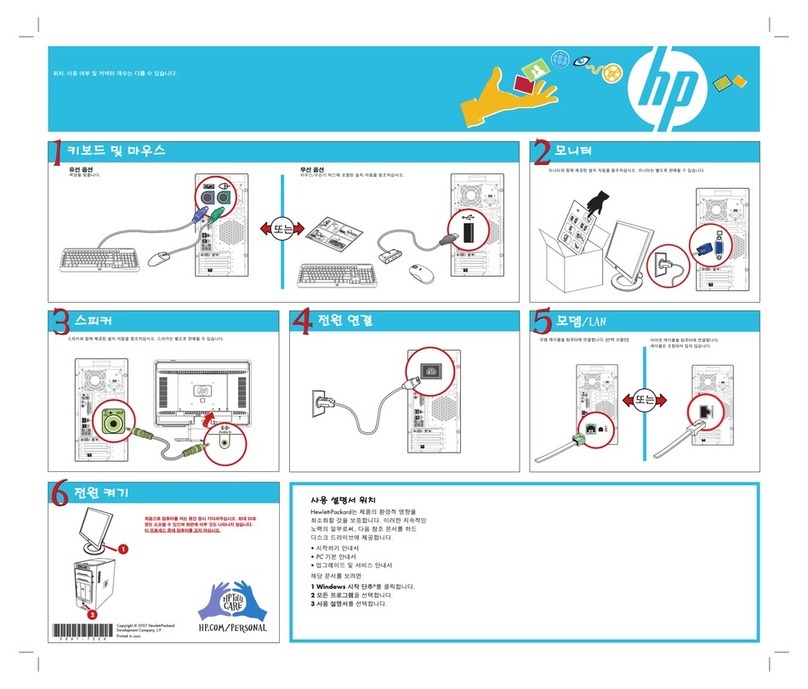
Acer Z4697G User manual

- 1
Veriton All-in-one Computer
User’s Manual

2 -
© 2020. All Rights Reserved.
Veriton All-in-one Computer
Covers: All-in-one models (touch)
This revision: September 2020
Register your Acer product
If your new device runs on Windows OS, you may have had your
product registered automatically while you start up your device with
Windows OS.
Log in at www.acer.com/myproducts with the email address you
registered for Windows OS to review your product record. (Reset your
password if you do not know it.)
If the record is not found, please follow the steps below to register.
1. Ensure you are connected to the Internet.
2. Go to www.acer.com/register-product.
3. Sign in or sign up for an Acer ID.
4. Enter S/N or SNID of your device to register it.
Important
This manual contains proprietary information that is protected by
copyright laws. The information contained in this manual is subject to
change without notice. Some features described in this manual may not
be supported depending on the Operating System version. Images
provided herein are for reference only and may contain information or
features that do not apply to your computer. Acer Group shall not be
liable for technical or editorial errors or omissions contained in this
manual.
Model number: _________________________________
Serial number: _________________________________
Date of purchase: ______________________________
Place of purchase: ______________________________
The terms HDMI and HDMI High-Definition Multimedia Interface, and
the HDMI Logo are trademarks or registered trademarks of HDMI
Licensing Administrator, Inc. in the United States and other countries.

Table of contents - 3
TABLE OF CONTENTS
First things first 5
Your guides ............................................. 5
Basic care and tips for using your
computer.................................................. 5
Turning your computer off........................... 5
Taking care of your computer ..................... 6
Taking care of your AC adapter .................. 7
Cleaning and servicing................................ 7
Recovery 8
Creating a factory default backup............ 8
Backing up your wireless and LAN
drivers...................................................... 9
Restoring your computer ......................... 9
Reset this PC and keep my files ................. 9
Reset this PC and remove everything ...... 10
Using a Bluetooth connection 12
Enabling and disabling Bluetooth .......... 12
Enable Bluetooth and add a device .......... 12
Connecting to the Internet 14
Connecting to a wireless network.......... 14
Connecting to a wireless LAN................... 14
Connecting with a cable ........................ 15
Built-in network feature ............................. 15
Acer ProShield 17
Overview................................................ 17
Setting up Acer ProShield ..................... 17
Personal Secure Drive .............................. 18
Credential Manager ............................... 18
Data Protection...................................... 18
Data Removal........................................ 18
Securing your computer 19
Using a computer security lock.............. 19
Using passwords ................................... 19
Entering passwords .................................. 20
BIOS utility 21
Boot sequence....................................... 21
Setting passwords ................................. 21
Power management 22
Saving power ......................................... 22
Ports and connectors 24
USB 3.2 Gen 1 information ....................... 24
USB 3.2 Gen 2 information ....................... 25
Rear panel audio ports.............................. 25
Universal Serial Bus (USB) 26
USB Type-C port 27
HDMI 28
SD card reader 29
Video and audio connectors 30
Connecting a monitor............................. 30
Headphones and microphone................ 30
Frequently asked questions 32
Requesting service ................................ 34
Tips and hints for using Windows 10 ..... 35
How do I get to Start? ............................... 35
How do I turn off my computer?................ 35
How do I unlock my computer?................. 35
How do I set the alarm? ............................ 36
Where are my apps?................................. 37
What is a Microsoft ID (account)?............. 38
How do I check for Windows updates?..... 38
Where can I get more information?........... 38
Troubleshooting ..................................... 39
Troubleshooting tips.................................. 39
Error messages......................................... 39
Internet and online security 41
First steps on the net ............................. 41
Protecting your computer.......................... 41
Choose an Internet Service Provider ........ 41
Network connections................................. 42
Surf the Net!.............................................. 44
Internet security software.......................... 44
Playing Blu-Ray or DVD movies 49

Getting started...
In this section you will find:
• Useful information on caring for your computer and your health
• How to create recovery backups
• Guidelines for connecting to a network
• Information on using Acer’s bundled software

First things first - 5
FIRST THINGS FIRST
We would like to thank you for making this Acer desktop computer
your choice for meeting your computing needs.
Your guides
To help you use your Acer desktop computer, we have designed a set
of guides:
First off, the Setup Guide (or Setup Poster) helps you get started
with setting up your computer.
For more on how your computer can help you to be more productive,
please refer to the User’s Manual. This guide contains detailed
information on such subjects as system utilities, data recovery,
expansion options and troubleshooting.
Once you have connected to the internet, you can download updates
for your computer from:
http://go.acer.com/?id=17883
1. The link will open the Acer Support webpage.
2. Scroll down to Drivers and Manuals and search for your model by
pasting in or manually entering the serial number, SNID, or
product model.
3. From this page you can also download and install the Acer
identification utility that will automatically detect your computer’s
serial number and SNID and allow you to copy it to the clipboard.
4. Once you have found your product model, any updates, or
documents will be listed.
Basic care and tips for using your computer
Turning your computer off
To turn the power off, do any of the following:
• Use the Windows shutdown command: Press the Windows key or
select the Windows Start button, select Power > Shut down.

6 - First things first
• Right-click the Windows Start button > Shut down or sign out >
Shut down.
If you need to power down the computer for a short while, but don’t
want to completely shut it down, you can put it to Sleep by doing any
of the following:
• Press the power button.
• Press the sleep hotkey.
• Press the Windows key or select the Windows Start button, select
Power > Sleep.
• Right-click the Windows Start button > Shut down or sign out >
Sleep.
Taking care of your computer
Your computer will serve you well if you take care of it.
• Only use the adapter provided with your device, or an Acer-
approved adapter to power your device.
• Do not expose the computer to direct sunlight. Do not place it near
sources of heat, such as a radiator.
• Do not expose the computer to temperatures below 0º C (32º F) or
above 50º C (122º F).
• Do not subject the computer to magnetic fields.
• Do not expose the computer to rain or moisture.
• Do not spill water or any liquid on the computer.
• Do not subject the computer to heavy shock or vibration.
• Do not expose the computer to dust or dirt.
• Never place objects on top of the computer.
• Do not slam the computer display when you close it.
Note
If you cannot power off the computer normally, press and hold the power
button for up to ten seconds to shut down the computer. If you turn off the
computer and want to turn it on again, wait at least two seconds before
powering up.

First things first - 7
• Never place the computer on uneven surfaces.
Taking care of your AC adapter
Here are some ways to take care of your AC adapter:
• Do not connect the adapter to any other device.
• Do not step on the power cord or place heavy objects on top of it.
Route the power cord and any cables away from where people walk.
• When unplugging the power cord, do not pull on the cord itself but
pull on the plug.
• The total ampere ratings of the equipment plugged in should not
exceed the ampere rating of the cord if you are using an extension
cord. Also, the total current rating of all equipment plugged into a
single wall outlet should not exceed the fuse rating.
Cleaning and servicing
When cleaning the computer, follow these steps:
1. Turn off the computer.
2. Disconnect the AC adapter.
3. Use a soft, moist cloth. Do not use liquid or aerosol cleaners.
If your computer is dropped or visibly damaged, or does not work
normally, please contact your nearest authorized Acer service center.
WARNING: Hot surface. Do not touch.

8 - Recovery
RECOVERY
If you are having trouble with your computer, and the frequently asked
questions (see Got a question? on page 31) do not help, you can
recover your computer.
This section describes the recovery tools available on your computer.
Acer provides Acer ControlCenter, which allows you to reset your PC,
refresh your PC, or create a factory default backup. If you cannot
access Acer ControlCenter, click Settings in the Start menu, select
Update & Security and then click Recovery.
Creating a factory default backup
Recovery Management allows you to quickly and easily back up your
operating system, installed apps and data.
1. From Start, select Control Center then Recovery Management.
2. Select the Backup tab and click Get started for Create backup to
open the Backup window.
3. If you would like to backup not only your files but also the entire
system, select Go to Backup and Restore (Windows 7).
4. Select Security and Maintenance in the left pane.
5. Select Recovery to open the Advanced recovery tools window.
Note
Acer ControlCenter vary depending on model or Operating System.
Important
We recommend that you create a Factory Default Backup as soon as
possible. In certain situations a full recovery will require a USB
recovery backup.
Note
Since the recovery backup requires at least 8 GB of storage after formatting,
it is recommended to use a USB drive with a capacity of 16 GB or larger.

Recovery - 9
6. Select Create a recovery drive to open the Recovery Drive
window.
7. Make sure Back up system files to the recovery drive is selected
and click Next.
8. Plug in the USB drive and wait for the PC to detect the USB drive
then click Next.
9. Everything on the drive will be deleted. Click Create to continue.
10.You will be shown the backup progress on the screen.
11.Follow the process until it completes.
12.Unplug the USB drive and label it clearly.
Backing up your wireless and LAN drivers
Back up your wireless and LAN drivers. You can use these backups to
install the wireless and LAN drivers if you install another operating
system.
1. From Start, select Control Center then Recovery Management.
2. Select the Backup tab and click Get started for Backup wireless
and LAN drivers. Choose a folder to save your drivers and select
OK.
Restoring your computer
Recovery Management allows you to quickly and easily restore your
computer back to its default status. You can choose to keep your files
or remove them before reinstalling Windows.
Reset this PC and keep my files
1. From Start, select Control Center then Recovery Management.
2. Select the Restore tab and click Get started to open the Recovery
window.
Important
Write a unique, descriptive label on the backup, such as 'Windows
Recovery Backup'. Make sure you keep the backup in a safe place that
you will remember.

10 - Recovery
3. Click Get started under Reset this PC.
4. Select Keep my files to refresh your PC and reinstall your operating
system without removing your personal files. Click Next to continue.
5. Resetting the PC will reinstall Windows, change settings back to
their factory defaults and remove all preinstalled apps and programs
without removing your personal files. Click Reset to continue.
6. You will be shown the reset progress on the screen. The screen will
turn off during the reset process.
7. The screen will turn back on when it is installing Windows. Your PC
will restart several times during the reset process.
8. Follow the process until it completes.
9. When your PC has completed the reset process, Windows will have
been reset back to its factory default settings without removing your
personal files.
Reset this PC and remove everything
1. From Start, select Control Center then Recovery Management.
2. Select the Restore tab and click Get started to open the Recovery
window.
3. Click Get started under Reset this PC.
4. Select Remove everything to reset your PC back to its factory
default. This process will reinstall your operating system and
remove all of your personal files, apps, and settings.
5. Click Change settings to let you choose the Data erasure options.
6. Select Data erasure Off if you are keeping your computer. This will
be quicker, but less secure. Files may still be recovered with a file
recovery program.
Select Data erasure On if you are not keeping your computer. This
Important
If you have apps installed on your PC, they will be removed.
Table of contents
Other Acer Desktop manuals

Acer
Acer Veriton N4740G User manual

Acer
Acer Aspire 6100 User manual

Acer
Acer Power 2100 User manual

Acer
Acer Aspire M3985 User manual

Acer
Acer Aspire T160 Configuration guide

Acer
Acer Aspire T135 Training manual

Acer
Acer Aspire E500 User manual

Acer
Acer Aspire T600 User manual

Acer
Acer AcerPower F1 User manual

Acer
Acer Aspire X1920 User manual

Acer
Acer Aspire M3800 User manual

Acer
Acer Veriton Fpi User manual

Acer
Acer Veriton 5600GT Quick start guide

Acer
Acer AcerPower F3 User manual

Acer
Acer Aspire T136 User manual

Acer
Acer Aspire M3201 User manual

Acer
Acer Aspire M3300 User manual

Acer
Acer AcerPower F2 User manual

Acer
Acer Veriton X275 User manual

Acer
Acer AR3700-U3002 User manual