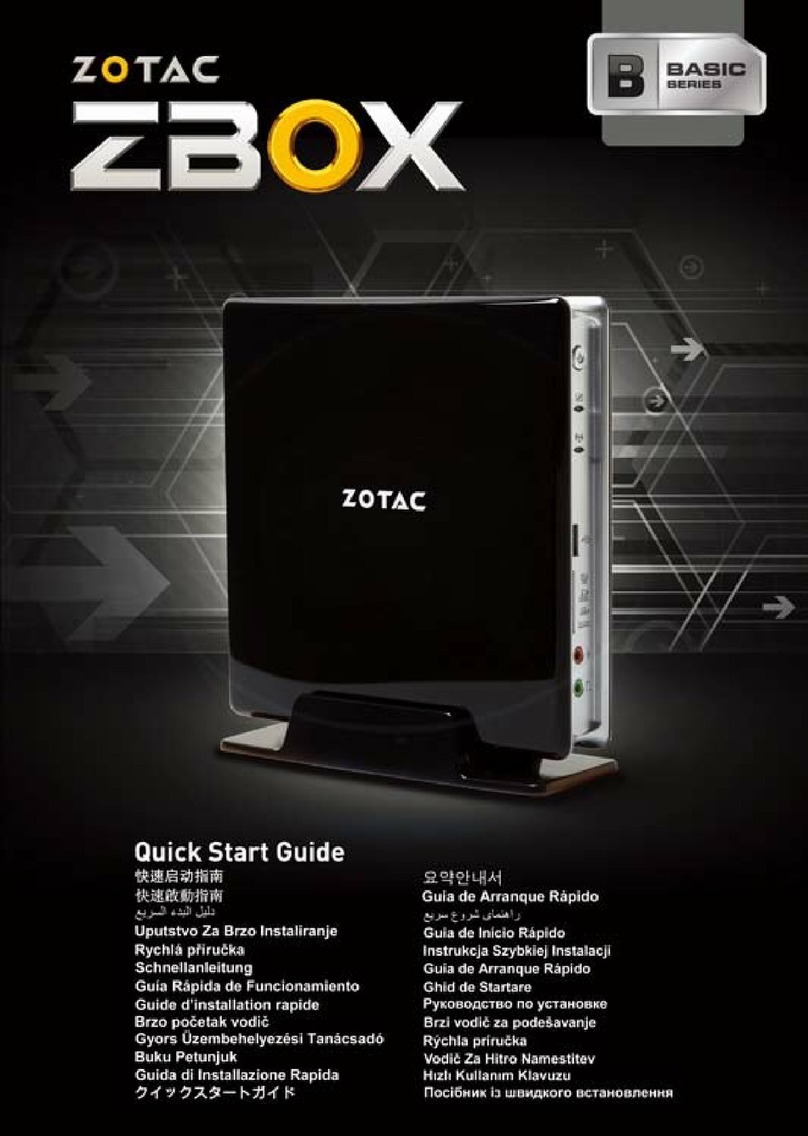
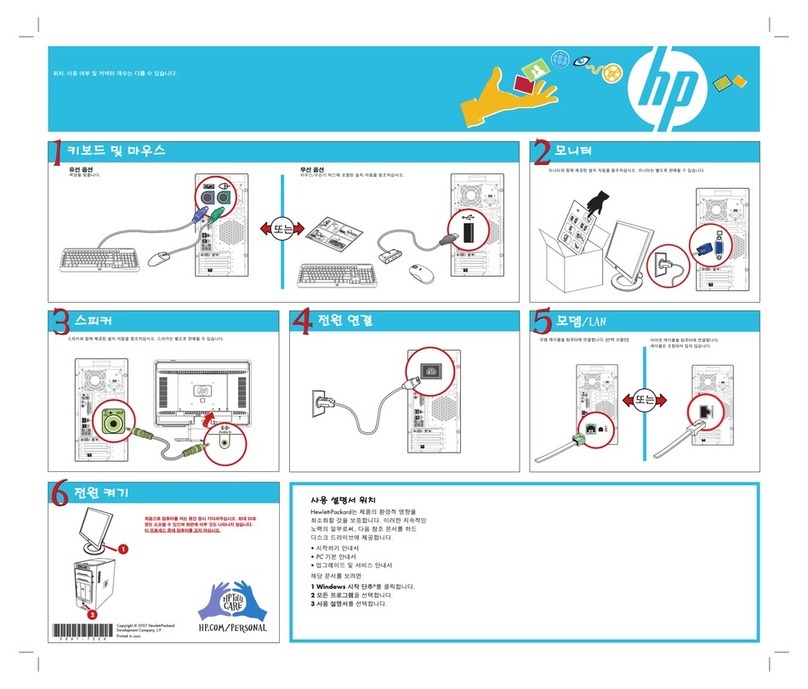
Zotac ZBOX HD-NS21-E User manual


1
ZOTAC ZBOX
ZOTAC ZBOX
User’s Manual
No part of this manual, including the products and software described in it,
may be reproduced, transmitted, transcribed, stored in a retrieval system, or
translated into any language in any form or by any means,except documenta-
tion kept by the purchaser for backup purposes, without the express written
permission of ZOTAC.
Products and corporate names mentioned in this manual may not be reg-
istered trademarks or copyrights of their respective companies, and are
respective owners.
Every effort has been made to ensure that the contents of this manual are cor-
rect and up to date. However, the manufacturer makes no guarantee regard-
ing the accuracy of its contents, and reserves the right to make changes
without prior notice.

2
ZOTAC ZBOX
Table of Contents
-------------------------------------------------------------------------- 3
-------------------------------------------------------------------------------- 4
Setting up your system ----------------------------------------------------------------------- 4
Care during use -------------------------------------------------------------------------------- 4
--------------------------------------------------------------------------------------------- 5
Package contents ------------------------------------------------------------------------------ 5
-------------------------------------------------------- 6
Front view ---------------------------------------------------------------------------------------- 6
Rear view----------------------------------------------------------------------------------------- 7
------------------------------------------------- 8
Installing a memory module ----------------------------------------------------------------- 8
Removing the memory module ------------------------------------------------------------- 9
Installing and removing a hard disk ------------------------------------------------------- 10
Installing a hard disk (for Type 1 HDD Bracket)------------------------------------ 10
Installing a hard disk (for Type 2 HDD Bracket)------------------------------------ 11
Removing a hard disk (for Type 1 HDD Bracket) ---------------------------------- 12
Removing a hard disk (for Type 2 HDD Bracket) ---------------------------------- 13
--------------------------------------------------------------- 14
Installing the stand----------------------------------------------------------------------------- 14
Installing your ZOTAC ZBOX to a monitor ----------------------------------------------- 14
---------------------------------------------------------------- 15
--------------------------------------------------------------- 16
Installing an operating system -------------------------------------------------------------- 16
Installing system drivers---------------------------------------------------------------------- 16
----------------------------------------------------------------------- 17
----------------------------------------------------------- 17
--------------------------------------------------------------- 17
Using a static IP ---------------------------------------------------------------------------- 17
Using a dynamic IP (PPPoE connection) -------------------------------------------- 18
------------------------------------------ 18

3
ZOTAC ZBOX
q
v NVIDIA®
qProduct Size
v 188mm x 188mm x 44mm
q
v Intel®
q
v Supports Windows XP 32 bit/64 bit, Windows Vista 32 bit/64 bit and Windows
7 32bit/64bit
q
v
v
v
q
v Supports hot plug and play
v Six USB 2.0 ports (two front panel ports, four rear panel ports)
v
q
v
v
vSupport one ESATA port.
q
v
q
v
v Supports Jack-Sensing function
q
v
q
v
v
v

4
ZOTAC ZBOX
Safety information
Your ZOTAC ZBOX is designed and tested to meet the latest standards of safety for infor-
mation technology equipment. However, to ensure your safety, it is important that you read
the following safety instructions.
Setting up your system
Read and follow all instructions in the documentation before you operate your system.
Do not use this product near water or a heat source such as a radiator.
Set up the system on a stable surface with the provided stand. Never use the system
alone without the stand.
Openings on the chassis are for ventilation. Do not block or cover these openings.
objects of any kind into the ventilation openings.
Use this product in environments with ambient temperatures between 0@and 35@.
the total ampere rating of the devices plugged into the extension cord does not
exceed its ampere rating.
Care during use
Do not walk on the power cord or allow anything to rest on it.
Do not spill water or any other liquids on your system.
unplug all power, modem, and network cables from the power outlets before cleaning
the system.
If you encounter the following technical problems with the product, unplug the power
¾The power cord or plug is damaged.
¾
¾The system does not function properly even if you follow the operating instructions.
¾The system was dropped or the cabinet is damaged.
¾The system performance changes.

5
ZOTAC ZBOX
Welcome
Congratulations on your purchase of the ZOTAC ZBOX. The following illustration displays
the package contents of your new ZOTAC ZBOX. If any of the below items is damaged or
missed, contact your retailer.

6
ZOTAC ZBOX
Getting to know your ZOTAC ZBOX
Front view
1 2 3 4 5 6 7
Refer to the diagram below to identify the components on this side of the system
The stereo headphone jack (3.5mm) is used to connect the system’s audio out
The microphone jack is designed to connect the microphone used for video confer-
encing, voice narrations or simple audio recordings.
The USB (Universal Serial Bus) port is compatible with USB devices such as key-
boards, mouse devices, cameras and hard disk drives. USB allows many devices
to run simultaneously on a single computer, with some peripheral acting as addi-
tional plug-in sites or hubs.
drive.
The power switch allows powering ON and OFF the system

7
ZOTAC ZBOX
Rear view
Refer to the diagram below to identify the components on this side of the system.
The external SATA port is compatible with e.SATA devices such as external hard
drives and Blu-ray drives
The USB (Universal Serial Bus) port is compatible with USB devices such as key-
boards, mouse devices, cameras and hard disk drives. USB allows many devices
to run simultaneously on a single computer, with some peripheral acting as addi-
tional plug-in sites or hubs.
a local network.
Plug an optical cable into this jack for digital audio transfer.
The supplied power adapter converts AC power to DC power for use with this jack.
Power supplied through this jack supplies power to the PC. To prevent damage to
the PC, always use the supplied power adapter.
The power adapter may become warm to hot when in use. Do not cover the
adapter and keep it away from your body.
1 2 3 2 4 5 6 7 4

8
ZOTAC ZBOX
Installing Hardware inside ZOTAC ZBOX
Before installing hardware, please follow the instructions below to remove the cover of your
ZOTAC ZBOX.
1. Unscrew.
Installing a memory module
at a 45 degree angle.

ZOTAC ZBOX
memory slot.
Removing the memory module
below to release the memory module.
2. The memory module can be easily taken out.
This ZOTAC ZBOX accomodates two
install at least one module in any of the two slots. If you want to install two SO-
Table of contents
Other Zotac Desktop manuals

Zotac
Zotac ZBOX AD04 User manual

Zotac
Zotac ZBOX P Series User manual

Zotac
Zotac ZBOX series User manual

Zotac
Zotac ZBOX NANO User manual

Zotac
Zotac ZBOX AD02 User manual

Zotac
Zotac ZBOX series User manual

Zotac
Zotac ZBOX nano VDO1 PLUS User manual

Zotac
Zotac ZBOX NANO User manual

Zotac
Zotac ZBOX series User manual

Zotac
Zotac VR GO 2.0 User manual

Zotac
Zotac ZBOX nano XS AD13 series User manual

Zotac
Zotac ZBOX series User manual

Zotac
Zotac Zbox nen sn970 User manual

Zotac
Zotac ZBOX series User manual

Zotac
Zotac ZBOX E Series User manual

Zotac
Zotac ZBOX series User manual

Zotac
Zotac Basic Series User manual

Zotac
Zotac ZBOX nano ID61 User manual

Zotac
Zotac ZBOX series User manual

Zotac
Zotac ZBOX nano XS User manual