WST FBM200A User manual

Beacon Monitor
Operator’s Manual
for model:
FBM200A
Version 2.00

ii
Information contained in this manual is subject to change without
notice. Please consult the website at www.wst.ca for new
Operator’s Manual updates. Complying with all applicable
copyright laws is the responsibility of the user. Without limiting the
rights under copyright, no part of this document may be
reproduced, stored in a retrieval system, or transmitted in any form
or by any means including but not limited to, electronic,
mechanical, photocopying, recording, or otherwise, or for any
purpose, without the written permission of WS Technologies Inc.
(WST). WST may have patents, patent applications, trademarks,
copyrights, or other intellectual property rights covering subject
matter in this document. Except as expressly provided in any
written license agreement from WST, the furnishing of this
document does not give you any license to these patents,
trademarks, copyrights, or other intellectual property.
The purchaser shall not in any event be entitled to, and WST shall
not be liable for indirect, special, incidental or consequential
damages of any nature including, without limitation, business
interruption costs, loss of profit or revenue, loss of data,
promotional or manufacturing expenses, overhead, injury to
reputation or loss of customers, even if WST has been advised of
the possibility of such damages. In any event, purchaser's
recovery from WST for any claim shall not exceed purchaser's
purchase price for the product giving rise to such claim irrespective
of the nature of the claim, whether in contract, tort, warranty, or
otherwise. WST shall not be liable for and purchaser shall
indemnify, defend and hold WST its agents, distributors, dealers,
successors and assigns harmless from any and all claims,
damages or losses, including injury or death, arising from or
relating to the use or failure of the products.
Copyright © WS Technologies Inc.
All rights reserved.
Printed in Canada
March 2013

iii
CONTENTS
INTRODUCTION.............................................................................1
UNPACKING ...................................................................................1
BEACON MONITOR........................................................................2
Antenna Connection:....................................................................3
Optional Outdoor Antenna Installation:........................................3
Installing the Application: .............................................................3
SETTING UP THE APPLICATION..................................................5
Monitor Mode: ..............................................................................6
Monitor button...........................................................................6
Map Button...............................................................................6
Setup button.............................................................................6
Status section...........................................................................6
Beacon Burst log area..............................................................7
Beacon Decode area................................................................7
Full Screen button ....................................................................7
Deleting records .......................................................................7
QR Code...................................................................................7
Map Mode:...................................................................................8
Map Selections.........................................................................8
Selected Log Items Only.......................................................8
Location Beacons .................................................................8
Non-Location Beacons .........................................................9
Normal Mode, Self Test, Test Protocol.................................9
High Resolution Overlay.......................................................9
QR Code...............................................................................9
Map Area..................................................................................9
Icons .....................................................................................9
Zoom.................................................................................. 10
Pan..................................................................................... 10
Rotate or Tilt ...................................................................... 10
Bird’s Eye View.......................................................................10
Monitor Bar.............................................................................10
Compass ................................................................................10
Setup Mode:.............................................................................. 11
Setup Menu............................................................................11
Setup Panel............................................................................11
Admin - Connections..............................................................12
Admin –Passwords................................................................13
Passwords –Setup............................................................ 13
Passwords –Login ............................................................ 13
Logout................................................................................ 13
Password Reset................................................................. 14

iv
Alarms ....................................................................................14
Receiver Setup –Receiver Alarms ........................................15
Audio/LED/Relay Alarm..................................................... 15
Audio Disable..................................................................... 15
Receiver Setup –Receiver Sensitivity ...................................16
Computer Setup –Computer Alarms.....................................17
Visual Alarm....................................................................... 18
Audio Alarm ....................................................................... 18
Resetting Alarms ............................................................... 18
Email Alerts ............................................................................19
Email –Conditions............................................................. 19
Email - Configuration ......................................................... 19
SMS Alerts..............................................................................20
SMS –Conditions.............................................................. 20
SMS - Configuration .......................................................... 20
Customized Notifications........................................................21
Help –About Beacon Monitor ................................................22
Help Contents - Updates........................................................23
Help Contents - Frequently Asked Questions........................23
Help Contents –Feedback.....................................................24
RECEIVING BURSTS .................................................................. 25
Data Files and Log Files: .......................................................... 26
XML Files................................................................................26
Log File...................................................................................26
FREQUENTLY ASKED QUESTIONS.......................................... 27
SPECIFICATIONS........................................................................ 29
Minimum Requirements............................................................ 29
REGULATORY INFORMATION................................................... 30
DECLARATION OF CONFORMITY............................................. 31
WARRANTY INFORMATION....................................................... 32
CALIBRATION.............................................................................. 32
RETURNS .................................................................................... 32
MISSION CONTROL CENTER CONTACT INFORMATION....... 33
NOTES ......................................................................................... 34

1
INTRODUCTION
Thank you for choosing the FBM200 Beacon Monitor. This
Operator’s Manual describes the installation and operation of the
Beacon Monitor.
UNPACKING
Lift up on the inner fold on the right side of the Beacon Monitor box
and remove the Beacon Monitor from the underside. The
accessories are in the box on the right. Be sure to keep the
accessories box for handy storage of the Beacon Monitor
Operator’s Manual and accessories when not in use.
Please verify the contents of your package. It should contain:
Beacon Monitor
Operator’s Manual
Antenna
USB Cable 10’ (3m)
Optional items include:
Outdoor Antenna
Antenna Extension cable
25’ (7.6m)
50’ (15m)
75’ (23m)
100’ (30m)
Antenna mounting hardware
Certificate of Calibration (optional)
NOTICE!
Install the Beacon Monitor software before
connecting the device to the USB port.

2
BEACON MONITOR
Please read this Operator’s Manual to become familiar with the
operation of the Beacon Monitor.
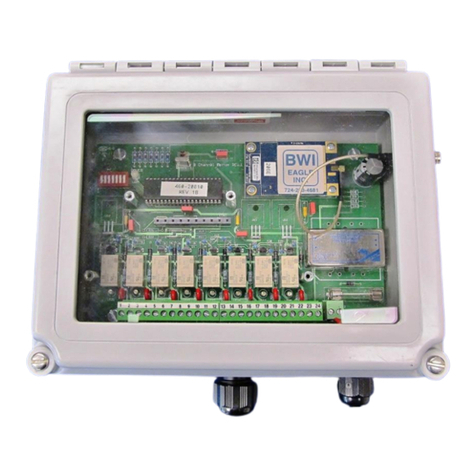
Relay
contacts
button
Reset
button
LED
Indicator
Antenna
USB
Interface
Mounting
Flange (4)
button

3
Antenna Connection:
Connect the 406 MHz antenna to the front panel RF IN connector.
Optional Outdoor Antenna Installation:
Alternatively, if you have purchased the optional outdoor antenna,
install the outdoor antenna following the mounting instructions
included with the antenna. The U-bolts will fit a mast from
approximately 1.25” to 2.50” in diameter. Connect the Antenna
Extension cable between the antenna and the RF IN connector on
the Beacon Monitor.
Installing the Application:
The Beacon Monitor application must be installed on your computer
prior to connecting the device.
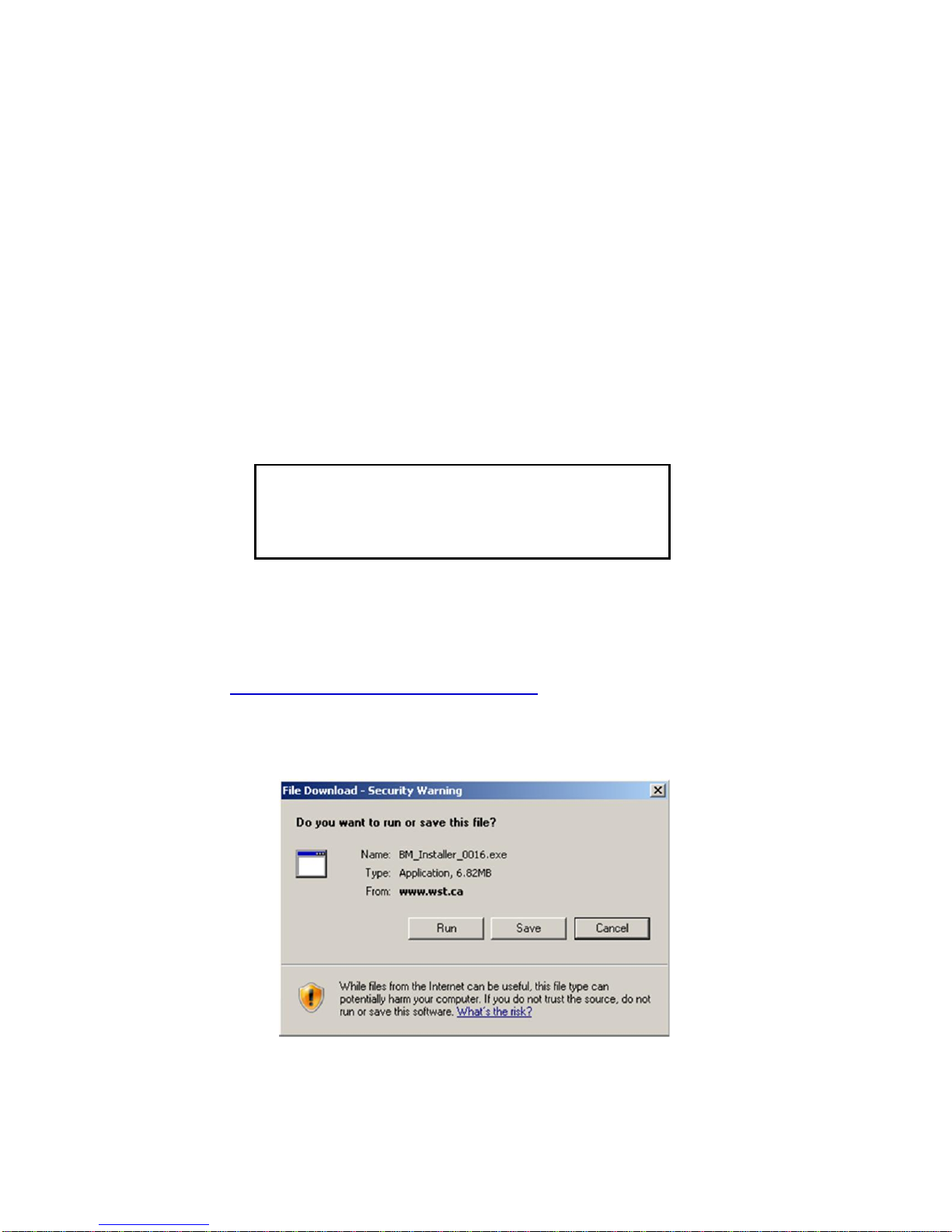
Go to www.wst.ca/beacon_monitor.html and install the latest
version of the Beacon Monitor software. The following message will
appear.
Click Run to install the application on the computer.
NOTICE!
Install the Beacon Monitor software before
connecting the device to the USB port.

4
The Beacon Monitor Setup screen will appear.
Click Next.
If JavaTM is not installed on your computer, you will be prompted to
install it. Follow all on-screen instructions.
Once completed click Finish.
The Beacon Monitor icon will appear
on your computer desktop.

5
SETTING UP THE APPLICATION
Click on the Beacon Monitor icon. The Beacon Monitor application
will start and the following screen will be displayed:
Connect the FBM200 receiver to a USB port on the computer using
the supplied USB cable. This connection is both the power supply
and the communication link to the receiver. When the FBM200
receiver is located, the Connection Status in the Status section will
show Connected.
The LED Indicator on the top of the unit will glow red when first
plugged in, then will flash green when operating normally.
There are three main viewing modes:
1. Monitor Mode
2. Map Mode
3. Setup Mode
The following sections will discuss the setup and operation of the
software and hardware.

6
Monitor Mode:
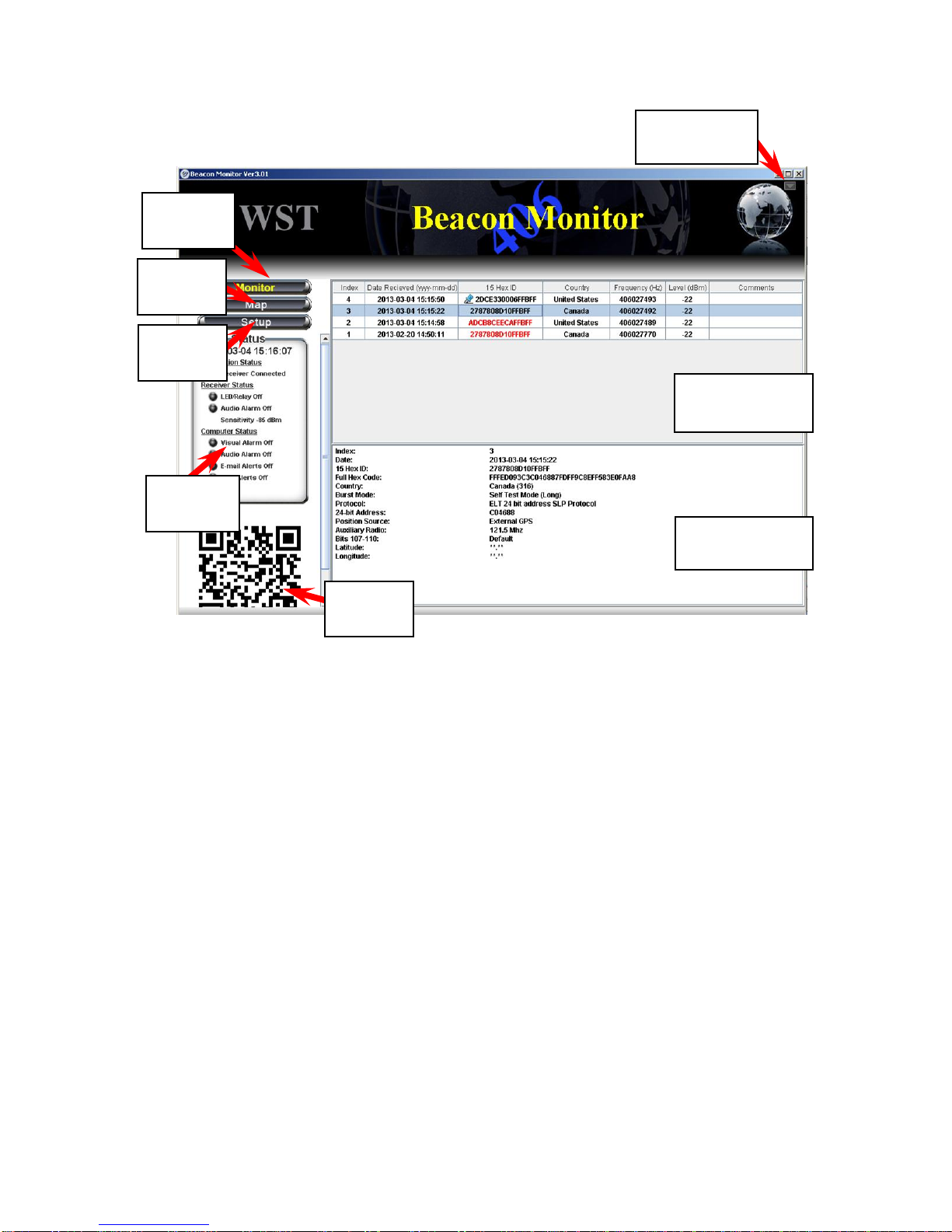
The Monitor button will switch the screen to the Monitor mode. This
is the normal mode for monitoring beacon burst activity.
The Map button will switch the screen to the Map mode. This mode
allows the user to view actual locations of beacons and the receiver.
The Setup button will switch the screen to the Setup mode. This
mode allows the user to setup the application and receiver as
needed.
The Status section displays the status of the Receiver Connection,
the Receiver Status, and the Computer Status.
Monitor button
Map Button
Setup button
Status section
Monitor
button
Setup
button
Status
section
Beacon burst
log area
Beacon burst
decode area
Full Screen
button
Map
button
QR
code
Table of contents