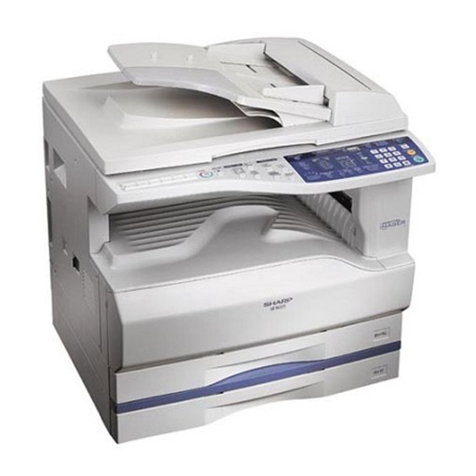
Sharp AR-5127 User manual

AR-5127 Series
PRINTER OPERATION MANUAL
INTRODUCTION
CONTENTS
INDEX

2
CONTENTS INDEX TOP OF CHAPTER 2
INTRODUCTION
This manual describes the printer feature of the AR-
5127 digital laser copier/printer.
NOTES:
zThis manual describes only the printer feature. For
information about copier functions, maintenance,
supplies, related topics and specifications of the
printer feature, refer to the operation manual.
zThis manual assumes that you have a practical
knowledge of your operating system (Windows 95,
Windows 98, Windows Me, Windows NT 4.0,
Windows 2000, or Windows XP).
zFor information on the functions and procedures for
using your operating system, refer to your operating
system's manual or online Help.
zIn this manual, screen images and operating
procedures are mainly for Windows XP.
zThis manual refers to AR-5127 digital laser copier/
printer with the printer feature installed simply as the
"printer".
Warning:
This product is a class A product. If it is operated in
households, offices or similar surroundings, it can
produce radio interferences at other appliances, so
that the user has to take adequate countermeasures.

3
CONTENTS INDEX TOP OF CHAPTER 3
HOW TO USE THIS MANUAL
In this manual, the following buttons are displayed at the
bottom of each page. Click these buttons to move
quickly to your desired page.
Displays the Contents of this manual. From the Contents
you can jump to various pages.
Displays the Index of this manual. From the Index you
can jump to various pages.
Takes you forward page by page.
Takes you back page by page.
Takes you to the beginning of the chapter.
This manual uses a link function that allows you to jump
to a related page. If you click green, underlined text, the
related page will be displayed.
Example:
☞NORMAL PRINTING
To return to the previous link, click the button on the
menu bar of Acrobat Reader. In the Contents and Index
sections, the linked areas are not underlined.
How to print out this manual
In order to print out a hard copy of this manual for your
reference, click the 'File' menu of Acrobat Reader and
select 'Print'. After specifying the printer setting, click the
'Print' ('OK' in operating systems other than Windows
2000/XP) button to print.
For details on the operation and the functions of Acrobat
Reader, see the Acrobat Reader's help.
CONTENTS
INDEX
TOP OF CHAPTER

4
CONTENTS INDEX TOP OF CHAPTER 44
CONTENTS
INTRODUCTION 2
HOW TO USE THIS MANUAL 3
PRINTING FROM A COMPUTER
NORMAL PRINTING 5
Supplementary notes on printing 7
USING THE OPERATION PANEL
OPERATION PANEL 8
Display 9
Indicators 10
Operation keys 11
CONFIGURING SETTINGS FROM THE OPERATION PANEL
12
Procedure for selecting basic menu settings 12
TROUBLESHOOTING
OUTLINE OF TROUBLESHOOTING 13
PRINTER DOES NOT PRINT 15
IMPROPER PRINTING OPERATION 18
PRINT QUALITY PROBLEMS 21
PRINTER DRIVER PROBLEMS 22
NOTICE PAGE PRINTED 23
ERROR MESSAGES SHOWN DURING PRINTING 24
UNINSTALLING THE PRINTER DRIVER 25
SHARING PRINTER
SHARING THE PRINTER USING WINDOWS NETWORKING
26
SHARED PRINTER SETTINGS 27
On the computer to which the printer is directly connected
27
CLIENT SETTINGS 28
GENERAL INFORMATION
PRINTER DRIVER FEATURES 31
GLOSSARY 34
KEY OPERATOR PROGRAMS
KEY OPERATOR PROGRAMS 35
LIST OF KEY OPERATOR PROGRAMS 36
USING THE KEY OPERATOR PROGRAMS 37
Basic procedure for accessing key operator programs 37
INDEX 39

PRINTING FROM A COMPUTER
5
CONTENTS INDEX TOP OF CHAPTER 5
NORMAL PRINTING (1)
In most cases, it is not necessary to use the operation
panel when printing documents from your computer.
When a document is sent to the printer from the
computer, the printer will automatically print the
document. However, following the procedure specified
below can help ensure that documents are printed
accurately. The procedure assumes that the printer has
been properly connected to a computer, and that a
printer driver has been installed.
For more information regarding the printer operation
panel:
☞USING THE OPERATION PANEL
1Check the operation panel to confirm that the
ONLINE indicator is lit.
zIf the ONLINE indicator is not lit, press the PRINT key
to select the print mode and then press the key to
set the printer to the online condition.
Ready to print.
ONLINE
OFFLINE

PRINTING FROM A COMPUTER
6
CONTENTS INDEX TOP OF CHAPTER 6
NORMAL PRINTING (2)
2Check the paper tray(s) to ensure that the
desired paper is loaded.
3
Using the computer and any appropriate application
software, load the document to be printed, set any
desired features using the installed printer driver,
and give the command to print the document.
zIf necessary, refer to the documentation for the
computer and/or the application software for help on
issuing the necessary commands.
zFor details of the printer driver settings, see the
printer driver help.
4The printer will print the document.
zIf an optional Job Separator Tray Kit is installed,
printed sheets will be delivered to the job separator
tray. (This setting can be changed using the key
operator program or 'Output' setting in the printer
driver.)
To cancel a print job
To interrupt a print job when the printer is printing, press
the key in the print mode to select "OFFLINE". The
printer will enter the offline mode and stop printing. To
resume printing, press the key to select the online
mode. To cancel the print job, press the CLEAR key.
NOTE:
Depending on the computer's processing speed and
the machine's I/O timeout setting, it may take time for
the cancellation to take effect. In some cases, the
cancellation may take effect more quickly if the print
job is cancelled from the computer.

PRINTING FROM A COMPUTER
7
CONTENTS INDEX TOP OF CHAPTER 7
NORMAL PRINTING (3)
Supplementary notes on printing
zIf you try to start printing before the printer is turned on
or while the message "Warming up. Please wait." is
displayed, immediately after the printer is turned on,
incorrect printing may result. Be sure to wait until the
printer is online before sending a print job.
zAlways check the message in the display before
adding A4, B5 or 8-1/2" x 11" (letter) paper to the
bypass tray during a print job. If 'R' is added to the
paper size indication, for example "Add A4R paper.",
set the paper narrow side first into the feed slot. If 'R' is
not added to the paper size indication, set the paper
longest side first into the feed slot.
zIf paper needs replenishing in the middle of a print job,
be sure to set the paper in the same orientation. If the
orientation is changed in the middle of a print job,
incorrect printing may result. Image rotation will not
occur in the middle of a print job.
zWhen setting A5 or 5-1/2" x 8-1/2" (invoice) size paper
in a paper tray or in the bypass tray, be sure to set the
paper longest side first into the feed slot, otherwise
incorrect printing may result.
zWhen setting A6, B6, 7-1/4" x 10-1/2" (executive), DL,
C5 or COM10 in the bypass tray, be sure to set the
paper narrow side first into the feed slot. If not,
incorrect printing may result.
zIf any paper tray is open when a print job is sent to the
printer, incorrect printing may result. Ensure that all
paper trays and covers are closed before printing.
z"BYPASS MANUAL" cannot be specified in the middle
of a job. It will be regarded as "BYPASS TRAY"
(automatic feeding).

USING THE OPERATION PANEL
8
CONTENTS INDEX TOP OF CHAPTER 8
OPERATION PANEL (1)
The operation panel is used to set the display contrast, paper size, and other parameters. The operation panel also lets
you use key operator programs to adjust printer settings.
☞CONFIGURING SETTINGS FROM THE OPERATION PANEL
Operation panel keys and the printer basic screen are shown below.
You can jump to their description by clicking the underlined text.
The display may be different depending on the configuration of optional equipment.
The key names and the key icons may be different for users in different countries and regions.
Indicators Display
☞☞
Operation keys
☞
For description of operation keys used in the print mode:
Ready to print.
ONLINE
OFFLINE

USING THE OPERATION PANEL
9
CONTENTS INDEX TOP OF CHAPTER 9
OPERATION PANEL (2)
Display
The display in the print mode is composed of three
sections: message display, status information, and
machine image.
Message display
Messages are displayed regarding the printer status and
operation.
Status information
The online or offline mode is indicated. Also the selected
paper size is indicated when a print job is executed.
Machine image
The configuration of optional equipment is indicated.
Also the selected paper tray is indicated when a print job
is executed.
When any problem occurs or when accessing the key
operator programs, the display will vary depending on
the situation.

USING THE OPERATION PANEL
10
CONTENTS INDEX TOP OF CHAPTER 10
OPERATION PANEL (3)
Indicators
The indicators show printer status as described below:
ONLINE indicator
* You cannot change settings if the DATA indicator is
lit. To clear the DATA indicator, press the key to
select ONLINE and wait for the print job to finish.
DATA indicator
Lit Indicates that the printer is online and
data can be transferred and printed.
Extinguished Indicates that the printer is offline and
data cannot be transferred or printed.
Make settings from the operation
panel in this mode.*
Lit Indicates that there is print data
remaining in memory but printing has
been stopped.
Blinking Indicates that there is print data
remaining in memory and printing is
being performed.
Extinguished Indicates that there is no data
remaining in memory or being
received.
Other manuals for AR-5127
1
Table of contents
Other Sharp Printer manuals

Sharp
Sharp AR-M350 Imager Manual

Sharp
Sharp CE-140P User manual

Sharp
Sharp AR-M280 User manual

Sharp
Sharp CE-126P User manual

Sharp
Sharp ER-A440 User manual

Sharp
Sharp BP-70M90 User manual

Sharp
Sharp CE-140P User manual

Sharp
Sharp BP-50C26 User manual

Sharp
Sharp MX-M904 User manual

Sharp
Sharp MX-M350/M450 U User manual
Sharp
Sharp AR-M351N User manual

Sharp
Sharp JX-8200 User manual

Sharp
Sharp AR-235 User manual

Sharp
Sharp DX-B351PL User manual

Sharp
Sharp MX4111N User manual

Sharp
Sharp MX-C300P User manual

Sharp
Sharp MZ-80P5 User manual

Sharp
Sharp MX-C400P User manual

Sharp
Sharp JX-9400 User manual

Sharp
Sharp MX-C400P User manual