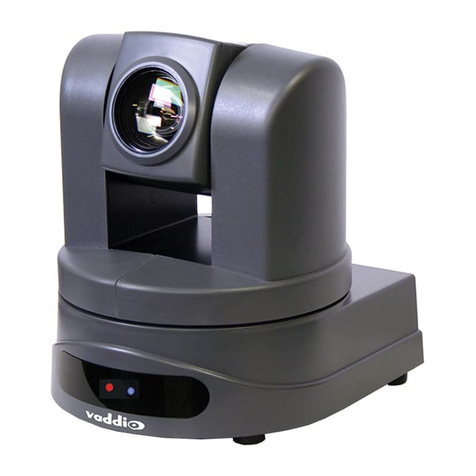
PiXORD P-423 User manual

PiXORD
MPEG-4 IR Network Camera
P-423/426/428
User’s Manual
Version: 1.4
Date: 07/27/2007

Content
1. INTRODUCTION..............................................................................................................................................................- 3 -
1.1. WHAT IS MPEG-4 IR NETWORK CAMERA?............................................................................................................... - 3-
1.2. KEY FEATURES............................................................................................................................................................. - 4-
2. HARDWARE INSTALLATION.......................................................................................................................................- 5 -
2.1. HARDWARE INSTALLATION FOR P423......................................................................................................................... - 5-
–Part Names and Functions..........................................................................................................................................- 5 -
2.2. HARDWARE INSTALLATION FOR P426......................................................................................................................... - 6-
–Attach the IR Illuminator............................................................................................................................................- 6 -
–Part Names and Functions..........................................................................................................................................- 7 -
2.3. HARDWARE INSTALLATION FOR P428......................................................................................................................... - 8-
–Part Description & Dimension....................................................................................................................................- 8 -
–Installation...................................................................................................................................................................- 9 -
3. SOFTWARE INSTALLATION......................................................................................................................................- 12 -
3.1. INSTALLATION PREVIEW ........................................................................................................................................... - 12 -
3.2. SOFTWARE INSTALLATION......................................................................................................................................... - 13 -
3.3. NETWORK CONFIGURATION...................................................................................................................................... - 14 -
–Preparation before IPAssignment ............................................................................................................................- 14 -
–Using IP Installer.......................................................................................................................................................- 14 -
4. USAGE OFWEB-BASED USER INTERFACE...........................................................................................................- 17 -
4.1. BROWSE LIVE VIDEO................................................................................................................................................. - 18 -
–Menu Language Selection.........................................................................................................................................- 18 -
–Style Selection ............................................................................................................................................................- 18 -
–Video Channel Selection............................................................................................................................................- 18 -
–On/Off the Audio, and Rotate the Video....................................................................................................................- 18 -
4.2. RECORDINGTHE VIDEO AND AUDIO ......................................................................................................................... - 20 -
4.3. VIDEO CONFERENCE.................................................................................................................................................. - 22 -
–Setting for Recording.................................................................................................................................................- 22 -
–Select the Remote Device...........................................................................................................................................- 23 -
–Manually Set Up Additional Camera ........................................................................................................................- 23 -
4.4. CONTROL PTZDEVICES............................................................................................................................................ - 25 -
5. CONFIGURATION OF WEB-BASED USER INTERFACE ......................................................................................- 26 -
5.1. CONFIGURATION PREVIEW........................................................................................................................................ - 26 -
5.2. CONFIGURATION OFA/VSETTING ............................................................................................................................ - 28 -
–General.......................................................................................................................................................................- 28 -
–Setting PTZ ................................................................................................................................................................- 32 -
- 1 -

–Setting External Sources ...........................................................................................................................................- 33 -
–Setting On Screen Display.........................................................................................................................................- 34 -
5.3. CONFIGURATION OF NETWORK SETTING ................................................................................................................. - 35 -
–General Settings.........................................................................................................................................................- 35 -
–Dynamic DNS Settings ..............................................................................................................................................- 36 -
5.4. CONFIGURATION OF SYSTEM..................................................................................................................................... - 39 -
–System Information....................................................................................................................................................- 39 -
–Time Configuration....................................................................................................................................................- 40 -
–User Settings ..............................................................................................................................................................- 41 -
–Firmware Upgrade.....................................................................................................................................................- 42 -
5.5. CONFIGURATION OF EVENT....................................................................................................................................... - 43 -
–General Settings.........................................................................................................................................................- 43 -
–Motion Area................................................................................................................................................................- 44 -
–E-Mail / FTP Settings................................................................................................................................................- 45 -
6. SPECIFICATIONS..........................................................................................................................................................- 46 -
APPENDIX A UPGRADING THE FIRMWARE............................................................................................................- 48 -
- 2 -

1. Introduction
1.1. What is MPEG-4 IR Network Camera?
The MPEG-4 IR Network Camera is an Internet-based digital video surveillance device with a built-in Web server. It
uses TCP/IP to distribute compressed live video over a Local Area Network (LAN) and/or the Internet through an
Ethernet connection.
The MPEG-4 IR Network Camera combines the features of a network camera with an infrared illuminator to provide
good image quality, even in darkness. The built-in Web server makes it possible to monitor and control it remotely
while delivering clear MPEG-4 video. It's ideal for surveillance systems that operate in both day and night conditions.
The MPEG-4 IR Network Camera is self-contained Web Server. Users could access the camera just like browsing
website over Internet using standard browser such as Microsoft Internet ExplorerTM, and do all the management,
configuration, and monitoring easily.
The MPEG-4 IR Network Camera contains an MPEG-4 image compression chipset capable of delivering streaming,
constant or variable bit rate MPEG-4 video over the network in real-time.
There are 3 models of the MPEG-4 IR Network Camera for various environments and various distances usage.
P423 – 30-Meter (Indoor/Outdoor)
P426 – 10-Meter (Indoor)
P428 – 100-Meter (Indoor/Outdoor)
P423
30 Meter IR Network
Camera
P426
10 Meter IR
Network Camera
P428
100 Meter IR Network
Camera
- 3 -

1.2. Key Features
zDay & Night functionality for 24-hours surveillance, automatically activate IR illuminator in low illumination.
zImproved image quality in low-light and even in complete darkness.
zInfrared radiant distance up to 30 meters (P423) / 10 meters (P426) / 100 meters (P428).
zAluminum outdoor housing with IP 66 waterproof standard (P423/P428)
zPoE models (P423/P426) allow the camera to receive both data and power over a single Ethernet cable
zSelf-Contained HTTP Web Server providing Internet capability for remote access.
zActive-X control for Microsoft Internet ExplorerTM providing maximum performance.
zMPEG-4 and MJPEG video compression formats.
zSupports resolution up to 30/25 fps @ Full D1 (720 x 480 / 720 x 576).
zVideo/Audio recording supports Windows Media PlayerTM playback.
zDDNS support for dynamic IP application.
z3-layer User Security Control.
zRemote Upgradeable firmware and user content pages via FTP.
zServer operating control through CGI based script easy to integrate the application for users.
zHardware watchdog providing robustness system in critical environment.
zVideo stream supported by many media players including QuickTime
- 4 -

2. Hardware Installation
2.1. Hardware Installation for P423
– Part Names and Functions
1. Power Cord
21
zNon PoE model: Connects to the AC power outlet.
zPoE model: The AC power is not necessary. The camera will get the power from the Ethernet
cable. Please follow the below figure for the connection.
2. Ethernet Connector
Standard 10 /100 Base-T port connects to a CAT5 cable with RJ-45 connector. If you are using the
camera with built-in PoE, please follow the below figure for the connection.
- 5 -

2.2. Hardware Installation for P426
– Attach the IR Illuminator
1. Put the screw (C) through washer (D) and the bracket hole (E), take the bracket (F) to fix on the screw hole (H) of
camera (G).
2. Put the screw (I) through washer (J) and the bracket hole (K), take the bracket (F) to fix on the back side screw hole
(L) on the IR Illuminator (A).
3. Put the DC Jack of Male connector (M) to camera and connect DC Jack of Female connector (N) to adapter.
- 6 -

– Part Names and Functions
1. Power In Jack
Connects to the AC adapter.
2. Ethernet Connector
Standard 10 /100 Base-T port, connects to a
CAT5 cable with RJ-45 connector.
3. Power/Status LED
Power status indicator, Constant red when power
is On.
4. Network LED
3
4 125
zNetwork Link (connected): Constant red.
zNetworks have activities: Blink red.
zData sent out from server: Blink green.
zNetwork disconnected: Constant slow blinking green.
5. COM/GPIO Connector
COM / GPIO MINI-DIN
Pin No. Name Pin No. Name
1 GPIN 6 N/A
2 RXD 7 N/A
3 TXD 8 485B
4 485A 9 Video Out
5 GND
- 7 -

2.3. Hardware Installation for P428
– Part Description & Dimension
cSun Shield fBracket
dTop Cover gAngle Adjustment Screw
eBottom Chassis hWindow
- 8 -

– Installation
1. Take out the bracket from the box first. Put the power cable and Ethernet cable through the bracket and then fix it to
the wall (FIG.1 & FIG.2).
2. Secondly, take out the housing and open the top cover with hexagon screw driver (FIG.3). Loosen the screws on
both sides of the supporter first, use provided 1/4"-20UNC screws (black-2pcs) to fix the camera on the supporter
temporarily (FIG.4). Plug and fix the power cable of camera to the terminal (FIG.5).
Note: In order to adjust the camera position forward or backward later on, please do not fix the camera too tight.
- 9 -
This manual suits for next models
2
Table of contents
Other PiXORD Security Camera manuals

PiXORD
PiXORD P606 User manual

PiXORD
PiXORD PL721 User manual

PiXORD
PiXORD PB731P User manual

PiXORD
PiXORD PL621 User manual

PiXORD
PiXORD PS760D User manual

PiXORD
PiXORD P-505 User manual

PiXORD
PiXORD H.264 Series User manual

PiXORD
PiXORD P-600 User manual

PiXORD
PiXORD PD737 User manual

PiXORD
PiXORD P-600 User manual

PiXORD
PiXORD PD771 User manual

PiXORD
PiXORD P-465 User manual

PiXORD
PiXORD PD636 User manual

PiXORD
PiXORD P-463 User manual

PiXORD
PiXORD PD736 User manual

PiXORD
PiXORD P-600 User manual

PiXORD
PiXORD PD637 User manual

PiXORD
PiXORD PD736 5MP User manual

PiXORD
PiXORD PB670 User manual

PiXORD
PiXORD 261 series User manual