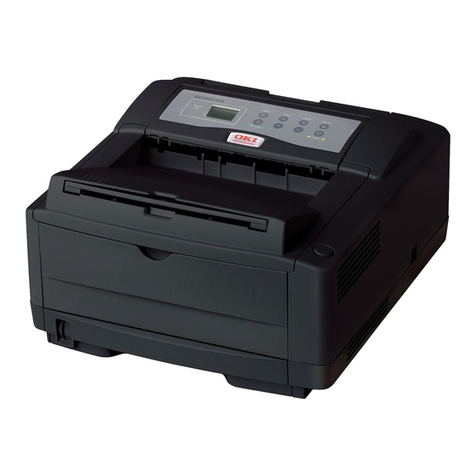
Oki OKIPAGE 24 Series User manual

OKIPAGE 24Tn
• Built-in 10/100 Base-T Network
Print Server
• 32 MB memory
• 2nd Paper Tray (must be installed)
OKIPAGE 24DXn
• Built-in Duplexer
• Built-in 10/100 Base-T Network
Print Server
• 32 MB memory
• 2nd Paper Tray (must be installed)
Toner Power Cord
CD(s)
2nd Paper Tray
Mechanism
(Models 24Tn &
24DXn only)
Light-Shield Bag
(Protects image
drum from light
when it is removed
from printer.)
Components
OKIPAGE 24
• Basic model
• 16 MB memory
OKIPAGE 24DX
• Built-in Duplexer
• 16 MB memory
OKIPAGE 24n
• Built-in 10/100 Base-T
Network Print Server
• 32 MB memory
Pigtail Cable
(Network models
only)
1. Unpack the printer and 2nd Paper Tray.
2. Remove any shipping materials from the 2nd Paper Tray.
3. Lower the printer onto the 2nd Paper Tray, inserting pins on tray
into holes in base of printer.
!Make sure the printer is firmly seated on the 2nd Paper Tray.
Before proceeding, install the 2nd Paper Tray.
Warning!
To avoid injury to fingers, two people should perform
the installation of the 2nd Paper Tray.
Models furnished with 2nd Paper Tray:
OKIPAGE®
24 Series
Quick Start:
Part 1

2
Pull out the paper.
All Models:
Remove the protective film
and any shipping tape.
Lift the cover.Press OPEN.
Lift out the image drum.
Replace the drum.
Remove tthe tape and sponge.
!Careful: the sponge will have some
loose toner on the bottom from
factory testing.
Caution!
Do not touch the image drum’s green surface!
1Preliminaries
2Prepare the Image Drum (“Type 7,” OKI P/N 40468701)

3
3Install the Toner (“Type 7,” OKI P/N 40468801)
4Make Connections
Place the black end under the
tab (1), then lower the gray
end into the toner well.
Push the lock lever toward
the back of the printer as far
as it will go.
Remove the tape.Shake it
back and forth.
Network Connection (Network models Only):
1
Pigtail (supplied with network models):
Attach to the OkiLAN port (2) and to the printer’s parallel
port (3) .
Note! Do not connect to the printer’s serial port.
4
Ethernet Cable, not supplied
PC: Requires Ethernet cable with two twisted wire pairs and an
RJ45 plug.
Macintosh: Requires Ethernet crossover cable with RJ45
connectors at either end.
Parallel Port (LPT) Connection
(Non-Network Models)
Requires a bidirectional parallel printer cable marked
IEEE 1284-compliant; the cable is not supplied.
!For more information, see “Interfacing with the Computer” under Printer Controls in the on-line User’s
Guide.
Close the cover.
Unwrap the toner
cartridge.
Serial Port
Power Connection
Plug in the power cord.
1
1
2
4
3

4
Pull the tray out.
Push the tray back in.
Adjust the guides (1) and load paper. Paper Gauge:
Indicates the amount of
paper left in the drawer.
Models 24Tn & 24DXn Only: Load the 2nd Paper Tray in the same manner.
1Turn the printer on.
2Press ON LINE.
!To print envelopes, transparencies,
labels, etc., use the front feeder and
the rear exit path: see “How Do I?”
in the on-line User’s Guide for more
information.
Open.
Lift.
Models Furnished with 2nd Paper
Tray
The printer is set to print from Tray 1. You
can set the printer to automatically switch
to Tray 2 when Tray 1 is empty, or to make
Tray 2 the default. See “How Do I?” in the
on-line User’s Guide.
Front Panel Display Language
To change the display language, see “Front
Panel” under Printer Controls in the
on-line User’s Guide.
Power Save Delay & Quiet Mode Settings
The printer comes with Power Save Delay on.
!For the fastest possible time to print, set the Power Save Delay
to Disabled and the Quiet Mode to Off: see “Time to Print”
under Printer Controls in the on-line User’s Guide.
Printer Emulation
The printer automatically switches emulations depending on what
driver it detects when it receives a document. To select a specific
emulation, see “Selecting an Emulation” under Printer Controls in
the on-line User’s Guide.
3Hold FORM FEED until PRINT DEMO PAGE appears on the display.
4Press ENTER, then ON LINE.
You’re now ready to install the software: see Part 2.
!The printer comes set for standard, 8½" x 11", 20-lb. paper fed from Tray 1. To change the default to
another print media, size or paper source, see “How do I?” in the on-line User’s Guide.
5Load Paper
6Open the Top Paper Exit Path.
7Print the Demo Page.
8Check the Settings.
1

5
2
Click.
1

Select.
Click.
To Install the
Windows®2000 Driver
!Have your original Microsoft®Windows 2000 CD
handy. You may be prompted for it during the
installation.
□Close any open applications.
□Make sure that the printer is connected to the PC and
turned on.
□Restart the computer and wait for the following
window to appear:
1
Select.
2
Click.
Windows Operating Systems
1Install the Driver
OKIPAGE®
24 Series
Quick Start: Part 2

6
Click.
□To load the Windows 2000 PCL5e driver, browse to
d:\Win2000\US_Eng\Pcl5e (assuming D is your CD-ROM
drive):
Click.
!If the Digital Signature Not Found window
appears, but does not offer you the option of
continuing, check with your System
Administrator regarding the Windows 2000
security settings.
□Finish the installation following the
instructions on your screen.
1234
5
□Click OK.
□Click Next.
□Follow the on-screen instructions until the
Digital Signature Not Found window
appears:
Click.
□Insert the “OKIPAGE 24 Drivers, Utilities and Publications for
Windows 2000 and Mac OS 7.0 and higher” CD in your
CD-ROM drive.
□Or, to load the Windows 2000 Adobe PostScript driver, browse to
d:\Win2000\US_Eng\AdobePs (assuming D is your CD-ROM
drive):
1234
5

7
To Install the Windows 98 Driver
!Have your original Microsoft Windows 98 CD handy.
You may be prompted for it during the installation.
□Close any open applications.
□Make sure that the printer is connected to the PC and
turned on.
□Restart the computer and wait for the following
window to appear:
Click.
1Select.
2
Click.
Click.
□Click OK.
□Click Next.
□Complete the installation following the instructions on
your screen.
□To load the Windows 98 PCL5e driver, browse to
d:\Win9x\English\Pcl5e (assuming D is your CD-
ROM drive):
□Or, to load the Windows 98 Adobe PostScript driver,
browse to d:\Win9x\English\Psdrv (assuming D is
your CD-ROM drive):
Click.
□Insert the “OKIPAGE 24 Drivers, Utilities and
Publications for Windows 95/98 and NT4.0” CD in
your CD-ROM drive.
5
1
2
3
4
5
1
2
3
4

8
To Install the Windows 95B
(OSR2) Driver
!Have your original Microsoft Windows 95 CD handy.
You may be prompted for it during the installation.
To determine if you have Windows 95B (OSR2) or
95A (Original 95):
□Click Start →Settings →Control Panel.
□Double-click System.
□On the General tab, look under System. Beneath
“Microsoft Windows 95” a version number appears.
If that number is followed by the letter “B” you have
95B, if not, you have 95A.
To install the Driver:
□Close any open applications.
□Make sure that the printer is connected to the PC and
turned on.
□Restart the computer and wait for the following
window to appear:
□To load the Windows 95B PCL5e driver, browse to
d:\Win9x\English\Pcl5e (assuming D is your CD-
ROM drive):
□Or, to load the Windows 95B Adobe PostScript driver,
browse to d:\Win9x\English\Psdrv (assuming D is
your CD-ROM drive):
□Insert the “OKIPAGE 24 Drivers, Utilities and
Publications for Windows 95/98 and NT4.0” CD in
your CD-ROM drive.
□Click OK.
□Click Finish.
□Complete the installation following the instructions on
your screen.
Click.
Click.
Click.
□Wait for the following window to appear:
1
234
5
1
23
4
5

9
To Install the Windows 95A
(Original 95) Driver
!Have your original Microsoft Windows 95 CD
handy. You may be prompted for it during the
installation.
!To determine if you have Windows 95 version A,
see “To Install the Windows 95B (OSR2)
Driver.”
□Close any open applications.
□Make sure that the printer is connected to the PC
and turned on.
□Restart the computer and wait for the following
window to appear:
2
Click.
1
Select.
□Or, to load the Windows 95A Adobe PostScript driver,
browse to d:\win9x\english\psdrv (assuming D is your CD-
ROM drive):
□To load the Windows 95A PCL5e driver, browse to
d:\win9x\english\pcl5e (assuming D is your CD-ROM
drive):
□Insert the “OKIPAGE 24 Drivers, Utilities and
Publications for Windows 95/98 and NT4.0” CD
in your CD-ROM drive.
Click.
□Click OK.
□Click Next.
□Complete the installation following the instructions on your
screen.
1234
5
1
234
5

10
To Install the Windows NT 4.0
Driver
!Have your original Microsoft Windows NT 4.0 CD
handy. You may be prompted for it during the
installation.
□Close any open applications.
□Make sure that the printer is connected to the PC and
turned on.
Double-click.
1Select.
2Click.
Click.
Click.
1Select
port.
2Click. 3Click.
1Click.
□To load the Windows NT 4.0 PCL5e driver, browse to
d:\WinNT40\US_Eng\Pcl5e (assuming D is your
CD-ROM drive):
□Or, to load the Windows NT 4.0 Adobe PostScript
driver, browse to d:\WinNT40\US_Eng\AdobePs
(assuming D is your CD-ROM drive):
□Complete the installation following the instructions on
your screen
2Click.
□Insert the “OKIPAGE 24 Drivers, Utilities and
Publications for Windows 95/98 and NT4.0” CD in
your CD-ROM drive.
1
23
4
5
1234
5
Other manuals for OKIPAGE 24 Series
1
This manual suits for next models
4
Table of contents
Other Oki Printer manuals