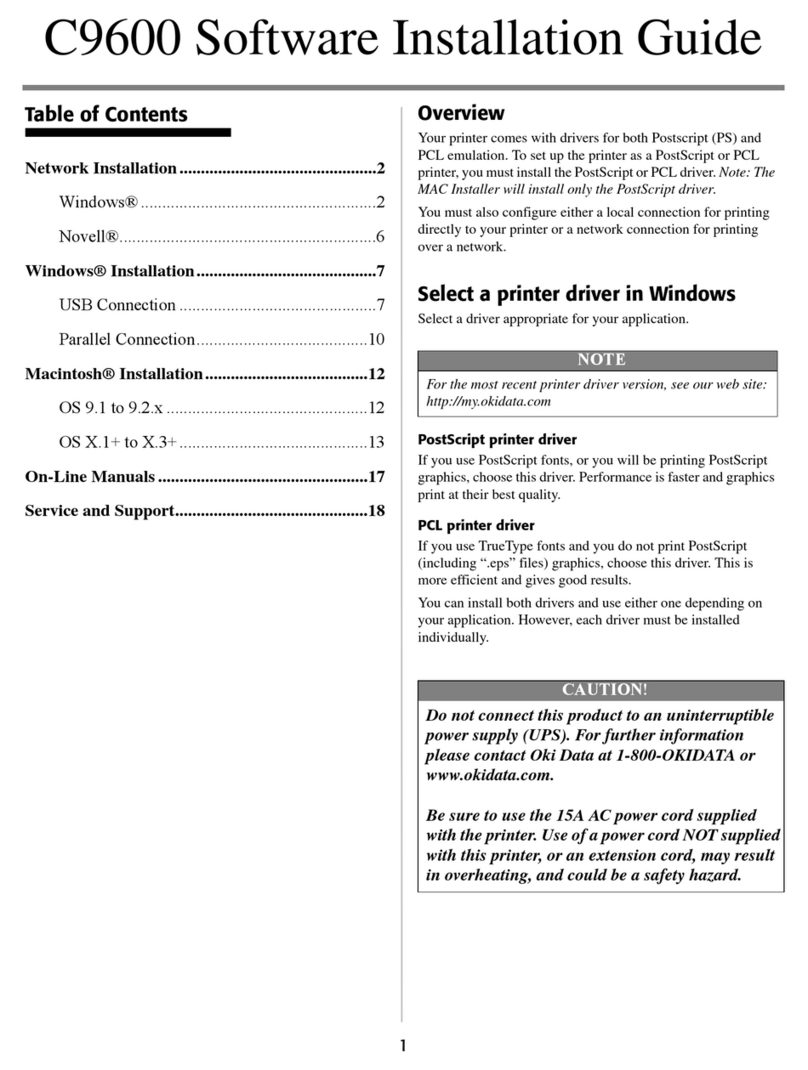
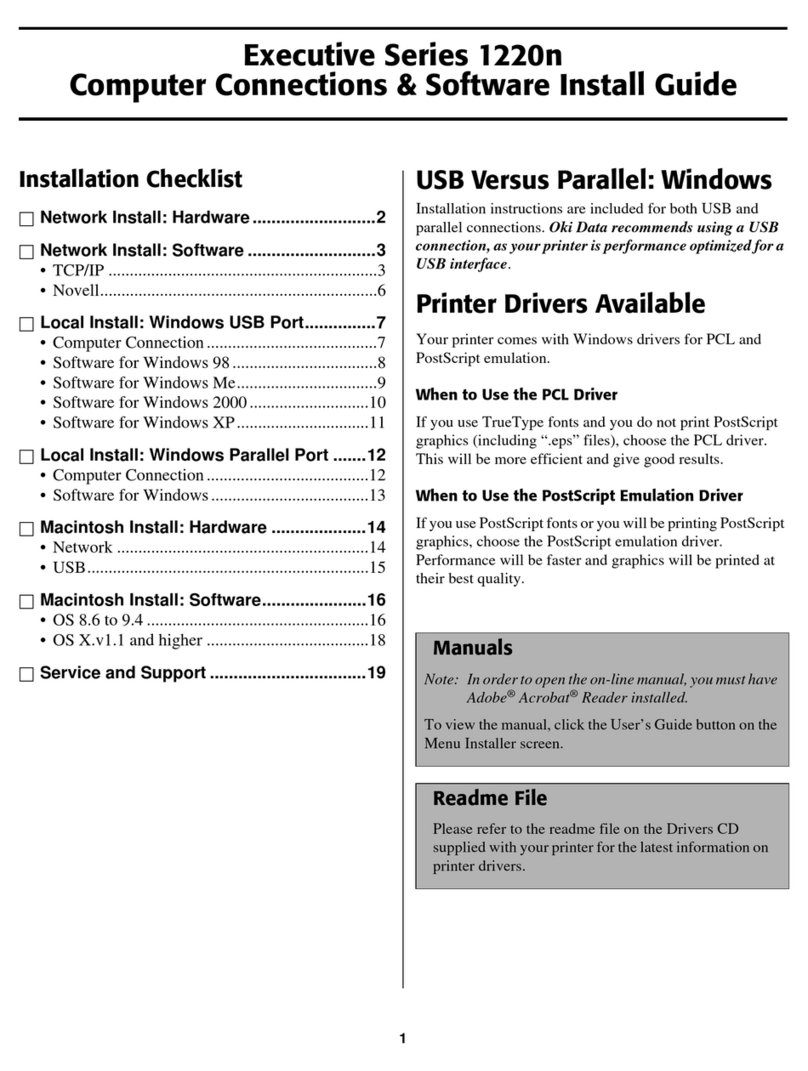
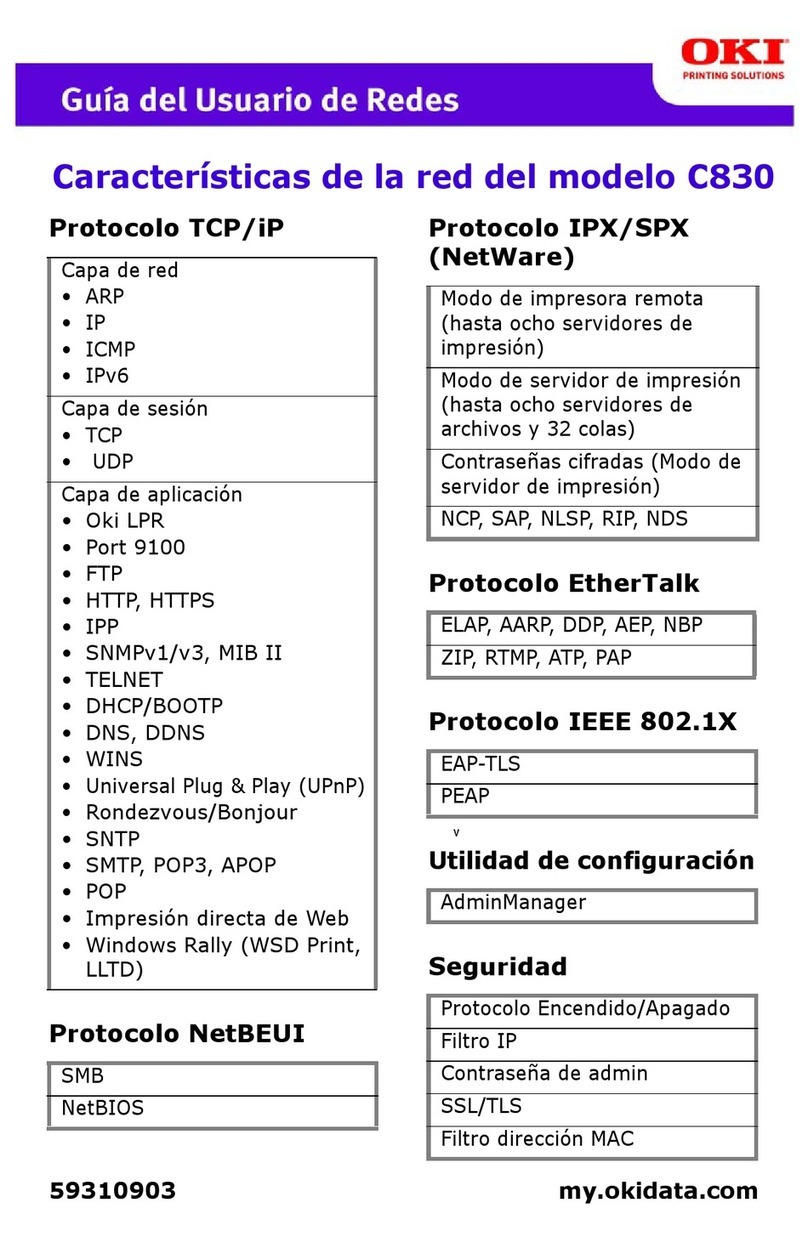
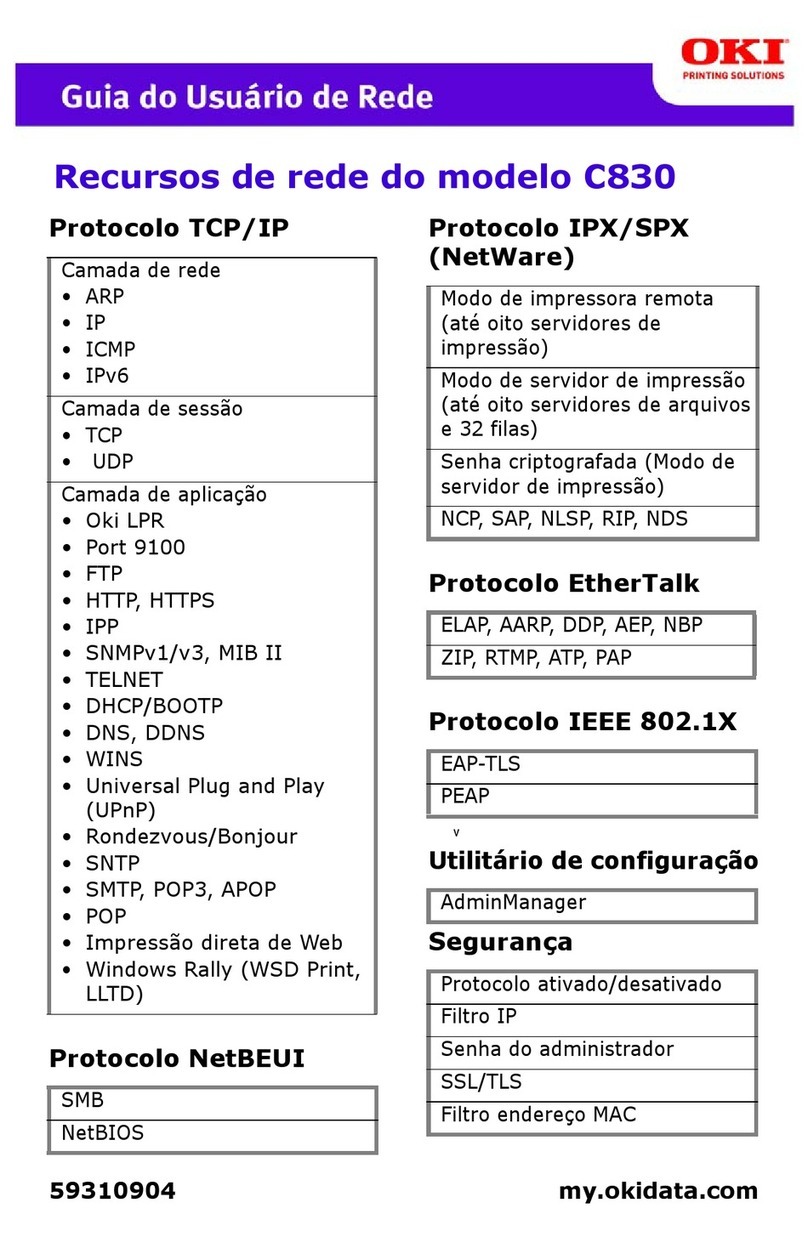
Oki ML521 User manual

MICROLINE®520/521User'sGuide
58351801

Every effort has been made to ensure that the information
in this document is complete, accurate and up-to-date.
OKIDATA assumes no responsibility for the results of
errors beyond its control. OKIDATA also cannot guarantee
that changes in software and equipment made by other
manufacturers, and referred to in this handbook, will not
affect the applicability of the information in this handbook.
Mention of software products manufactured by other
companies does not necessarily constitute endorsement by
OKIDATA.
© 1993, 1995, 1996, 1997, 1998, 2001 by OKIDATA
Revised edition, September, 2001
Written and produced by the OKIDATA Training &
Publications Department. Please address any comments
on this publication
• by mail to:
Training & Publications Department
Okidata, Div. of Oki America, Inc.
2000 Bishops Gate Blvd.
Mount Laurel, NJ 08054-4620
We welcome you to visit our web site:
http://www.okidata.com
Year 2000Compliance
All products currently sold by Okidata are Year 2000
Compliant. Each product contains information technology
that accurately processes date and time data between the
years 1999 and 2000. These products, when used in combi-
nation with products purchased from other manufacturers,
whose products properly exchange date and time informa-
tion, will accurately process the date and time. All future
products are committed to meeting the same Year 2000
compliance.
ENERGY STAR
As an ENERGY STAR®Partner, Okidata
has determined that this product meets
the ENERGY STAR guidelines for energy
efficiency.
OKIDATA, OKILINKandMICROLINEareregistered trademarks
of Oki Electric Industry Company, Ltd. OKIDATAand
MICROLINE: marques déposées de Oki Electric Industry
Company, Ltd. OKIDATA: marca registrada, Oki Electric
Industry Company, Ltd. Epson is a registered trademark of Epson
America, Inc. IBM is a registered trademark of International
Business Machines Corporation. Microsoft is either a registered
trademark or a trademark of Microsoft Corporation in the United
States and/or other countries.

E-i
ImportantSafety Instructions
Your OKI printer has been carefully designed to give
you years of safe, reliable performance. As with all
electrical equipment, there are a few basic precautions
you should take to avoid hurting yourself or damaging
the printer:
• Read the setup and operating instructions in this
manual carefully. Be sure to save it for future
reference.
• Read and follow all warning and instruction labels on
the printer itself.
• Unplug the printer before you clean it. Use only a
damp cloth; do not use liquid or aerosol cleaners.
• Place your printer on a firm, solid surface. If you put
in on something unsteady, it might fall and be
damaged; if you place it on a soft surface, such as a
rug, sofa, or bed, the vents may be blocked, causing
it to overheat.
• To protect your printer from overheating, make sure
no openings on the printer are blocked. Do not put
the printer on or near a heat source, such as a radiator
or heat register. If you put the printer in any kind of
enclosure, make sure it is well ventilated.
• The printhead can get quite hot when it has been
printing for a length of time. Do not touch the
printhead until it has had a chance to cool off.
• Do not use your printer near water, or spill liquid of
any kind into it.
• Be certain that your power source matches the rating
listed on the back of the printer. If you are not sure,
check with your dealer or with your local power
company.
• Your printer has a grounded, 3-prong plug as a safety
feature, and it will only fit into a grounded outlet. If
you can not plug it in, chances are that you have an
older, non-grounded outlet; have an electrician
replace it with a grounded outlet. Do not use an
adapter to defeat the grounding.
• The printer must be installed near a power outlet
which remains easily accessible.
• To avoid damaging the power cord, do not put
anything on it or place it where it will be walked on.
If the cord becomes damaged or frayed, replace it
immediately.

E-ii
• If you’re using an extension cord or power strip with
the printer, make sure that the total of the amperes
required by all the equipment on the extension is less
than the exten-sion’s rating. Generally, the total
ratings of all equipment plugged into any one power
line should not exceed 15 amps. Don’t exceed this
unless you know that the power line your equipment
is plugged into has a rating above 15 amps.
• Aside from the routine maintenance described in this
handbook, don’t try to service the printer yourself;
opening the cover may expose you to shocks or other
hazards. Don’t make any adjustments other than
those outlined in the manual — you might cause
damage requiring extensive repair work. the
Warranty, Regulatory, and Safety Information booklet
supplied with your printer explains how to get your
printer serviced by qualified Okidata technicians.
• If anything happens that indicates that your printer is
not working properly or has been damaged, unplug it
imme-diately and follow the procedures in the
Warranty, Regulatory, and Safety Information booklet
supplied with your printer for having your printer
serviced.
Some of the things to look for:
- The power cord or plug is frayed or damaged.
- Liquid has been spilled into the housing, or the
printer has been exposed to water.
- The printer has been dropped or its cabinet has
been damaged.
- The printer doesn’t function normally when
you’re following the operating instructions.

E-iii
Contents
Section 1: Getting Started ...................................................... 1
Unpack.....................................................................................1
Remove The Protective Film...................................................1
Remove The Shipping Retainers ............................................2
Install/Replace the Ribbon
Cartridge .............................................................................3
Connect to Power and Computer ............................................5
PowerUp..................................................................................6
Load Paper ...............................................................................6
Loading Rear-Feed Paper ...................................................7
Loading Single-Sheet Paper .............................................10
Set the Top of Form...........................................................12
Run the Self Tests ..................................................................13
Selecting an Emulation .........................................................13
Changing Emulations.......................................................13
Selecting a Printer Driver..................................................14
Printer Drivers ........................................................................14
Okidata Drivers .................................................................14
Section 2: Maintaining Your Printer .................................... 15
Replacing the Ribbon Cartridge ...........................................15
Clearing Paper Jams...............................................................15
Clearing Rear Feed Jams...................................................15
Clearing Single Sheet Feed Jams......................................16
Cleaning the Housing............................................................17
Section 3: Using Your Printer ............................................... 19
Control Panel Indicator Lights..............................................19
Control Panel Buttons: Print Mode.......................................20
Control Panel Buttons: Menu Mode.....................................21
Print Mode .............................................................................22
Selecting Print Quality .....................................................22
Selecting Character Pitch .................................................23
Menu Mode ...........................................................................24
Entering The Menu Mode ................................................24
Exiting The Menu Mode ..................................................24
Resetting The Menu .........................................................24
Printing Out the Menu ......................................................24
Sample Default Menu Printout .........................................25
Summary of Menu Settings ..............................................26
Explanation of Menu Items ..............................................29
Using the Printer's Features ...................................................32
Tear Feature.......................................................................32
FormsTear-offFeature ......................................................32
Paper Park Feature ............................................................33
Section 4: Problem Solving ..................................................35
Section 5: Specifications ....................................................... 39
Section 6: Parts & Accessories ............................................. 43
Before You Order ...................................................................43
How to Order..........................................................................43
Replacement Parts .................................................................43
Manuals .................................................................................44
Accessories ............................................................................44

E-iv
Section 7: Commands ........................................................... 45
Epson FX Commands ............................................................45
IBM Proprinter III Commands ...............................................47
Okidata MICROLINE Standard Commands..........................49
FCC/IC/CE Statements ........................................................... 51
FCC RFI Statement for 120V Models ...................................51
IC RFI Statement for 120V Models .......................................51
FCC RFI Statement for 230/240V Models............................52
IC RFI Statement for 230/240V Models ...............................52
CE Statements........................................................................52
Electromagnetic Conformance for 230/240V Models .....52
Safety Conformance for 230/240V Models .....................52
Index ...................................................................................... 53
Material Safety Data Sheet ................................................... 57

E-v
!
Conventions Used in This Guide
The following conventions are used in this guide:
• Notes containing general information are preceded
by the Note icon.
For example:
4
Interface cable and paper are sold separately.
• Statements containing precautions against actions
which could cause printing problems or damage to
the printer are set in italics, preceded by the Caution
icon.
For example:
Leave the ribbon shield on the cartridge!
• Statements containing precautions against actions
which could cause personal injury are set in bold
italics, preceded by the Warning icon.
For example:
Make sure the outlet is grounded. Do not use
an adapter to defeat the grounding.

English-1
Section 1: Getting Started
Unpack
Choose a sturdy table, desk or printer stand to place your
printer on when you remove it from the carton. Be sure
to save all packing materials in case you need to ship the
printer again. Check the box for these contents:
Ê
Printer
Ë
Ribbon cartridge
Ì
Power cord
If any of these items is missing or damaged, see your
dealer immediately for a replacement.
RemoveTheProtectiveFilm
1. Peel the clear protective film from the carriage cover.
Ê
Ë
Ì
4
Interface cable and paper
are sold separately.

E-2 Section 1
2. Lift up on the ridged area at either end of the carriage
cover.
3. Peel the clear protective film from the access cover.
4. Press the carriage cover back into place.
Remove The Shipping Retainers
1. Open the access cover (
Ê
) by grasping the tabs at
either end and lifting, then remove the printhead
shipping retainer (
Ë
), leaving the cover open for
installation of the ribbon.
2. Grasp the front edge of the paper separator (
Ì
) and
pull it up.
Ì
Ê
Ë

Getting Started E-3
4. Remove the styrofoam shipping retainer, then lower
the paper separator and press it into place.
It is recommended that the printer be switched off
prior to opening or removing the access cover.
Install/Replace the Ribbon
Cartridge
3
Be sure to use only ribbons specifically designated for
MICROLINE 520/521 printers. For the best results, use
genuine Okidata ribbons, Part No. 52107001.
Caution! If you are replacing the ribbon, the
printhead may be HOTHOT
HOTHOT
HOT!
1. With the access cover open, slide the printhead (
Ê
) to
the center of the platen.
If you’re replacing the ribbon, lift up the
cartridge at the end nearest the platen, then
remove and discard it.
Ê
+
Other manuals for ML521
2
This manual suits for next models
5
Table of contents
Other Oki Printer manuals

Oki
Oki C5850 User manual

Oki
Oki C6000dn User manual

Oki
Oki MB780 User manual

Oki
Oki proColor Pro910 Series User manual

Oki
Oki C7400n User manual

Oki
Oki Microline 320 Flatbed Programming manual

Oki
Oki B6100n Original instructions

Oki
Oki ML395 User manual

Oki
Oki B6500 Series Quick start guide

Oki
Oki PAGE 16n Manual