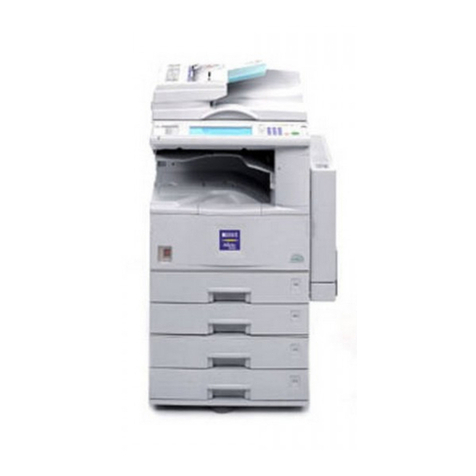
Oce VarioPrint 4110 User manual

-
o
Océ
VarioPrint®
4110/4120
Enjoy productivity
User manual
Operating
information

Copyright
© 2008-2009 Océ
All rights reserved. No part of this work may be reproduced, copied, adapted, or transmitted
in any form or by any means without written permission from Océ.
Océ makes no representation or warranties with respect to the contents hereof and specifi-
cally disclaims any implied warranties of merchantability or fitness for any particular purpose.
Further, Océ reserves the right to revise this publication and to make changes from time
to time in the content hereof without obligation to notify any person of such revision or
changes.
Edition: 2009-5

Trademarks
List of trademarks
Océ, Océ VarioPrint® 4110/4120 , Image logic digital scan technology, DocWorks,
PRISMAprepare, PRISMAaccess, PRISMAproduction PoD, PRISMAsatellite, Document
Designer, PRISMAoffice, CountLogic, JobSubmitIt are registered trademarks of Océ.
Adobe, Acrobat, Reader Distiller PostScript (PS) and Portable Document Format (PDF)
3™ are registered trademarks of Adobe Systems Incorporated.
PCL is a registered trademark of Hewlett-Packard Company.
IPDS is a registered trademark of International Business Machines Corporation.
Excel is a trademark of Microsoft Corporation.
Products in this publication are referred to by their general trade names. In most, if not
all cases, these designations are claimed as trademarks or registered trademarks of their
respective companies.
3
Trademarks

Contents
Chapter 1
Introduction.........................................................................................................9
Notes for the reader.................................................................................10
Introduction to the Océ VarioPrint® 4110/4120 ....................................12
Available documentation.........................................................................13
Chapter 2
Power information............................................................................................15
The power modes....................................................................................16
Turn on the machine................................................................................19
Shut down the machine...........................................................................20
Chapter 3
Overview of the system components.............................................................23
Introduction to the main system components and finishing devices...24
The operator panel...................................................................................27
The operator attention light....................................................................30
The output locations................................................................................32
The paper module....................................................................................35
The dual paper tray (optional).................................................................37
Chapter 4
Work with the operator panel.........................................................................41
Introduction...............................................................................................42
The dashboard....................................................................................42
The Schedule view...................................................................................44
Introduction to the 'Schedule' view..................................................44
Load the media...................................................................................48
Stop a print job...................................................................................50
The Jobs view...........................................................................................53
Introduction to the 'Jobs' view..........................................................53
The print function...............................................................................57
Schedule a waiting job for printing.............................................57
Reprint a job..................................................................................59
Give priority to a scheduled job..................................................61
Delete a job...................................................................................62
Print a scheduled job later...........................................................64
Make a proof.................................................................................66
Print the job parameters..............................................................68
Bundle and split jobs....................................................................70
Print all the jobs for which the media are available..................74
4
Contents

Print the jobs that have a label....................................................75
Check and change the job properties...............................................77
Change the number of sets..........................................................77
Check the first set.........................................................................80
Change the media.........................................................................83
Change the output location.........................................................86
Change the number of staples....................................................88
Change the sorting method.........................................................90
Change the type of offset stacking..............................................92
Shift the margin or image............................................................94
The Copy/Scan view.................................................................................96
Introduction to the Copy/Scan view..................................................96
Original input on the glass plate or into the ADF..........................100
Access other functions during a copy job or scan job..................103
The zoom behaviour........................................................................106
The copy function.............................................................................109
Description of the copy job settings.........................................109
Make a basic copy......................................................................118
Combine subsets into one document ......................................120
Use the templates.......................................................................124
Rename a copy job.....................................................................127
Copy non-standard size originals..............................................129
Scan now and print later............................................................131
Punch or staple the output.........................................................133
The scan function.............................................................................135
Introduction to the scan function..............................................135
The configuration of the scan-to-file function..........................137
The configuration of the scan-to-email function......................138
The scan profiles file..................................................................141
Description of the scan job settings..........................................148
Create a scan job........................................................................154
Correct an image........................................................................157
Optimise the scan quality..........................................................159
Combine subsets into one file...................................................161
The Trays view.......................................................................................165
Introduction to the 'Trays' view......................................................165
Assign the media to a paper tray....................................................168
The System view....................................................................................170
The Printer section...........................................................................170
Introduction to the 'Printer' section..........................................170
Check the status of the toner reservoir.....................................172
Check the status of the staple cartridges..................................173
Reset the day counters...............................................................174
Find the meter readings.............................................................176
5
Contents

The Setup section.............................................................................177
Introduction to the 'Setup' section............................................177
Work with the workflow profiles...............................................179
Change the language.................................................................184
Change the warning time...........................................................186
Truncate the job name...............................................................189
Make an intermediate check print.............................................191
Change the accounting settings................................................193
Disable the double-sheet detection...........................................197
The Media section............................................................................199
Introduction to the 'Media' section...........................................199
Introduction to the media handling..........................................201
Add temporary media to the 'Media catalogue'......................203
The Transaction section (optional).................................................205
Introduction to the 'Transaction' section .................................205
Activate the transaction printing function................................209
Shift the image in the transaction printing mode....................211
Handle the media messages......................................................213
Create a transaction setup.........................................................216
Chapter 5
The accounting function................................................................................219
About the accounting function..............................................................220
Enter an account ID per job...................................................................222
Chapter 6
Optional finishers............................................................................................225
iXDP (integrated eXchangeable Die Punch).........................................226
Introduction.......................................................................................226
Introduction.................................................................................226
Operating information.....................................................................228
Main parts...................................................................................228
Die sets available........................................................................231
Empty the chip tray....................................................................232
Replace a die set.........................................................................234
Service information..........................................................................236
Inspect the die sets.....................................................................236
Lubricate the die sets.................................................................238
Troubleshooting.........................................................................240
Specifications..............................................................................244
iBLM (integrated Booklet Maker)..........................................................245
Create a booklet with the iBLM.......................................................245
Chapter 7
Keep the printer running................................................................................249
Finisher: Add staples..............................................................................250
6
Contents

Stacker/stapler (iMFS): Replace the staple cartridge...........................256
iBLM (Booklet maker): Replace the stapler cartridges........................257
Add toner................................................................................................258
Troubleshooting.....................................................................................261
Appendix A
Miscellaneous..................................................................................................263
Product specifications............................................................................264
Reader's comment sheet ......................................................................267
Addresses of local Océ organisations .................................................269
7
Contents

8
Contents

Chapter 1
Introduction

Notes for the reader
Introduction
This manual helps you to use the Océ VarioPrint® 4110/4120 . The manual contains a
description of the product and guidelines to use and operate the Océ VarioPrint®
4110/4120 .
Definition
Attention Getters
Parts of this manual require your special attention. These parts can provide the following:
■Additional general information, for example information that is useful when you
perform a task.
■Information to prevent personal injuries or property damage.
Note, Attention and Caution
The words Note, Attention and Caution draw your attention to important information.
Overview of the attention getters#
IndicatesIconWord
Tips or additional information about the correct use
of the product.
Note
Information to prevent property damage, for example
damage to the product, documents or files.
Attention
Information to prevent personal injuries.
The Caution indication has several icons that warn
against various hazards. The icons are shown below.
Caution
General hazardCaution
Hot surfaceCaution
Electric shockCaution
Chapter 1 - Introduction10
Notes for the reader
Other manuals for VarioPrint 4110
1
This manual suits for next models
1
Table of contents
Other Oce All In One Printer manuals