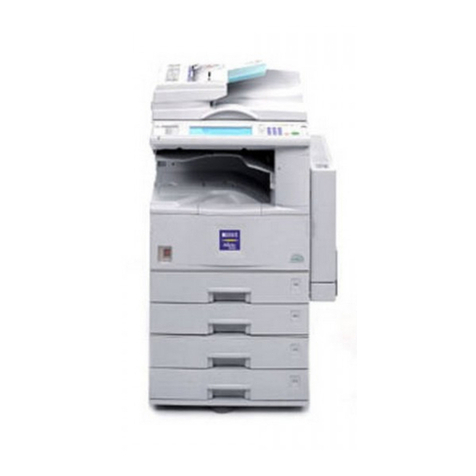
Oce fx2080 User manual

DA5-90760-61

Trademark and Copyrights
• Océ Imagistics is a registered trademark of Océ Imagistics Inc.
The Océ Imagistics logo is a registered trademark of Océ Imagistics Inc.
• Microsoft®, Windows®, Windows®3.1, Windows®95, Windows®98, Windows®Me,
Windows NT®4.0, Windows®2000, Windows®XP, Windows Server®2003 and Win-
dows VistaTM are registered trademarks of the Microsoft Corporation.
• PCL is a registered trademark of the Hewlett Packard Company.
• Monotype is a trademark of Monotype Imaging, Inc. registered in the United States
Patent and Trademark Office and may be registered in certain jurisdictions. The
Monotype Imaging logo is a trademark of Monotype Imaging, Inc. and may be
registered in certain jurisdictions.
• UFST is a trademark of Monotype Imaging, Inc. and may be registered in certain
jurisdictions.
All other products referenced are trademarks or registered trademarks of their
respective companies.

Contents
Chapter 1
Local printer setup .................................................................. 1-1
System requirements ................................................................................... 1-2
Drivers .......................................................................................................... 1-3
Installation................................................................................................ 1-3
Printer driver ............................................................................................ 1-3
Scanner driver........................................................................................... 1-3
Summary of installation procedure............................................................. 1-4
Installing the driver ..................................................................................... 1-5
Installing the driver.................................................................................. 1-5
Windows Vista users................................................................................. 1-7
Windows Server 2003 / Windows XP ....................................................... 1-9
Windows 2000 professional .................................................................... 1-11
Windows 98SE/Me .................................................................................. 1-13
Installing both PCL6 and PCL5e........................................................... 1-15
When “Found New Hardware Wizard” does not appear on Windows Server 2003/XP
... 1-20
When “Found New Hardware Wizard” does not appear on Windows 2000
.... 1-22
When “Add New Hardware Wizard” does not appear on Windows 98SE/Me
.... 1-24
Deleting a driver......................................................................................... 1-25
Chapter 2
Network printer setup ............................................................ 2-1
System requirements ................................................................................... 2-2
Summary of the installation procedure ...................................................... 2-3
Cable connection........................................................................................... 2-4
Setting the IP address.................................................................................. 2-5
Installing the driver ..................................................................................... 2-6
Installing the driver.................................................................................. 2-6
Configuring the network printer port...................................................... 2-8
Activating an optional device ................................................................. 2-10
Deleting the driver ..................................................................................... 2-11
Chapter 3
Various printing........................................................................ 3-1
Configuring printer driver settings............................................................. 3-2
Open the printer properties ..................................................................... 3-2

Paper tab ................................................................................................... 3-3
Page Layout tab ........................................................................................ 3-5
Quality tab ................................................................................................ 3-8
Device Option tab.................................................................................... 3-10
Using the bypass tray ................................................................................ 3-11
Loading paper into the bypass tray ....................................................... 3-11
Various printing ......................................................................................... 3-14
Combine printing .................................................................................... 3-14
Duplex printing....................................................................................... 3-16
Booklet printing ...................................................................................... 3-18
Printing on custom size paper................................................................ 3-20
Printing water marks ............................................................................. 3-24
Printing on specified size paper ............................................................. 3-27
Cancelling a print job................................................................................. 3-29
Job cancel using Windows ...................................................................... 3-29
Job cancel from the machine .................................................................. 3-29
Chapter 4
Using the TWAIN Scanner...................................................... 4-1
Scanning a document................................................................................... 4-2
Scanning a document................................................................................ 4-2
Chapter 5
Troubleshooting........................................................................ 5-1
Installing the local print driver................................................................... 5-2
Installing the network print driver............................................................. 5-3
PC printing ................................................................................................... 5-4
Error Messages ......................................................................................... 5-4
PC printing errors..................................................................................... 5-5
Specifications ........................................................................... A-1
Specifications............................................................................................... A-2
Printer ...................................................................................................... A-2
Scanner..................................................................................................... A-4

Chapter 1
Local printer setup
System requirements.......................................................... 1-2
Drivers ................................................................................... 1-3
Installation ........................................................................................... 1-3
Printer driver ....................................................................................... 1-3
Scanner driver...................................................................................... 1-3
Summary of installation procedure................................ 1-4
Installing the driver............................................................ 1-5
Installing the driver............................................................................. 1-5
Windows Vista users............................................................................ 1-7
Windows Server 2003 / Windows XP .................................................. 1-9
Windows 2000 professional ............................................................... 1-11
Windows 98SE/Me ............................................................................. 1-13
Installing both PCL6 and PCL5e ...................................................... 1-15
When “Found New Hardware Wizard” does not appear on Windows Server 2003/XP
... 1-20
When “Found New Hardware Wizard” does not appear on Windows 2000
... 1-22
When “Add New Hardware Wizard” does not appear on Windows 98SE/Me
... 1-24
Deleting a driver................................................................ 1-25

1-2
The following operating environment is required to use the printer /scanner drivers.
Item Requirements
Type IBM’s PC-AT compatible machine loaded with one of the
following operating systems.
Operating System
• Windows Vista Ultimate
• Windows Vista Ultimate 64-bit edition
• Windows Vista Enterprise
• Windows Vista Enterprise 64-bit edition
• Windows Vista Business
• Windows Vista Business 64-bit edition
• Windows Vista Home Premium
• Windows Vista Home Premium 64-bit edition
• Windows Vista Home Basic
• Windows Vista Home Basic 64-bit edition
• Windows Server 2003
• Windows XP Professional
• Windows XP Professional x64 edition
• Windows XP Home edition
• Windows 2000 Professional
• Windows Me
• Windows 98SE
*Operation with Windows 98/Me upgraded from
Windows 95/3.1 cannot be guaranteed.
*Not compatible with command prompt of MS-
DOS and Windows and DOS prompt.
*Not compatible with Windows 3.1/95/NT 4.0
CPU and Memory
Depends on the operating system
Disk space
10 MB for driver install
Interface
USB 2.0 (full speed)
CD-ROM
CD-ROM drive
NOTE: A USB cable is required to connect your machine to your PC.
(It is not included in this kit.)
System requirements

1-3
Drivers
Installation
• Install the drivers before connecting USB to PC.
• If installing using Windows Vista/Server 2003 /Windows XP /Windows 2000,
you need to log on as an administrator or a group of administrators.
• Do not attach/detach the USB cable in the following conditions:
·Before Windows gets ready after switching on PC
·While installing the printer driver
·While printing
Printer driver
The supplied CD-ROM has 2 types of printer drivers, PCL5e and PCL6. For maxi-
mum performance, we recommend installing the PCL6 driver.
* If you want to keep compatibility with your old PCL printer, use PCL5e.
Scanner driver
To use your machine as a scanner, an Imagistics fx2080 scanner driver should be
installed on your PC.

1-4
* For applicable environment, refer to “System requirements” on page 1-2.
* If using under a network environment with an optional network interface,
refer to “Network Printer Setup” on page 2-1.
See page 1-5.
1
After installing the driver,
connect your machine to the PC using the USB cable.
2
See page 1-9.
See page 1-11.
See page 1-13.
For Windows Server 2003/ Windows XP
For Windows 2000
For Windows 98SE/Me
Install the driver
Do not connect USB to PC before installing the driver.
Follow the instructions that appear on the window to complete
the installation.
See page 1-7.
For Windows Vista
NOTE: • For Windows Vista/Server2003/XP/2000, you need to log on as an
administrator to install the driver.
•
If installing both PCL6 and PCL5e, refer to page 1-15.
Summary of installation procedure

1-5
Installing the driver
Do NOT connect the USB cable before installing
the driver
1
Turn on your PC and insert the supplied CD into your CD-ROM drive.
NOTE: For Windows Vista users:
1. If the “AutoPlay” dialog box appears, click [Run Setup.exe].
2. When the “User Account Control” dialog box appears, click
[Allow] to allow the driver software installation.
The driver installation window will appear automatically.
If not, run the “setup.exe” from the root directory of the CD.
2Click [Next] to start the installation.
3After reading and accepting the License Agreement click [Yes].
Otherwise, click [No] to cancel the installation.
4Select your machine and click [Next].
5Select “Local” and click [Next].
6Click [Next].
Installing the driver

1-6
Installing the driver
7Select the driver you want to install and click [Next].
NOTE: For Windows Vista users:
During the driver installation, the “Windows Security” dialog box
will appear two times. Please click [Install this driver software
anyway].
NOTE: Both PCL6 and PCL5e drivers cannot be installed simultaneously.
If you want to install both drivers, install one driver first and then
install the second using the “Add Printer Wizard”. (See page 1-15.)
8Follow the instructions that appear on the window until you can click
[Finish].
For Windows Vista, go to page 1-7.
For Windows Server 2003/XP users, go to page 1-9.
For Windows 2000 professional users, go to page 1-11.
For Windows 98SE/Me users, go to page 1-13.
Installing the driver
Other manuals for fx2080
2
Table of contents
Other Oce All In One Printer manuals





Oce
Oce VarioPrint 1105 User manual

Oce
Oce VL3622 User manual

Oce
Oce cm4010 User manual

Oce
Oce 31 5E Series Parts list manual

Oce
Oce VarioPrint 2070 User manual

Oce
Oce VarioPrint 2062 NC User manual

Oce
Oce cm5520 User manual

Oce
Oce cm6520 User manual

Oce
Oce im2330 Instruction Manual

Oce
Oce VarioPrint 6000 Ultra Line User manual