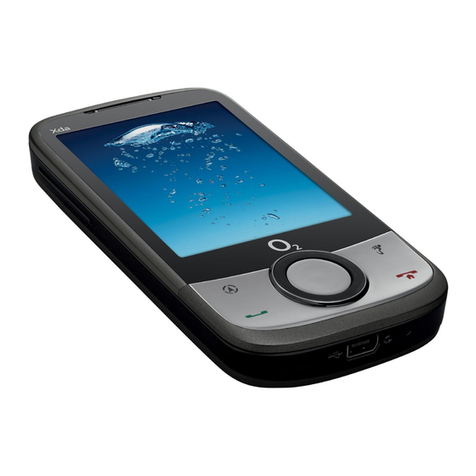
O2 Xda Flame User manual

Chapter 1
Before using your O2 Xda Flame
1.1 What’s in the box?
1.2 Familiarizing yourself with your O2 Xda Flame
1.3 Features
1.4 LED status
1.5 Display information

10
1
Before using your O2 Xda Flame
1. Before using your O2 Xda Flame
1.1 What’s in the box?
Thank you for selecting the O
2
Xda Flame. Please check if your package comes with the
following items. If any of them is missing, please contact your retailer.
• O2 Xda Flame – your
Windows Mobile-based
Pocket PC phone
• Universal AC adapter with
four plugs for different
countries
• Getting Started
CD
• Warranty Card
• Quick Start Guide
• User Manual
• Additional Stylus
• USB Host cable
• High quality stereo
wired headset
• Battery
• TV-Out AV cable
• Mini USB cable

11
1
Before using your O2 Xda Flame
1.2 Familiarizing yourself with your O2 Xda Flame
No.
Item
Description
1
Record
Press and hold to record a voice note. Press and release
immediately to access
Notes
.
2
TV Out connector.
To project image to TV or projector, connect the plug and play TV
out cable here..
3
Infrared port
Enables you to exchange files or data with other devices without
cables or wires.
4
Wireless Manager
Key
Quick access to Wireless Manager Menu
5
Notification LEDs
The LED indicator indicates the status of your phone by showing
different colors
Static amber: the phone is being charged
Green: mobile network is detected
Blue: Bluetooth is activated
Orange: Wireless LAN is activated
LED blinks alternately between orange and blue: Bluetooth and
Wireless LAN are on
LED blinks amber: for notifications.
6
Left Soft Key
Press to access menus on the left.
7
Call Key
Press to make or receive a call, or press to launch Phone screen..

12
1
Before using your O2 Xda Flame
No.
Item
Description
8
Windows Start menu
Press to bing up the Start menu.
9
Camera for video
For making video telephony with another party, who also has a 3G
phone with this feature..
10
Touch screen
Use the stylus to select items on the screen..
11
Navigation pad
Press to navigate up/down and right/left through any of the drop-
down menus or program instructions; confirm your selection by
pressing the center key.(See
1.4 Keypad functions
).
12
Right Soft Key
Press to access menus on the right.
13
End Key
Press to end a call or exit from application..
14
Infotainment Plus
Press to enter infotainment plus.
15
Volume
Press up/down to increase/decrease the volume.
16
External memory
expansion slot
Insert your Micro SD card here into this slot for expansion of
memory. This is an optional accessory.
17
Camera & Video key
Press to launch the camera function and take a picture or high
quality video.
18
Soft reset
Press here with the stylus to soft reset your O
2
Xda Flame. For
information about hard reset, please see
2.11 Resetting your O
2
Xda Flame
.
19
Stylus & stylus
holder
Storage place for your stylus when it is not in use..

13
1
Before using your O2 Xda Flame
No.
Item
Description
20
Self-portrait mirror
The preview mirror for self-portrait.
21
Flash light
White LED strobe flash
22
Battery cover
To remove or replace battery, push and slide out the battery cover.
23
Camera lens
The CMOS camera supports 2 mega-pixel resolution with auto-
focus function for high quality color photos or high quality video
recording when switched to video mode. .
24
Mini-USB connector
Connect the USB data cable for PC for synchronization of
information, data transmission and also battery charging.
25
Earphone plug
Plug in the stereo headset and listen to audio files or use the
phone’s handsfree kit.
26
Power button
Long press to turn your phone on/off. Short press to turn the
display illumination on/off.

14
1
Before using your O2 Xda Flame
1.3 Features
Like a standard cell phone, your O
2
Xda Flame supports basic dialing features. However, it
also integrates Personal Digital Assistant (PDA) capability. The following section provides
more information about the phone’s features:
• Touchscreen: 3.6” TFT LCD display with 65536 effective colors . (Hardware supports 262K
colors).
• 5-way navigation key.
• Windows Start menu key and O
2
Infotainment Plus key.
• Stereo speaker (with receiver) & Omnidirectional mono microphone.
• Mini-USB connector for connecting your phone with a PC for synchronization of
information, data transmission and also battery charging.
• Camera: 2 Megapixels with Auto Focus.
• Connections: IrDA, Bluetooth, and Wireless LAN, USB.
• Microsoft Windows Mobile 5.0: Pocket MSN, Pocket Outlook, Pocket Explorer, and Offi ce
tools (Word, Excel, and PowerPoint). Also features Windows Media Player 10, Terminal
Service Client, Pictures & Videos, calculator, games, ActiveSync, and File Explorer.
• O
2
programs: O
2
Connect, O
2
SMS Plus, O
2
Plus Basic, O
2
Phone Plus, O
2
AutoInstall, O
2
MediaPlus, O
2
Infotainment Plus, O
2
Plus Advanced
and O
2
AutoConfi g.
• Other programs: FM Radio, Java, Self Diagnostics, GPRS Monitor, Adobe Reader
LE, Jeyo SMS Backup, Jeyo MobileExtender, CodeWallet Pro, WorldMate, Power
Management, SRS Enhancer, and Album & Image Edit.

15
1
Before using your O2 Xda Flame
1.4 LED Status
The O
2
Xda Flame has a LED light that varies in color depending on the status of the phone.
The colors of the LED will vary depending upon whether or not the GSM network is available.
Missed calls, unread messages and low battery condition statuses are given
priority over the status of Wireless LAN and Bluetooth, for all of these conditions
the LED blinks Amber ( a brighter amber for low battery).
GSM On
Wireless LAN Off and Bluetooth Off - blinks Green.
Wireless LAN on and Bluetooth Off - alternates between Green and Orange.
Wireless LAN Off and Bluetooth On - alternates between Green and Blue.
Wireless LAN On and Bluetooth On - alternates between Orange and Blue
GSM Off
Wireless LAN Off and Bluetooth Off - no change
Wireless LAN on and Bluetooth Off - blinks Orange
Wireless LAN Off and Bluetooth On - blinks Blue
Wireless LAN On and Bluetooth On - alternates between Orange and Blue
When charging the battery the LED is Amber and notifi cations are indicated by the
LED fl ashing.
Once charging is complete the above statuses are applied.

16
1
Before using your O2 Xda Flame
1.5 Display information
The screen displays the following
information:
Start menu Status & icon area
Main
Display
Command
bar
Pop-up
menu
Windows Start menu
Tap on the Windows Start menu on the top
left of the screen to bring up a menu. To
return to the
Today
screen at any time, Tap
Start
>
Today
.
Status & icon area
This area shows your current mode, such
as
Phone
mode or
MSN Sign In
mode. The
rest of the area displays notifi cation icons
such as time, signal strength, message
arrival, etc.
Main Display
Depending on the current mode or program,
this area shows the major features of the
mode. On the
Today
screen, this area
contains shortcuts to certain programs. To
change the
Today
screen settings, tap
Start
>
Settings
>
Today
.
Command bar
Depending on the mode, this area contains
different features such as input panel and
commands to create or edit a fi le.
Pop-up menu
This feature allows you to quickly access
an item. To access a pop-up menu, simply
tap the icon on the screen and tap again
to perform an action. To cancel it, tap other
places on the screen.

17
1
Before using your O2 Xda Flame
Start menu area
Tap
Start
to bring up a list of menu options.
No.
Description
1
Quick access to a program.
2
Recently accessed programs.
3
Access program folder. Please refer to the following
Programs
table for a detailed
program list.
4
Device settings. Please refer to the following
Settings
table for a detailed setting list.
5
Help information.

18
1
Before using your O2 Xda Flame
Programs
Your O2 Xda Flame contains a list of programs, allowing you to get the most out of your
phone.
Icons
Programs
Description
Games
Provides games such as Bubblebreaker and Solitaire.
ActiveSync
Synchronizes information between your O2 Xda Flame and a
PC.
Auto Configurator
Configures your network operator setting.
Calculator
Performs mathematical calculations.
Camera
Takes photos and shoot video clips.
Adobe PDF
Supports viewing of PDF files.
CodeWallet Pro 5
Holds your secret financial numbers/passwords (Option to
install in O
2
AutoInstaller).
Download Agent
Manages your downloaded content for installation.
Excel Mobile
Creates, views and edits Excel files.
File Explorer
Views all the files on your O2 Xda Flame.
FM Radio
Enables you to listen to the radio.
GPRS Monitor
Keeps track of your GPRS daily traffic.
Java
Installs and run your Java applications.
Jeyo SMS Backup
Backs up and restores SMS messages (Option to install in O
2
AutoInstaller).
Other manuals for Xda Flame
2
Table of contents
Other O2 Cell Phone manuals