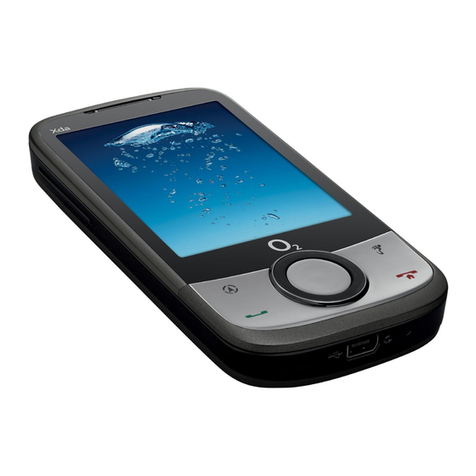
O2 Xda Argon User manual

A quick guide to your
Xda Argon
O2 Argon_Quickguide.indd 1 7/3/07 15:29:05

Contents
Section 1
Getting started 02
Install the SIM card 02
Install and charge the battery 03
Turn on and set up for
the first time 04
Check the battery power 06
Enter your PIN 07
Synchronise with your
PC or laptop 08
Section 2
Using your Xda Argon 12
Mobile phone 12
A world of connections 12
Internet and messaging 12
Video, pictures and audio 13
Setting up ISP email accounts 13
Set up a POP3/IMAP4
email account 14
Microsoft Direct Push Email 15
In the Box 16
A tour of your Xda Argon 20
Status indicators 28
Section 3
Help and troubleshooting 32
General questions 34
O2 Argon_Quickguide.indd 2-3 7/3/07 15:29:06
2
3
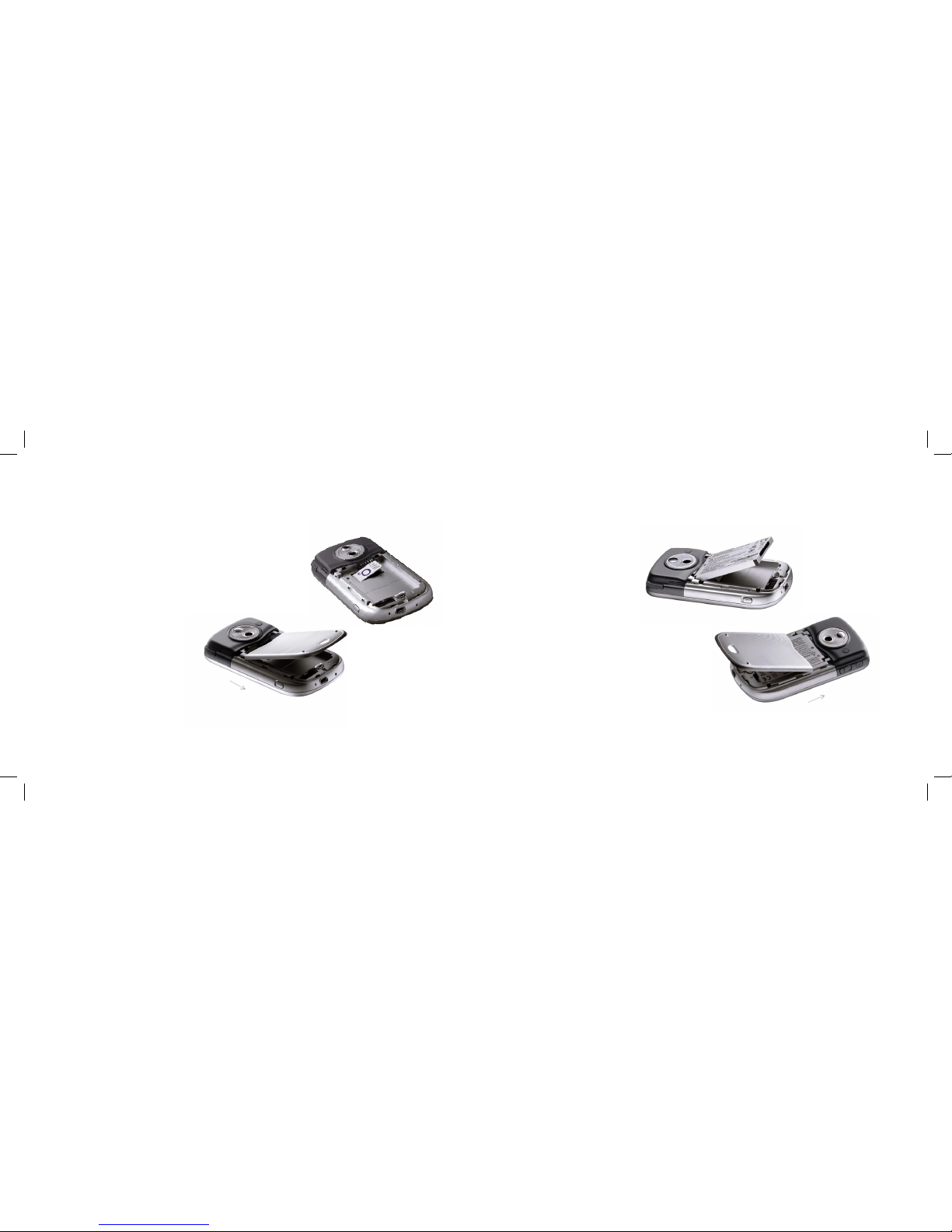
1. Install the SIM card
Turn off your Xda Argon before
you insert the SIM card. Then
remove the battery by pressing
the battery release button and
sliding the battery cover down.
If the battery is inside, you can
remove it with your finger by
lifting the bottom right side of
the battery.
Place the SIM with the metal
contacts faced down as
indicated and slide the SIM
card into the slot.
2. Install and charge
the battery
You new battery will be partially
charged. You will need to install
and fully charge it before you
start using your Xda Argon.
To install the battery, first
remove the battery cover and
insert the battery. Make sure
that the gold connectors on the
battery meet with the row of
connectors on the top right
side of the battery slot.
Insert the top side of the battery
first, then gently push it down
into place. Replace the battery
cover by sliding it back until it
clicks into place.
Getting started
O2 Argon_Quickguide.indd 2-3 7/3/07 15:29:19

4
5
Light on the right LED indicator
on your Xda Argon will show the
battery status:
• a solid amber light shows
when your Argon Xda is off
but charging
• a solid amber light and a
charging icon on the Today
screen will show when your
Xda Argon is on and charging.
• a green light and full battery
icon appears on the Today
screen when the battery is
fully charged.
Xda Argon top tip:
Some batteries perform
better after several full
charge and discharge cycles.
There are two ways to
charge the battery:
– the fastest way is to
connect your Xda Argon
directly to a wall socket
using the AC adapter, or
– plug the sync cable to the
USB port on your PC and
into the sync connector on
your Xda Argon.
3. Turn on and set up for
the first time
Turn on your Xda Argon by
pressing the power button on
the top right-hand edge.
A welcome screen will appear
and prompt you to Tap the
screen to set up your Xda
Argon. Then just follow the
on-screen instructions.
Your Xda Argon will then start
to set up and add applications
supplied by O2. After about
two minutes, you’ll see a
customisation screen so you
can tailor some options on
your Xda Argon.
LED Indicators
O2 Argon_Quickguide.indd 4-5 7/3/07 15:29:23

6
7
5. Enter your PIN
When your Xda Argon restarts, it
may ask you to enter the PIN for
your SIM.
Tap in your PIN and select Enter.
If you’re an O2 Ireland customer,
please enter the PUK code
supplied with your SIM or call
Customer Service on 1909.
Xda Argon Top Tip: A
wrong PIN entered three
times will block your SIM
card. This means you
won’t be able to make or
receive any calls, texts or
picture messages.
Don’t worry – you can
easily sort this out by
contacting your service
provider. They’ll unblock
it for you right away.
Customisation setup:
You will see a screen on the Xda
Argon with a drop-down box.
This is to confirm the O2 country
and settings you need; whether
Postpay or Prepay if available, or
to remove the settings.
The O2 UK Postpay settings
are selected as the default.
Please check that the “I want to
configure now” box is ticked
(it is the default).
The last option will remove
all settings and should only
be used if you are setting
up your Xda for use within
a Corporate environment
– otherwise your Xda Argon
will not function correctly.
Then select the OK box in the
top right of the screen.
4. Check the battery
power
To check the battery power just
tap the battery level icon on the
Today screen.
The power settings screen will
open and display the current
battery power level. A warning
message will show if the battery
power is very low. If you see
this, connect the device to a
power supply.
O2 Argon_Quickguide.indd 6-7 7/3/07 15:29:23

8
9
6. Synchronise with your
PC or laptop
Microsoft® ActiveSync® lets you
synchronise information on your
Xda Argon with your PC such as
Inbox, Calendar, contacts and
tasks within Microsoft Outlook®.
The software is already installed
on your Xda Argon but you will
need to install it on your PC if you
haven’t already. To do this, insert
the Getting Started CD included
in your Xda Argon box into the
CD drive of your PC and follow
the simple on-screen wizard.
When it’s installed just connect
the USB cable to your PC and
start synchronising.
Now that you’re set up,
let’s get going!
O2 Argon_Quickguide.indd 8-9 7/3/07 15:29:28

Section 2
O2 Argon_Quickguide.indd 10-11 7/3/07 15:29:29

12
13
You can download, view and
edit email attachments using
mobile versions of Microsoft
Office applications such as Word,
Excel and PowerPoint.**
Create and send picture
messages or text your contacts
for a fast response.
Internet Explorer Mobile gives
you fast connection to the
Internet. Do your banking, check
stock prices or catch up with the
day’s news.
Video, pictures and audio
Take detailed pictures or shoot
video with sound. The Xda
Argon has a high-resolution
camera built-in, with a clear,
high-quality colour screen.
Setting up ISP email
accounts
The email Setup Wizard makes
it easy and simple to set up
your Outlook email and POP3/
IMAP4 accounts.
Set up ISP email accounts
using email Setup Wizard
1. Tap Start > Messaging.
2. Tap Menu > Tools > New
Account to access the email
Setup Wizard.
3. The email Setup Wizard
guides you step-by-step
through the setup process.
Mobile phone
Use your Xda Argon just like
a mobile phone. You can keep
in contact, get in touch with
the office or send text and
picture messages.
A world of connections
Xda Argon supports GPRS and
Wireless LAN so there’s a choice
of connecting to the Internet at
a range of speeds. Just choose
the network that works best
wherever you are.
BluetoothTM means you’re wire
free and can use your Xda with
car kits and headsets.
Internet and messaging
Use Outlook Mobile to send and
receive emails with attachments,
keep track of meetings and
events, and keep in sync with
Outlook on your PC.
Microsoft Direct Push Email
will give you real time access*
to email if your company has
Microsoft Exchange 2003 or
above. This means you can get
up to the minute access to your
Inbox, Contacts and Calendar.
Using your Xda Argon
* Subject to coverage and your company’s IT infrastructure, permissions and policies.
** Applies to read only for PowerPoint.
O2 Argon_Quickguide.indd 12-13 7/3/07 15:29:29

14
15
Set up a POP3/IMAP4
email account
You can set up a POP3 or IMAP4
email account if you have an
email account with an Internet
service provider (ISP) or an
account that you access using a
VPN server connection (typically
a work account).
1. Tap Start > Messaging.
2. Tap Menu > Tools > New
Account.
3. On the first email Setup
screen, select Other (POP3/
IMAP) from the Your email
provider list, then tap Next.
4. On the next screen, enter your
email address, and tap Next.
Auto configuration will help
you download necessary email
server settings.
5. Once Auto Configuration has
finished, tap Next.
6. Enter your name (the
name you want displayed
when you send email) and
your password.
Xda Argon Top Tip:
Select the Save password
checkbox if you want to
save your password.
Microsoft Direct
Push Email
Xda Argon is powered by
Windows Mobile, a pocket-sized
version of Microsoft Windows.
It has all the features of a top
of the range PDA and mobile
phone, and also gives you
real-time access to your Inbox,
Calendar, Contacts which are
synchronised automatically with
your email account over the air.*
To receive real-time access to
your Outlook files, your company
needs to be running Microsoft
Exchange Server 2003 Service
Pack 2 with your Xda Argon,
which has the latest Windows
Mobile 5.0 software.
Your IT department will need to
enable wireless services on the
Exchange Server and also set up
relevant IT security policies and
permissions such as password
requirements.
To find out how to use Microsoft
Direct Push Email with your O2
Xda Argon, please visit
our website:
www.o2.co.uk/xda
O2 Argon_Quickguide.indd 14-15 7/3/07 15:29:29
16
17
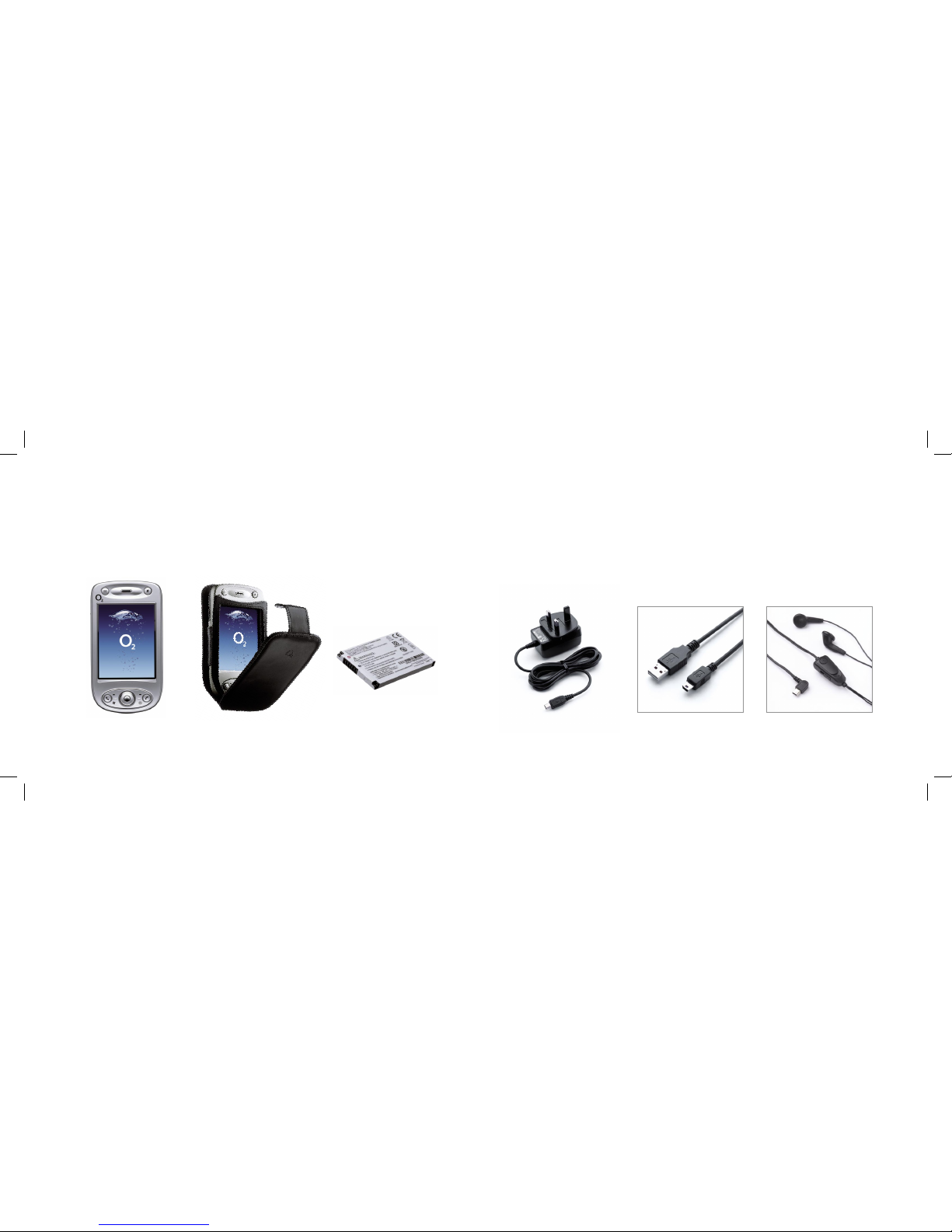
AC adapter
for recharging your Xda battery.
Connection cable
to connect your Xda to a PC for
synchronising data and charging.
Handsfree stereo headset
In the Box
Xda Argon
your all in one phone and PDA.
Xda Argon case
to protect and carry your Xda.
Xda Argon battery
to power your Xda.
O2 Argon_Quickguide.indd 16-17 7/3/07 15:29:40
Table of contents
Other O2 Cell Phone manuals