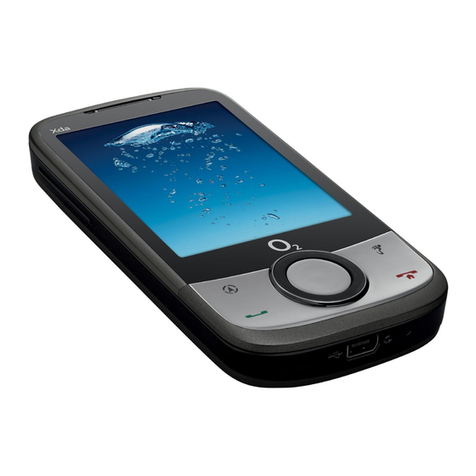
O2 X4 Operating instructions

o2.co.uk
O2 (UK) Limited, 260 Bath Road, Slough, Berkshire SL1 4DX
Registered in England No. 1743099. Registered Office as above.
© O2 (UK) Limited 2003. Correct at time of going to press (March 2005)
O2 X4 is a trademark of the O2 Group of companies.
O2C2440N KGL 03/05
O2X4™
How to use it

Quick start guide to O2X4
Just a second
We know you’re bursting to start using your new mobile,
but we just wanted to take the time to say thanks for
buying it and to point out that in this quick start guide is
all you need to know to get straight into it. Don’t miss
the fuller details in the other chapters that you should
take the time to read when you get a chance.
That’s it. You can start now.
Here are some quick instructions on how to get started. If
you want more detail, please refer to the detailed sections
of the guide:
Setting up
•Insert the SIM into the slot on the back of the O2X4
handset, connect the battery to the O2X4 and insert the
memory card into the slot at the bottom of the phone
•Check these items are securely in place, then open the
flip and hold and press until the screen turns on.
Then enter a PIN if necessary*
•You’re now ready to use the O2X4
Charging the handset
•Insert the lead from the charger to the base of the
handset into the charging socket
•Connect the charger to the correct electrical socket. The
phone will start charging
•When the phone is fully charged disconnect the charger
from the socket and then from the phone
* The default PIN code is 0000 for Pay Monthly customers and 5555 for Pay &
Go customers. If you enter an incorrect PIN code three times in succession, your
SIM card will lock and you must enter the PUK code to unlock it. Please contact
O2 Customer Service in this event.
Quick start guide
iii

Basic navigation
Here’s how to navigate when using the X4.
•Use to move up, down, left or right
•Press or to select an item
•Press or to go Back or delete
•Press to go back to the standby screen
•Press to access O2Active
How to make a call
•Type the number of the person you wish to call by using
the numbered keypad or press to select Contacts and
scroll up and down to find the contact
•Press to dial the number. Your O2X4 will start to
dial the number
•After you’ve connected, press to end the call
How to create and send a text message
•Press to enter the New message screen
•You can now start typing your message using the
keypad. The O2X4 uses ITAP, a predictive text input.
Press to flip through text input options
•Once you’ve finished typing your text, press
•Type the number in of the person that you wish to send
the text to or select their contact number from your
phonebook
•Press and your message will be sent to the recipient
How to take a picture
•From the idle screen press to enter the viewfinder mode
•Focus the camera on the picture subject. You can press
to zoom in on the subject and also to adjust
the light
•If you’re taking a picture in dark conditions, you can use
the flash mode. Select Options – Flash on
•Once you’re ready, press to take a picture. The O2X4
will automatically save the picture to the Media Centre
•Press to go back to the viewfinder screen and take
another picture
•To use the 1.3 megapixel feature, select Options –Size
and then select 1280 x 1024
Quick start guide
iviii

Please note:
Sending megapixel images via media messages may take
some time to upload.
How to record a video
•From the idle screen press and enter the
viewfinder mode
•The default setting for video size is set to allow you to
send video messages. If you want to record a video on a
larger screen select Options – QCIF
•Press to start recording. To stop press
•Your video will automatically be saved to the
Media Centre
•Press to go back to the viewfinder screen and shoot
another video
Top tips
•You can assign a picture or small video clip to a contact,
so when that person calls you, their photo or video
appears on screen. See page 42 for details
•You can download 1.3 megapixel camera pictures to
your PC via the USB cable and CD-ROM supplied in the
box. See page 25
•From the main menu, select Media Centre – Videos and
then select the O2X-Range Ad. 3gp for a great
demonstration of the quality of this device
•To take a picture of yourself, when the handset is
closed, press and hold the side camera key for 3
seconds. The external display will then act as a
viewfinder. Once you’re ready to take your picture,
press to capture the image
•You can read texts and view missed calls on the external
screen. Press to read and view
Quick start guide
viv

Contents
Welcome xiii
Chapter 1 – Before using your mobile 1
What’s in the box 2
Handset description 4
External display 8
Main idle screen 10
Icons 11
Function keys 13
Navigation key 15
Chapter 2 – Preparing your mobile for use 17
Plug in your SIM 18
Using the battery 20
Charging the battery 21
Important battery information 23
Inserting your SD card 24
CD-Rom and USB cable 25
Chapter 3 – Basic functions 27
Turning your mobile on and off 28
Using the menu 30
Simple stuff 34
Making a call 34
Ending a call 35
Receiving calls 35
Making an international call 36
O2 X4 is a trademark of O2 Limited. viiivii

– Drafts 69
– Archive 70
– Delete 70
– Settings 70
Multimedia 71
– Create a media message 71
– Send your media message 77
– Read messages 79
– Inbox 80
– Sent items 80
– Drafts 81
– Notifications 82
– Archive 82
– Media downloads 82
– Delete 82
– Settings 82
Camera 83
Camera settings 84
Additional camera settings 87
Take a picture 88
Managing your pictures 89
View your pictures 91
Videos 92
Video settings 93
Additional video settings 95
Shoot a video clip 96
Enabling long video recording 97
Managing your video clip 98
View your video clips 99
x
Emergency calls 36
Voicemail 37
Chapter 4 – Main menu 39
Contacts 40
Adding contacts to your phonebook 40
Finding contacts in your phonebook 45
Copy 46
Delete 47
Caller groups 48
Own number 49
Memory 49
Calls 50
Missed, dialled and received calls 50
Delete 52
Call display 53
Duration 54
During a call 55
Call menu 58
Messages 60
Text 60
Multimedia 60
Voicemail 61
Broadcast 61
Text 62
– Write a text message 62
– Read messages 65
– Inbox 67
– Sent items 67
ix

O2Active 100
What do I get with O2Active? 102
How to access O2Active 116
How to close your browser 116
Games 117
O2Games Arcade 117
Media Centre 124
Images 124
Managing your images 125
Fun ways to edit your images 129
Videos 132
Music player 136
Ring tones 142
Wallpaper 144
Tools 145
My services 145
Alarm 145
Calendar 148
Calculator 153
Currency converter 154
Clock options 155
Countdown timer 157
Stopwatch 158
Connections 159
Settings 161
Date and time 161
Profiles 163
Display 169
Call settings 171
Network 176
Security 177
Power saving 180
Language 180
Power on/off sound 180
Memory 181
Factory reset 181
Chapter 5 – Don’t panic 183
What does that mean? 184
Trouble shooting 188
Vital statistics 192
Chapter 6 – The important safety bit at the back 195
Safety information for mobiles 196
Mobile care 197
Memory card 201
Driving safety 202
Electronic devices 203
Other safety guidelines 205
Cautions 206
R&TTE Directive 1999/05/EC 207
xiixi

xiv
Welcome
Nice one.
You’re now the proud owner of an O2X4.
Apart from a top mobile, you’ve bought yourself a shed
load of benefits and services that’ll keep you ahead of the
game for a good while yet.
There’s the 1.3 megapixel camera (with flash) that can take
pictures worthy of the mind blowing 262,000 colours that
the O2X4 colour screen can handle.
xiii
At last the perfect combination; hi-res camera + hi-res
screen = quality pix that you can show and send to people
without having to attach an explanation of what they’re
meant to be.
Not just stills though, the O2X4 is so smart that it lets you
record and play video as well.
Now you can really do your personal messages justice.
It’s also a really good music player on which to store and
play your own MP3 files with an expanded memory pack
so you can store more of whatever you want.
Welcome

Your O2X4 also holds the key to the
whole world of O2Active services. At
3G speeds* you can access streaming
video footage from all sorts of sources
news, sporting highlights and music.
And because your O2X4 links directly
to your PC using its own cable, you can
upload and download files to your
heart’s content.†
It’s been our pleasure to develop the
O2X4, we hope it’s your pleasure to
use it.
* Subject to 3G coverage.
†If content is not covered by Digital Rights Management.
O2 does not suggest in any way that the celebrities featured in this guide are
endorsing O2 products or services.
Playman Power GamesTM: © 2004 Mr. Goodliving Ltd. All rights reserved. This
game is protected by copyright and is proprietary to Mr. Goodliving Ltd. Any
copying, modification, distribution or public display of this game without the
written consent of Mr. Goodliving Ltd. is strictly prohibited.
About the user guide
This user guide relates only to
the O2X4.
Please note that a small
proportion of the functions
available differ between
Pay & Go and Pay Monthly
customers.
xvixv
Welcome

Before using your mobile
•What’s in the box
•Handset description
•External display
•Main idle screen
•Icons
•Function keys
•Navigation key
Chapter 1
1xvii
Table of contents
Other O2 Cell Phone manuals