
Mitel MiVoice 6940 User manual

The trademarks, service marks, logos and graphics (collectively "Trademarks") appearing onMitel's Internetsites or in its publications are registered and unregistered trademarks ofMitel Networks Corporation (MNC) orits subsidiaries (collectively "Mitel") or others.
Use of the Trademarks is prohibited without the express consent from Mitel. Please contact our legal department at legal@mitel.com for additional information. For a list of the worldwide Mitel Networks Corporation registered trademarks, please refer to the website:
http://www.mitel.com/trademarks.
Mitel’s Power Over Ethernet (PoE)Powered Device (PD)products are coveredby one or more of theU.S. patents (andany foreign patent counterparts thereto) identified at Mitel’s website: www.mitel.com/patents. For more information on the PD patents that are licensed,
please refer to www.cmspatents.com.
QUICK REFERENCE GUIDE
Quick Reference Guide
Mitel MiVoice 6940 IP Phone
Getting started
Contacts
Voicemail
Settings
Provides
services and
options that
allow you to
customize
your phone
Volume
Mute
Programmable Keys
Up to 96 programmable keys,
a maximum of 16 programmable
Redial
Goodbye
Hold
Ends active
calls and used
Mutes/unmutes
Displays Call
History with a list
Places an active
call on hold or
Displays
a list of your
contacts
Adjusts the
volume of
the ringer,
handset,
speaker,
and headset
Provides
Softkeys
Six state-sensitive
softkeys
service
your voicemail
access to
keys per page
for exiting menus
of outgoing calls
all outgoing audio
on handset,
headset or
speaker
Call History
Displays a list
of missed,
outgoing and
received calls
as well as My
Mobile and
Missed calls
LCD Touchscreen
UI navigation is performed
using the LCD touchscreen.
On the Home screen, swipe left
and right on the programmable
key area to access additional
key pages. In application and
settings menu, swipe up and down
to scroll through lists. To select an
item, tap the respective item on screen.
Speaker/Headset
Toggle the audio between
speaker and headset
resumes a call
from hold
Basic call handling
Making a call
• Lift the handset or press the key, and
dial the number.
• Tap the Line programmable key and dial the
number.
Ending a call
Place the handset back in its cradle, tap the End Call softkey, or press the key.
Answering a call
Lift the handset or press the key for handsfree operation.
Redialing
Tap the Redial softkey once or press the key twice to call the last dialed number
as displayed on the Home screen
or
Press the key once to access the Call History application with a list of recently
dialed numbers. Swipe up and down to scroll through the entries, select the entry, and
tap the Dial softkey to redial the selected number.
Muting
Press the key while on an active call to mute the microphone for your handset,
headset or speaker. Press the key again to unmute the audio.
Holding and resuming
1. To place an active call on hold, press the key. A (hold) icon flashes on the
applicable Line key.
2. To resume the call, press the key again or tap the respective Line key.
Note: For details on all the available features and options, refer to the Mitel MiVoice 6940 IP Phone
User Guide.
©Copyright 2017, UniVoIP and Mitel Networks Corporation. All Rights Reserved.
The trademarks, service marks, logos and graphics (collectively "Trademarks") appearing onMitel's Internetsites or in its publications are registered and unregistered trademarks ofMitel Networks Corporation (MNC) orits subsidiaries (collectively "Mitel") or others.
Use of the Trademarks is prohibited without the express consent from Mitel. Please contact our legal department at legal@mitel.com for additional information. For a list of the worldwide Mitel Networks Corporation registered trademarks, please refer to the website:
http://www.mitel.com/trademarks.
Mitel’s Power Over Ethernet (PoE)Powered Device (PD)products are coveredby one or more of theU.S. patents (andany foreign patent counterparts thereto) identified at Mitel’s website: www.mitel.com/patents. For more information on the PD patents that are licensed,
please refer to www.cmspatents.com.
QUICK REFERENCE GUIDE
Quick Reference Guide
User Interface (UI) overview
Home screen
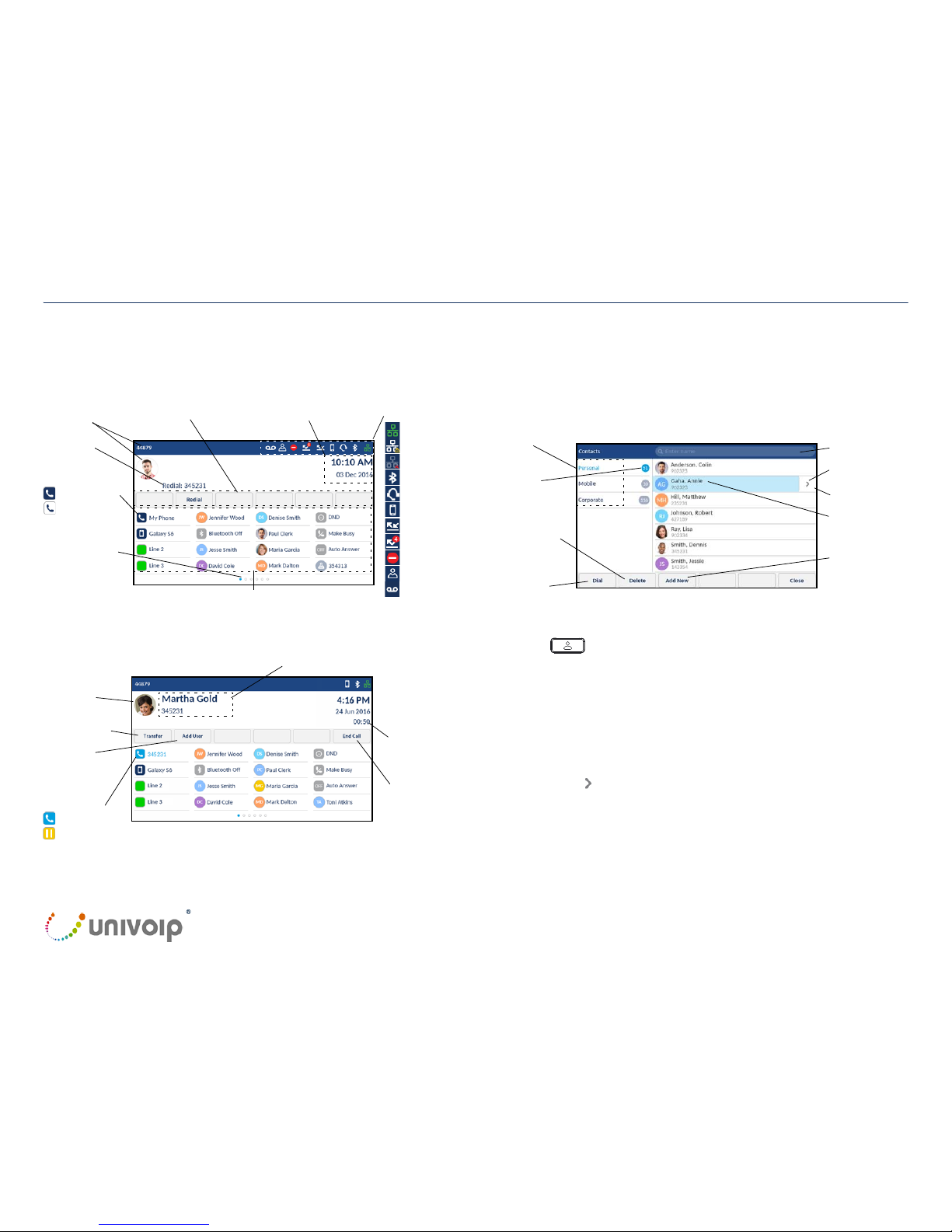
The Home (default) screen is displayed when the phone is in the idle state. The Home
screen displays status indicators, user directory number, avatar, last dialed number,
time, date and list of programmable softkeys.
Call screen
When on an active call, caller’s avatar, name, number and call duration timer is displayed.
The context-sensitive softkeys are updated with applicable call handling features.
Applications
Contacts
The Contacts application stores personal phone book and directory. The Mitel MiVoice
6940 IP Phone supports a localized Personal directory, interoperability with LDAP
(corporate) directories, and enhanced MobileLink functionality, which allows you to sync
your mobile contacts with your 6940 IP Phone.
Making a call using the Contacts application
1. Press the key to access the Contacts application.
2. Tap the respective contacts folder and scroll through the contacts by swiping up and
down on the list
or
Tap the search field, enter characters using the on-screen keyboard, and tap the blue
Enter key to use the search feature.
3. When the applicable contact is highlighted, tap the Dial softkey to place a call using
the entry’s default phone number
or
To place a call to a different phone number defined for the entry (for example, a mobile
number), tap the key to access the contact card screen, and then tap the phone
number to dial.
Status Indicators
Network Connected
Call Forward Always
Missed Calls
Do Not Disturb
Date and Time
Programmable Keys
Programmable Key
Page Indicator
State-Sensitive Softkeys
Dots indicate
the number of
programmable key
“pages” and its
relative position.
Call Timer
Caller Avatar
Transfer Softkey
End Call Softkey
Prime Line Key
Prime Line Key
Solid - Available
Busy
On Hold
Blinking - Ringing
Attempting Connection
Disconnected Search Field
Contact Details
(Avatar, Name
Add New
Contact Softkey
Contact
Delete Contact
Softkey
Dial Softkey
Folders
Bluetooth Enabled
Headset Connected
Mobile Connected
Directory Number
Last Number
Dialed
and Avatar
Contact Card Key
and Number)
Hotdesk User
Scrollbar
Voicemail Pending
Number of
Contacts
in Folder
Caller ID
Conference
Call
©Copyright 2017, UniVoIP and Mitel Networks Corporation. All Rights Reserved.
Quick Reference Guide
The trademarks, service marks, logos and graphics (collectively "Trademarks") appearing onMitel's Internetsites or in its publications are registered and unregistered trademarks ofMitel Networks Corporation (MNC) orits subsidiaries (collectively "Mitel") or others.
Use of the Trademarks is prohibited without the express consent from Mitel. Please contact our legal department at legal@mitel.com for additional information. For a list of the worldwide Mitel Networks Corporation registered trademarks, please refer to the website:
http://www.mitel.com/trademarks.
Mitel’s Power Over Ethernet (PoE)Powered Device (PD)products are coveredby one or more of theU.S. patents (andany foreign patent counterparts thereto) identified at Mitel’s website: www.mitel.com/patents. For more information on the PD patents that are licensed,
please refer to www.cmspatents.com.
Call History
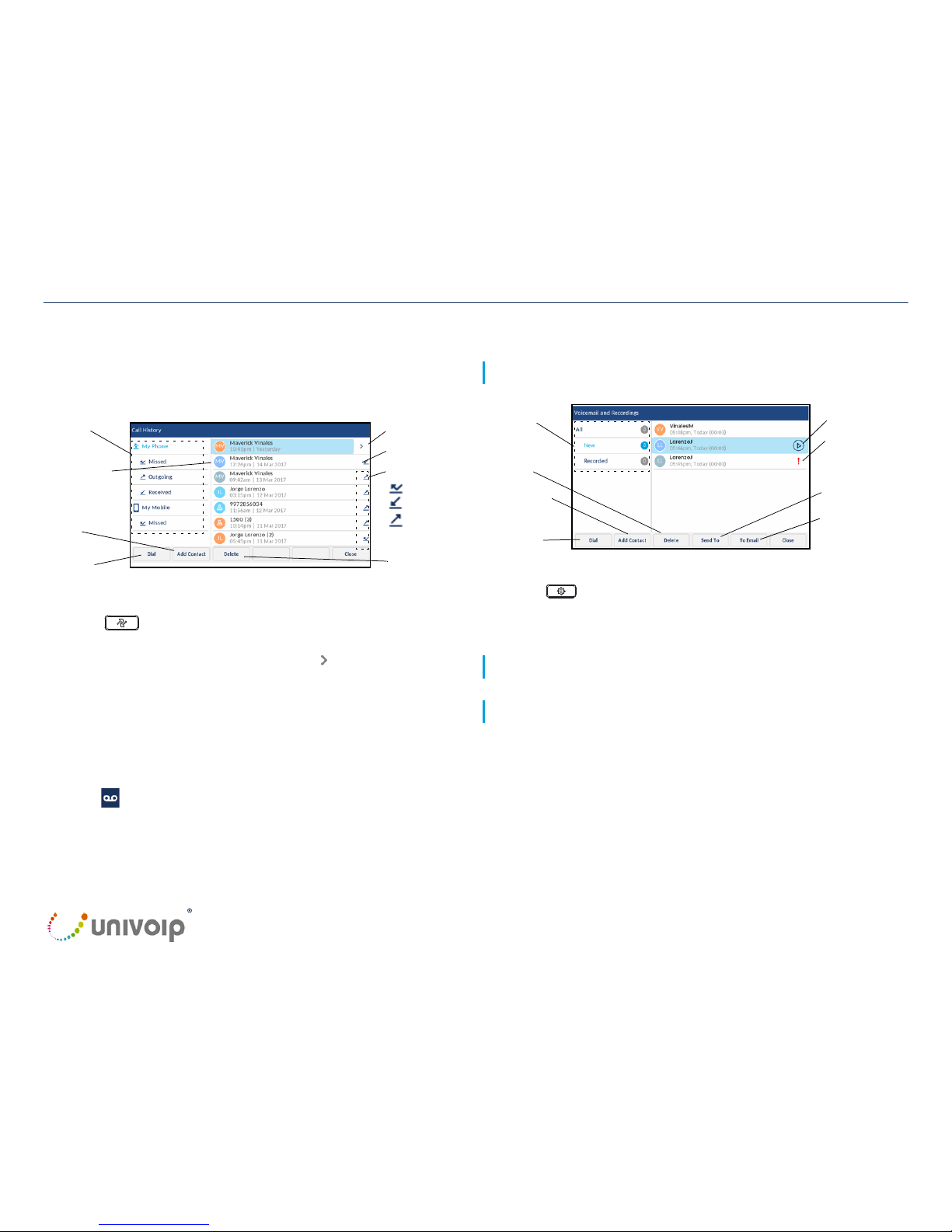
The Call History application displays a list of your missed, outgoing and received calls as
well as My Mobile and Missed calls. You can view, delete and dial out to call history
entries as well as copy entries to the Contacts application.
Using the Call History application
1. Press the key to access the Call History application.
2. Tap the respective contacts folder and scroll through the entries by swiping up and
down on the list. To view additional call details, tap the key when the entry is
highlighted.
3. Tap the Dialsoftkey to place a call to the respective entry
or
Tap the Add Contact softkey to copy the entry to your Contacts application
or
Tap the Delete softkey to delete the entry from your Call History.
Voicemail
When voicemail functionality is enabled, the MWI LED on the Mitel MiVoice 6940 flashes
red and the (Voicemail) icon displays on the status bar indicating that voicemail
messages are available. You can access your voicemail service by pressing the
Voicemail key
Visual voicemail
Visual voicemail enables access to voicemail system and displays a count of all, new
and recorded voicemail messages.
All, New, and
Recorded
Voicemails
Dial Softkey
Copy to Contacts
Delete Entry
Softkey
Send Voicemail
Email a Voicemail
Play a Voicemail
Urgent Voicemail
to a Number
Note: Voicemail and visual voicemail functionality must be configured by your System Administrator.
Enabling visual voicemail
1. Press the (Settings) key on the phone to access the Static Settings menu.
2. Tap Voicemail.
3. Tap the key opens Voicemail App checkbox to select the checkbox.
4. Tap Save.
Note: For additional visual voicemail functions, refer to the Mitel MiVoice 6940 IP Phone User Guide.
Note: For security reasons, the password can be enabled only from the user login screen.
Advanced call handling
The Mitel MiVoice 6940 IP Phone provides a method for transferring calls through the
Transfer softkey.
Transferring a call
1. Ensure you are on active call with the party you wish to transfer.
2. Tap the Transfer softkey.
The active call is placed on hold.
3. Enter the transfer recipient’s number and tap Transfer.
Call History
Filters
Dial Softkey
Copy to
Contacts
Call Type Indicator
Missed Call
Received Call
Outgoing Call
Entry Details
(Avatar, Name/
Number, Time, Date)
Delete Entry
Softkey
Scrollbar
Call Details Key
©Copyright 2017, UniVoIP and Mitel Networks Corporation. All Rights Reserved.

The trademarks, service marks, logos and graphics (collectively "Trademarks") appearing onMitel's Internetsites or in its publications are registered and unregistered trademarks ofMitel Networks Corporation (MNC) orits subsidiaries (collectively "Mitel") or others.
Use of the Trademarks is prohibited without the express consent from Mitel. Please contact our legal department at legal@mitel.com for additional information. For a list of the worldwide Mitel Networks Corporation registered trademarks, please refer to the website:
http://www.mitel.com/trademarks.
Mitel’s Power Over Ethernet (PoE)Powered Device (PD)products are coveredby one or more of theU.S. patents (andany foreign patent counterparts thereto) identified at Mitel’s website: www.mitel.com/patents. For more information onthe PD patents that are licensed,
please refer to www.cmspatents.com.
QUICK REFERENCE GUIDE
Quick Reference Guide
Creating a multi-party conference call
1. Ensure you are on active call with one of the parties with whom you wish to create a
conference.
2. Tap the Add User softkey.
The active call is placed on hold.
3. Enter the conference target’s number.
4. Wait for an answer, consult, and then tap the Join Calls softkey to create the three-
way conference call.
5. Repeat steps 2 to 4 to add an additional party (maximum of seven participants) to the
conference.
Speed Call programmable key configuration
A
Speed Call
key allows you to dial a specified number with one key press.
Speed Call
keys
can be useful as they can be programmed to dial directly to an internal or external number or
quickly access features that use feature access codes. You can also transfer calls to or
create conference calls using your
Speed Call
keys in place of dialing out manually.
Note: Configuring a programmable key using the press-and-hold method is only available if enabled by
your System Administrator.
Programming a Speed Call key
1. Press and hold the applicable programmable key (for 0-5 seconds) until the Label
Name field is displayed.
2. In the Label Name field, enter a label to apply to the key using the on-screen
keyboard.
3. Tap the Number field and enter a number using the dialpad keys.
4. (Optional) Tap the Private check box to make the key a Private Speed Call key.
When a Private Speed Call key is tapped, the call is considered private and caller ID
information is not displayed in the phone’s call history.
5. Tap the Save softkey to save the information to the key you selected.
Note: Other features such as Phone Lock, Call Forward Always, Do Not Disturb, Mobile Line, and
Account Code keys can be programmed using the press-and-hold method (if enabled by your System
Administrator). For more information, refer to the Mitel MiVoice 6940 IP Phone User Guide.
MobileLink features
The Mitel MiVoice 6940 IP Phone supports MobileLink, a feature that provides seamless
mobile integration using Bluetooth wireless technology. MobileLink highlights include the
ability to:
• Sync your mobile phone’s contact list and call history with your 6940 IP Phone.
• Answer a mobile phone call using your 6940 IP Phone.
• Move active calls between the 6940 IP Phone and your mobile phone.
Note: MobileLink features are available only if your Administrator has enabled them. Contact your
Administrator for details on how to enable MobileLink functionality on your phone.
Pairing a mobile phone using Bluetooth
1. Press the key and tap the Bluetooth icon.
2. Swipe the toggle switch to the right to enable Bluetooth functionality.
Ensure your mobile phone is discoverable as the Mitel MiVoice 6940 IP Phone
automatically scans for available Bluetooth devices.
Note: For information on how to make your mobile phone Bluetooth discoverable, refer to the
documentation provided with your respective mobile phone.
3. When your mobile phone has
been discovered, tap the
respective entry on the list of
available devices.
A Bluetooth pairing request
displays on both the Mitel
MiVoice 6940 IP Phone and your
mobile device.
4. Ensure the pairing code matches
on both devices and tap Yes on
the Mitel MiVoice 6940 IP Phone
and acknowledge the pairing
request on your mobile phone.
The Mitel MiVoice 6940 IP Phone attempts to pair the mobile phone and if successful,
automatically attempts to connect to the mobile phone.
Note: If pairing or connecting fails, a failed error message displays on screen. Tap Retry to attempt to
pair or connect again, or Cancel to cancel the attempt.
5. Tap the
OK
button to acknowledge the successful connection.
The connected mobile phone is added to the list of
Paired Devices
and is ready to use.
Syncing mobile contacts
The Mitel MiVoice 6940 IP Phone automatically syncs your mobile contacts to the
Contacts application upon pairing and connection.
To manually update your mobile contacts:
©Copyright 2017, UniVoIP and Mitel Networks Corporation. All Rights Reserved.

Quick Reference Guide
The trademarks, service marks, logos and graphics (collectively "Trademarks") appearing onMitel's Internetsites or in its publications are registered and unregistered trademarks ofMitel Networks Corporation (MNC) orits subsidiaries (collectively "Mitel") or others.
Use of the Trademarks is prohibited without the express consent from Mitel. Please contact our legal department at legal@mitel.com for additional information. For a list of the worldwide Mitel Networks Corporation registered trademarks, please refer to the website:
http://www.mitel.com/trademarks.
Mitel’s Power Over Ethernet (PoE)Powered Device (PD)products are coveredby one or more of theU.S. patents (andany foreign patent counterparts thereto) identified at Mitel’s website: www.mitel.com/patents. For more information onthe PD patents that are licensed,
please refer to www.cmspatents.com.
1. Press the key to access the Contacts application.
2. Tap the Mobile contacts folder.
3. Tap the Update softkey.
The Mitel MiVoice 6940 IP Phone attempts to update and synchronize your mobile
contacts.
Note: If the update fails, a failed to retrieve contacts message displays on screen. Tap Retry to attempt
to update again, or Cancel to cancel the attempt.
Answering an incoming mobile call using your Mitel MiVoice 6940 IP
Phone
When your mobile phone is paired and connected to your Mitel MiVoice 6940 IP Phone,
incoming calls on your mobile phone will be indicated on your 6940 IP Phone as well.
Not Connected
On Hold
Blinking - Ongoing
Call on Mobile
Busy
Blinking - Ringing
Solid - Idle
Mobile Caller ID
Decline Softkey
Caller Avatar
Answer Softkey
Mobile Line Key
Note: A Mobile Line key must be configured to answer an incoming mobile call using your Mitel
MiVoice 6940 IP phone. For more information, refer to the Mitel MiVoice 6940 IP Phone User Guide.
Lift the handset or press the key, blinking Bluetooth Line key, or Answer
softkey for handsfree operation.
Moving the audio of an active mobile call between your mobile phone and
Mitel MiVoice 6940 IP Phone
Tap the Push call softkey to push the mobile call’s audio from your Mitel MiVoice 6940
IP Phone to your mobile phone
or
Tap the Mobile Line key to pull the mobile call’s audio from your mobile phone to
the Mitel MiVoice 6940 IP Phone.
Syncing mobile call history
The Mitel MiVoice 6940 IP Phone automatically syncs your mobile call history to the Call
History application upon pairing and connection. The My Mobile folder displays your
mobile phone call history (missed, outgoing and received calls) with icons. The Missed
folder displays only your mobile phone missed calls without icons.
To manually update your mobile call history:
1. Press the (Call History) key.
2. Tap the My Mobile or MIssed folder.
3. Tap the Update softkey.
The Mitel MiVoice 6940 IP Phone attempts to update and synchronize your mobile call
history.
Note: For other functions, such as viewing mobile call history details, dialing a mobile call history entry,
adding a mobile call history entry to Contacts, and deleting mobile call history, refer to the MitelMiVoice
6940 IP Phone User Guide.
Note: If the update fails, a failed to retrieve contacts message displays on screen. Tap Retry toattempt
to update again, or Cancel to cancel the attempt.
©Copyright 2017, UniVoIP and Mitel Networks Corporation. All Rights Reserved.
Other manuals for MiVoice 6940
18
Table of contents
Other Mitel IP Phone manuals

Mitel
Mitel 6915 User manual

Mitel
Mitel 5320 Instruction manual

Mitel
Mitel 6869i User manual

Mitel
Mitel 5005 User manual

Mitel
Mitel MiVoice 5360 User manual

Mitel
Mitel 5300 Series User manual

Mitel
Mitel 5201 User manual

Mitel
Mitel 5224 User manual

Mitel
Mitel 5001 User manual

Mitel
Mitel MiVoice Office 400 User manual

Mitel
Mitel 5540 User manual

Mitel
Mitel MiVoice 6940 User manual

Mitel
Mitel 5320 User manual

Mitel
Mitel MIVOICE 6905 User manual

Mitel
Mitel Mitel 5330 User manual

Mitel
Mitel 5235 User manual

Mitel
Mitel OfficeConnect 5340 User manual

Mitel
Mitel 480 User manual

Mitel
Mitel OfficeConnect 5340 User manual

Mitel
Mitel MIVOICE OFFICE 250 User manual


