Lotek SRX1200 Series User manual

USER MANUAL
REVISION 02
26 JAN 2023
#MVHF018
SRX1200 Host User Guide

1
TABLE OF CONTENTS
1. INTRODUCTION...............................................................................................................................................3
2. INSTALLATION..................................................................................................................................................4
2.1. SRX1200 HOST PROGRAM INSTALLATION ..........................................................................4
2.2. USB COMMUNICATION PORT SETUP ..................................................................................... 5
2.2.1. TROUBLESHOOTING.................................................................................................................. 6
2.3. WIFI COMMUNICATION SET UP (D2, MD2)...........................................................................7
3. GETTING STARTED.......................................................................................................................................12
3.1. HOST MAIN MENU SETUP..............................................................................................................12
3.2. LOGGING ON...........................................................................................................................................13
3.3. KEYPAD SIMULATOR.........................................................................................................................15
3.4. RECEIVER CLOCK ................................................................................................................................16
3.5. PROJECT EDITOR.................................................................................................................................16
3.5.1. NAVIGATING THE PROJECT EDITOR..............................................................................18
3.5.2. SCAN SETTINGS............................................................................................................................19
3.5.3. CHANNELS......................................................................................................................................23
3.5.4. ANTENNAS......................................................................................................................................26
3.5.5. FILTER SETTINGS .........................................................................................................................31
3.5.6. SENSOR SETTINGS ....................................................................................................................33
4. RECEIVER MODES OF OPERATION ................................................................................................34
4.1. IDLE...............................................................................................................................................................34
4.2. MANUAL MODE (M, MD) ................................................................................................................34
4.3. MONITOR MODE .................................................................................................................................35
4.3.1. MONITOR MODE- M2...............................................................................................................35
4.3.2. MONITOR MODE- MD..............................................................................................................36
4.3.3. PAUSE ................................................................................................................................................36
4.4. CODELOG (MD & D MODELS)......................................................................................................36
4.4.1. LIVE VIEW ON................................................................................................................................37
4.4.2. PAUSE ................................................................................................................................................37
5. DATA DOWNLOAD .....................................................................................................................................38
5.1. DOWNLOAD CODELOG DATA (MD, D MODELS) ...........................................................38
5.1.1. DOWNLOAD QUICK RECORD DATA (M2, MD MODELS)................................. 40

2
5.2. VIEW DATA..............................................................................................................................................42
5.3. EXPORT DATA.......................................................................................................................................43
APPENDIX.................................................................................................................................................................44
CONTACT INFORMATION.............................................................................................................................. 46
CUSTOMER SUPPORT ................................................................................................................................ 46

3
1. Introduction
This document provides installation and operating instructions for the SRX1200
Host Software (hereafter referred to as ‘Host’). It is designed to allow you to
program your receiver to monitor and/or data log VHF transmitters, as well as
download data based upon the features of your SRX1200 Model. It is highly
recommended that you also review the SRX1200 User Guide for operation
instructions.
NOTE: The SRX1200 Host Application is only compatible with Windows-based
operating systems.

4
2. Installation
2.1. SRX1200 Host Program Installation
Installation of the Host is a quick procedure. The latest SRX1200 Host software
will be provided to you on a USB Memory Stick with the Lotek logo. You can also
contact Lotek Customer Support if you do not receive the USB stick, or have
misplaced the USB stick.
Double-click on the latest SRX1200 Host Install app to initiate the installation
process. Most of the windows and prompts that are issued during the
installation are self directing.
The Host is not a large application and there are no options for installing
medium or compact components. You are asked to read and acknowledge the
Lotek end-user license agreement.
You may wish to alter the installation directory and also the target position of
the short cut that will be placed in the Windows program start menu. The mostl
likely choices have been offered as defaults:
Program location: C:\Program Files (x86) \Lotek Wireless Inc\SRX1200 Host\
Program Folder: Lotek Wireless Inc \ SRX1200 Host
Once the options have been adjusted OR defaults have been accepted, the
program files are copied to the target directory. You will be informed once the
process is complete.
At this point, you should find that the requested program directory has been
created. Under the program directory, sub directories have also been created.
Those are, Data, Projects and System. If this is a first-time installation, Data and
Projects should be empty.
5
2.2. USB Communication Port Setup
Host installation will also copy the required USB drivers on to the PC to enable
connection between the receiver and the Host Software on your PC.
1. Once the Host has been installed successfully, connect the provided
USB cable to the back of the receiver (M-models, faceplate for D-
models) and connect the other end to a USB port on your PC. Once it is
securely connected, turn on the receiver via the knob.
2. The PC will acknowledge the USB as a new hardware device being
connected to the system. You can now open the Host software on your
PC.
NOTE: If your computer does not recognize the receiver via the USB
port, detach the USB cable from the USB port on the computer, and try
another USB port on your computer.
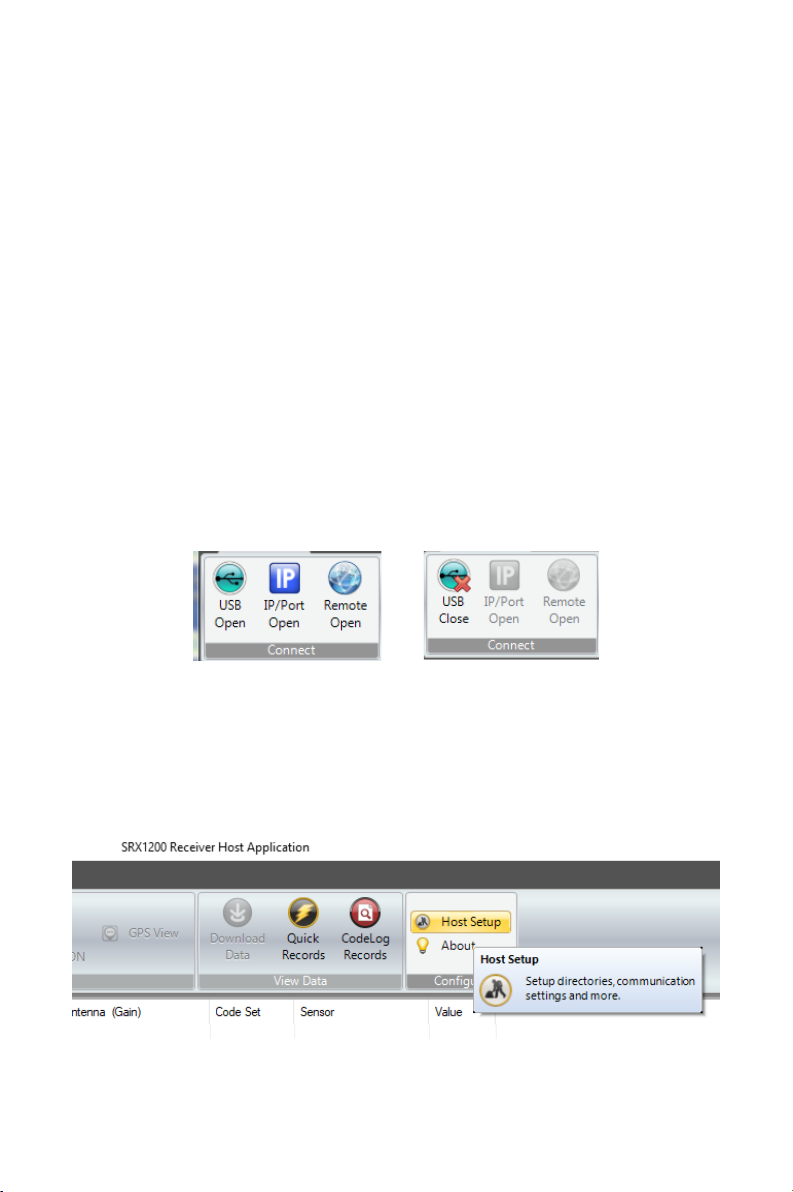
3. Click on the USB Open Button under the Main Menu > Connect section,
If your receiver connects successfully, the button will switch to “USB
Close”.
→
4. If your Host does not recognize the receiver, click on the Host Setup
button under the Main Menu > Configure section. This will open up the
Application Settings Panel. Under the COM Port tab, select the
device/serial COM Port that corresponds to your receiver. Once
selected, click Save. Repeat Step 3.

6
2.2.1. Troubleshooting
1. You can click on the Refresh List button to update the list of available
COM Ports.
2. You can click on the Try button after selecting a serial port, if you are
unsure which serial port corresponds to your receiver.

7
2.3. WIFI communication set up (D2, MD2)
NOTE: In order to set up a remote WIFI connection, both the receiver and the
computer must be using the same WIFI access point.
To set up your WIFI communication settings, the receiver must be connected via
USB to the computer, powered up and logged on to the Host. The WIFI antenna
must be attached to your SRX 1200 D2 or MD2 receiver.
Step 1.
Select the Maintenance tab indicated by the black arrow below:
Step 2.
Select local WIFI in the Wireless Setup section of the maintenance tab:

8
Step 3.
In the WIFI Configuration Panel click on Enable WIFI (1) then select Scan Access
Points (2):
Step 4.
A list of all local WIFI access points that your receiver can utilize will appear as
below. Select your local WIFI network and then click on the “Connect” button. It
will then ask for your SSID password. Enter the password and click “Connect”.

9
Step 5.
Click on the set button and copy the IP address highlighted in the Current
Connection section. Then, click on the “x” to exit the WIFI Configuration Panel.
Step 6.
Click the Main Menu tab then “Host Setup” icon. The Applications Settings Panel
should appear. In the IP Addresses tab click on “Add” the “Add a Receiver” panel
will appear. Here, paste the IP address you just copied into the Name and IP as
shown below. Then click on the “Save” button.
Other manuals for SRX1200 Series
2
Table of contents
Other Lotek Receiver manuals