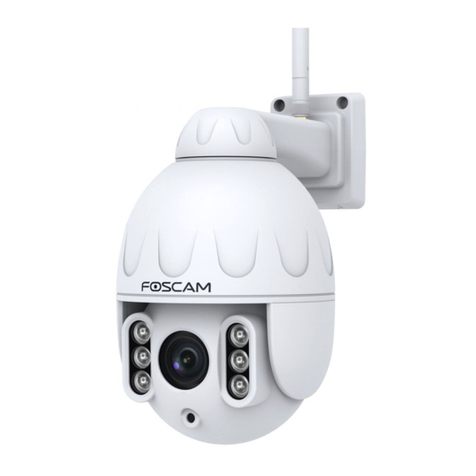
Foscam SD2X User manual

User
User Manual
Manual
Outdoor IP Security Camera
Model: SD2X
V1.1

Table of Contents
Security Warning...................................................................................................................................................................1
1 Overview............................................................................................................................................................................. 2
1.1 Key Features...........................................................................................................................................................2
1.2 Read before Use.................................................................................................................................................... 3
1.3 Packing Contents................................................................................................................................................... 3
1.4 Physical Description.............................................................................................................................................. 3
1.5 SD Card Management...........................................................................................................................................4
1.6 Wall Installation.......................................................................................................................................................5
2 Access the IP Camera in Foscam App.......................................................................................................................... 6
2.1 Setting Up Your Camera:Wired Connection via Foscam App........................................................................ 6
2.2 Foscam APP Surveillance Window.....................................................................................................................9
2. 3 Watch Live........................................................................................................................................................... 10
3 Access the Camera in the Web.....................................................................................................................................12
3.1 Hardware Connection & Software Installation................................................................................................ 12
3.2 Access the Camera in LAN................................................................................................................................ 12
3.3 Access the Camera in WAN...............................................................................................................................14
3.4 Using the VLC Player..........................................................................................................................................14
3.5 IP Camera Connection to the Server............................................................................................................... 17
3.6 Surveillance Software GUI................................................................................................................................. 17
3.7 Advanced Camera Settings................................................................................................................................26
3.8 Playback................................................................................................................................................................ 60
4 Surveillance Software Foscam VMS........................................................................................................................... 62
4.1 Hardware Connection & Software Installation................................................................................................ 62
4.2 Software Installation............................................................................................................................................ 62
4.3 Create Acount.......................................................................................................................................................63
4.4 Add Device............................................................................................................................................................ 64
4.5 Surveillance Software GUI................................................................................................................................. 67
4.6 Advanced Camera Settings................................................................................................................................73
5 Appendix......................................................................................................................................................................... 105
5.1 Frequently Asked Questions............................................................................................................................105
5.2 Default Parameters............................................................................................................................................ 111
5.3 Specification........................................................................................................................................................111
5.4 CE & FCC............................................................................................................................................................112
5.5 WARRANTY........................................................................................................................................................113
5.6 Statement............................................................................................................................................................ 115
6 Obtaining Technical Support........................................................................................................................................117

1
Security Warning
Please change the password of your camera regularly, using a combination of numbers, letters and
special characters.
We recommend that you regularly update your camera to the latest available software and firmware
versions to help ensure the best experience for your camera.

1 Overview
Foscam Outdoor IP Security Camera is an integrated IP Camera with a color CMOS sensor enabling
viewing in High Definition resolution.It combines a high quality digital video camera, with a powerful web
server, to bring clear video to your desktop from anywhere on your local network or over the Internet.
The IP Camera supports the industry-standard H.264 compression technology, drastically reducing file
sizes and conserving valuable network bandwidth.
The IP Camera is based on the TCP / IP standard. There is a WEB server inside which could support
Internet Explorer. Therefore the management and maintenance of your device is simplified by using the
network to achieve the remote configuration and start-up.
The camera is designed for outdoor surveillance applications such as courtyards, supermarket, and
school. Controlling the IP camera and managing images are simplified by using the provided web
interface across the network utilizing connectivity.
1.1 Key Features
Standard H.264 video compression algorithm to satisfy the transmission of high definition video in
narrow bandwidth network
2.0 Mega-Pixel
Supports IE / Firefox / Google / Safari browser or any other standard browsers
Supports WPA and WPA2 Encryption
Supports Pan & Tilt
Supports 18x Optical Zoom
6pcs Infrared-LEDs, night vision range up to 50 metres (164ft)
Supports image snapshot
Supports dual-stream
Supports 2.4G/5G dual band, IEEE802.11b/g/n/ac
Supports IR-Cut and the filter change automatically
Supports remote viewing & record from anywhere anytime
Multi-level users management with password protection
Motion detection alert via email or upload image to FTP
Supports multiple network protocols: IP、TCP、UDP、HTTP、HTTPS、SMTP、FTP、DHCP、RTSP、
ONVIF
Providing Video Management Software to manage or monitor multi-cameras
Supports Wide Dynamic Range
Supports sound detection
Supports IP Filtering
Supports Alexa
Supports Google Assistant
Supports 128G Micro SD Card Storage(External)

3
1.2 Read before Use
Please first verify that all contents received are complete according to the Package Contents listed below.
Before the Network Camera is installed, please carefully read and follow the instructions in the Quick
Setup Guide to avoid damage due to faulty assembly and installation. This also ensures the product is
used properly as intended.
1.3 Packing Contents
● IP Camera × 1
● Power Adapter × 1
● Quick Setup Guide × 1
● Ethernet Cable× 1
● Mounting Plate × 1
● Wi-Fi Antenna× 1
● Screwdriver × 1
● Tweezers × 1
1.4 Physical Description
Antenna: Wireless Antenna
LAN: 10/100M adaptive Ethernet interface. Through this interface, IP camera can be connected with
various network devices, such as hub, router, etc.
Microphone: Built-in Microphone.
Audio Out interface: The jack is used to plug external output device such as loud speaker directly. Here
speaker cannot directly insert to the interface, it must connect to adapter first.
Power:Connect the external power adapter, request for 12V / 2A power.
Lens: High Definition Color CMOS Sensor with zoom lens.

4
Reset Button
Press and hold on the reset button for 5 seconds. Releasing the reset button, the password will back to
the factory default administrator password. The default administrator user is admin with random
password.
Micro SD Card slot: Supports up to 128GB SD card for storing the video.
NOTE: There are up to two labels located at the bottom of the camera, this is an important feature of
original Foscam cameras. If your camera does not have labels, it may be a clone. Cloned Foscam
cameras can not use original firmware and are not eligible for warranty or technical services.
1.5 SD Card Management
The record files of the IP camera can be stored in the Micro SD Card.
This camera supports Micro SD Card and the max size of Micro SD card must be under 128G.
You need open the cover, then plug the Micro SD card into Micro SD card slot inside the IP camera.

5
When you plug in the Micro SD card during the camera work process, please reboot the camera again,
or else the Micro SD Card may be cannot work well.When you re-install the cover, please ensure the
tightness with the camera.
Warning: Please lock the cover in time after installing the Micro SD card to avoid water or water vapor
fall into the equipment then cause damage or lens fog.
1.6 Wall Installation
Please refer to the Quick Setup Guide.
NOTE: Ensure that the rain or water will not reach the connector ports at the end of the pig tail wiring.
These connectors are not weather-resistant.
The cable of an outdoor camera should, from the position where the cable is divided into several cables,
be fitted dry. Install the cable into a waterproof junction box (1) or bring the cable indoors (2).

6
2 Access the IP Camera in Foscam App
2.1 Setting Up Your Camera:Wired Connection via Foscam App
Scan the QR code below to download and install the Foscam APP.
Note: For the best experience, please update the APP to the latest version!
Wired Connection
1. Please tighten the antenna clockwise and make sure it is in a vertical position.
2. Connect the camera to your router with an Ethernet cable.
3. Plug the power adapter into the camera, and then wait for about 1 minute.
4. Make sure your smart phone is connected to the same WiFi network as the camera.

7
Tips: The camera supports dual-band 2.4GHz and 5GHz WiFi networks, so you can choose the channel
with the stronger signal to use. For example, choose your SSID: XXXXX_2.4G or XXXXX_5G.
5. Open the foscam APP and please register a Foscam account, or sign in if you have one already.
6. After logging into Foscam APP, select “Tap to add a camera”or "+" icon on the upper right corner,
then select "Scan the QR code" and scan the QR code that labeled at the bottom of your camera.
7. There are two options in the following steps, please pay attention to choose the corresponding adding
method.

8
7.1 Please wait for a few seconds, you can tap "Confgure WiFi" in "Confgure WiFi" interface, then select
your WiFi network and enter your WiFi's password. After, you can set the camera name and tap
“Save”in "Set name" interface.
Note: It is strongly recommended that you choose to configure WiFi at this step.
7.2 Please wait for a few seconds, you can tap "Configure WiFi" in "Configure WiFi" interface, then you
tap "Skip" in the "WiFi Settings" interface. After, you can set the camera name and tap “Save”in
"Set name" interface.
Note: If the adding process fails, please reset your camera and try adding again according to the
above method.
8. Tapping on the play button in the video box will jump to the “Camera Login”setting interface. For
your security, please set a new username and password for your camera before viewing live video.
Table of contents
Other Foscam Security Camera manuals

Foscam
Foscam FI9926P User manual

Foscam
Foscam FI8918 User manual

Foscam
Foscam FN7108W-B4-1T User manual

Foscam
Foscam FI9804W User manual

Foscam
Foscam FI9803P V2 User manual

Foscam
Foscam FN3108XE-B4-1T User manual

Foscam
Foscam FI8620 User manual

Foscam
Foscam R4 User manual

Foscam
Foscam FI8601 User manual

Foscam
Foscam FI8918W User manual

Foscam
Foscam G2EP User manual

Foscam
Foscam Synology DS218play User manual

Foscam
Foscam FI8608 User manual

Foscam
Foscam C2M User manual

Foscam
Foscam FI9818W V2 User manual

Foscam
Foscam FI8918W Operating and maintenance instructions

Foscam
Foscam G2EP QJ2 FI9912EP User manual

Foscam
Foscam SD2 User manual

Foscam
Foscam T5EP User manual

Foscam
Foscam R2 User manual