EUROCOM LP-297PB User manual



I
Preface
Notice
The company reserves the right to revise this publication or to change its contents without notice. Infor-
mation contained herein is for reference only and does not constitute a commitment on the part of the man-
ufacturer or any subsequent vendor. They assume no responsibility or liability for any errors or
inaccuracies that may appear in this publication nor are they in anyway responsible for any loss or damage
resulting from the use (or misuse) of this publication.
This publication and any accompanying software may not, in whole or in part, be reproduced, translated,
transmitted or reduced to any machine readable form without prior consent from the vendor, manufacturer
or creators of this publication, except for copies kept by the user for backup purposes.
Brand and product names mentioned in this publication may or may not be copyrights and/or registered
trademarks of their respective companies. They are mentioned for identification purposes only and are not
intended as an endorsement of that product or its manufacturer.
©July 2003
Trademarks
This product incorporates copyright protection technology that is protected by method claims of certain
U.S. patents and other intellectual property rights owned by Macrovision Corporation and other rights
owners. Use of this copyright protection technology must be authorized by Macrovision Corporation, and
is intended for home or other limited viewing uses only unless otherwise authorized by Macrovision Cor-
poration. Reverse engineering or disassembly is prohibited.
Intel and Pentium are registered trademarks of Intel Corporation.

II
Preface
FCC Statement
(Federal Communications Commission)
This equipment has been tested and found to comply with the limits for a Class B digital device, pursuant
to Part 15 of the FCC Rules. These limits are designed to provide reasonable protection against harmful
interference in a residential installation. This equipment generates, uses and can radiate radio frequency
energy and, if not installed and used in accordance with the instructions, may cause harmful interference
to radio communications. However, there is no guarantee that interference will not occur in a particular
installation. If this equipment does cause harmful interference to radio or television reception, which can
be determined by turning the equipment off and on, the user is encouraged to try to correct the interference
by one or more of the following measures:
• Re orient or relocate the receiving antenna.
• Increase the separation between the equipment and receiver.
• Connect the equipment into an outlet on a circuit different from that to which the receiver is connected.
• Consult the service representative or an experienced radio/TV technician for help.
Warning
Use only shielded cables to connect I/O devices to this equipment. You are cautioned that changes or modifica-
tions not expressly approved by the manufacturer for compliance with the above standards could void your au-
thority to operate the equipment.

III
Preface
IMPORTANT SAFETY INSTRUCTIONS
When using your telephone equipment, basic safety precautions should always be followed to reduce the
risk of fire, electric shock and injury to persons, including the following:
1. Do not use this product near water, for example near a bath tub, wash bowl, kitchen sink or laundry
tub, in a wet basement or near a swimming pool.
2. Avoid using this equipment with a telephone line (other than a cordless type) during an electrical
storm. There may be a remote risk of electrical shock from lightning.
3. Do not use the telephone to report a gas leak in the vicinity of the leak.
4. Use only the power cord and batteries indicated in this manual. Do not dispose of batteries in a fire.
They may explode. Check with local codes for possible special disposal instructions.
CAUTION
Always disconnect all telephone lines from the wall outlet before servicing or disassembling this equip-
ment.
TO REDUCE THE RISK OF FIRE, USE ONLY NO. 26 AWG OR LARGER,
TELECOMMUNICATION LINE CORD

IV
Preface
Instructions for Care and Operation
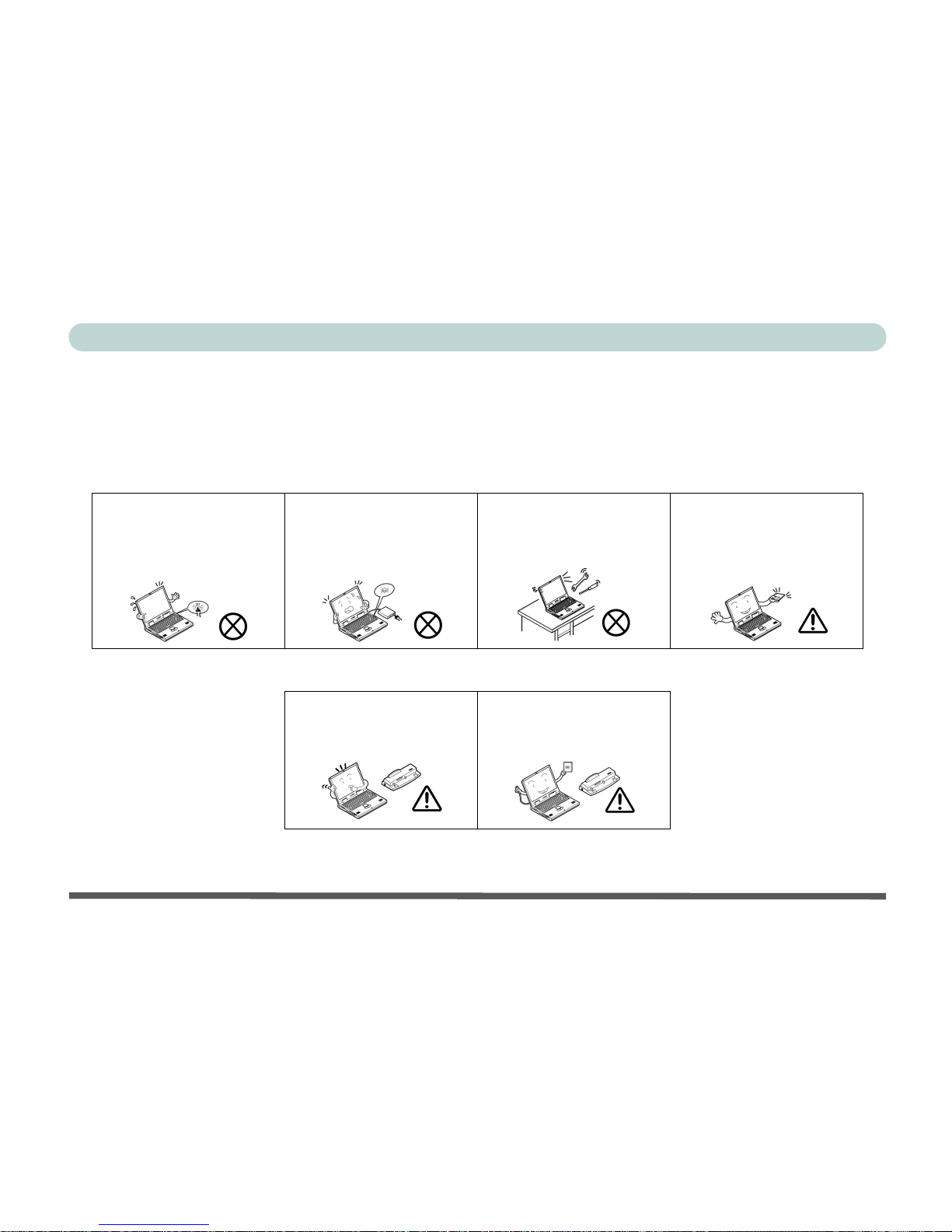
The computer is quite rugged, but it can be damaged. To prevent this, follow these suggestions:
1. Don’t drop it, or expose it to shock. If the computer falls, the case and the components could be
damaged.
2. Keep it dry, and don’t overheat it. Keep the computer and power supply away from any kind of
heating element. This is an electrical appliance. If water or any other liquid gets into it, the computer
could be badly damaged.
Do not expose the computer
to any shock or vibration.
Do not place it on an unstable
surface.
Do not place anything heavy
on the computer.
Do not expose it to excessive
heat or direct sunlight.
Do not leave it in a place
where foreign matter or mois-
ture may affect the system.
Don’t use or store the com-
puter in a humid environment.
Do not place the computer on
any surface which will block
the vents.
V
Preface
3. Avoid interference. Keep the computer away from high capacity transformers, electric motors, and
other strong magnetic fields. These can hinder proper performance and damage your data.
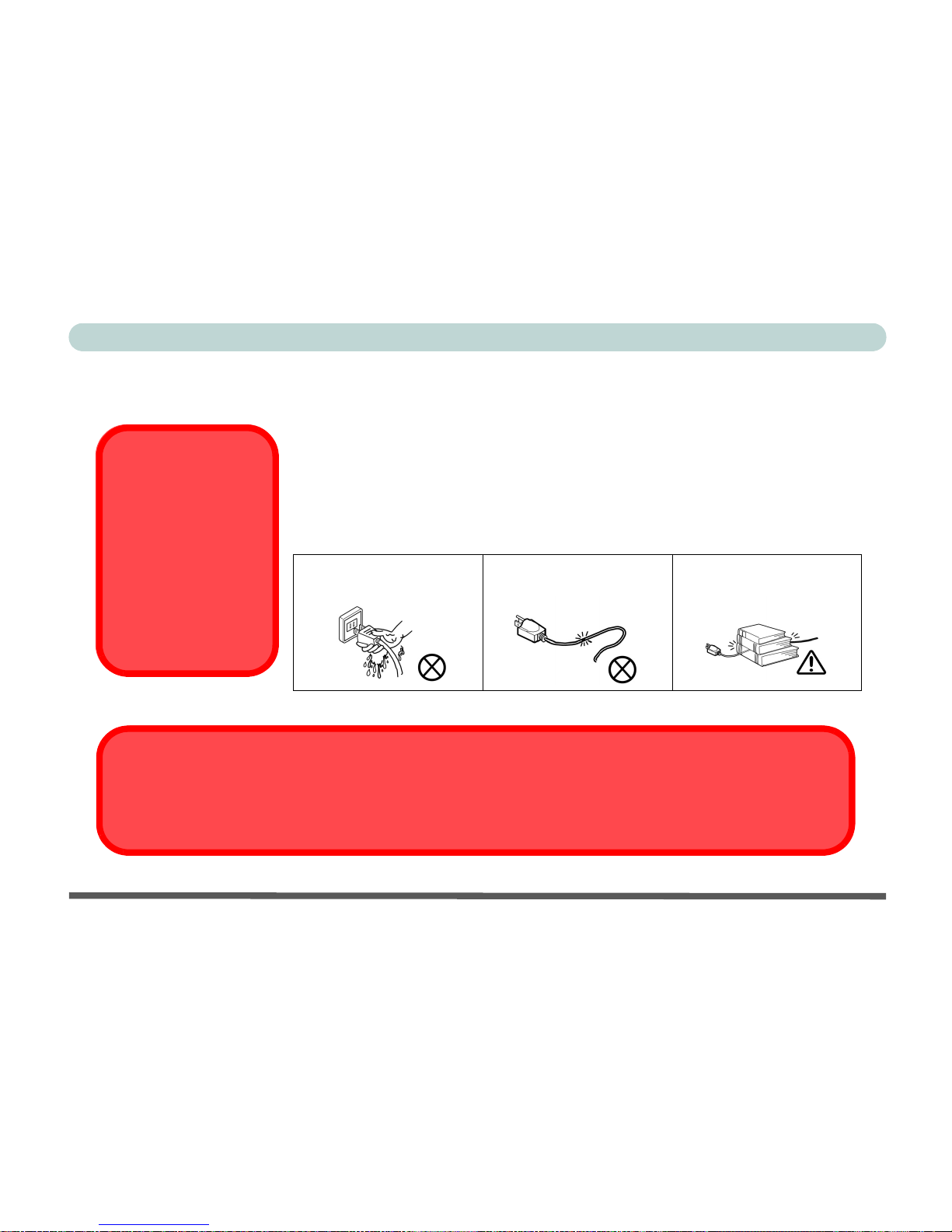
4. Follow the proper working procedures for the computer. Shut the computer down properly and
don’t forget to save your work. Remember to periodically save your data as data may be lost if the
battery is depleted.
5. Take care when using peripheral devices.
Do not turn off the power
until you properly shut down
all programs.
Do not turn off any peripheral
devices when the computer is
on.
Do not disassemble the com-
puter by yourself.
Perform routine maintenance
on your computer.
Use only approved brands of
peripherals.
Unplug the power cord before
attaching peripheral devices.
VI
Preface
Power Safety
The computer has specific power requirements:
• When you want to unplug the power cord, be sure to disconnect it by the plug head,
not by its wire.
• Make sure the socket and any extension cord(s) you use can support the total cur-
rent load of all the connected devices.
• Before cleaning the computer, make sure it is disconnected from any external
power supplies.
Do not plug in the power
cord if you are wet.
Do not use the power cord if
it is broken.
Do not place heavy objects
on the power cord.
Power Safety
Warning
Before you undertake
any upgrade proce-
dures, make sure that
you have turned off the
power, and discon-
nected all peripherals
and cables (including
telephone lines).
Mainboard Battery Note
CAUTION: Danger of explosion if battery is incorrectly replaced. Replace only with the same or equivalent type
recommended by the manufacturer. Discard a used battery according to the manufacturer’s instructions.

VII
Preface
Cleaning
Do not apply cleaner directly to the computer, use a soft clean cloth.
Do not use volatile (petroleum distillates) or abrasive cleaners on any part of the computer.
Servicing
Do not attempt to service the computer yourself. Doing so may violate your warranty and expose you and
the computer to electric shock. Refer all servicing to authorized service personnel. Unplug the computer
from the power supply. Then refer servicing to qualified service personnel under any of the following con-
ditions:
• When the power cord or AC/DC adapter is damaged or frayed.
• If the computer has been exposed to rain or other liquids.
• If the computer does not work normally when you follow the operating instructions.
• If the computer has been dropped or damaged (do not touch the poisonous liquid if the LCD panel breaks).
• If there is an unusual odor, heat or smoke coming from your computer.

VIII
Preface
Ergonomics
We designed your LCD PC system to be functional as well as attractive. To get most out of it, here are
some suggestions on how to position and use the computer:
• The top third of the LCD (screen) should be at eye-level or slightly below.
• The LCD should be at least 18"/45cm. directly in front of you.
• If the screen resolution (e.g. 1024x768) makes you strain to read, change it: In Windows Control
Panel, double-click Display (icon) and click Settings (tab). Then adjust the “Screen area” to some-
thing more comfortable (e.g. 800x600).
• Angle the LCD so that it doesn’t reflect any light into your eyes.
• Use a chair which offers good back support (especially lower-back). The seat should allow your feet
to rest flat on the floor or on a footrest directly in front of you.
• If possible, illuminate your work area with natural daylight or use a steady-glowing (non-flickering)
light source.
• Place the keyboard and mouse so that your arms are at your sides and your forearms are roughly par-
allel to the floor. Your wrists should flex slightly downward as you work. Your neck and shoulders
should also be relaxed.
• Take a break from the computer. Get up, stretch, flex your wrists, walk about, and look at something
else for about 10 minutes every hour.
This manual suits for next models
1
Table of contents
Other EUROCOM Desktop manuals

EUROCOM
EUROCOM A110SU User manual

EUROCOM
EUROCOM L295U Series User manual

EUROCOM
EUROCOM LCD PC User manual

EUROCOM
EUROCOM LCD PC User manual

EUROCOM
EUROCOM LP200ST User manual

EUROCOM
EUROCOM Multimedia PC V12.1.00 User manual

EUROCOM
EUROCOM LP300 User manual

EUROCOM
EUROCOM A110EU User manual

EUROCOM
EUROCOM LP200SC User manual

EUROCOM
EUROCOM LP295 User manual