Dascom Tally PrintekMobile DP-541 Series User manual


Other manuals for Tally PrintekMobile DP-541 Series
1
Other Dascom Printer manuals

Dascom
Dascom T5040 User manual

Dascom
Dascom T2150 User manual

Dascom
Dascom T2150 User manual

Dascom
Dascom 2610 User manual

Dascom
Dascom Tally 1325 User manual

Dascom
Dascom PRINTEK PrintMaster 700 Series Manual

Dascom
Dascom 5130P User manual

Dascom
Dascom Tally PrintekMobile DP-541 Series User manual

Dascom
Dascom Tally DP-581 User manual

Dascom
Dascom DP-330L User manual

Dascom
Dascom DP-530 User manual

Dascom
Dascom Tally DP-230L User manual
Dascom
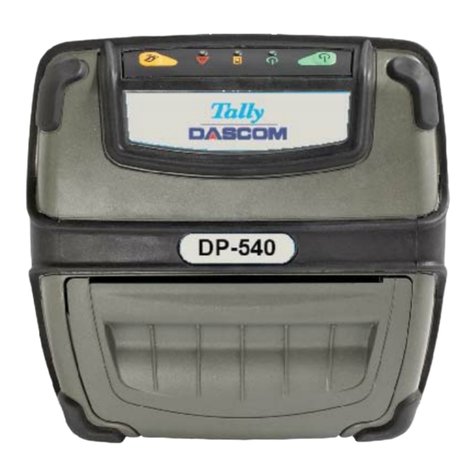
Dascom DP-540 User manual

Dascom
Dascom PRINTEC FormsPro 5100 Series Manual

Dascom
Dascom TALLY MIP480 User manual

Dascom
Dascom DP-520 Manual

Dascom
Dascom Printek PrintMaster 700 Series Manual

Dascom
Dascom 1330 User manual

Dascom
Dascom DC-7600 User manual

Dascom
Dascom T2380 User manual