Casio PV-S250 User manual

49
Chapter
3Contacts
The Contacts Mode is the easy way to organize, store, and manage all your business
and personal contact data. Fields are provided for name, address, phone number,
fax number, e-mail address, and more. Business data is grouped under company
name, so you have instant at-a-glance access to information on everyone who
works for the same company.
Entering the Contacts Mode
You can use any one of the three following methods to enter the Contacts Mode.
The method you use determines what appears on the screen first.
To enter the Contacts Mode from the icon menu
Tap the Contacts icon below the PV Unit screen to enter the Contacts Mode.
This displays the list screen of the data items contained in the category that
was on the display when you last exited the Contacts Mode.
To enter the Contacts Mode from the Action Menu
1. Press the Action control to turn on PV Unit power.
2. Rotate Action control to highlight the Contacts Mode list you want.
• You can select Latest calls, Business, or Personal.
3. Press the Action control to display the list you selected.
To enter the Contacts Mode from the Mode Menu using the stylus
1. On the icon menu beneath the PV Unit display screen, tap Menu to
display the on-screen icon menu.
2. Tap Contacts.
• This displays the list screen of the data items contained in the category
that was on the display when you last exited the Contacts Mode.
3

50
Changing the Display Category
1. Display a Contacts list screen.
• Note that you can change the display category only from a Contacts list
screen.
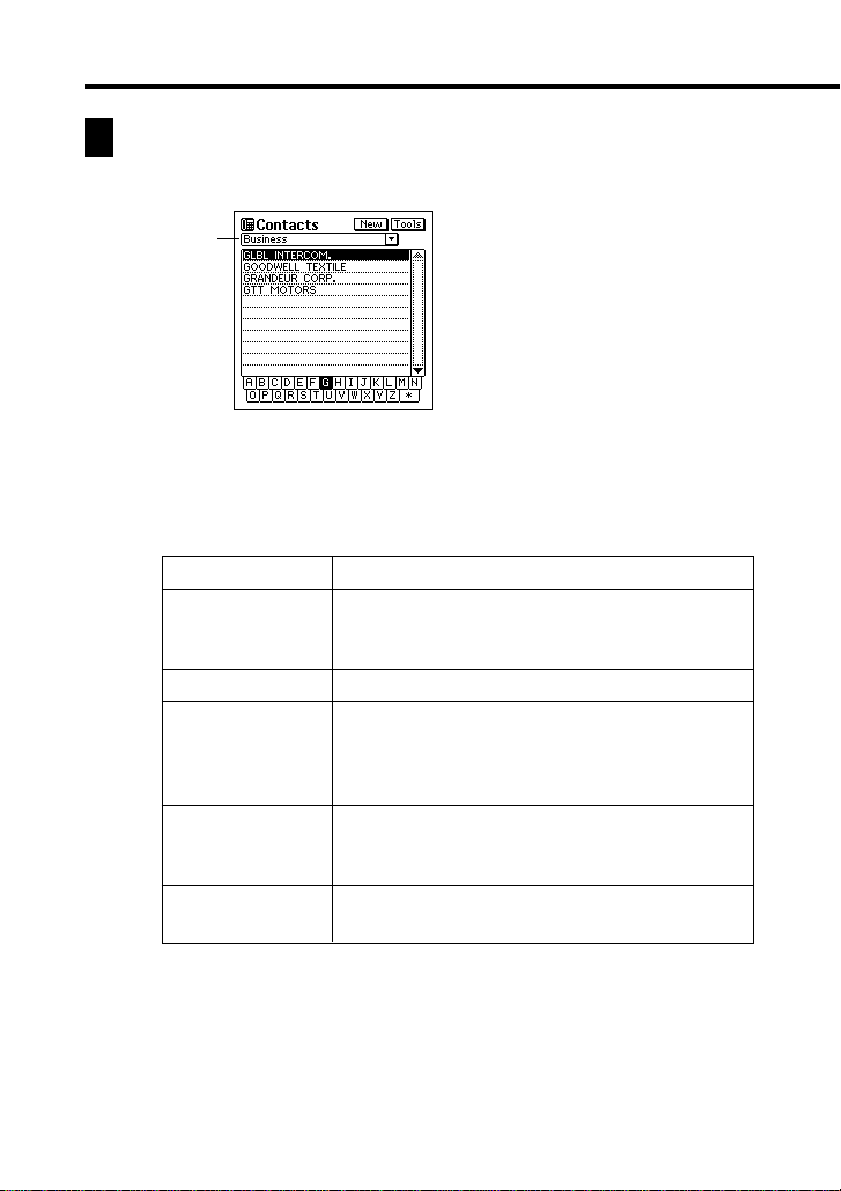
2. Tap the L arrow to the right of the category name box to open a list of
categories, and tap the one you want to select.
Category
name box
Category Name
Latest calls
All
Business
Personal
Untitled 1 - 5
List Contents
Last 16 Contacts data items whose data
screens you opened. See “Latest Calls List”
below for details.
All Contacts data, regardless of category
Company names of Contacts data stored under
the Business category. Selecting a company
name displays a list of employees and their
business phone numbers.
Personal names and home phone numbers of
Contacts data stored under the Personal
category
Free 1 and Free 2 fields of Contacts data stored
under the applicable Untitled category

51
Chapter 3 Contacts
• The above describes the default list screen contents. You can change the
contents of the Personal and Untitled category lists, and of the employee
list that appears when you select a company name from the Business
category list. See “Changing Contacts List Screen Contents” on page
55 for details.
Latest Calls List
Selecting an item in the Contacts list screen and then changing to the item’s data
screen causes that item to be added to the Latest calls list.An item is not added to
the Latest calls list if you scroll to its data screen from another data screen.
Note
• The contents of the Latest calls list are cleared whenever you perform a data
synchronization operation with your computer, when you delete all the data
items in a category, or when you delete all data items.
Resizing Contacts List Screen Columns
You can use the stylus to drag the separator line on a list screen left and right to
change the relative sizes of the columns.
Drag

52
Inputting New Contacts Data
The following procedure shows how to input new Business category data. Data
input procedures for Personal and Untitled category data are identical.
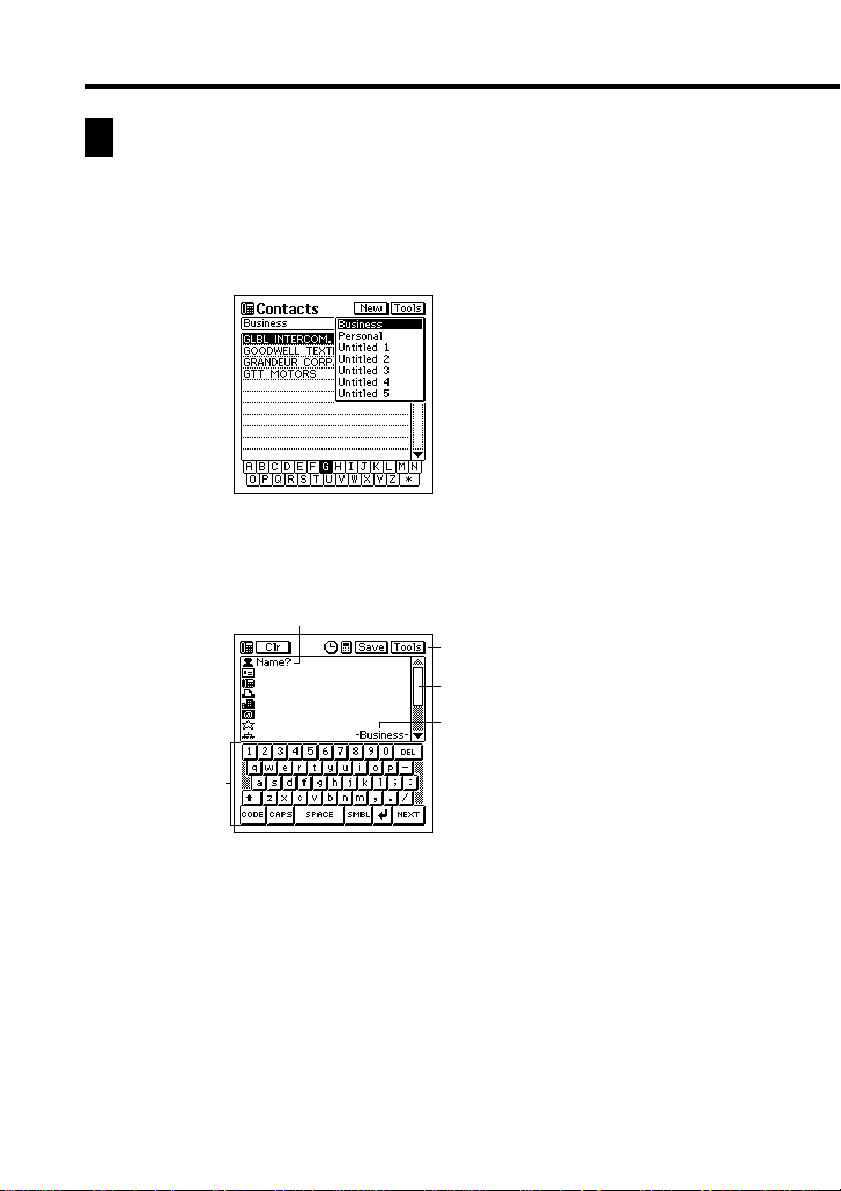
1. While a Contacts Mode list or data screen is on the display, tap the New
button.
2. Tap the category where you want to input the data.
• In this example, tap Business.
1
2
3
4
5
3. Input the name of the person. Business and Personal data is sorted
automatically by name, so it is a good idea to input the last name first.
• Note that you must input Name data for a Personal item, Name and
Company data for a Business item, and data for the first entry (field) of
an Untitled item. The PV Unit will refuse to store the item when you tap
Save below if it does not contain the minimum required data.
1Prompt
2Text keyboard
3Data input toolbar
4Scroll bar
5Category name

53
Chapter 3 Contacts
4. Tap the other fields on the screen and input the data you want.
5. After you finish inputting all the data that you want, tap Save to store it.
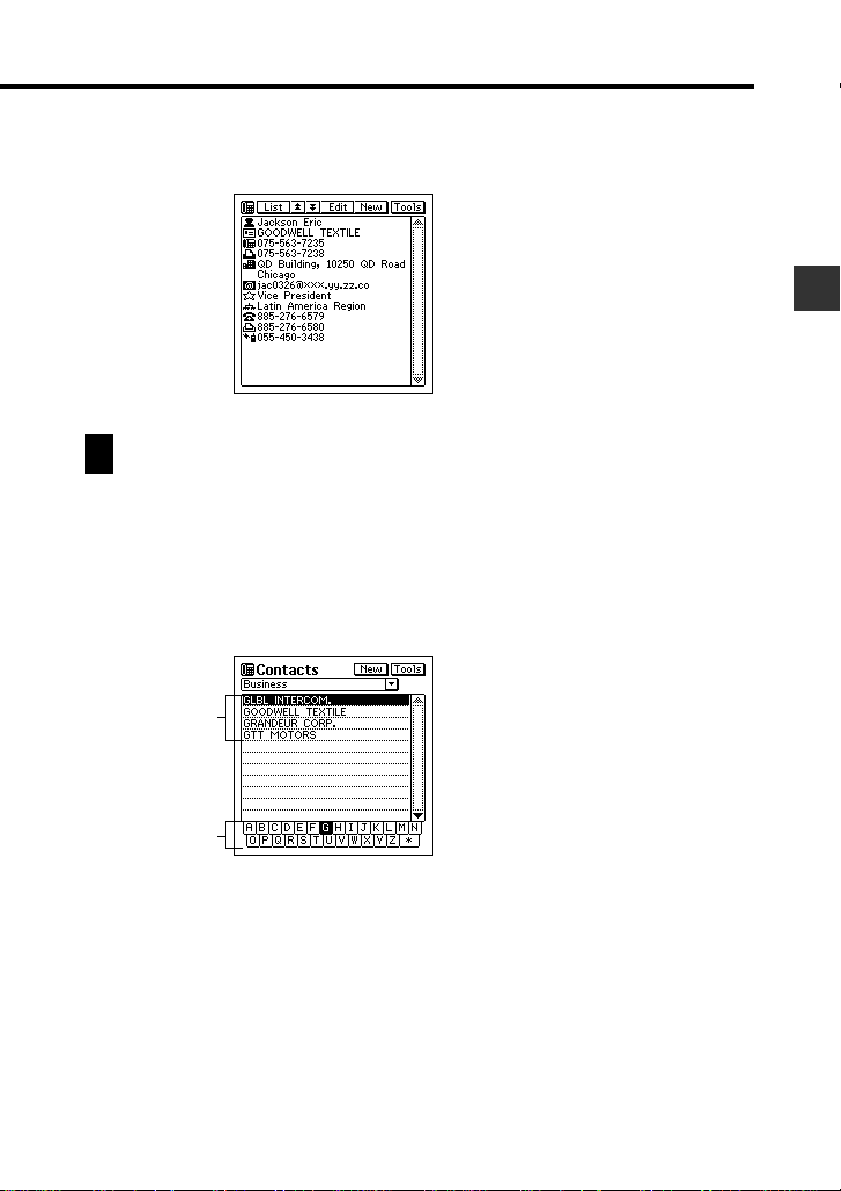
Viewing Contacts Data
Use one of the following procedures to view the Contacts data you want.
To view Business data
1. In a Contacts list screen, tap the L arrow to the right of the category
name box to open a list of categories.
2. Tap Business to change to the Business category.
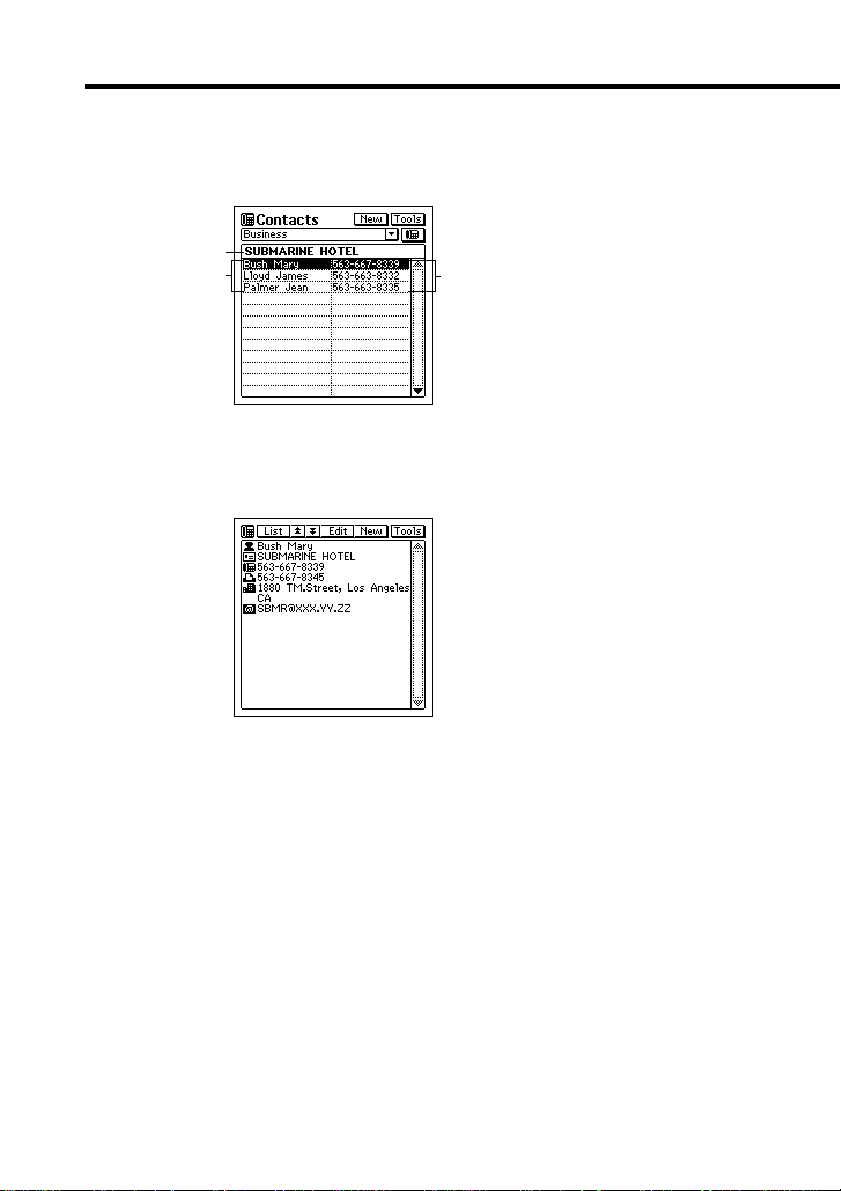
3. Rotate the Action control to move the highlighting in the index at the
bottom of the screen to the letter that starts the name of the company
whose data you want to view.
Company
names
Index

54
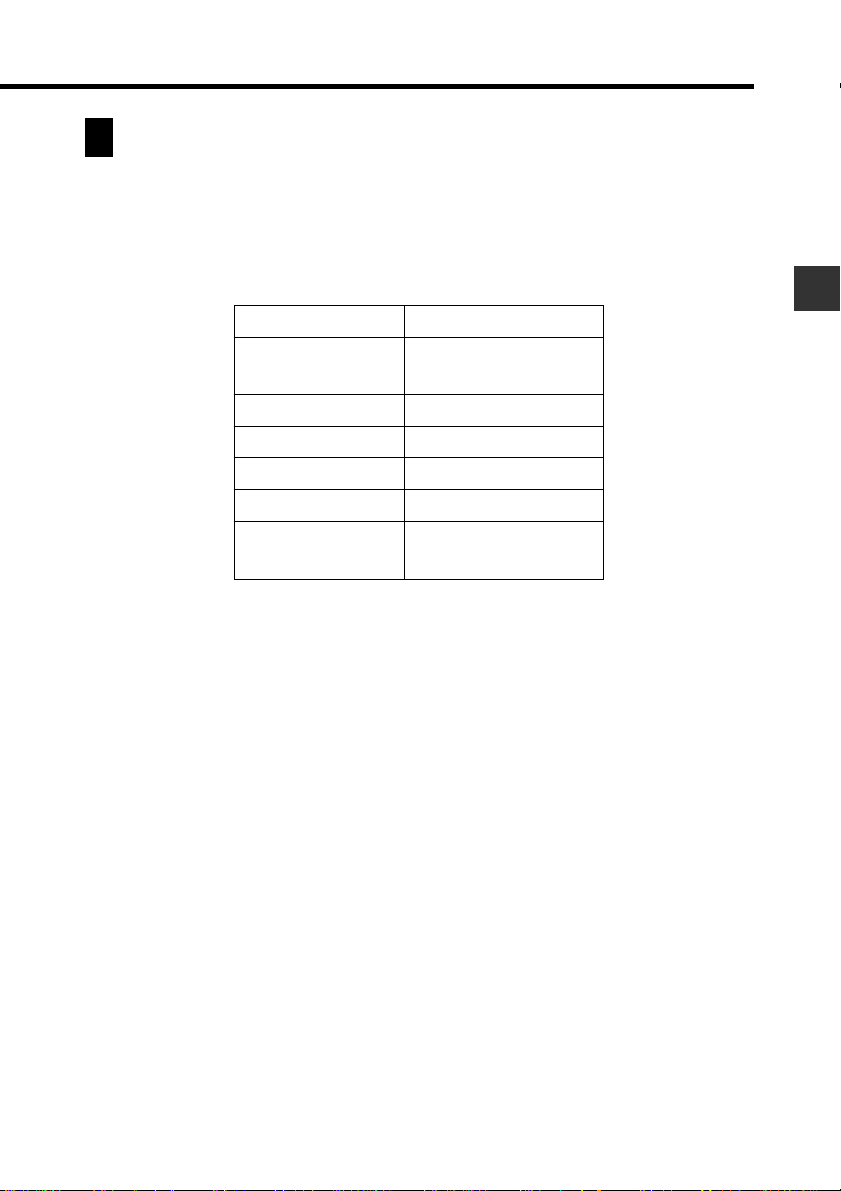
4. Double-tap the name of a company to display a list screen (name and
business phone number) of all entries whose company entry matches
the company you selected.
1
23
5. Rotate the Action control to move the highlighting to the name of the
person whose data you want to view, and then press the Action control
to display the data screen for that person.
To view other data
1. In a Contacts list screen, tap the L arrow to the right of the category
name box to open a list of categories.
2. Tap the name of the category (besides Business) whose data you want
to view.
3. Rotate the Action control to move the highlighting in the index at the
bottom of the screen to the letter that starts the data that appears in the
left column of the list screen.
• The data that appears in the left column depends on the category you
selected.
4. Double-tap the data item in the list to display its data screen.
1Company name
2Names
3Phone numbers

55
Chapter 3 Contacts
Changing Contacts List Screen Contents
You can specify one of the entries (fields) that appears in the list screens of the
Personal category and the five Untitled categories, and of the employee list screen
that appears when you select a company name from the Business category list.
The following table shows the entries (fields) in each list screen that are fixed.
All others are selectable.
• You can make separate settings for each of the five Untitled categories.
To change the contents of a category’s list
1. Display the Contacts list of the category whose contents you want to
change.
2. Tap the button under the Tools button to display a list of entries (fields)
that can be displayed in the list.
3. Tap the entry name that you want to display in the list together with the
fixed entry.
• You can specify only one field per list.
• Tapping an entry name closes the list entry selection screen and displays
the list with the entry you selected.
Category
Business
(Employee List)
Personal
Untitled 1-5
Latest calls
All
Business
(Company List)
Fixed Entries (Fields)
Name
Name
Free 1
All entries are fixed.

56
Category
Business
Personal
Untitled 1-5
Fixed Entries (Fields)
Name
Company
Name
Phone (H)
Free 1
Free 2
Check boxes
Changing Contacts Input Screen Contents
Use the procedure described here to change the contents of the Contacts Mode
data input screen for each category. The following table shows the entries (fields)
in each input screen that are fixed. All others are selectable.
• You can make separate settings for each of the five Untitled categories.
To change the contents of a category’s input screen
1. Display the Contacts list of the category whose input screen’s contents
you want to change.
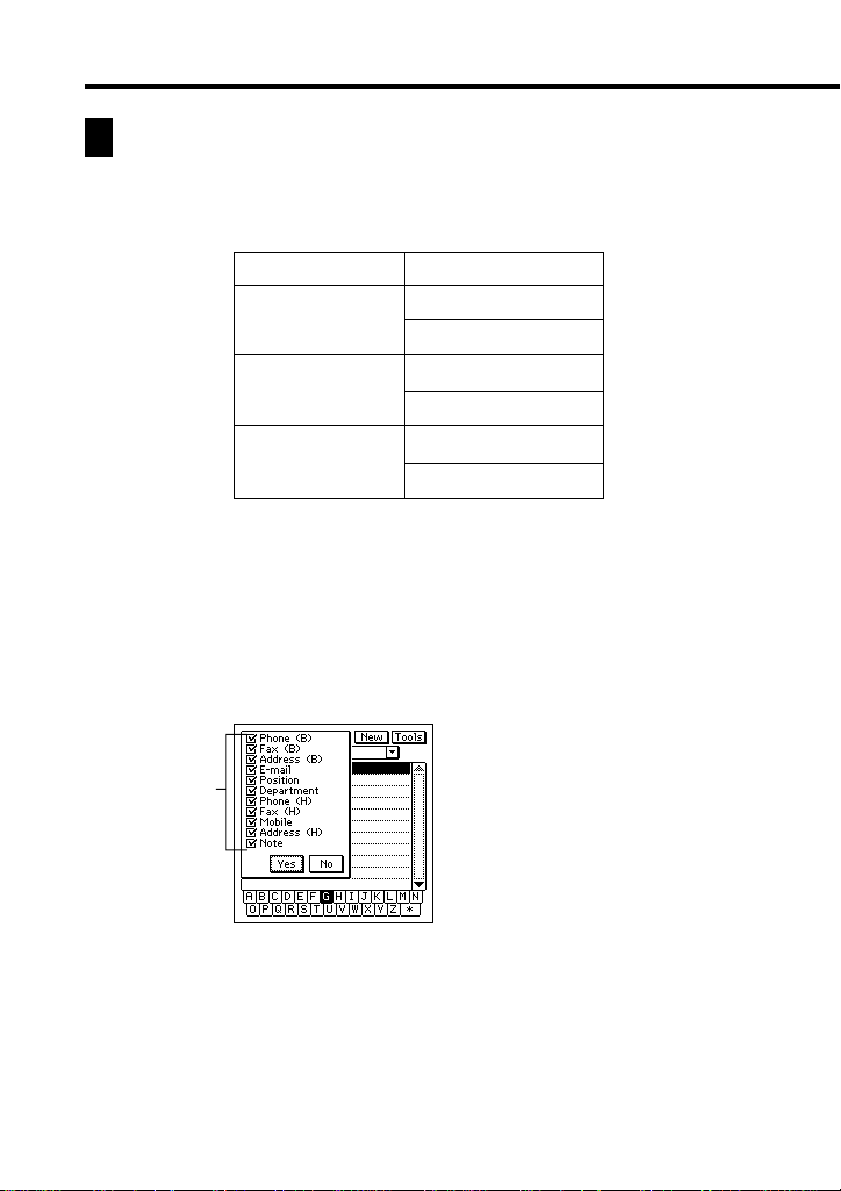
2. Tap the Menu Bar icon to display the menu bar, and then tap Option –
Prompt edit to display a list of entries (fields) that can be displayed in
category’s input screen.
• The above is the entry selection screen for the Business category.

57
Chapter 3 Contacts
3. Tap the check box next to an entry to toggle it between checked (display
entry) and unchecked (do not display entry).
• You can check or uncheck any of the displayed entries shown on the
screen.
4. After making the settings you want, tap Yes to save them and close the
entry selection screen.
Managing Untitled Categories and Free Entries
You can use the procedures described here to change the names of each of the
five Untitled categories, and the names of the 13 entries (fields) under each of the
Untitled categories.
Contacts Categories
There are seven categories in the Contacts Mode: the two preset categories
named Business and Personal, and five undefined categories named Untitled
1 through Untitled 5.
The Business and Personal categories contain identical entries (fields). The
difference between them is the sequence the fields appear on the display,
and how data is sorted.
The Untitled categories contain entries that can be configured by you.

58
Business Personal Untitled 1 - 5
Name*Name*Free 1*
Company*Phone (H) Free 2
Phone (B) Fax (H) Free 3
Fax (B) Mobile Free 4
Address (B) Address (H) Free 5
E-mail E-mail Free 6
Position Company Free 7
Department Phone (B) Free 8
Phone (H) Fax (B) Free 9
Fax (H) Position Free 10
Mobile Department Free 11
Address (H) Address (B) Free 12
Note Note Free 13
Contacts Field Names
* Indicates entries on which data items are sorted.
• (B): Business
• (H): Home
To edit Contacts Untitled category and Free entry names
1. In the Contacts Mode, display the list screen of the Untitled category
you want to edit.
2. Tap the Menu Bar icon to display the menu bar, and then tap Option –
Name edit.
3. Tap the category name or one of the entry names, and make any changes
you want. Repeat this step for as many names as you want to change.
• You can assign category names up to 14 characters long, and entry names
up to 10 characters long.
4. After everything is the way you want, tap Save to store the data.
Other manuals for PV-S250
16
Table of contents
Other Casio PDA manuals

Casio
Casio SF-R20 User manual

Casio
Casio PB-2000C User manual

Casio
Casio PV-S250 User manual

Casio
Casio IT-800 Series User manual

Casio
Casio Cassiopeia PA-2400 User manual

Casio
Casio PV-250X User manual

Casio
Casio SF-4300B Troubleshooting guide

Casio
Casio PV-S250 User manual

Casio
Casio Cassiopeia Pocket PC User manual

Casio
Casio PV-250X User manual

Casio
Casio CASSIOPEIA IT-2000D User manual

Casio
Casio PV-100 User manual

Casio
Casio FA-127 User manual

Casio
Casio PV-750 Plus Use and care manual

Casio
Casio PV-S1600 User manual

Casio
Casio PV-S250 User manual
Casio
Casio PV-100 User manual

Casio
Casio DT-X30 R-50C User manual

Casio
Casio IT-G400 Series User manual

Casio
Casio PV-100 User manual