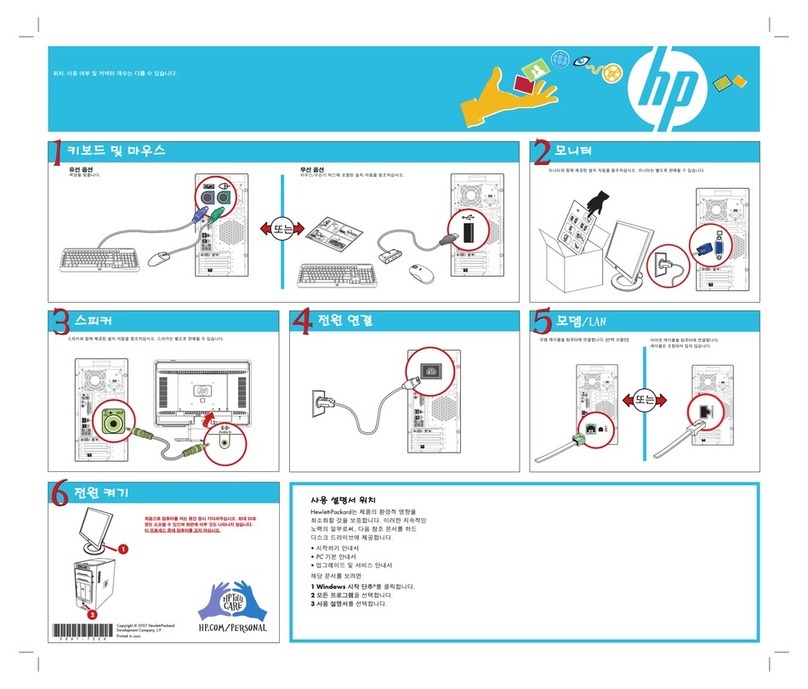
Asus NOVA P20/22 User manual

September 2007
ASUS NOVA P20/22
User Manual

ii Welcome
Table of Contents
Safety information................................................................................iv
About This User’s Manual ..................................................................vi
Notes For This Manual.........................................................................vi
Welcome
Package contents ............................................................................... vii
Overview............................................................................................... viii
Features................................................................................................. viii
Getting Started
Knowing the parts.................................................................................9
Front view ....................................................................................9
Rear Side....................................................................................10
Using the Media Center remote control.....................................12
Positioning your NOVA P20/P22 ................................................... 18
Using your NOVA P20/P22
Connecting peripheals ..................................................................... 19
Display connection................................................................ 19
Universal Serial Bus (USB) Devices connection ........... 20
Network connection ............................................................. 21
Wireless network connection ............................................22
Bluetooth wireless connection ......................................... 23
Using the optical drive......................................................................26
Inserting an optical disc.......................................................26
Ejecting an optical disc ........................................................26
Enjoying instant music .....................................................................27
Configuring audio output ...............................................................27
Speaker configurations........................................................27
Speaker types ..........................................................................27
Connecting to analog speakers........................................28
Connecting to digital speakers ......................................... 29
Configuring audio output settings.................................. 30
Using Windows Media Center........................................................34
Starting Windows Media Center.......................................34

ASUS NOVA P20/P22 iii
Table of Contents
TV + Movies*............................................................................34
Music .......................................................................................35
Pictures + Videos.................................................................... 36
Recovering your system
Using the Recovery DVD.................................................................. 37
Using the Hidden Partition .............................................................39

iv Welcome
Safety information
Your ASUS NOVA P20/P22 is designed and tested to meet the
latest standards of safety for information technology equipment.
However, to ensure your safety, it is important that you read the
following safety instructions.
Setting up your system
• Read and follow all instructions in the documentation before
you operate your system.
• Do not use this product near water or a heated source such as
a radiator.
• Set up the system on a stable surface.
• Use the support stand if you want to stack up your NOVA.
Stacking up the system without the support stand would
hamper the ventilation and damage the system.
• Openings on the chassis are for ventilation. Do not block or
cover these openings. Make sure you leave plenty of space
around the system for ventilation. Never insert objects of any
kind into the ventilation openings.
• If you use an extension cord, make sure that the total ampere
rating of the devices plugged into the extension cord does
not exceed its ampere rating.
Care during use
• Do not walk on the power cord or allow anything to rest on it.
• Do not spill water or any other liquids on your system.
• When the system is turned off, a small amount of electrical
current still flows.
Always unplug all power, modem, and network cables from
the power outlets before cleaning the system.
• If you encounter the following technical problems with the
product, unplug the power cord and contact a qualified
service technician or your retailer.
• The power cord or plug is damaged.

ASUS NOVA P20/P22 v
CD-ROM Drive Safety WARNING
CLASS 1 LASER PRODUCT
• Liquid has been spilled into the system.
• The system does not function properly even if you follow
the operating instructions.
• The system was dropped or the cabinet is damaged.
• The system performance changes.
This symbol of the crossed out wheeled bin indicates that
the product (electrical, electronic equipment, and mercury-
containing button cell battery) should not be placed in
municipal waste.Check local regulations for disposal of
electronic products.
*The system does not come with a built-in TV tuner.To use the TV
function, purchase a TV docking or an external TV box first.
NO DISASSEMBLY
The warranty does not apply to the products that
have been disassembled by users

vi Welcome
About This User’s Manual
You are reading the ASUS NOVA P20/P22 User’s Manual.This
User’s Manual provides information on the various components
in the NOVA P20/P22 and how to use them.The following are
major sections of this User’s Manuals:
1. Welcome
Introduces you to the NOVA P20/P22 and this User’s Manual.
2. Getting Started
Gives you information on the PC’s components and information on
getting started with the NOVA P20/P22.
3. Using your NOVA P20/P22
Gives you information on using the NOVA P20/P22.
4. Recovering your system
Gives you additional information on system recovery.
Notes For This Manual
A few notes and warnings are used throughout this guide
that you should be aware of in order to complete certain tasks
safely and completely.These notes have different degrees of
importance as described below:
NOTE: Information for special situations.
TIP:Tips for completing tasks.
WARNING! Important information that must be followed for
safe operation.
IMPORTANT! Vital information that must be followed to
prevent damage to data, components, or persons.

ASUS NOVA P20/P22 vii
Welcome
Congratulations on your purchase of the ASUS NOVA P20/P22.
The following illustration displays the package contents of your
new ASUS NOVA P20/P22. If any of the below items is damaged
or missing, contact your retailer.
Package contents
OK
ABC
GHI
PQRS
CLEAR ENTER
TUV WXYZ
JKL MNO
DEF
1 2 3
4 5 6
7 8 9
0 #
P20/P22 Remote control
DVI-D-Sub adapter mini jack-S/PDIF
adapter AC adapter
Stand Power cord
Quick Guide
Quick guide Support DVD Recovery DVD
Warranty card

viii Welcome
Overview
The ASUS NOVA P20/P22 features rich entertainment and
powerful computing capabilities.You can either run the
Windows® Media Center with other programs or enjoy it in full-
screen mode.With the Media Center remote, you can play videos
as well as music, and view pictures.
Features
• AV Entertainment
• High Definition video/audio support
• Playing DVDs and home videos
• Listening to music files
• Viewing and editing pictures
• Connectivity
• USB
• Bluetooth
• DVI
• LAN
• Wireless LAN
• Audio I/O
• SPDIF: In & Out

ASUS NOVA P20/P22 9
Getting Started
Knowing the parts
Front view
Refer to the diagram below to identify the components on this
side of the system.
1 3 4
Slot-in optical drive
The system comes with a slot-in optical disc drive
which allows you to load or eject optical discs easily.
The slot-in optical drive can only hold the standard optical
discs (12cm). Inserting smaller-sized or larger-sized disc
would damage the optical drive.
Optical Drive Electronic Eject (touch-sensitive)
The optical drive eject has an electronic eject button
for unloading the disc.You can also eject the optical
disc through any software player.
Power switch (touch-sensitive)
The power switch allows powering ON and OFF the
system and recovering from STD. Use the switch once
to turn ON and once to turn OFF the system.
Infrared port
The infrared (IrDA) communication port allows
convenient wireless data communication with infrared-
equipped devices or computer.This allows easy wire
less synchronization with PDAs or mobile phones and
even wireless printing to printers.
1
2
3
2
4

10 Getting Started
Rear Side
Refer to the diagram below to identify the components on this
side of the system.
CENTER/BASS FRONT
DVI
SURROUND
S/PDIF
OUT
S/PDIF
IN
DCIN
5 6 7 8
9
11
Power (DC) Input
The supplied power adapter converts AC power to DC
power for use with this jack. Power supplied through
this jack supplies power to the PC.To prevent damage
to the PC, always use the supplied power adapter. CAU-
TION: MAY BECOME WARM TO HOT WHEN IN USE.
BE SURE NOT TO COVER THE ADAPTER AND KEEP IT
AWAY FROM YOUR BODY.
The system is using +19V AC/DC power adapter. If your
power adpater is damaged or fails to function, contact
your retailer.
2.0
USB Port (2.0/1.1)
The USB (Universal Serial Bus) port is compatible with
USB 2.0 or USB 1.1 devices such as keyboards, pointing
devices, cameras, and hard disk drives, connected in a
series up to 12Mbits/sec (USB 1.1) and 480Mbits/sec (USB
2.0). USB allows many devices to run simultaneously
on a single computer, with some peripherals acting as
additional plug-in sites or hubs. Also, USB supports hot-
swapping function.
5
6
10
This manual suits for next models
3
Table of contents
Other Asus Desktop manuals

Asus
Asus V6 Series User manual

Asus
Asus ProArt PA Series User manual

Asus
Asus ET2203 - Eee Top - 4 GB RAM User manual

Asus
Asus V7-P8H67E User manual

Asus
Asus G15CS User manual

Asus
Asus AS-D770 User manual

Asus
Asus Chromebox Q9152 User manual

Asus
Asus D520MT (BM2CD) User manual

Asus
Asus D700TA User manual

Asus
Asus PE100A User manual