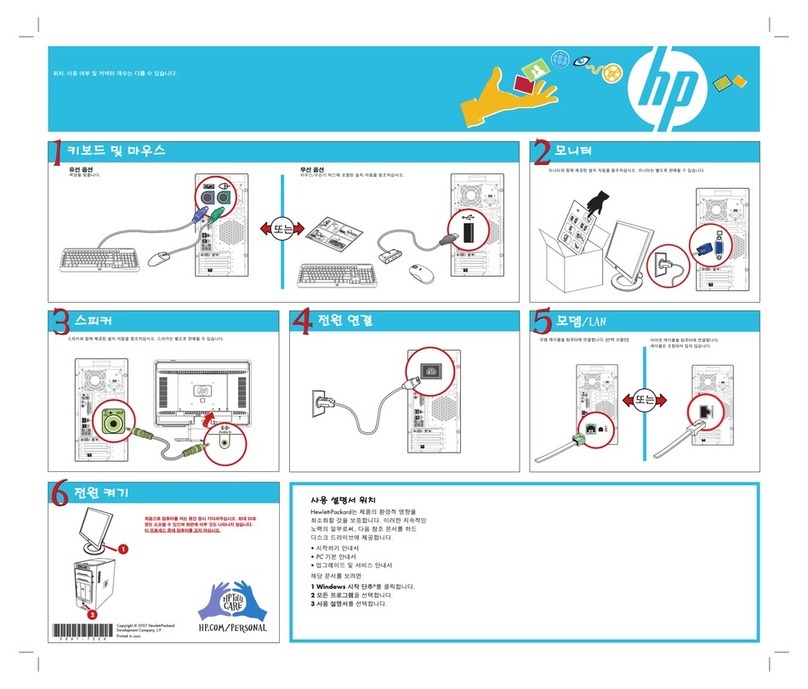
Asus CS5110 User manual

ASUS Desktop PC
CS5110/CS5111
User Manual

Copyright © 2007 ASUSTeK COMPUTER INC. All Rights Reserved.
No part of this manual, including the products and software described in it, may
be reproduced, transmitted, transcribed, stored in a retrieval system, or
translated into any language in any form or by any means, except
documentation kept by the purchaser for backup purposes, without the express
written permission of ASUSTeK COMPUTER, INC. (“ASUS”).
Products and corporate names mentioned in this manual may or may not be
registered trademarks or copyrights of their respective companies, and are used
for identification purposes only. All trademarks are the property of their
respective owners.
Every effort has been made to ensure that the contents of this manual are
correct and up to date.However, the manufacturer makes no guarantee
regarding the accuracy of its contents, and reserves the right to make changes
without prior notice.
E3442
First Edition V1
October 2007

ASUS Desktop PC 3
Contents
Contents.................................................................................................3
Notices ....................................................................................................4
Safety information..............................................................................6
Notes for this manual ........................................................................7
Welcome................................................................. 8
Package contents................................................................................8
Knowing your Desktop PC .................................... 9
Front / Rear panel features ..............................................................9
Setting up your Desktop PC................................ 12
Connecting devices.........................................................................12
Connecting the AC power adapter............................................13
Pressing the power button to turn on the system...............13
Using your Desktop PC........................................ 14
Using the optical drive................................................................... 14
Inserting a disc............................................................................14
Ejecting a disc .............................................................................14
Configuring audio setup ...............................................................15
Speaker configurations............................................................ 15
Connecting to speakers...........................................................16
Configuring audio output settings............................................ 17
Using the Media Center remote (optional)............................. 18
Wireless network connection (optional) .................................20
Bluetooth connection (optional)................................................ 21
Recovering your system...................................... 23
Using the recovery DVD ................................................................23
Troubleshooting .................................................. 25

4 ASUS Desktop PC
Notices
Federal Communications Commission Statement
This device complies with Part 15 of the FCC Rules. Operation is
subject to the following two conditions:
• This device may not cause harmful interference, and
• This device must accept any interference received including
interference that may cause undesired operation.
This equipment has been tested and found to comply with the
limits for a Class B digital device, pursuant to Part 15 of the FCC
Rules.These limits are designed to provide reasonable
protection against harmful interference in a residential
installation.This equipment generates, uses and can radiate radio
frequency energy and, if not installed and used in accordance
with manufacturer’s instructions, may cause harmful
interference to radio communications. However, there is no
guarantee that interference will not occur in a particular
installation. If this equipment does cause harmful interference to
radio or television reception, which can be determined by
turning the equipment off and on, the user is encouraged to
try to correct the interference by one or more of the following
measures:
• Reorient or relocate the receiving antenna.
• Increase the separation between the equipment and receiver.
• Connect the equipment to an outlet on a circuit different from
that to which the receiver is connected.
• Consult the dealer or an experienced radio/TV technician for
help.
The use of shielded cables for connection of the monitor to
the graphics card is required to assure compliance with FCC
regulations. Changes or modifications to this unit not expressly
approved by the party responsible for compliance could void
the user’s authority to operate this equipment.

ASUS Desktop PC 5
Canadian Department of Communications
Statement
This digital apparatus does not exceed the Class B limits for radio
noise emissions from digital apparatus set out in the Radio
Interference Regulations of the Canadian Department of
Communications.
This class B digital apparatus complies with Canadian ICES-003.
Macrovision Corporation Product Notice
This product incorporates copyright protection technology that
is protected by method claims of certain U.S. patents and other
intellectual property rights owned by Macrovision Corporation
and other rights owners. Use of this copyright protection
technology must be authorized by Macrovision Corporation, and
is intended for home and other limited viewing uses only unless
otherwise authorized by Macrovision Corporation. Reverse
engineering or disassembly is prohibited.

6 ASUS Desktop PC
Safety information
Your ASUS Desktop PC is designed and tested to meet the latest
standards of safety for information technology equipment.
However, to ensure your safety, it is important that you read the
following safety instructions.
Setting up your system
• Read and follow all instructions in the documentation before
you operate your system.
• Do not use this product near water or a heated source such as
a radiator.
• Set up the system on a stable surface.
• Openings on the chassis are for ventilation. Do not block or
cover these openings. Make sure you leave plenty of space
around the system for ventilation. Never insert objects of any
kind into the ventilation openings.
• Use this product in environments with ambient temperatures
between 0˚C and 40˚C.
• If you use an extension cord, make sure that the total ampere
rating of the devices plugged into the extension cord does
not exceed its ampere rating.
Care during use
• Do not walk on the power cord or allow anything to rest on it.
• Do not spill water or any other liquids on your system.
• When the system is turned off, a small amount of
electrical current still flows. Always unplug all power, modem,
and network cables from the power outlets before cleaning
the system.
• If you encounter the following technical problems with the
product, unplug the power cord and contact a qualified
service technician or your retailer.
• The power cord or plug is damaged.
• Liquid has been spilled into the system.

ASUS Desktop PC 7
• The system does not function properly even if you follow
the operating instructions.
• The system was dropped or the cabinet is damaged.
• The system performance changes.
LASER PRODUCT WARNING
CLASS 1 LASER PRODUCT
This symbol of the crossed out wheeled bin indicates that
the product (electrical, electronic equipment, and mercury-
containing button cell battery) should not be placed in
municipal waste.Check local regulations for disposal of
electronic products.
NO DISASSEMBLY
The warranty does not apply to the products that
have been disassembled by users
Notes for this manual
To make sure that you perform certain tasks properly, take note
of the following symbols used throughout this manual.
WARNING: Vital information that you MUST follow to prevent
injury to yourself.
IMPORTANT: Instructions that you MUST follow to complete a
task.
TIP: Tips and useful information that help you complete a task.
NOTE: Additional information for special situations.

8 ASUS Desktop PC
Welcome
Congratulations on your purchase of the ASUS Desktop PC.The
package contents of your new Desktop PC are listed below but
may vary with models. ASUS reserves the right to replace
components or accessories to provide optimum serviceability.
Contact your retailer if any item is damaged or missing.
Package contents
• ASUS Desktop PC x1
• Keyboard x1
• Mouse x1
• AC power adapter x1
• Power cord x1
• Support DVD x1
• Recovery DVD x1
• Installation Guide x1
• Anti-slip pad x1
• Warranty card x1
• Remote control (optional) x1
Visit the ASUS website at http://support.asus.com for any
updates.

ASUS Desktop PC 9
Knowing your Desktop PC
Front / Rear panel features
Front (Close) Front (Open) Rear
1
5
6
8
7
2
3
4
10
No. Button/LED Description
1. Slot-in optical drive
2. Optical drive eject button
3. Slide the front panel cover open
4. Wireless network/Bluetooth LED
5. Hard disk drive LED
6. Power button/LED
7. Front panel cover
continued on the next page
12
11
9
*The gray areas contain front/rear panel ports.These portsThe gray areas contain front/rear panel ports.These ports
and their locations may vary, depending on the model of your
system.
*
*

10 ASUS Desktop PC
No. Slot/Port Description
8.
MS/MS Pro
card slot
Functions as a card reader for
various types of memory cards.
CF card slot
SD/MMC card
slot
MS/MS Pro/SD/
MMC card slot
4-pin IEEE
1394a port
Connects to an IEEE 1394 device
such as a digital camrecorder.
S/PDIF In port Connects to digital audio source.
USB 2.0 ports Connect to USB devices such as
a mouse, keyboard, or camera.
Headphone
jack
Plug a stereo or headphones
into this jack.
Microphone
jack Plug a microphone into this jack.
9. Air vents Allows ventilation.
10. Power input Supplies power.
11. Kensington®
Lock port
Allows the PC to be secured to a
fixed object using Kensington®
compatible security products.
12.
VGA port
Connects to a TV or monitor
with different video output.
HDMI port
DVI-D port
LAN (RJ-45)
port
Plug a network cable into this
port.
USB 2.0 ports Connect to USB devices such as
a mouse, keyboard, or camera.
continued on the next page
This manual suits for next models
2
Table of contents
Other Asus Desktop manuals

Asus
Asus Vivo AiO V222 Series User manual

Asus
Asus Terminator P4 533 User manual

Asus
Asus M12AD User manual

Asus
Asus S3401SFF User manual

Asus
Asus Vivo AiO V222F Series User manual

Asus
Asus VivoMini UN68U User manual

Asus
Asus BM2230 User manual

Asus
Asus BP6320 User manual

Asus
Asus Pundit P3-PH5X User manual

Asus
Asus Aaeon GENESYS-WHU6 User manual

Asus
Asus VivoMini User manual

Asus
Asus Essentio CM6331 User manual

Asus
Asus PB60 Series User manual

Asus
Asus G15CX User manual

Asus
Asus V6 Series User manual

Asus
Asus Essentio CG8270 User manual

Asus
Asus AS-D760 User manual

Asus
Asus Zen AiO User manual

Asus
Asus T3-P5G31A User manual

Asus
Asus ESC300 G4 User manual