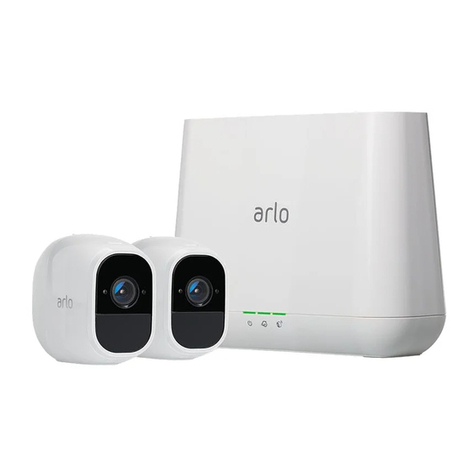
Arlo Pro HD User manual

March 2018
NETGEAR, Inc.
350 East Plumeria Drive
San Jose, CA 95134, USA 202-11683-05
Arlo Pro
HD Security Camera System
User Manual

2
Support
For product updates and web support, visit http://www.arlo.com/en-us/support/.
Trademarks
© NETGEAR, Inc., NETGEAR and the NETGEAR Logo are trademarks of NETGEAR, Inc. Any non‑NETGEAR trademarks are used for
reference purposes only.
Compliance
For the current EU Declaration of Conformity, visit
http://support.netgear.com/app/answers/detail/a_id/11621/.
For regulatory compliance information, visit
http://www.netgear.com/about/regulatory/.
See the regulatory compliance document before connecting the power supply.

3
Contents
1. Set Up Your System 7
Insert the Battery Into Your Camera..............................................................................................................7
Get the Arlo App....................................................................................................................................................................................8
Connect Your Base Station to the Internet....................................................................................... 8
Arlo Pro Base Station LEDs................................................................................................................................................9
Arlo Pro Camera LED..................................................................................................................................................................10
Add an Arlo Pro Camera to an Existing Arlo Account.....................................................12
Sync Your Cameras With the Base Station.......................................................................................12
Arlo Pro Firmware Updates...........................................................................................................................................13
Place or Mount Your Cameras..................................................................................................................................13
Choose a Good Spot for Your Arlo Pro Camera.........................................................................14
Position Your Camera to Optimize Its Field of View..........................................................15
Position Mode.........................................................................................................................................................................................16
Recharge Your Arlo Pro Battery...........................................................................................................................17
Add a Camera From Another Arlo Account.......................................................................................18
2. View Your Content 19
View the Devices Page...........................................................................................................................................................19
View Camera Feeds......................................................................................................................................................................20
Pan and Zoom Video....................................................................................................................................................................20
Record Clips From Live Video.....................................................................................................................................21
Take a Snapshot From Live Video.......................................................................................................................21
Talk and Listen......................................................................................................................................................................................22
Control the Camera Feed Image..........................................................................................................................22
Cloud Recording.................................................................................................................................................................................24
View Recordings and Snapshots..........................................................................................................................25
Share and Manage Library Recordings....................................................................................................27

4
3. USB Device Storage With Arlo Pro 30
Connect a USB Storage Device..............................................................................................................................30
View the USB Storage Device Status..........................................................................................................31
Safely Eject and Remove a USB Storage Device....................................................................31
View Video Clips on a USB Storage Device........................................................................................33
Change the USB Storage Device Overwrite Setting.......................................................33
Format a USB Storage Device..................................................................................................................................34
Turn on Recording for a USB Storage Device..............................................................................35
Stop Recording Onto a USB Storage Device..................................................................................36
4. Personalize Your System 37
Name Your Camera.......................................................................................................................................................................37
Profile Settings.....................................................................................................................................................................................37
Grant Access to Friends......................................................................................................................................................39
5. Modes, Rules, and Smart Alerts 42
Modes....................................................................................................................................................................................................................42
Rules........................................................................................................................................................................................................................43
Select a Mode.........................................................................................................................................................................................43
Change Motion Sensitivity...............................................................................................................................................45
Automatically Stop Recording When Motion Stops...........................................................46
Change Audio Sensitivity....................................................................................................................................................46
Add a Rule That Includes a Siren Trigger..............................................................................................47
Manage Alerts........................................................................................................................................................................................48
Set Up Geofencing.........................................................................................................................................................................49
Geofencing With Multipe Mobile Devices.............................................................................................50
Geofencing Accuracy ...............................................................................................................................................................51
Geofencing First In, Last Out......................................................................................................................................52
Schedule Your Camera Rules......................................................................................................................................52
Add a Mode..................................................................................................................................................................................................55
Add a Mode With Dierent Rules for Each Camera..........................................................56

5
6. Settings 59
Turn the Arlo App Fingerprint ID Login On and O.............................................................59
Change the Time Zone............................................................................................................................................................59
Camera Settings................................................................................................................................................................................60
Audio Settings........................................................................................................................................................................................62
Base Station Settings..............................................................................................................................................................64
View Device Information.....................................................................................................................................................68
Restart the Camera.....................................................................................................................................................................68
Remove a Camera From Your Account......................................................................................................69
7. Manage Your Subscription Plan 70
Subscription Plans.........................................................................................................................................................................70
Upgrade to a Paid Subscription Plan............................................................................................................70
8. Arlo Connect 71
Use Arlo With IFTTT......................................................................................................................................................................71
Use Arlo Cameras With SmartThings............................................................................................................71
Use Arlo With Stringify...........................................................................................................................................................71
9. Use SmartThings With Arlo Cameras 73
Prepare Arlo to Work With SmartThings................................................................................................73
Integrate Your Arlo Cameras With the SmartThings App .......................................74
Adjust the Motion Sensitivity Level................................................................................................................76
Adjust Push Notifications..................................................................................................................................................77
10. FAQs and Troubleshooting 78
Battery FAQs............................................................................................................................................................................................78
Manage Bandwidth for Streaming...................................................................................................................79
Can’t See Video Streams in a Browser......................................................................................................80
Not Receiving Push Notifications.......................................................................................................................81
Verify That the Arlo Base Station Is Online......................................................................................83
Base Station Is Oine.............................................................................................................................................................83

6
Signal Strength....................................................................................................................................................................................85
Reset the Arlo Base Station to Factory Settings.................................................................86
11. Rechargeable Battery Safety 87
Safety Rules for Arlo Pro Rechargeable Batteries ............................................................87
Safety Rules for Arlo Pro Charging Station.....................................................................................88

7
1. Set Up Your System
Setting up your Arlo Pro system involves these steps:
• Insert the battery into your camera.
• Get the Arlo app.
• Connect your base station.
• Get an account.
• Sync your cameras to the base station.
• Place your cameras.
Insert the Battery Into Your Camera
¾To insert the battery into your camera:
1. Unlock the battery compartment by pressing and holding the latch.
2. Gently pull the battery door back to open the compartment.
3. Align the battery contacts.
4. Insert the battery.
5. Close the battery door.
Note: The Arlo Pro battery is fully charged when it leaves the factory.
For more information, see Safety Rules for Arlo Pro Rechargeable Batteries on
page 83.

8
Set Up Your System
Get the Arlo App
For the best experience, download the Arlo app for your smartphone by scanning
this QR code or searching for Arlo in the app store.
Note: If you already use the Arlo app, make sure that you are using the latest version. To
find out if an update is available, go to the app store and search for Arlo.
Connect Your Base Station to the Internet
The base station connects to your home network and allows you to view your
camera streams from anywhere.
¾To connect your base station to the Internet:
1. Connect the base station to your
router using an Ethernet cable.
2. Connect the AC adapter to the base
station and plug it in.
https://arlo.netgear.com

9
Set Up Your System
3. Turn the base station on by pressing the On/O button.
The Power LED and Internet LED on the front of the base station light green in
about two minutes.
Your base station is set up.
Arlo Pro Base Station LEDs
See the following list for explanations for green, amber, and blinking LEDs:
Green
The base station
is powered on.
Blinking green
A firmware update
is in progress. DO
NOT TURN OFF THE
BASE STATION OR
CAMERAS.
O
The base station
is powered o.
Green
The base station
is connected to
the Internet.
Amber
The base station is
connected to the
router but did not
get an Internet
connection.
O
The base station is
not connected to
your router.
Green
Cameras are
connected to the
base station.
Blinking green
The base station
is attempting
to sync with a
camera.
Blinking amber
A camera is too
far from the base
station. Signal
strength is weak.
O
No cameras are
detected.
Amber
The base station
is booting.
Power Internet Camera
Blinking green
The base station
is sending or
receiving data
over the Internet.

10
Set Up Your System
Arlo Pro Camera LED
The LED on the camera lights when the camera is powered on. The LED changes
color and blinks depending on the battery charge and to indicate the status of
activities such as syncing the camera and updating the camera firmware.
See the following table for explanations for the Camera LED.
Camera
LED
Color and Action Meaning
Solid blue The camera is connected to the Quick Charge 9v power
adapter and is fully charged.
Fast blinking blue for 3
seconds
The camera is connected to the Quick Charge 9v power
adapter and is charging.
Fast blinking blue for 10
seconds
The camera synced to the base station.
Solid amber The camera is booting.
Blinking amber once per
minute
Low battery (15% or less)
Fast blinking amber for 3
seconds
The camera is not charging. It is connected to a 5v charger
instead of the Quick Charge 9v power adapter that came in
the package with the camera.
Fast blinking amber for 10
seconds
The camera failed to sync to the base station.
Blinking blue and amber A firmware update is in progress. DO NOT TURN OFF THE
CAMERA.
This manual suits for next models
1
Table of contents
Other Arlo Security Camera manuals