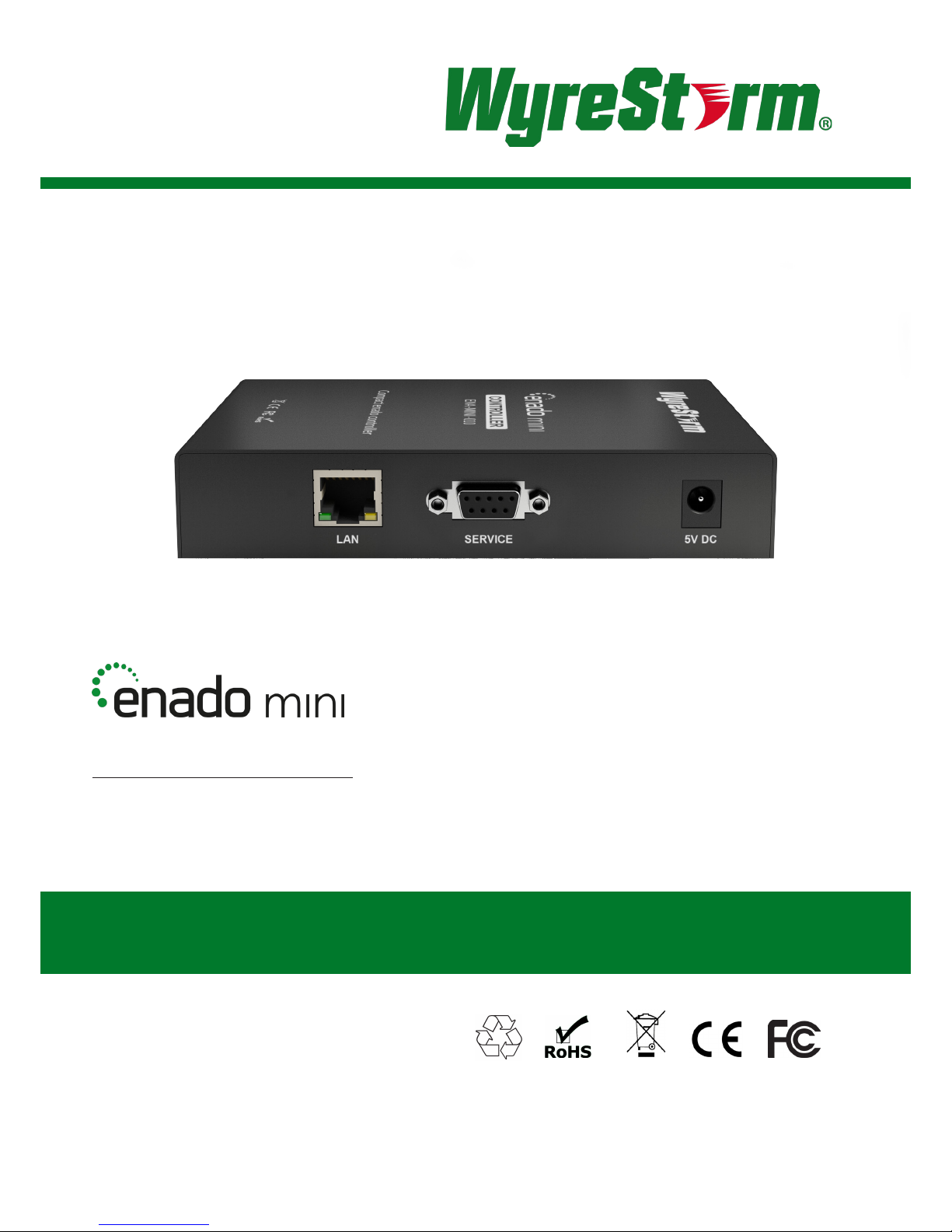
Wyrestorm Enado Mini ENA-MINI-010 User manual
1
US/CAN/MEX: +1-518-289-1294 Toll Free Technical Support: +1-844-280-WYRE (9973)
Instruction Manual
ENA-MINI-010
WyreStorm Enado™ mini IP Controller
Thank you for choosing this WyreStorm product.
Please read these instructions carefully before installing to avoid complications later.
2
SAFETY PRECAUTIONS
Safety Precautions
IMPORTANT! Safety Information
Safety Classications
Note: Provides special information for installing, conguring, and operating the equipment.
IMPORTANT!
Provides special information that is critical to installing, conguring, and operating the
equipment.
CAUTION! Provides special information on avoiding situations that may cause damage to equipment.
WARNING!
Provides special information on avoiding situations that may cause physical danger to the
installer, end user, etc.
ELECTRIC SHOCK!
The source power poses an electric shock hazard that has the potential to cause serious injury
to installers and end users.
ELECTRICAL DISCONNECT:
The source power outlet and power supply input power sockets should be easily accessible to
disconnect power in the event of an electrical hazard or malfunction.
WEIGHT INJURY!
Installing some of the equipment requires two installers to ensure safe handling during
installation. Failure to use two installers may result in injury.
Safety Statements
1. Read these instructions in their entirety and retain a copy for later reference.
2. Follow all instructions and heed all warnings.
3. Do not expose this apparatus to rain, moisture, sprays, drips or splashes and ensure that no objects containing liquids are placed
on the apparatus, including cups, glasses and vases.
4. Do not place this unit in a conned space such as enclosed shelving, cabinets or bookshelves. Ensure the unit is adequately
ventilated.
5. To prevent the risk of electric shock or re hazard due to overheating, do not cover the unit or obstruct ventilation openings with
material, newspaper, cardboard or anything that may restrict airow into the unit.
6. Do not install near external heat sources such as radiators, heat registers, boilers or any device that produces heat such as
ampliers or computers and do not place near sources of naked ame.
7. Unplug apparatus from power supply during lightning storms or when unused for long periods of time.
8. Protect the power cable from being walked on, pinched or restricted in any way, especially at plug connections.
9. Only use attachments/accessories specied by the manufacturer.
10. Units contain non-serviceable parts - Refer all servicing to qualied service personnel.
IMPORTANT! Do Not Hot swap HDMI plugs or HDBaseT connectors - Please insert and extract cables carefully with the power
SWITCHED OFF. Power is passed along transmissions so connecting and disconnecting cables while powered can result in damage to
circuitry or possible injury.

3
US/CAN/MEX: +1-518-289-1294 Toll Free Technical Support: +1-844-280-WYRE (9973)
CONTENTS
Contents
Safety Precautions
Contents
Introduction
Features
In the Box
Specications
Panel Description
Before you Start
Typical Application
Connection
Basic Operation
i. Before Installation
ii. Setup and Operation
iii. Introduction to the Enado interface
iv. Enado Live UI Elements
v. Enado Conguration UI Elements
vi. Previewing/Publishing a project
vii. Saving links to interface with dierent devices
Additional information
Troubleshooting
FAQ
Maintenance
Product Service
Mail-in Service
Warranty
Warranty Limits & Exclusions
Disclaimer
Installation Reference log
2
3
4
4
5
5
6
6
7
8
9
9
9
10
11
11
12
12
12
12
14
14
14
15
15
15
16
16

4
INTRODUCTION AND FEATURES
Introduction
Enado Mini is a small form factor IP-only control system easily installed in any location; essentially a small computer system housing the
full Enado software suite that acts as a powerful web server user interface for control of virtually any device with Ethernet connectivity
by any device with a web browser.
As with Enado, the IP controller can sit anywhere on the network and control any IP device on the network with the web server-based
control software eliminating the need for Apps, PC software windows drivers or control device conguration with no additional costs for
Apps upgrades, updates or licenses, whilst delivering an App-like installer/user experience with systems congured and controlled from
literally anywhere in the world with a web-capable device.
In fact, it’s so easy to congure a new control device such as a smartphone or tablet with Enado, the user need only to scan a QR code
and bookmark the link.
Although it oers many of the same features as the full size 1U Enado controller, including the same functionality of the Enado software
itself, Enado Mini is streamlined by removing IR, RS232 and relay/cc connectivity, which help keep costs low enough so they have
minimal impact on project budget. However, it’s smart enough to allow connection of these outputs using iTach and Flex devices from
Global Cache.
Enado Mini oers IP control of both JPEG2000 and H.264 100 and 200 series NetworkHD products as well as any connected
WyreStorm matrix switchers, AV Receivers, Blu-ray players, set-top boxes, media players like AppleTV, Roku, Sky Now, XBMC and
Kaleidescape as well as a growing number of Smart TVs, all over IP with no additional hardware required.
It’s also just as versatile as its bigger Enado sibling with full compatibility with the huge Enado online code library and custom control
templates for these connected devices, with WyreStorm project examples and popular device templates built in for unlimited control of
all WyreStorm distribution devices over IP while controlling all other sources with Global Cache for quick, simple conguration – all with
just two cables to one tiny box.
For further information on this product and other WyreStorm ranges, visit our website or download our latest product guide at
wyrestorm.com
Features
• Provides an intuitive, customizable user interface to control WyreStorm devices and other AV components
• Web server-based design allows for easy setup, operation, maintenance and management of the system
• Highly scalable to allow for control of any AV component (WyreStorm or other manufacturer) over the network
• Multi-platform ie. iOS, Android, Macs and PC control with an unlimited number of user control devices without any licensing costs
• Wizard-based setup for all connected displays and sources allows for quick setup and template-driven integration with WyreStorm
products
• Out of the box, cross-platform control solution compatible with any Internet-enabled product from any manufacturer, with any
browser, any operating system and screen size
• Two-cable connection using just standard Ethernet cable and mains power
• Enables control of an unlimited number of user devices with no license fees and a one-time, low cost Single Update Technology
ensures A/V systems are up to date, instantly updating every connected device at the touch of a button
• No programming software and elegant, pre-congured templates makes integration with WyreStorm (and other) products simple
• Add Enado to any WyreStorm matrix for quick, straight forward integration and control
• Creates a Total WyreStorm Distribution & Control Solution with full end-to-end audio, video and control via a single cable per zone
• Remotely and securely access, congure, add to or control the A/V system from anywhere and through any Internet browser, from
anywhere
• Browser-based, intuitive user interface and controller enables any Internet-enabled device to become an AV system control device
• Bring Your Own Device - compatible with any platform on any web-enabled device from smart-phones to tablets to computers. Get
QR code and bookmarked device setup that’s eortlessly quick, simple and client-friendly
• Instant Updates - Server-based design eliminates the need for apps, drivers and control device conguration or fees for updates,
licences or upgrades. System updates are instantaneous and free for a control solution that’s always on and always up to date
• Wizard-based, template-driven set up - Integrates seamlessly with step-by-step wizard-based conguration and ‘what you see is
what you get’ interface editing. Initial setup of the system is made even easier with an expansive library of online templates
• 2 year warranty
For further information, wyrestorm.com

5
US/CAN/MEX: +1-518-289-1294 Toll Free Technical Support: +1-844-280-WYRE (9973)
IN THE BOX AND SPECIFICATIONS
In the Box
WyreStorm ENA-MINI-010 comprising of:
1 x ENA-MINI-010 Main unit
1 x 5V/2A Power supply
1 x Serial service cable
5 x IP address labels
1 x Quickstart guide (also downloadable from the products webpage)
NOTE: Full product instructions included internally within the Enado software
Specications
Video and Audio
I/O Connections 1 x LAN
Ethernet 10/100
Power
Power Supply 5V DC 2A, 5.5mm
Power Consumption 1.4 Watts
Environmental
Operating Temperature 32°F to 95°F (0°C to 35°C) 10% to 90%, non-condensing
Storage Temperature -4°F to 140°F (-20°C to 70°C) 10% to 90%, non-condensing
ESD Protection ±8kV (air-gap discharge), ±4kV (contact discharge)
Surge Protection Voltage: ±1000 V
Control
Control Method TCP; UDP; Telnet; HTTP GET. HTTP POST, WAKE-ON-LAN
General
System Requirements Industry standard CAT5e/6 cable
LED Indication Power LED, Active LED
Dimensions (WxHxD) 141mm x 26mm x 115mm / 5.6” x 1” x 4.5”
Weight (Kg) 0.42kg / 0.92lbs (without accessories)
Certication CE, FCC, RoH
6
PANEL DESCRIPTION
Panel Description
Front
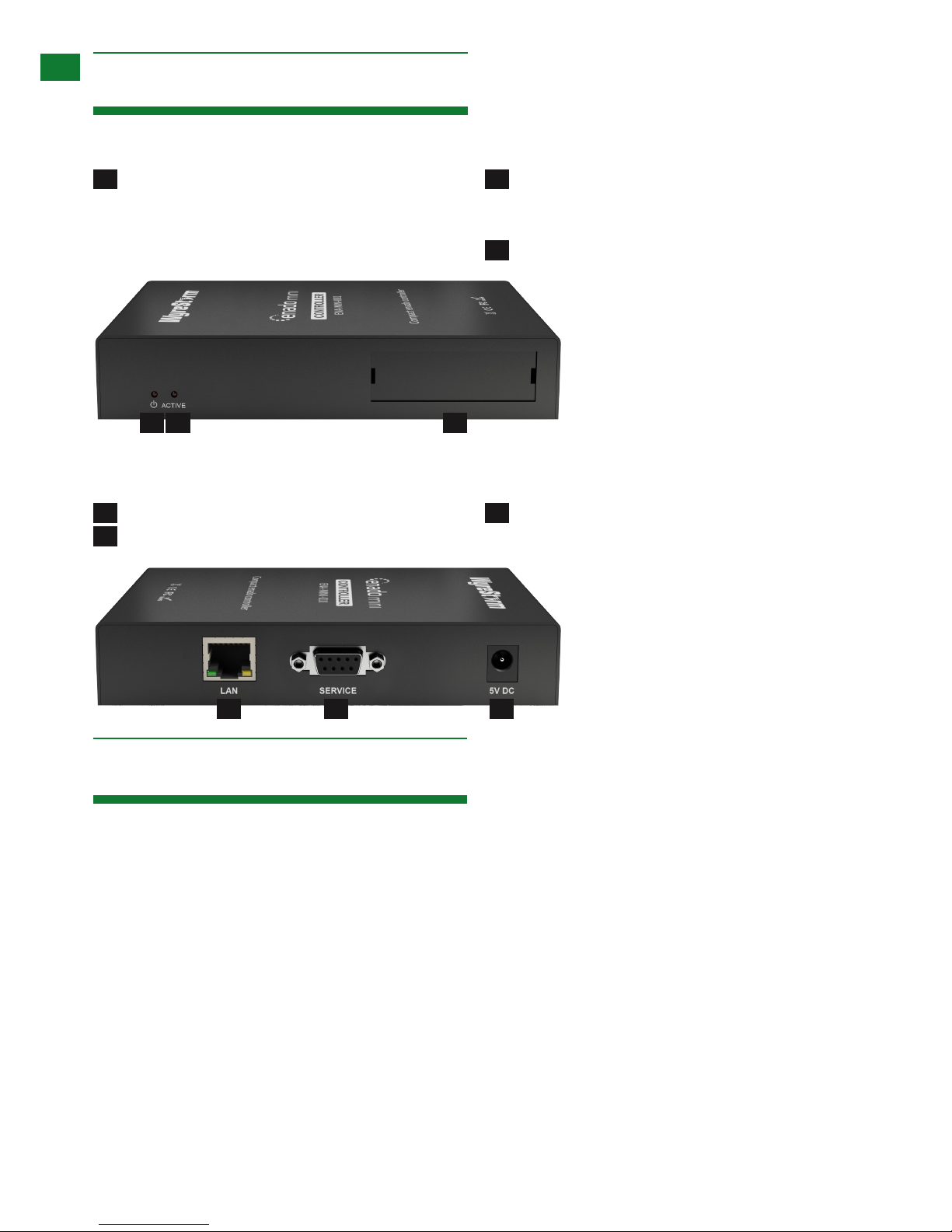
1Power LED indicates Power status.
-Solid: Power being received, unit functioning correctly
-O: No power received. Check connections.
2 Active LED indicates Software link status.
-Solid: Software has loaded and unit functioning correctly
-O: Software has not loaded
3 IP Address Label Holder
1 2 3
Rear
1LAN Input
2 Service Port - for WyreStorm Service use only
3 5V Power Supply Input - Please only use included power
supply
1 32
Before You Start
Although any browser can be used by the end user, WyreStorm recommends Chrome if using a Windows PC and Safari for Mac OS X
for conguration. Please ensure you have the latest version of your browser on all devices that are used with Enado.
Enado operation is only as good as the Wi-Fi signal of the control device - WyreStorm recommends the use of professional Wi-Fi
Routers and Access points - not those supplied free by Internet Service Providers (ISP).
The RS232 port is for service only - Enado Mini does not have any on board RS232 support. To add support for IR/RS232/CC devices
please use Global Cache iTach & iTach Flex devices.
Once you have published your project - Be sure to print the QR code generated by Enado so that your customers can set up new
control devices themselves.
Be sure to look for additional information on Enado Mini at wyrestorm.com.
7
US/CAN/MEX: +1-518-289-1294 Toll Free Technical Support: +1-844-280-WYRE (9973)
TYPICAL APPLICATION AND CONNECTION
Typical Application
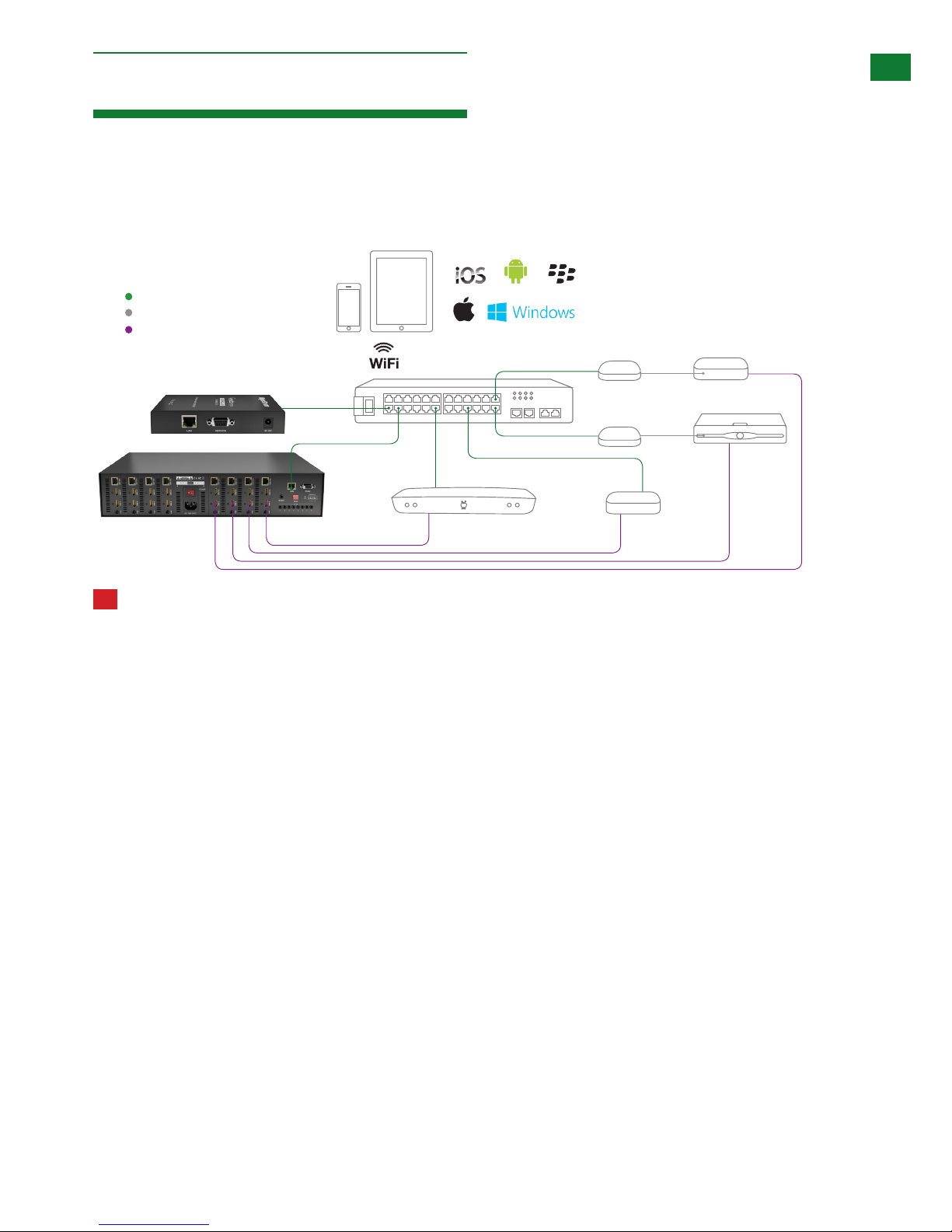
Residential Application Example
In this example the Enado Mini controller is centrally racked with the source components and WyreStorm MX-0808-PP-POH Matrix.
IR only devices, such as Apple TV and cable and satellite STB’s are controlled via Global Cache iTach Flex boxes, whilst IP devices are
controlled by IP over the network.
Global Cache
iTach/Flex
TIVO XBMC
Apple TV
Cable Box
KEY
CAT5e/6
IR Emitter
HDMI
!IR eyes should be attached with the adhesive backing directly over the infrared receiving area of sources, ensuring
there is a clear line-of-sight with the remote control handset used to control. Location of the IR eye may need to be
adjusted later to achieve best IR performance.
NOTE: Infrared windows can be seen by shining a flashlight onto the front of the device – the IR sensor will likely appear
as a small round diode behind the fascia.
8
CONNECTION
Connection
!Do not connect the Enado Controller to the mains until you have made all the following connections.
!The quality of cable and RJ45 termination is essential for successful device communication. Poor cable and
terminations lead to intermittent performance and longer install times.
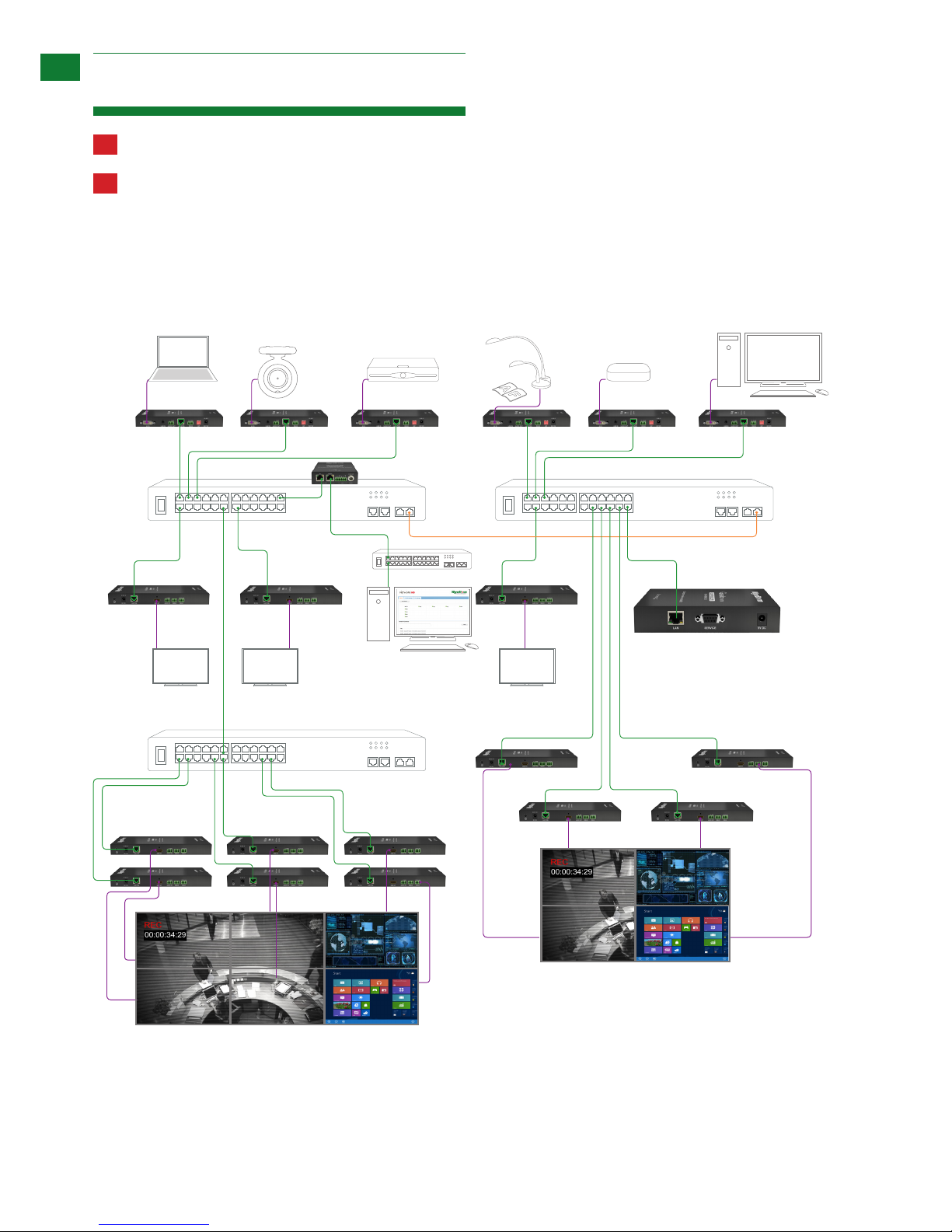
Commercial Application and expanded distribution via NHD-200 Series
In this example Enado Mini is used to control NetworkHD switching and video-walls. All devices are controlled via IP or using RS232 or
CEC via NetworkHD 200.
Display OutputDisplay OutputDisplay Output
1080P 1080P 720P
Laptop
satellite Media Player
PC
PC
HD PTZ Camera
NHD-210-RX
NHD-210-RX
X 6
NHD-210-RX
NHD-200-TX
NHD-200-RX NHD-200-RX NHD-200-RX
ENA-MINI-010
NHD-210-RXNHD-210-RX
NHD-000-CTL
Document Camera
NHD-200-TX NHD-200-TX NHD-200-TX NHD-200-TX NHD-200-TX
Connect a good quality, well-terminated Cat5e/6 cable with RJ45 connectors wired to the 568B standard at both ends to the Enado
Ethernet switch and the router or primary network switch. Ensure the cable is tested and measures less than 100m/328ft, with all
connectors pushed securely to ports and supported by connector strain relief clips to prevent them from becoming loose.
9
US/CAN/MEX: +1-518-289-1294 Toll Free Technical Support: +1-844-280-WYRE (9973)
BASIC OPERATION
Basic Operation
i. Before Installation
For initial connection and conguration it is essential that Enado Mini is connected to the internet in order to download the latest
software, control templates and device codes.
Without internet access or a previously created conguration le - you will not be able to program Enado. Ensure you update to the
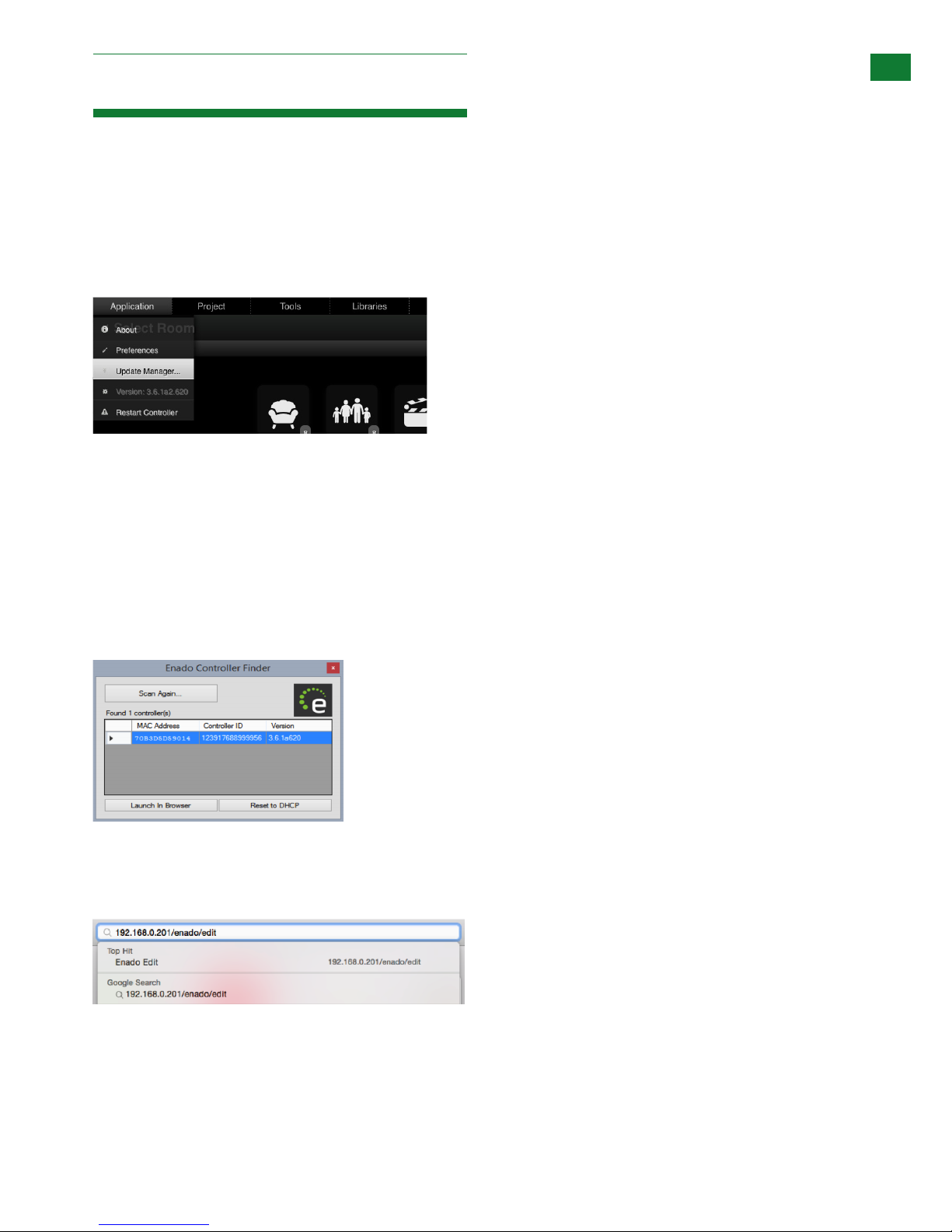
latest software version as soon as possible using the Update Manager located in the Application menu.
Ensure you update to the latest software version as soon as possible using the Update Manager located in the Application menu.
ii. Setup and Operation
1. Connect the provided Ethernet cable from a LAN/router/network switch to the LAN port of the unit.
2. Connect the 5V power supply. Enado Mini will power on as soon as the power is connected – Please ensure the power LED is lit
on the front panel.
3. By default Enado Mini is set to obtain an IP address via DHCP - this requires a router with a DHCP server. During this boot-up
process the ACTIVE LED will blink.
4. Once the system has nished booting (illustrated by a static ACTIVE LED), use an IP address scanner application or the Enado
Network Discovery Tool (Windows only) to locate the IP address of Enado.
NOTE: Enado Network Discovery Tool is available in the downloads section of the Enado Mini product page at wyrestorm.
com
5. Type the IP address of the Enado Mini into your web browser.
NOTE: If setting a static IP address use the white label included to note Enado Mini’s IP address and attach to the label
holder on the chassis for quick reference.
6. Once the Enado web UI appears, follow the link to the Enado Conguration Interface - or if you do not see a link, simply type
IPAddress/enado/edit into your browser navigation bar.

10
BASIC OPERATION
7. Use the Get Started Wizard & Editor User Manual, both located in the Help menu.
iii. Introduction to the Enado Interface
On the Enado system, user interfaces (UIs) for both control and conguration are accessed through compatible standard web
browsers. The UI that an end user sees to control the building is referred to as the ‘Control UI’ (or ‘Live UI’) in an Enado system.
The user interface that the installer or system designer uses to congure/design a system is the ‘Conguration UI’.
Both UIs are generated by the Enado controller.
There are dierent formats of Control UI for use on dierent sizes / types of control device. These include:
• The ‘Standard UI’, suitable for use on desktop computers, tablet computers, TVs, etc. with screen sizes greater than 5 inch/12.7cm.
This is designed for viewing in landscape orientation only.
• The ‘Compact UI’, suitable for use on smart phones, small browsing devices/media players, etc. with screens under 5 inch/12.7cm.
This is designed for viewing primarily in portrait format but can be viewed in landscape format, too.
Both ‘Control’ and the ‘Conguration’ UIs are designed to be operated using both a mouse and via a touch screen.
The Conguration Editor interface is designed for back-end and front end appearance to be replicated - so whatever the installer
creates/edits in the back-end will be reected in what the end user will see on the Control UI.
Both the Standard and Compact UIs use the same conguration data. The layout of the Standard UI can be freely designed using the
conguration editor. The layout of the Compact UI layout is automatically generated from the data used in the Standard UI conguration
with some Compact UI-specic conguration options. This allows quick and easy editing and creation of the dierent screen size
formats without editing each format individually.
For more detailed information about how to use the Conguration UI please select the ‘Editor User Manual’ from the ‘Help’ menu of the
Enado Conguration UI.
To access the Live UI enter the IP address of the Enado controller into a web browser. The system will automatically forward you to the
Live UI.
!Until a project is published from the configuration interface, no Live UI will be available. See section 9v. Publishing a
project.
Table of contents