WOOX R7048 User manual
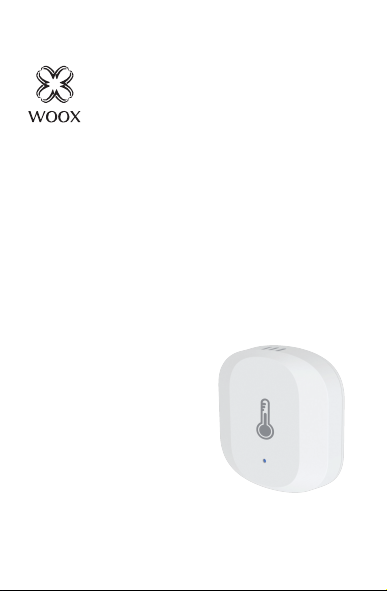
Smart Temperature
& Humidity Sensor
R7048
Version: 20200413
Quick Start Guide (EN)
Verkorte handleiding (NL)
Kurzanleitung (DE)
Guía de inicio rápido (ES)
Guide de démarrage rapide (FR)
Guida rapida (IT)
Guia de iniciação rápida (PT)
Hurtigstartsguide (DK)
Snabbstartsguide (SE)
Pikaopas (FI)
Krótki przewodnik (PL)
Rychlá příručka (CZ)
Príručka pre rýchly štart (SK)
Gyors útmutató (HU)
Ghid rapid (RO)

English
1
Detecting sensor
Reset button
Indicator light
Specification
Battery: CR2032 x 1 (included)
Temperature accuracy: ±0.3℃
Humidity accuracy: ±3%
Wireless connection: Zigbee 3.0
Connection distance: indoor 10-30m
Frequency: 2.4-2.483GHz
Working temperature: -20℃ - 50℃
Working humidity: 0-95%RH, no
condensation

English
2
Introduction
The smart temperature and humidity sensor
detects temperature and humidity in real time,
also shows temperature and humidity records.
Requirement to use
1. Woox home app
2. Woox zigbee gateway (not included)
Installation
1. Pull the insulation sheet from batter y
compartment of the temperature and humidity
sensor.
2. Attach the temperature and humidity sensor to
wall with provided double-sided mounting tape.

English
3
Set up the smart temperature and humitdity
sensor with Woox home app
1. Download and install the app "WOOX Home"
from Apple App Store or Google Play Store on
your mobile device.
2. Launch the app "WOOX Home".
3. Create a new account or log in to your
existing account.
4. Tap “+” to add the device.
5. Select the applicable product type from the
list of products.
6. Select a Zigbee Gateway.
7. Ensure the indicator light is quick flashing. If
the indicator light isn't flashing: press and hold
the reset button for 5 seconds until the
indicator light starts to quick flashing.
8. Press confirm button in the Woox home app.
9. The app will now search for the device and
register is to your account.
10. Enter the device name.
Support
If you need further help or have comments or
suggestions please visit www.wooxhome.com

4
Nederlands
Introductie
De slimme temperatuur- en vochtigheidssensor
detecteert in realtime temperatuur en vochtigheid,
en toont ook temperatuur- en
vochtigheidsrecords.
Vereiste om te gebruiken
1. Woox-thuisapp
2. Woox zigbee gateway (niet inbegrepen)
Installatie
1. Trek het isolatievel uit het batterijvak van de
temperatuur- en vochtigheidssensor.
2. Bevestig de temperatuur- en
vochtigheidssensor aan de muur met de
meegeleverde dubbelzijdige montagetape.

5
Nederlands
Stel de slimme temperatuur- en
vochtigheidssensor in met de Woox home-
app
1. Download en installeer de app "WOOX Home"
uit de Apple App Store of Google Play Store op
uw mobiele apparaat.
2. Start de app "WOOX Home".
3. Maak een nieuw account aan of log in op uw
bestaande account.
4. Tik op "+" om het apparaat toe te voegen.
5. Selecteer het toepasselijke producttype in de
lijst met producten.
6. Selecteer een Zigbee Gateway.
7. Zorg ervoor dat het indicatielampje snel
knippert. Als het indicatielampje niet knippert:
houd de resetknop 5 seconden ingedrukt totdat
het indicatielampje snel begint te knipperen.
8. Druk op de bevestigingstoets in de Woox
home-app.
9. De app zoekt nu naar het apparaat en
registreert zich bij uw account.
10. Voer de apparaatnaam in.
Ondersteuning
Als u meer hulp nodig heeft of opmerkingen of
suggesties heeft, bezoek dan
www.wooxhome.com

6
Deutsch
Einführung
Der intelligente Temperatur- und
Feuchtigkeitssensor erfasst Temperatur und
Luftfeuchtigkeit in Echtzeit und zeigt auch
Temperatur- und Feuchtigkeitsaufzeichnungen
an.
Voraussetzung zur Verwendung
1. Woox Home App
2. Woox ZigBee Gateway (nicht enthalten)
Installation
1. Ziehen Sie die Isolierfolie aus dem
Batteriefach des Temperatur- und
Feuchtigkeitssensors.
2. Befestigen Sie den Temperatur- und
Feuchtigkeitssensor mit dem mitgelieferten
doppelseitigen Montageband an der Wand.

7
Deutsch
Richten Sie den intelligenten Temperatur- und
Feuchtigkeitssensor mit der Woox Home App
ein
1. Laden Sie die App "WOOX Home" aus dem
Apple App Store oder Google Play Store auf Ihr
Mobilgerät herunter und installieren Sie sie.
2. Starten Sie die App "WOOX Home".
3. Erstellen Sie ein neues Konto oder melden Sie
sich bei Ihrem vorhandenen Konto an.
4. Tippen Sie auf „+“, um das Gerät hinzuzufügen.
5. Wählen Sie den entsprechenden Produkttyp aus
der Produktliste aus.
6. Wählen Sie ein ZigBee-Gateway aus.
7. Stellen Sie sicher, dass die Anzeigelampe schnell
blinkt. Wenn die Anzeigelampe nicht blinkt: Halten
Sie die Reset-Taste 5 Sekunden lang gedrückt, bis
die Anzeigelampe schnell zu blinken beginnt.
8. Drücken Sie die Bestätigungstaste in der Woox
Home App.
9. Die App sucht nun nach dem Gerät und
registriert sich in Ihrem Konto.
10. Geben Sie den Gerätenamen ein.
Unterstützung
Wenn Sie weitere Hilfe benötigen oder
Kommentare oder Vorschläge haben, besuchen
Sie bitte www.wooxhome.com

8
Espanol
Introducción
El sensor inteligente de temperatura y humedad
detecta la temperatura y la humedad en tiempo
real, también muestra registros de temperatura y
humedad.
Requisito de uso
1. Aplicación para el hogar Woox
2. Woox zigbee gateway (no incluido)
Instalación
1. Extraiga la lámina de aislamiento del
compartimento de la batería del sensor de
temperatura y humedad.
2 Fije el sensor de temperatura y humedad a la
pared con la cinta de montaje de doble cara
provista.

9
Espanol
Configure el sensor inteligente de temperatura
y humedad con la aplicación para el hogar Woox
1. Descargue e instale la aplicación "WOOX Home"
de Apple App Store o Google Play Store en su
dispositivo móvil.
2. Inicie la aplicación "WOOX Home".
3. Cree una nueva cuenta o inicie sesión en su
cuenta existente.
4. Toque "+" para agregar el dispositivo.
5. Seleccione el tipo de producto aplicable de la
lista de productos.
6. Seleccione una puerta de enlace Zigbee.
7. Asegúrese de que la luz indicadora parpadee
rápidamente. Si la luz indicadora no parpadea:
mantenga presionado el botón de reinicio durante
5 segundos hasta que la luz indicadora comience a
parpadear rápidamente.
8. Presione el botón de confirmación en la
aplicación de inicio de Woox.
9. La aplicación ahora buscará el dispositivo y se
registrará en su cuenta.
10. Ingrese el nombre del dispositivo.
Apoyo
Si necesita más ayuda o tiene comentarios o
sugerencias, visite www.wooxhome.com
Table of contents
Languages:
Other WOOX Accessories manuals