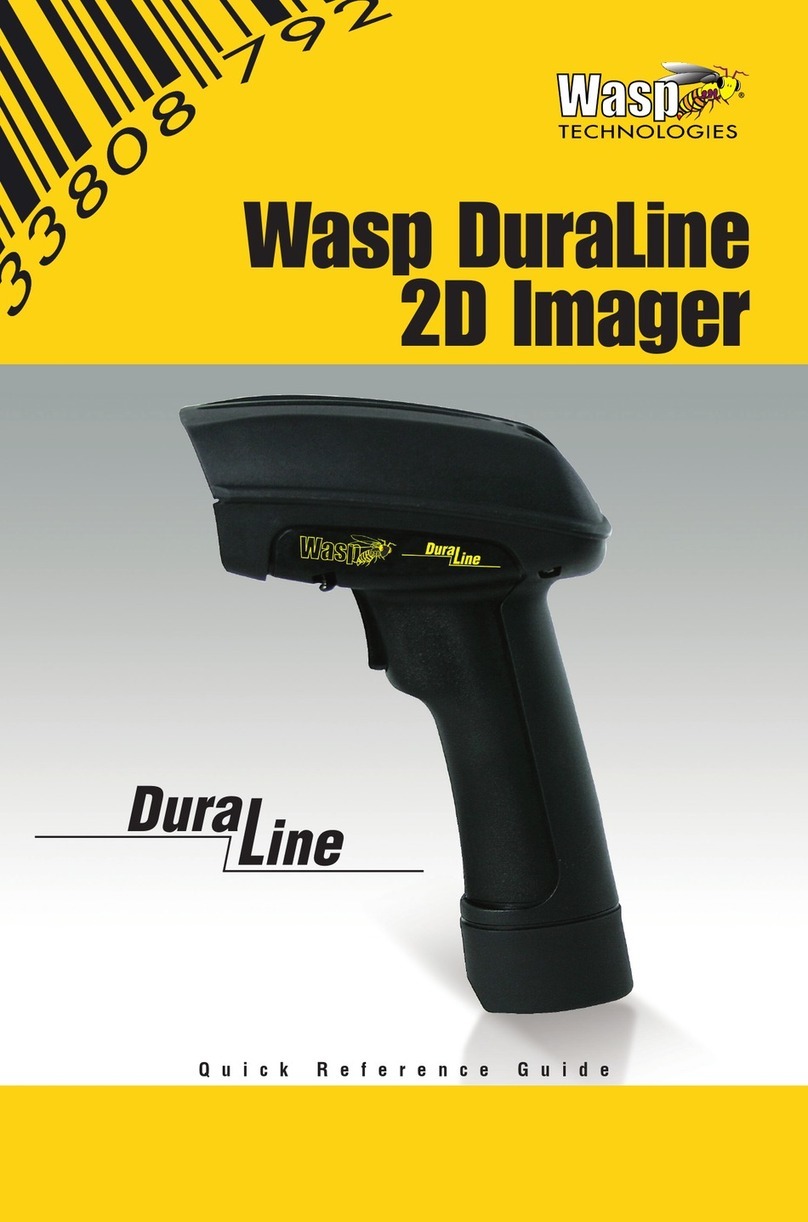
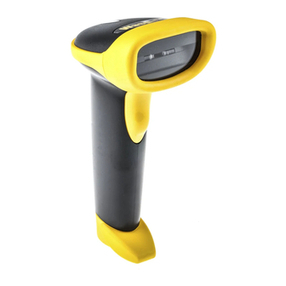
Wasp WLR8950 User manual

Wasp Logo
NOTE: LOGO USAGE ON BLACK BACKGROUND
WLR8950
User Manual

Table of Contents
Chapter 1. Introduction 1
Chapter 2. Barcode Symbologies 2
Chapter 3. Installation 3
Chapter 4. Quick Start 4
Chapter 5. Setup & Configuration 5
Factory Default 5
Auto-Sense Stand Mode 6
Keyboard Connection 6
Interface Selections 6
Beep Settings 7
Beep and Delay 7
Interblock Delay 8
Upper/Lower Case 9
Keyboard Language 9
Preamble/Postamble 10
Terminator 10
Label Type Positive/Negative 11
Code ID 11
Bi-color light source settings 12
Enable/Disable Barcode Symbologies 13
Code 39 Settings 14
Interleaved 2 of 5 and Code 93 settings 15
Code 128 and UCC/EAN 128 Settings 16
MSI Plessey Settings 17
Codabar Settings 18
UPC-A and UPC-A Supplement Settings 19
UPC-E and UPC-E Supplement Settings 20
EAN-8 and EAN-8 Supplement Settings 21
EAN-13 and EAN-13 Supplement Settings 22
Appendix A Barcode Test Symbols 23
Appendix B ASCII Table 25
Appendix C Function Codes for PC 29
Appendix D Technical Specifications 30
Warranty Information 31
FAQ 32
Product Support 33
Rev. 5/09/2012

Chapter 1
1
Introduction
Barcoding is the most common Automated Data Collection (ADC) technology providing timely, error-free information that can be
used to increase productivity, accuracy, and efficiency in the workplace. Virtually every type of industry is using barcodes to replace
keyboard data entry. Studies have shown that a proficient data entry operator will make one error for every 300 characters that are
manually entered. The error rate using barcodes is almost negligible and can be error-free using barcode symbologies with the check
digit enabled.
The Wasp Charged Coupled Device (CCD) technology is a technique whereby a barcode is photographed, digitized, and electronically
sampled by built-in photodetectors. The detectors process the measurement of every bar and space using the number of adjacent
photodetectors which contrast a black mark and a white space. Wasp WLR8950 series scanners are extremely rugged since they have
no moving parts. Wasp WLR8950 series scanners support PS/2 or USB keyboard interfaces and easily wedges between the computer
and keyboard. Barcode data is passed directly into the keyboard buffer as if it had been typed in by hand by a data entry operator.
Of all the hand held barcode scanning devices on the market, the CCD reader is the easiest to use and most cost effective for the
typical business user. The Wasp WLR8950 series scanners are extended distance scanners with a depth of reading of up to one foot
depending on the mil size of the barcode. To activate the scanner, the user simply points the scanning aperture towards the barcode,
pulls the trigger, and aims the red LED beam across the barcode.

Chapter 2
2
Barcodes are symbols consisting of a series of bars and spaces which can be applied to packages, cartons, bottles, and other
commercial products. The bars and spaces in each symbol are grouped in such a way to represent a specific ASCII character or
function. The interpretation of these groups is based on a particular set of rules called symbologies. Various symbologies have been
developed for particular applications. Some examples are shipping and receiving, manufacturing, retail, healthcare, transportation,
document processing and tracking, and libraries.
The resolution of a barcode is dependent on the narrowest element of a barcode (X dimension), and can vary from high density
(nominally less than 0.009 in./0.23 mm), medium density (between 0.009 in./0.23 mm and 0.020 in./0.50 mm), and low density
(greater than 0.020 in./0.50 mm). Medium and low densities are the most common since these are the easiest to read (scan) with
nearly all scanning devices. Wasp WLR8950 Scanners can read barcodes with X-dimensions as low as 5 mils (0.005 in/0.13mm).
Wasp WLR8950 Scanners can read the most popular barcode symbologies including Code 39, Code 93, Code 128, Interleaved 2 of 5,
UPC-A, UPC-E, EAN/JAN-8, EAN/JAN-13, Codabar, and MSI/Plessey.
Please see test chart on pages 25-26.
Barcode Symbologies

Chapter 3
3
Installation
Trigger
Scanning Aperture Din-6M
Din-6F
Trigger
Scanning Aperture
USB Port
1. Plug the USB of the WLR8950 Scanner directly into your PC’s USB port.
1. Turn off your computer.
2. Unplug your PC keyboard cable and plug the male end (Din 6) of the WLR8950 Scanner directly into your PC keyboard port. Plug
your keyboard cable into the other end (female Din 6) of the the scanner.
3. Turn your computer on.
WLR8950 USB Scanner
WLR8950 PS2 Scanner

Chapter 4
4
Your Wasp WLR8950 Scanners are ready for use. The default settings of the scanners have been pre-programmed for the most
common barcode configurations. Use the “WLR8950 Setup & Configuration” sections only to customize the scanners settings. Please
review the “Enable Barcode Symbologies” configuration beginning on page 15 to see the list of barcode symbologies which are enabled
by default.
Tip:
• Usethepre-printed“BarcodeTestSymbols”inAppendixAonpages25-26asatestcharttopracticescanning.
Quick Start
USB Connection
PS2 Connection
KEYBOARD
Y-CABLE
BACK OF PC
KEYBOARD MOUSE
DO NOT PLUG
IN MOUSE PORT!
KEYBOARD
WLR 8900
PS2 Scanner
WLR 8905
USB Scanner
USB Connector
KEYBOARD
Y-CABLE
BACK OF PC
KEYBOARD MOUSE
DO NOT PLUG
IN MOUSE PORT!
KEYBOARD
WLR 8900
PS2 Scanner
WLR 8905
USB Scanner
USB Connector

Chapter 5
5
Use the Factory Default barcode to reset the scanner to the Default settings.
Factory Default
In order to configure Wasp WLR8950 Scanners, you must familiarize yourself with the setup procedures on the following pages.
The default settings of the Wasp WLR8950 Scanners are identified on each page and clearly marked using an asterisk (*). The
default settings have been preprogrammed for the most common barcode configurations. Use the Setup & Configuration only to
customize the Wasp WLR8950 Scanners settings. If you need to configure the scanner, the default settings will be overwritten. All
the programmed settings are stored permanently in non-volatile memory; therefore, your configuration will be maintained even if the
keyboard power to Wasp WLR8950 Scanners is removed by turning off your PC.
In order to configure Wasp WLR8950 Series Scanners, two basic steps need to be followed:
(1) Locate the group that contains the options to be changed.
(2) Scan the barcode representing the option to be changed.
The scanner will sound two beeps.
To change Minimum/Maximum Length:
(1) Scan the Minimum or Maximum Length barcode.
(2) Scan a 2 digit value from the ASCII table on pages 27-30.
(3) Scan the Minimum or Maximum Length barcode again.
Example: To have a minimum length barcode of 1, you must scan a 0 then 1, then scan the minimum barcode again. To have a
maximum length barcode of 10, you must scan a 1 then 0, then scan the maximum barcode again.
Setup & Configuration
Factory Default

Chapter 5
6
FACTORY DEFAULT, KEYBOARD CONNECTION AND INTERFACE SELECTIONS
PC (USB or PS/2) * Notebook
The Keyboard Connection is used to program the Wasp WLR8950 Scanners for the type of computer to which it is attached.
*Default
Keyboard Connection
Scan the Auto-Sense Stand Mode barcode to enable the hands-free autosense feature of the WLR8950 Scanners. If you desire to turn
this mode “off,” scan the Trigger Only barcode.
Auto-Sense Stand Mode
Auto-Sense Mode Enable Trigger Only
Magnetic Switch is available after activating Auto-Sense Stand Mode.
• The Magnetic Switch is automatically activated when Auto-Sensing Mode is on.
• To enable Magnetic Switch, the scanner should be paired with an Auto-Sense Stand to perform the Auto-Sensing function.
• When Magnetic Switch is disabled, the scanner will perform the Auto-Sensing function without an Auto-Sense Stand.
Magnetic Switch On Magnetic Switch Off
Interface Selections
PS2
The Interface Selections barcodes allow you to switch interfaces based on your connection type.
The scanner is designed to switch easily between interface options. To switch from one interface to another, the appropriate cable must
be installed. After changing to a new cable, be sure to reset the interface setting.
USB KB

Chapter 5
7
BEEP AND DELAY
The ‘Beep and Delay’ configuration supports the general control options for the Wasp WLR8950 Scanners. These options include the
tone, intercharacter delay, and interblock delay. The High, Low and Med settings refer to the tone of the beep, not the volume.
Interblock delay is the minimum time interval between two adjacent scans. If the processing speed of your host device is slower than
your scanning speed, a longer interblock delay may ensure the data integrity.
Intercharacter delay is the time period that the scanner will wait before transmitting the next character. If data sent by the scanner has
incorrect or missing characters, a longer intercharacter delay may solve the problem. The intercharacter delay should be changed only
if the transfer rate cannot be maintained between the scanner and the keyboard buffer of the computer.
Note: The default for the intercharacter delay is set to ‘140us’ and is the most common configuration; however, your PC may be
different. When you scan a barcode, if some stray or scrambled characters appear, increase the intercharacter delay to slow down the
transfer rate.
Beep Off
Beep Settings
*Default
Beep High
Beep Med*
Beep Low

Chapter 5
8
BEEP AND DELAY
0ms *
10ms
50ms
100ms
200ms
140us *
500us
1ms
4ms
16ms
500ms
Interblock Delay Intercharacter Delay
*Default
Other manuals for WLR8950
1
Table of contents
Other Wasp Barcode Reader manuals

Wasp
Wasp Wasp WDI7500 User manual

Wasp
Wasp WPL305 Owner's manual

Wasp
Wasp WDI4700 User manual

Wasp
Wasp WLS8600 User manual

Wasp
Wasp WWS800 User manual

Wasp
Wasp WWS650 Administrator Guide

Wasp
Wasp 2D User manual

Wasp
Wasp WLP 4170 CCD Operating instructions

Wasp
Wasp WLS 9500 User manual

Wasp
Wasp WLR8950 User manual