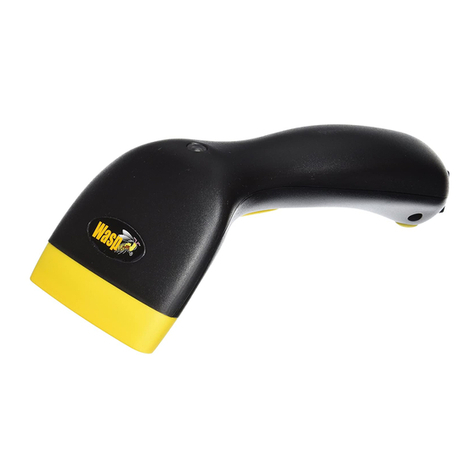
Wasp WDI9600 User manual

Wasp WDI9600
1D Barcode Reader
Quick Reference Guide

©2021 Wasp Barcode Technologies
All rights reserved. Without limiting the rights under copyright, no part of
this documentation may be reproduced, stored in or introduced into a
retrieval system, or transmitted in any form or by any means, or for any
purpose, without the express written permission of Wasp Barcode and/or
its affiliates.
Owners of Wasp products are hereby granted a non-exclusive, revocable
license to reproduce and transmit this documentation for the pur-
chaser's own internal business purposes. Purchaser shall not remove or
alter any proprietary notices, including copyright notices, contained in this
documentation and shall ensure that all notices appear on any reproduc-
tions of the documentation.
Electronic versions ofthis documentmaybedownloadedfromtheWasp
website (www.waspbarcode.com). If you visit our website and would like
to make comments or suggestions about this or other Wasp publica-
tions, please let us know via the "Contact" page.
Disclaimer
Wasp has taken reasonable measures to provide information in this
manual that is complete and accurate, however, Wasp shall not be liable for
technical or editorial errors or omissions contained herein, nor for inci-
dental or consequential damages resulting from the use of this material.
Wasp reserves the right to change any specification at any time without
prior notice.
Trademarks
Wasp Barcode Technologies and the Wasp logo are registered
trademarks of Wasp in many countries, including the U.S.A. and the E.U.
Patents
Contact Wasp Barcode Technologies for patent list.

QUICK REFERENCE GUIDE
III
TABLE OF CONTENTS
Description .................................................................... 1
Top Productivity for POS and Document Handling.............. 1
Decoding................................................................................ 1
Hands Free Stand/Holder ..................................................... 2
Setting Up the Reader .................................................... 3
Connecting to the Host Interface.......................................... 3
Disconnecting the Cable ................................................. 4
Using the Wasp WDI9600........................................ 4
Aiming System...................................................................... 4
Relative Size and Location of Aiming Pattern ............ 5
Linear Bar .................................................................... 5
Relative Size and Location of Green Spot .................. 5
Parts of the Reader ........................................................ 6
Selecting the Interface Type ........................................... 6
Interface Selection ................................................................ 6
Configuring the Interface................................................ 7
USB Interface ........................................................................ 8
Keyboard Wedge Interface ................................................. 10
Country Mode ............................................................ 12
Programming............................................................... 16
Using Programming Bar Codes ......................................... 16
Configure Other Settings .................................................... 16
Resetting Product Defaults ................................................ 16
Numlock ...................................................................... 17
Caps Lock State ........................................................... 18
Reading Parameters..................................................... 19
Good Read Green Spot Duration .................................... 19
Operating Modes .......................................................... 21
Scan Mode ........................................................................... 21
Technical Specifications ............................................... 24
LED and Beeper Indications .......................................... 27
Troubleshooting ........................................................... 28
Warranty ..................................................................... 29
Ergonomic Recommendations ....................................... 30
Technical Support ........................................................ 30
Support Through the Website ............................................ 30
Reseller Technical Support................................................. 30

QUICK REFERENCE GUIDE
1
WASP WDI9600
DESCRIPTION
With rich feature sets and extensive model options, the
WDI9600 from Wasp represents the premium level of
data collection equipment for general purpose
applications.
The Wasp WDI9600 readers’ ability to capture bar codes
from near to far, to read both high-density and low resolu-
tion codes, to decode hard-to-read, poor or damaged
codes and to easily read bar codes from mobile devices
make these readers the perfect choice for today’s
and tomorrow’s applications in retail and office
environments, pharmacies, light industrial, warehouses
and manufacturing plants.
Top Productivity for POS and Document Handling
Perfect for manual reading, the Wasp WDI9600 linear
imager uses Motionix™ motion detection technology
that detects the operator's natural actions to
automatically switch the scanner into "ready to read" scan
mode. The distinctive "soft line viewfinder" helps the
operator to easily identify the code to be read, making
easier and faster to point, shoot and decode the correct
label, reducing accidental readings in an environment
with multiple bar codes.
Decoding
The Wasp WDI9600 reliably decodes all standard 1D
(linear), including GS1 DataBar™ linear codes, Postal
Codes (China Post). The data stream - acquired from
decoding a symbol - is rapidly sent to the host. The reader
is immediately available to read another symbol.

Description
2
Wasp WDI9600
Hands Free Stand/Holder
An accessory is available which holds the reader at a con-
venient angle, allowing hands free scanning of items. It
can also be used as a holder. The reader automatically rec-
ognizes the insertion and changes its Scan Mode to allow
the user to operate in hands-free mode.
www.waspbarcode.com

Setting Up the Reader
QUICK REFERENCE GUIDE
3
SETTING UP THE READER
Follow the steps below to connect and get your reader up
and communicating with its host.
1. Connect the Cable to the reader and the Host as
shown below.
2. Configure the Interface (see page 7).
3. Program the Reader starting on page 16 (optional,
as needed).
Connecting to the Host Interface
USB
WEDGE
RS-232

Disconnecting the Cable
DISCONNECTING THE CABLE
To remove the interface cable from the reader, first locate
the hole on the back of the handle. Next, take a paper clip
and modify it as shown in the figure below. Insert the
end of the paper clip into the hole and press it to push on
the clip that holds the connector. As you apply pressure,
pull out the cable. When reinserting the cable, make sure
the connector clip is on the same side as the reader
release hole. Insert the cable, it should click when it is
fully inserted.
USING THE Wasp WDI9600
The Wasp WDI9600 normally functions by capturing and
decoding codes. The reader is equipped with an internal
Motionix™ motion-sensing function which activates the
aiming system on device motion. The intelligent aiming
system indicates the field of view which should be
positioned over the bar code:
Aiming System
NOTE: We recommend the use of a perfectly
straight new staple to make the operation easier
(see the pictures below).
4
Wasp WDI9600
www.waspbarcode.com

Using the Wasp WDI9600
QUICK REFERENCE GUIDE
5
Relative Size and Location of Aiming Pattern
Linear Bar
A red beam illuminates the label. The field of view indi-
cated by the aiming system will be smaller when the
reader is closer to the bar code and larger when it is far-
ther from the code. Symbologies with smaller bars or ele-
ments (mil size) should be read closer to the unit.
Symbologies with larger bars or elements (mil size) should
be read farther from the unit. If the aiming system is cen-
tered and the entire bar code is within the aiming field,
you will get a good read. Successful reading is signaled by
an audible tone plus a good-read green spot LED indicator.
Refer to the Wasp WDI9600 Product Reference Guide
(PRG) for more information about this feature and other
programmable settings.
Relative Size and Location of Green Spot

Parts of the Reader
PARTS OF THE READER
SELECTING THE INTERFACE TYPE
Upon completing the physical connection between the
reader and its host, proceed directly to Interface Selection
below for information and programming for the interface
type supported by the reader and scan the appropriate
bar code to select your system’s correct interface type,
according to your application.
For interfaces other than those listed in this manual,
see the Wasp WDI9600 Product Reference Guide (PRG),
available online at www.waspbarcode.com.
Interface Selection
The reader will support all the following host interfaces:
•RS-232 STD
•RS-232 WN
•IBM46XX port 9b (a specific cable's required)
•USB HID POS
•USB Toshiba TEC
•USB (Keyboard, COM, OEM)
•USB Composite (Keyboard + COM)
•USB for Magellan Scanners
•Keyboard Wedge
Information and programming options for each interface
type are provided in this section. For defaults and addi-
tional information associated with each interface, proceed
to the corresponding chapter in the Wasp WDI9600 PRG.
1. LED 2. Cable Release Hole
3. Scan Window 4. Trigger
6
Wasp WDI9600
www.waspbarcode.com
Table of contents
Other Wasp Barcode Reader manuals

Wasp
Wasp Bar Code Laser Operating instructions

Wasp
Wasp WWS800 Manual

Wasp
Wasp WWS110i User manual

Wasp
Wasp HC1 User manual

Wasp
Wasp WWS150i User manual

Wasp
Wasp CCD - 80SIR User manual

Wasp
Wasp WWS800 User manual

Wasp
Wasp WLR8900 Operating instructions

Wasp
Wasp WPL618 Series User manual

Wasp
Wasp WWS800 User manual