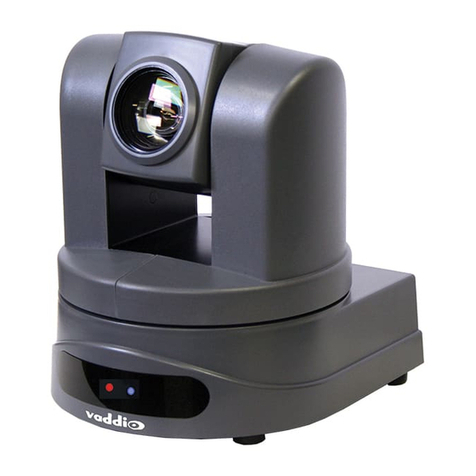
Vivotek PT7137 User manual


- 1 -
www.vivotek.com
T: 886-2-82455282
F: 886-2-82455532
Product name: Wireless Network Camera with Pan/Tilt(PT7137)
Release Date: 2007/09/27
Manual Revision: 2.10
Web site: www.vivotek.com
Email: technical@vivotek.com
Made in Taiwan. ©Copyright 2000-2007. All rights reserved

- 2 -
www.vivotek.com
T: 886-2-82455282
F: 886-2-82455532
Before You Use This Product
The use of surveillance devices may be prohibited by law in your country. The
Network Camera is not only a high-performance web-ready camera but also can be
part of a flexible surveillance system. It is the user’s responsibility to ensure that the
operation of such devices is legal before installing this unit for its intended use.
It is important to first verify that all contents received are complete according to the
list in the "Package Contents" chapter. Take notice of the warnings in “Quick
installation guide” before the Network Camera is installed, then carefully read and
follow the instructions in the “Installation” chapter to avoid damages due to faulty
assembly and installation. This also ensures the product is used properly as
intended.
The Network Camera is a network device and its use should be straightforward for
those who have basic network knowledge. The “Troubleshooting” chapter in the
Appendix provides remedies to the most common errors in set up and configuration.
You should consult this chapter first if you run into a system error.
The Network Camera is designed for various applications including video sharing,
general security/surveillance, etc. The “How to Use” chapter suggests ways to best
utilize the Network Camera and ensure proper operations. For the creative and
professional developers, the "URL Commands of The Network Camera " chapter
serves to be a helpful reference to customize existing homepages or integrating with
the current web server.
For paragraphs preceded by the reader should use caution to understand
completely the warnings. Ignoring the warnings may result in serious hazards or
injuries.

- 3 -
www.vivotek.com
T: 886-2-82455282
F: 886-2-82455532
Table of Contents
Before You Use This Product......................................................................2
Package Contents....................................................................................6
Installation.............................................................................................7
Hardware installation..........................................................................7
Software Installation ..........................................................................9
Initial Access to the Network Camera..................................................13
Check Network Settings ..............................................................13
Add Password to Prevent Unauthorized Access................................13
How to Use .....................................................................................14
Authentication............................................................................14
Installing plug-in..............................................................................15
Primary user’s capability ...................................................................16
Main Screen with Camera View.....................................................16
Client settings............................................................................20
Administrator’s capability ..................................................................23
Fine-tuning for Best Performance..................................................23
Opening accounts for new users ...................................................26
Build a security application ..........................................................27
Software revision upgrade ...........................................................28
Definitions in Configuration.....................................................................29
System parameters..........................................................................30
Security settings..............................................................................31
Network settings..............................................................................32
Network type.............................................................................32
HTTP ........................................................................................33
RTSP Streaming .........................................................................33
WLAN Configuration....................................................................36
DDNS.............................................................................................39
Access List......................................................................................40
Audio and Video...............................................................................41
General.....................................................................................41

- 4 -
www.vivotek.com
T: 886-2-82455282
F: 886-2-82455532
Video Settings............................................................................41
Video orientation........................................................................41
Audio settings............................................................................42
Image Settings ..........................................................................43
Camera Control ...............................................................................44
Email & FTP ....................................................................................46
Email........................................................................................46
FTP ..........................................................................................46
Motion detection..............................................................................48
Application settings..........................................................................49
Snapshot...................................................................................49
Weekly schedule.........................................................................50
Snapshot file name prefix............................................................50
Send out the snapshot while motion detection ................................50
Sequential operation...................................................................50
Method for sending snapshot........................................................50
Video Clip..................................................................................52
System log......................................................................................54
Viewing system parameters...............................................................55
Maintenance....................................................................................56
Appendix..............................................................................................57
A. Troubleshooting ...........................................................................57
Status LED ................................................................................57
Reset and restore .......................................................................57
B. URL commands of the Network Camera...........................................58
Get server parameter values........................................................58
Set server parameter values ........................................................59
Available parameters on the server ...............................................61
Camera Control..........................................................................72
Recall .......................................................................................73
Application page CGI command ....................................................74
Capture single snapshot ..............................................................77
Account management .................................................................77

- 5 -
www.vivotek.com
T: 886-2-82455282
F: 886-2-82455532
System logs...............................................................................78
Configuration file........................................................................79
Upgrade firmware.......................................................................80
C. Technical specifications .................................................................81

- 6 -
www.vivotek.com
T: 886-2-82455282
F: 886-2-82455532
Package Contents
PT7137
Software CD
Power adapter
Quick installation guide
Mounting Kit & Pads
Warranty card
Antenna

- 7 -
www.vivotek.com
Installation
In this manual, "User" refers to whoever has access to the Network Camera, and
"Administrator" refers to the person who can configure the Network Camera and grant
user access to the camera.
Hardware installation
Please verify that your product package contains all the
accessories listed in the foregoing Package Contents.
Depending on the user’s application, an Ethernet cable
may be needed. The Ethernet cable should meet the specs
of UTP Category 5 and not exceed 100 meters in length.
Upon powering up, the front red LED will become lighted first and then the device will go
through booting process. During the booting process, red, blue and green LEDs will be
on. After booted, the Network Camera will standby for getting IP address. After getting IP
Address, the green LED will blink every second.
The Network Camera will first detect Ethernet. If it does not connect to Ethernet, the
Network Camera will try WLAN. During the searching and connecting process to the
wireless access point or station, the red LED of the Network Camera will flash every
second. Until the Network Camera connects to the other wireless device, the red LED
Connect the power adapter jack to the Network
Camera before plugging in to the power socket. This will
reduce the risk of accidental electric shock.

- 8 -
www.vivotek.com
will become lighted. Operating in either network mode, the green LED will flash every
second as heartbeat to indicate alive. If the red LED is blinking, please check the network
connections.
To install in Ethernet
Make sure the Ethernet is firmly connected to a switch hub. After attaching the Ethernet
cable plug in the power adapter. If the LED turns out to be steady blue, go to next
paragraph “Software installation”. If the Ethernet is not available, Network Camera will
switch to wireless LAN mode.
To install in wireless LAN
If the Ethernet is not available while power on, the Network Camera will search for any
access point with the SSID “default”. Once any access point is found, the LED will turn
blue to wait for installation. If the network environment cannot meet the default settings,
install Network Camera in Ethernet to proceed with wireless LAN configuration.

- 9 -
www.vivotek.com
Software Installation
In this manual, "User" refers to whoever has access to the Network Camera, and
"Administrator" refers to the person who can configure the Network Camera and grant
user access to the camera.
At the end of the hardware installation, the Administrator must place the product
software CD into the CD-ROM drive of the PC running in MS Windows. An auto-run
program will pop up (If the program is not on auto-run, go to the root directory of the
software CD and click on “autorun.exe”).
Click on “Software Utility” item, after the window contains changed, click on “Installation
Wizard” to run Vivotek’s installation program.
Table of contents
Other Vivotek Security Camera manuals

Vivotek
Vivotek FD8166 User manual

Vivotek
Vivotek IB8367A User manual

Vivotek
Vivotek IB836B-H(R)T User manual

Vivotek
Vivotek FD7132 User manual

Vivotek
Vivotek FD8365HV User manual

Vivotek
Vivotek SD7151 User manual

Vivotek
Vivotek IB9391-EHT User manual

Vivotek
Vivotek IP8330 User manual

Vivotek
Vivotek Supreme IP8151 User manual

Vivotek
Vivotek BD5336 User manual

Vivotek
Vivotek CC9381-HV User manual

Vivotek
Vivotek PZ7111 User manual

Vivotek
Vivotek Supreme FD8362 User manual

Vivotek
Vivotek FD816B-H User manual

Vivotek
Vivotek MD8562 User manual

Vivotek
Vivotek VC8201 User manual

Vivotek
Vivotek FD8131 User manual

Vivotek
Vivotek PZ6112 User manual

Vivotek
Vivotek AM-214 User manual

Vivotek
Vivotek IP7161 User manual