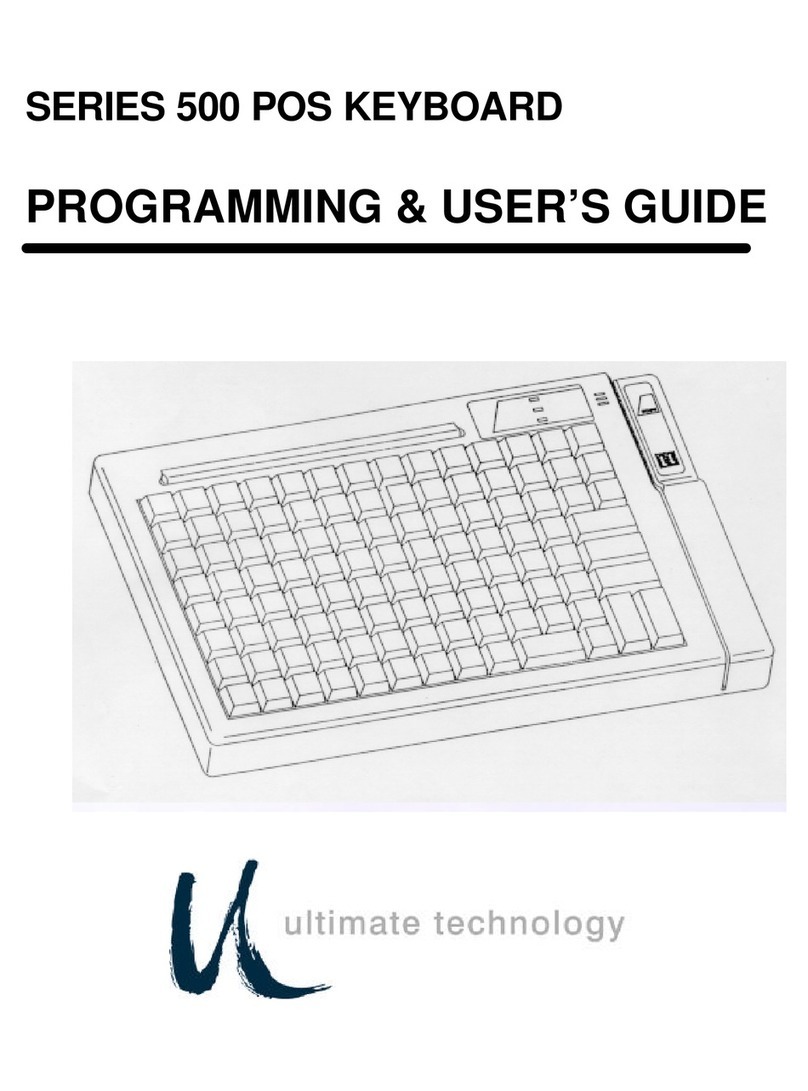
US Robotics USR5502 User manual

USR5502
Mini Bluetooth Keyboard
User Guide
Package Contents
-USRobotics Mini Bluetooth Keyboard
-Reference CD with User Guide
-Micro USB 2.0 Cable
Features
-Bluetooth Version: Bluetooth V2.0 HID
-49 key mini QWERTY keyboard
-Built-in rechargeable Li-ion battery via Micro USB 2.0
-Conserve power with built-in intelligent
power management
-Color LED status indication
-Working range: 32 ft
-Charging time: 3-4 hours
Version 1.0 4/11

Table of contents
•Introduction
•System Requirements
•Installation
oCharging the keyboard
oKeyboard Character Map
oiPad / iPhone
oWindows Mobile
oNokia Symbian
oWindows
oMacintosh
oLinux
oPlaystation 3
•FAQs
•Product Warranty & Support
•Regulatory
Introduction
Thank you for purchasing the USRobotics Mini Bluetooth
Keyboard, the perfect accessory for tablets and other handheld
devices.
System requirements
•Built-in Bluetooth functionality on any of the following systems:
oApple iPad 1& 2, iPhone/Touch with iOS 4 & later
oAndroid tablets (Xoom, Galaxy Tab)
oWindows Mobile OS 6. 0 & later
oNokia Symbian S60 OS V3.0 & later
oComputers with Windows, Mac, or Linux OS
oSony Playstation 3
oHTPC
•USB Port for charging

Installation
NOTE: The first time the keyboard is used you will need to fully charge
the battery.
Step 1 – Prepare the keyboard
•Turn the keyboard to the ON position, the blue led will light up for
2 seconds.
•Press the pair (connect) button; the blue LED will flash when in
pairing mode.
•The keyboard is now ready to connect with a Bluetooth ready
system.
pair/connect button
Step 2 – Connect to a Bluetooth ready system
•On the Bluetooth ready system turn Bluetooth ON
•The device should detect the keyboard and provide a way to pair
the device. This will include a code or pin that will need to be typed
onto the keyboard to finish the pairing process.
Detailed installation instructions immediately
follow the Keyboard Matrix.
Note:If no signal is received after 10 minutes or the connected device
is turned off, the keyboard will revert to Standby Mode. To reactivate
the keyboard, click the Enter key on the keyboard.
Charging the keyboard:
1. When the power is low, the blue LED will light up for 1 second and
will blink intermittently.
2. To charge connect the keyboard to a powered USB port with the
provided micro USB Cable.
3. When charging, the Red LED will light up; then will turn off when
charge is completed.

Keyboard Character Map
Red Keys (Fn)
•To activate function keys. Press and hold the Fn key while pressing
the additional key. Example: Fn + O= +
•To lock/unlock the Fn keys, press Fn + Enter.
Blue Keys (Shift)
•Press and hold the shift key while pressing the additional key.
Example: Shift + 1 = !
Multimedia/Computer Control Function Keys
Key + Shift + Fn
1 ! Brightness down (Mac)
2 @ Brightness up (Mac)
3 # Show Spaces (Mac)
4 $ Rewind (iDevice & PCs)
5 % Play/Pause (iDevice & PCs)
6 ^ Forward (iDevice & PCs)
7 & Change Input Language (Mac & iDevices)
8 * Mute Volume (iDevice & PCs)
9 ( Volume Increase (iDevice & PCs)
0 ) Volume Decrease (iDevice & PCs)
W/A/S/D Navigation Keys ()
Alt
Home
(Windows Mobile only)
Nokia S60 Only Combination Keys Windows Only Keys
Fn + Alt Left Key Fn + Z Caps
Fn + Ctrl Right Key Fn + X Esc
Fn + Shift (Left)
Call Key
Fn + C
Menu
Fn + Shift (Right) End Key Fn + V/B Home/End
Fn + Space Menu Fn + N Insert
Ctrl + Enter OK Fn + M Print Screen

Connect with iPad/iPhone
1. Prepare the keyboard for pairing by turning it on and pressing the
pair button.
2. On your iPad/iPhone, go to Settings then select General.
3. Turn Bluetooth ON, it will start searching for Bluetooth devices.
4. When the system finds the keyboard, select Bluetooth Keyboard.
5. A random Bluetooth passkey or pin will be provided by your
system. Type this number onto the keyboard, and press Enter to
complete the pairing.
6. Now the keyboard is successfully connected with your iDevice.

Connect with Macintosh OSX
NOTE: Before you connect the Bluetooth Keyboard, please make
sure you have Bluetooth functionality on your system.
1. Prepare the keyboard for pairing by turning it on and pressing
the pair button.
2. Make sure that the Bluetooth Function has been activated on your
computer. Select Set up Bluetooth device from the Bluetooth status
dropdown in the menu bar.
3. When the system finds the keyboard, select Bluetooth Keyboard
and click Continue.

4. A random Bluetooth passkey will be provided by your system.
Type the Bluetooth passkey onto the keyboard, and press Enter
to complete the pairing.
5. Click Quit. Now your wireless Bluetooth keyboard is successfully
connected with your computer.

Connect with Windows
NOTE: Before you connect the Bluetooth Keyboard, please make sure
you have Bluetooth functionality on your system. Additional software
& adapters are available, installation instructions may vary.
1. Prepare the keyboard for pairing by turning it on and pressing the
pair button.
2. Make sure that the Bluetooth Function has been activated on your
computer. Double click the Bluetooth Icon in the Task Bar or in the
Control Panel. Click Add.
3. Select My device is set up and ready to be found and click Next.

4. When the system finds the keyboard, select Bluetooth Keyboard
and click Next.
5. Select Choose a pass key for me, click Next.

6. Type the Bluetooth security code onto the keyboard, and press
Enter to complete the pairing.
7. Click Finish. Now your wireless Bluetooth keyboard is successfully
connected with your computer.
Table of contents
Other US Robotics Keyboard manuals