Thermaltake Muse X-Duo RAID User manual

Muse X-Duo RAID
User’s Guide
Revision 1.1
July 2007

TRADEMARKS
All brand and product names are trademarks or registered trademarks of their
respective companies.
NOTE
The information in this manual is subject to change without notice.

Important Notes
If your Muse X-Duo RAID system is without hard dis drive
installed, follow the instructions on this User’s Guide to perform
hardware/software installations and start Muse X-Duo RAID storage
system management.
If your Muse X-Duo RAID system comes with hard dis drive(s)
already installed, s ip the hardware/software installations portions
and go directly to Storage System Management (Section 3.2 of
Chapter 3).
Your Muse X-Duo RAID system does not support USB hub connects
to USB port.
When installing hard dis drive to your Muse X-Duo RAID system,
suggest using the same vendor and the same size hard dis .

iv
Table o Contents
Important Notes ................................................................................. iii
Table o Contents .............................................................................. iv
Chapter 1
Introduction.................................................................. 1
1.1
Package Contents............................................................................... 2
1.2
Specifications ...................................................................................... 3
ardware ....................................................................................... 3
Software ........................................................................................ 3
1.3
System View ....................................................................................... 4
Front Components......................................................................... 4
Rear Components ......................................................................... 6
Chapter 2
Setting Up .................................................................... 7
Step 1. Install the ard Disks..................................................................... 7
Step 2. Connect to the Network ............................................................... 11
Step 3. Connect to Power ........................................................................ 12
Step 4. Configure Your Storage System.................................................. 12
Chapter 3
Con iguring Your Storage System ........................... 13
3.1
Installing and Starting the Storage System Management ................ 14
3.2
Starting Storage System Management............................................. 30
3.3
My NAS Page ................................................................................... 33
System Setting ............................................................................ 34
Network Setting ........................................................................... 36
3.4
Users & Groups Page ....................................................................... 40
Users ........................................................................................... 40
Groups......................................................................................... 45
Quota Management..................................................................... 47
3.5
Shared Folders Page ........................................................................ 49
Add Shared Folder ...................................................................... 50
Assign Access ............................................................................. 50
Delete Shared Folder .................................................................. 52
3.6
Disk Page.......................................................................................... 53
3.7
Advanced Page................................................................................. 54
Alerts ........................................................................................... 54
Firmware...................................................................................... 57

iTunes Server ...............................................................................59
Media Server ................................................................................61
Printer Server ...............................................................................63
UPS ..............................................................................................66
USB Backup .................................................................................68
Download Station .........................................................................71
System Log ..................................................................................72
Shut Down....................................................................................73
Reboot..........................................................................................75
Back to Zero Disk .........................................................................77
3.8
Logging Out of Storage System Management ..................................80
Chapter 4
Map Shares................................................................ 83
Chapter 5
Using One-Touch Backup......................................... 85
5.1
Connecting a USB Device .................................................................85
5.2
Using the Card Reader ......................................................................86


1
Chapter 1 Introduction
Your Muse X-Duo RAID is a high-performance, extremely flexible RAID
(Redundant Array of Independent/Inexpensive Dis s) subsystem.
RAID technology, one of the best solutions for protecting your data, provides
higher data integrity and availability than single standard hard dis storage.
With the ability of error detection and redundant storage system for recovering
original data, RAID system is an ideal configuration to safeguard valuable data
with stream-lining performance.
Additional features include:
RAID Mode
RAID Degrade
HW (hardware) Health Monitor
UPS (uninterruptible power supply)
Reset to Factory Default Setting
One-touch Bac up
Event Log
Software shutdown by using Web Management
Can function as a FTP server and printer server
DHCP client support

2
1.1 Package Contents
Includes the following:
Muse X-Duo RAID Storage System
HDD Rail × 2
Power Adapter
Power Cord
RJ-45 Ethernet Cable
Set of Screws
Utility Disc
Quic Start Guide

3
1.2 Specifications
NOTE: Specifications are subject to change without notice.
Hardware
Processor
LSI NAS201
System Memory
128 MB of DDR2 SDRAM
Flash Memory
8 MB
Hard Disk Drive Bay/Type
Up to two 3.5-inch SATA (Serial ATA)
Storage Capacity
Using 750 GB drives provides up to 1.5 TB
One Touch Button
Backup files from digital camera, mass storage,
and Card Reader
Network
Automatic MDIX RJ-45 port
(10/100/1000 Mbps)
Others
• USB port for still images, mass storage,
printer
• Card Reader (MMC, SD, MS card)
Power Supply
DC Output 12 V / 5 A
Dimension
( )140 x (W)120 x (D)240 mm
Weight
1.8 kg
Environment
• Operating temperature:
0
0
C (32
0
F) to 40
0
C (104
0
F)
• Storage relative humidity:
5 % to 90 % non-condensing
Software
Network Client Support
• Microsoft Windows, Mac (10.4.x)
Network Protocol
• TCP/IP
• TTP
• FTP
• SMB/CIFS
Application or NAS Management
• Data Sharing, Protection
• Data Backup and Recovery (future option)
• Web User Interface
Disk Con iguration
Single, RAID 0/1, and JBOD
Browser
• Internet Explorer 6.0
• Firefox 2.0
Others
• English language support
• Real Time Clock (RTC)
• Programmable system clock
• Network time protocol support
• D CP Client support
• ardware/Software power off
• Reset button to return to factory default
setting
• Firmware upgradeable
• FTP server and printer server support
• Media Server (DLNA v.1.0) support
• Event logs and email alerts
• ot swap and automatic rebuild
remove and insert hard disk under RAID 1
rebuild new hard disk automatically
• ardware monitor / temperature sensor

4
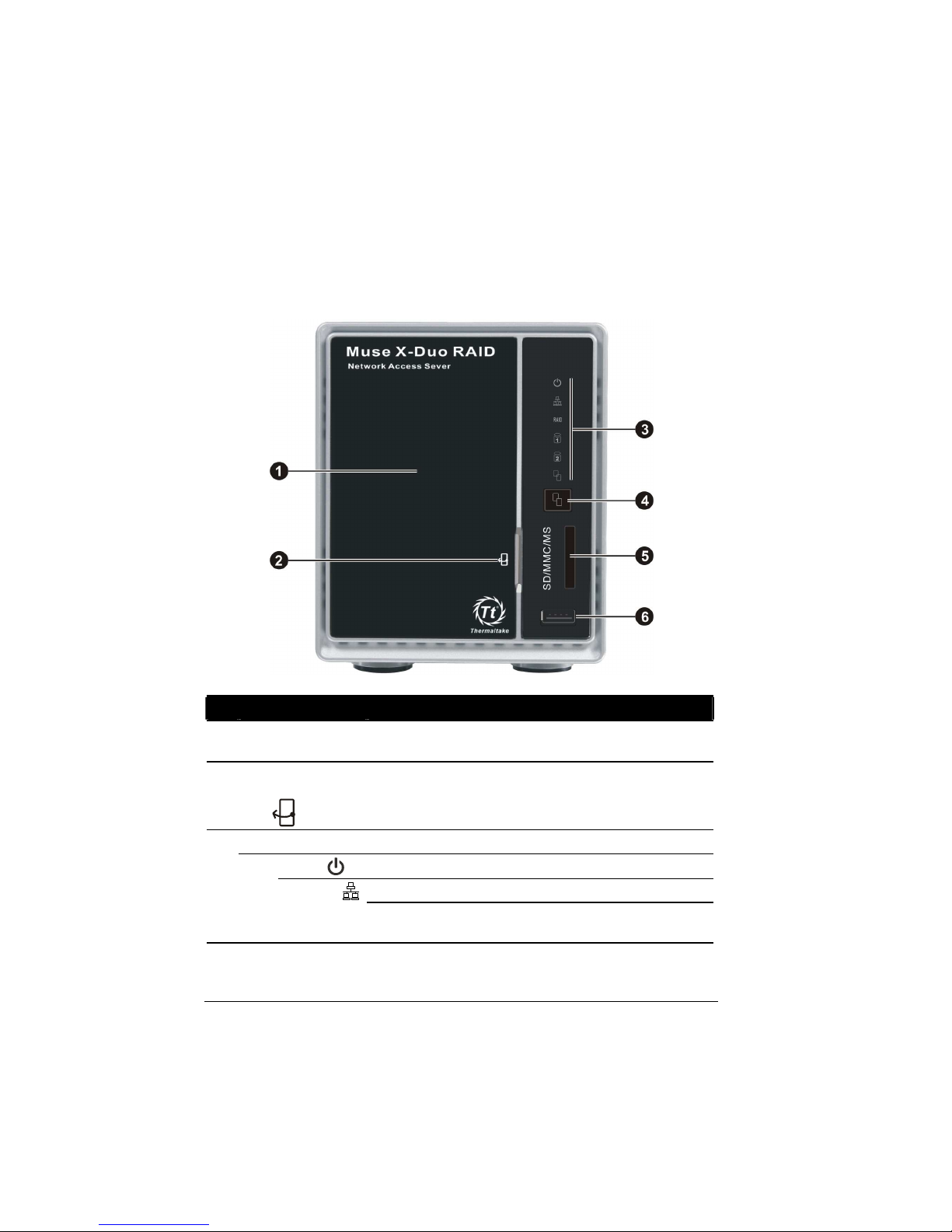
1.3 System View
Front Components
Re
Component Description
Hard Disk Drive
Compartment
Contains two hard dis drive slots.
Compartment
Cover Opening
Slot
Allows you to pull open the hard dis drive compartment
cover.
Device Indicators
Power Glows blue to indicate the power is on.
Glows green to indicate system is connected to networ .
Network
Blin s green to indicate system is trying to establish a
networ connection.
Other Thermaltake Storage manuals

Thermaltake
Thermaltake WaterRam RGB User manual

Thermaltake
Thermaltake N0006US User manual

Thermaltake
Thermaltake MAX-2533 User manual

Thermaltake
Thermaltake Silver River II ST0018Z User manual

Thermaltake
Thermaltake Muse NAS-RAID N0001LN User manual

Thermaltake
Thermaltake Silver River II ST0016U User manual

Thermaltake
Thermaltake MAX-1542 User manual

Thermaltake
Thermaltake Vi-ON ST0009U User manual