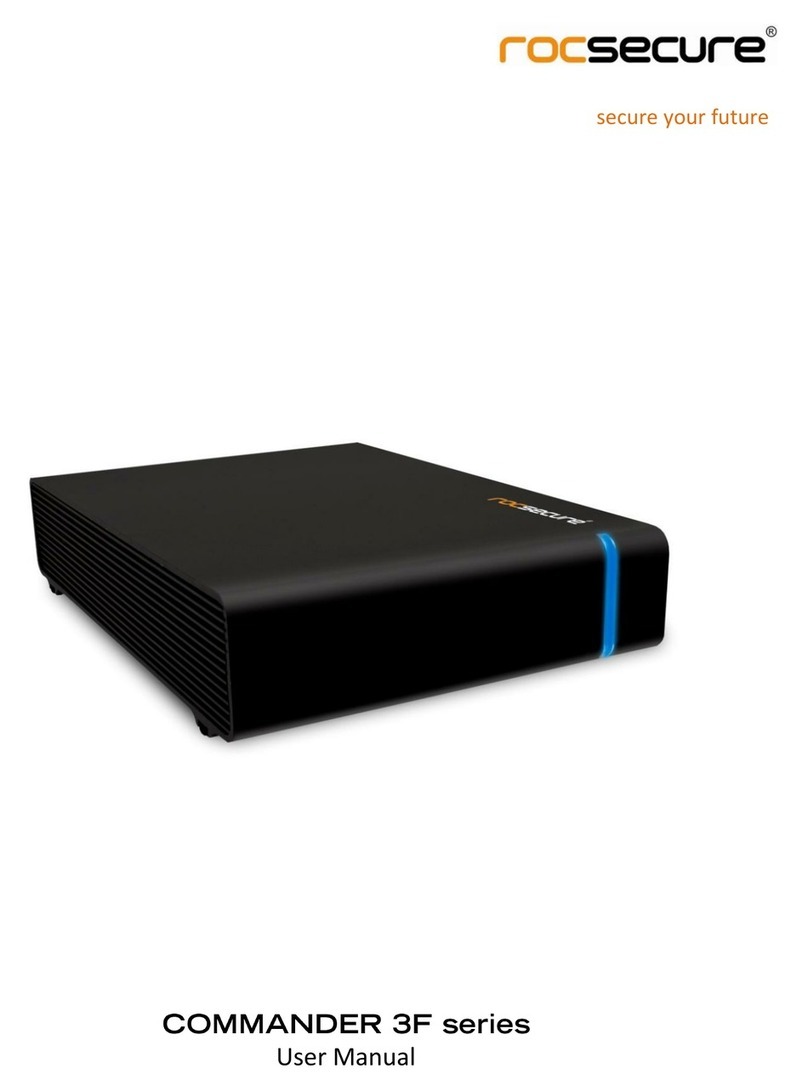
Thermaltake Muse NAS-RAID N0001LN User manual

User Manual

TRADEMARKS
All brand and product names are trademarks or registered trademarks of their
respective companies.
NOTE
The information in this manual is subject to change without notice.

Safety Information
zWARNING: Before connecting to power, set the Voltage Switch on the rear
of your system to the voltage matching your area – voltage rating 100~120 /
200~240 Vac.
zMaximum operating ambient temperature 40 oC degree
zCAUTION: Turn off the system before removing the cabinet cover.
zCAUTION on using the RTC battery: Danger of explosion if battery is
incorrectly placed. Replace only with the same or equivalent type
recommended by the manufacturer. Dispose of used batteries according to
the manufacturer’s instructions.
i

Table of Contents
Safety Information ................................................................................ i
1Introduction ................................................................................... 1
1.1 Package Contents ...............................................................................2
1.2 Specifications.......................................................................................2
Hardware........................................................................................2
Software .........................................................................................3
1.3 System View ........................................................................................4
Front Components..........................................................................4
Front Components (Compartment Door Open) .............................6
Right-Side Components .................................................................7
Rear Components ..........................................................................8
2Setting Up ...................................................................................... 9
Step 1. Install the Hard Disks......................................................................9
Step 2. Connect to the Network................................................................12
Step 3. Connect to Power.........................................................................12
Step 4. Configure Your Storage System...................................................13
3Configuring Your Storage System............................................. 15
3.1 Installing the Storage System Console..............................................16
3.2 Initializing the Hard Disk(s)................................................................20
3.3 Starting Web Management................................................................34
3.4 System Management.........................................................................36
Users Page...................................................................................36
Shared Folders Page ...................................................................42
Backups Page (Optional) .............................................................45
Advanced Page............................................................................47
3.5 Logging Out of Web Management.....................................................62
4Disk Configurations .................................................................... 65
4.1 Adding hard disks ..............................................................................68
Adding Hard Disks to a Linear or Normal RAID Configuration ....69
Adding Hard Disks to a Degraded RAID Configuration ...............72
Removing Hard Disks or Responding to Disk Failure..................73
Responding to RAID Degradation................................................74
Responding to RAID Failure ........................................................75
iii

Swapping Hard Disks .................................................................. 76
Transferring Hard Disks to a New Storage System .................... 76
iv

Chapter 1 Introduction
Your MNAS is a storage solution for small offices and home network
environments. With its high-speed networked storage, network users can easily
access and share music, pictures, and real-time video files. Also, it has a
program for discovering the storage system automatic assigned IP address. The
Backup program provides superior data protection, allowing you to back up and
restore system and data files.
Your storage system can accommodate up to four hard disks with standard
RAID 0, 1, 5, 5+spare, 10, and Linear configurations, providing up to 1.6 TB
(terabytes) of shared network storage. Supporting industry-standard protocols,
you can easily add it to your existing network. In addition, network management
and security is greatly simplified through the Web-based User Interface (UI).
Additional features include:
zA single administrative account.
zSupport for dynamically increasing logical drive size. For example, if two
hard disks are in use as a logical drive, a third hard disk can be added and
you can increase the size of the logical drive configuration to include the
third drive without destroying any existing data.
zUser-defined partition and drive names.
zCIFS and NFS file system support.
zHTML-based configuration utility with username/password login security.
zSupport for 64 User and 16 Group level accounts.
zUser and Group level security settings (No Access, Read Only, Read/Write)
zFolder level security settings (sub-folders inherit security settings from
parent folder).
zPrivate directories for personal accounts.
zUp to 32 folder/drive shares (no quota management).
zBuilt-in backup utility with one client license (and ability to activate
additional licenses) – optional.
1

zBuilt-in FTP server with private directory support. Anonymous logins
access a public folder; user accounts access their private directory and the
public folder.
1.1 Package Contents
Includes the following:
zMNAS Storage System
zPower Cord
zRJ-45 Ethernet Cable
zInstallation CD
1.2 Specifications
NOTE: Specifications are subject to change without notice.
Hardware
Cabinet Form Factor
Small Tower
Processor
Intel® IOP 80219 400 MHz
System Memory
256 MB of DDR SDRAM (up to 512 MB)
Flash Memory
8 MB
Hard Disk Drive Bay/Type
Up to four 3.5-inch SATA (Serial ATA)
Storage Capacity
Using 500 GB drives provides up to 2 TB
Network
Intel® 10/100/1000 Mbps Fast Ethernet RJ-45
GbE connector
Power Supply
100~120/200~240 Vac 50/60 Hz 128 W
Environment
•Operating temperature:
0 0C (32 0F) to 40 0C (104 0F)
•Operating relative humidity:
20 % to 85 % non-condensing
•Storage temperature:
–20 0C (–4 0F) to 70 0C (158 0F)
•Storage relative humidity:
5 % to 95 % non-condensing
2

Software
Network Client Support
•Microsoft Windows
•Linux
•UNIX
Network Protocol
•TCP/IP
•CIFS/NFS
•HTTP
•FTP
Support Industry Standards
DHCP
Hardware Monitor
Temperature Sensor
Disk Configuration
Linear, RAID 0/1/5/5+spare/10
Application for NAS Management
•Data Sharing, Protection
•System (OS) and Data Backup (optional)
•Web User Interface
Others
•English / Simplified Chinese (multiple
language – option) support
•Real Time Clock (RTC)
•Programmable System Clock
•Hardware/Software Power Off
•Reset Button to return to factory default
setting
•Firmware upgradeable
•Event Logs and Email Alerts
3

1.3 System View
Front Components
Ref Component Description
nPower Button Turns the power on and off (soft-off).
Power Indicator Shows the current power status.
Power On Glows blue when the power is on.
o
Standby Glows red when the system is in Standby mode.
4

Ref Component Description
Network Indicator Shows the current network status.
Link Glows green when system is connected to the network.
Active Blinks green to indicate system is trying to establish a
network connection.
100 Mbps Glows green to indicate a network connection speed at
100 Mbps.
p
1000 Mbps Glows blue to indicate a network connection speed at
1000 Mbps (Giga LAN).
RAID Indicator Shows the current RAID status.
RAID On Glows blue to indicate RAID function is implemented.
q
RAID Fail Glows red to indicate RAID function is inactive or
malfunctioning.
rHard Disk Drive
Compartment
Inside are four hard disk trays.
Disk Information
Indicator
Shows the current hard disk drive status.
Access Blinks green to indicate hard disk drive read/write
function.
s
Status Glows blue to indicate hard disk drive is workable.
5
Table of contents
Other Thermaltake Storage manuals

Thermaltake
Thermaltake WaterRam RGB User manual

Thermaltake
Thermaltake MAX-1542 User manual

Thermaltake
Thermaltake Vi-ON ST0009U User manual

Thermaltake
Thermaltake MAX-2533 User manual

Thermaltake
Thermaltake Muse X-Duo RAID User manual

Thermaltake
Thermaltake Silver River II ST0016U User manual

Thermaltake
Thermaltake Silver River II ST0018Z User manual

Thermaltake
Thermaltake N0006US User manual