
TCL 30XL User manual

ABOUT
YOUR PHONE
PLEASE RECYCLE
Printed in the U.S.A.
ADVANCED FEATURES
DISCOVER
ENJOY
USE
ALT701DL
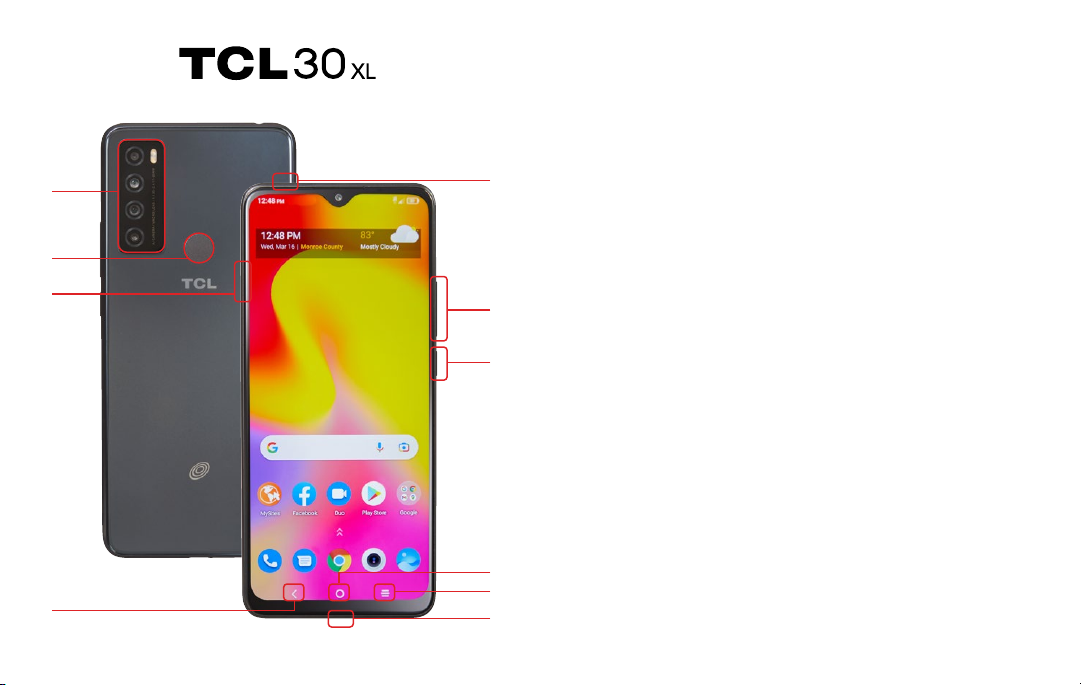
1. MAIN CAMERA / ULTRA-WIDE CAMERA /
MACRO CAMERA / DEPTH CAMERA / FLASH
2. FINGERPRINT SENSOR
3. SIM / MEMORY CARD TRAY
4. BACK KEY: Press to go back to the previous screen, menu
or option.
5. HEADSET CONNECTOR
6. VOLUME
7. POWER KEY
• Wake up or lock the screen with a quick press.
• Press and hold for additional options:
»Powero »Restart
» Airplane mode » App Shortcuts
8. HOME KEY
• Press to access the Home screen.
• Press and hold to open Google Assistant.
1
3
2
4
5
6
7
10
9
8

TABLE OF CONTENTS
1. YOUR DEVICE ........................................................................... 1
IMEI number
Phone number
SIM number
2. ADVANCED FEATURES.......................................................... 5
Google Account......................................................................... 6
Google One
Google backup
Google Assistant
Accessibility............................................................................11
Downloaded Services
ScreenReaders
Phone
Display
Interaction Controls
Captions
Audio
General
9. RECENT APPS
• Press to open the recently used applications.
• Split screen view: Tap the recently-used applications icon.
Slide the app you want to open to the left corner corner of
the screen. For the second app. select the icon shown on
the bottom half of the screen. Not all apps are supported.
• Floating window: Tap the recently-used applications icon.
Slidetheappicontothetoprightcornertocreateaoating
window. Not all apps are supported.
10. USB TYPE C

7
Apps .......................................................................................17
Arrange Order
Use Folders
Play Store
Google Apps
Android Auto
Duo
Smart manager
Buttons & Gestures.............................................................22
Calendar ..................................................................................23
Camera.....................................................................................24
Take a picture
Settings
Options
Modes
Gallery
Edit pictures and videos
Google Lens
NXTVISION
Contacts...................................................................................31
Make a Contact widget
Data Usage ............................................................................32
Digital Wellbeing & Parental Controls.........................33
Screen time
Ways to disconnect
Reduceinterruptions
Parental controls
Nearby Share.........................................................................35
OceFeatures......................................................................36
Printing
Split screen multi-tasking
Float window
VPN
Set up and manage a VPN
Screenshots............................................................................38
Security ....................................................................................39
Screen Lock
Face Unlock
FingerprintRecognition
Google Play Protect
Find My Device
SIM Card Lock
Screen Pinning
Permission manager

8 1
Learn how to access
the unique numbers
that identify your
device. Keep these for
future reference.
1. Your Device
Wi-Fi...........................................................................................45
Wi-Fi Share
Wi-Fi Direct
Health & Safety Information...........................................47
04/2022

2 3
ESSENTIAL INFORMATION
Yourphonehasseveraluniqueidentiernumbersthat
you may need for activation and other functions. You can
access these numbers as follows:
IMEI Number
←
Settings > System > About phone > Status
Your IMEI will appear under IMEI.
Phone Number
←
Settings > System > About phone > Status
Your Phone Number will appear under My phone
number.
SIM Number
←
Settings > System > About phone > Status > SIM status
Your SIM Number will appear under ICCID.
Your SIM number can also be found on the red Activation
Card that came with your phone or, on the SIM card.
1. Locate the SIM/Memory Card tray on the left edge of
the phone.
2. Press the pin tool provided into the hole until the tray
pops out.
3. On the SIM card, you will see a number beginning
with 89. This is your SIM number.
For more information about your device:
Go to your service provider’s website > Help >
Tutorials and User Manuals >
Enter T701DL in the Search bar >
click phone image > About Phone

4 5
Learn about the advanced
features that can make
your device more personal
and more fun to use.
2. Advanced Features

6 7
GOOGLE ACCOUNT
A Google (Gmail) account can be created during the setup
process on your phone. You can also create an account at
any time at google.com/gmail.
You will need to create a Google (Gmail) account to access
Google cloud and other phone features. Once your
account is created, you will have 15GB of storage linked
to your account. If you need more storage space, you can
purchase it directly from Google in the Backup menu.
Having a Google (Gmail) account will give you access to
several features on your phone including:
• Google One cloud storage
• Google Assistant
• Google Play store
• Find My Device
• and more
Google One
←
Settings > System > Backup > Backup to Google One
GoogleOneisalestorageandsynchronizingsolution
thatletsyoustorelesintheGooglecloud.Youcan
access information stored on Google One from any
device or location, allowing you to collaborate on
documentsandtosharelesandphotos.UsingGoogle
One also helps you save memory space on your device.
ThelesyoustoreonGoogleOneareprivatebydefault.
You can change your privacy settings and share individual
lesandfolderswithspecicpeopleorchoosetomake
them public so that anyone on the internet can view your
sharedles.Youcanchangeprivacysettingsatanytime.

8 9
Google backup
Your backups are uploaded to the Google cloud and are
encrypted using your Google account password. Once
yourGoogleaccountiscongured,thefollowingoptions
will be available:
• Sync settings: Enable or disable syncing for contacts,
calendar, and other apps.
• Back up my data: Select content from your device to
back up to your Google account.
• Restore: Information in your Google accounts such
as Contacts and Calendar can be restored. This may
vary by Android version and device you are using.
With a Google account you can:
• Activate device protection features.
• Download apps and other content from Google Play.
• Back up your apps to Google, and sync Google
services like Calendar and Contacts with your other
devices.
What content can be backed up and restored?
• Apps and app data
• Call history
• Contacts
• Calendar
• Device settings
• Photos and videos
• SMS texts
• Wi-Fi passwords and permissions

10 11
Google Assistant
←
Settings > Google > Setting for Google Apps >
Search, Assistant & Voice > Voice > Voice Match
Your device has the Google Assistant feature built-in
which you can access after you sign into your Google
(Gmail) account. To launch the Google Assistant, press
and hold the Home button, follow the prompts, and
complete the set-up.
Once you complete the set-up, you can access Google
Assistant by simply saying “OK Google” or “Hey Google”.
You can use this voice assistant to launch apps, make
plans, ask a variety of questions, and carry out tasks with
a quick voice command. If you have multiple users set up
onyourdevice,GoogleAssistantwillrecognizeupto6
voicesandwillcustomizesearchresults,calendaraccess,
music, and other requests for each voice.
ACCESSIBILITY
←
Home Screen > swipe up > Settings > Accessibility
Accessibility services are special features and
enhancements that make using the device easier. The
servicesavailableinAccessibilityallowyoutocustomize
the device to improve the experience of people with
physical, sensory, or cognitive disabilities. You can turn
Accessibility features ON/OFF as needed.
Many of the services available in Accessibility will make
using the phone more comfortable for other users also.
Downloaded Services
• Accessibility Menu: This feature provides an
accessibility icon at the bottom of the screen. Tap the
icon to launch a large on-screen menu that gives you
access to several features on your phone.
• Select to Speak:Tapaspecicitemonyourscreento
hear it read aloud.
• Switch Access: Allows you to control your device using
one or more switches to select items, to scroll, text, and
more.
• TalkBack: Set the device to read aloud what you touch,
select, and activate on the screen so you can hear it
without having to see it.
Other manuals for 30XL
2
This manual suits for next models
1
Table of contents
Other TCL Cell Phone manuals

TCL
TCL 20A 5G User manual

TCL
TCL FLIP 2 User manual

TCL
TCL TCLFLIP2 User manual

TCL
TCL onetouch 4042S User manual

TCL
TCL PIXI4-4.5 GOPHONE User manual

TCL
TCL 10 Pro User manual

TCL
TCL 20 Pro 5G User manual

TCL
TCL IONz User manual

TCL
TCL Alcatel PIXI3-7 KD Technical manual

TCL
TCL Alcatel Idol4 Technical manual


