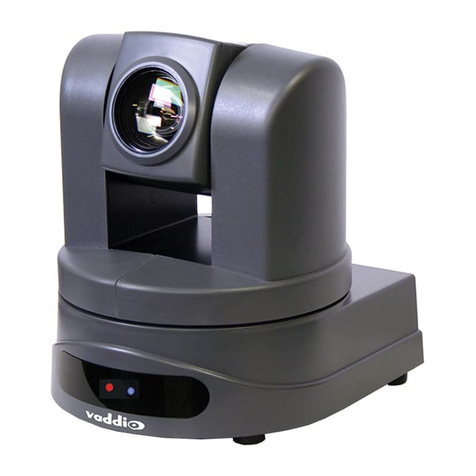
SUNBA 601-D25X 4G/WiFi V2 User manual

4G/LTE Wireless PTZ Camera
User Manual
V2.0
2023/08
Visit http://4gV2.sunba.net to access the step by step
YouTube video tutorials for setting up Sunba IP PTZ camera.
Builtin 4G Wifi Router
Dual LAN port
601-D25X 4G/WiFi V2

- 01 -
1. Product Overview
Model
603-D25X 4G V2
Image Sensor
1/2.8” Progressive Scan CMOS
Focal Length
Aperture Range
F1.5-F3.8
Min. Illumination Color: 0.05Lux @ (F1.6AGC ON)
B/W: 0.01Lux @ (F1.6AGC ON)
Focus
Pan & Tilt
Pan: 0-360
°
Tilt: -10-90
°
oom Optical: 25x
PTSpeed
0~80°/s
Day/Night Mode
BW/Color/Auto
Night Vision
Network Mode
WiFi/4G LTE
WiFi Standard
2.4 Ghz (5Ghz is currently NOT supported)
ONVIF Supported
Power Gauge DC12V 4A
Viewing Angle 59.5°-2.6°
North America:
LTE-FDD: B2/B4/B5/B12/B13/B14/B66/B71;
WCDMA: B2/B4/B5
Europe:
LTE-FDD: B1/B3/B7/B8/B20/B28; LTE-TDD: B38/B40/B41
WCDMA: B1/B8; GSM: B3/B8
Japan:
LTE-FDD: B1/B3/B8/B18/B19/B26; LTE-TDD: B41;
WCDMA: B1/B6/B8/B19
2.Sim Card Installation
The camera does not come with a SIM card. You need to purchase the SIM card yourself. We recom-
mend that you choose the SIM card from the largest local carrier and clearly inform the seller that the
device is not an IoT device. The SIM card needs to meet the requirement of a 4G camera SIM card with
no speed limit. The USA market recommends using T-mobile SIM card, while Verizon SIM card require
IMEI registration before use. Alternatively, simply purchase Security Camera SIM Card on Amazon.
e.g: https://www.eiotclub.com/
Regarding the issue of operator frequency bands, there is an index of recommended tables at the
end of the manual for inquiries and references.
5MP@15fps/1080P@25fps
Memory Card Slot
4G Frequency Range

- 02 -
Nano Sim Card Required
Pay attention to the orientation
of the card
The sim card module would display blue signal light if the card has been installed correcly.
3.TF Card Installation
Compatible Size: Micro SD Card
Compatible Standard: At least Class 10 high speed and up to 256GB (128GB recommended)
TF card is an option for storing recorded videos from the camera.
2
1
Insert the TF card as directed by the
arrow.
Remove the 4 screws to take off the
camera back cover.
128G
4.Antenna Installation
The camera comes with 3 antennas.
Two of the antennas (male) are 4G antennas, one main and one auxilia-
ry. The other antenna (female) is used as a wifi antenna.
It is important to examine the male/female end between the antenna
and the receptive port on the camera before installation.
If your antenna is damaged out of box, please contact
NOTE:Be careful with the female and male ends of the port and
the antennas.
male
female

- 03 -
5.Power Standard
6.Solar Battery Kit Installation
The camera requires DC12V 4A for operation, and please be aware that using higher voltage would
immediately damage the camera and void the warranty.
Power Option A: DC12V adapter
DC Adapter
Power Option B: Battery + Solar Panel
Warning: The load end for MANY battery charge controllers doesn't regulate voltages and is for wide voltage
equipments. Sunba cameras require, however, fixed voltage. In this case, you need to get a voltage regulator
for the load end if the battery doesn’t have built-in regulators.
Solar Panel Requirement: Not less than 60W Monocrystalline, DC12V output.
All connectors must be waterproof or needs waterproof measures.
The power can be over 60W but the voltage must NOT exceed 12V.
Battery Requirement: DC12V/36Ah or larger capacity.
Battery
Scan to buy solar kit
38Ah/456Wh
7x24 5 days 4 nights
1.Connect the two solar panels facing
downwards and secure them using two
brackets and 8 screws.
2.Fix the battery to the solar panel
with 4 screws.
3.Connect the two pairs of MC4 cable
(two male and two female in total)
Pack List:
Monocrystalline Solar Panel x 2;
Sunba MBB12V Lithium Battery x1;
U-Bolt x 4 (2 for solar panel; 2 for camera);
Pole Mount x 6 (4 for solar panel; 2 for camera);
PTZ Mount Adapter x 1;
KC80 Waterseal Rubber Mastic Tape x 1;
Screws kits x 1set.
Male
Female
MC4
Fixing two solar panels first, then fix the battery.
①②
③ ④

- 04 -
NOTE: RJ45 network cable from the camera can provide
Internet to another device, and you can connect to other
network cameras or other network devices.
Battery
DC 12V(5.5*2.1mm)
DC 12V (Optional)
SUN LIGHT
Camera’s wall mount adapter
Dual Mounting Options for the adapter,
2 x U-Shape Bolts or 2 x Pole Mounts.
4A. Fix with 2 U-shaped Bolts
6. Connect the camera
to the solar system and
seal ALL connector
with KC80 tape.
5. Connect the camera to the pole
Dual Mounting Options for the Solar Kit
4A: 2 x U-Shape Bolts
4B: 4 x Pole Mounts
4B. Fix with 4 Pole Mounts
Scan to get Installation Video Tutorial:
RJ45

- 05 -
7.Smartphone Control
Method A: Scan the barcode to add the camera (4G Application)
Download on
the Google Play
Download on
the App Store
smartphone.sunba.netvideo tutorial
iCSee
1
Click the "+" icon to add device.
3
2
Choosing the correct country/region will
help you connect to the fastest cloud
server.
NOTE: If you use XMEye APP
You will not have the cloud
storage option.
First register a cloud account

- 06 -
Select 4G Camera and then manually scan
the camera QR code to add device.
Please ignore the camera's prompt
sound and proceed directly to the
next step, scanning the QR code
on the silver label on the side of
the camera
After scanning the code, the
camera will be automatically added
to the device list.
If the 4G SIM card is successfully
connected to the internet, the
camera status will change to online
SUNBA TECH.
P2P:
5935d7d9
00XXXXXX
4
5
6

- 07 -
7
Control pan, tilt and zoom, watch live
view and set/delete/call presets from
this page.
Press to speak. (device must support speaker)
Turn on/off microphone.
Record a video and save the clip to your
smartphone.
Take a snapshot and save the image to your
smapphone.
PTZ control.
Switch between HD/SD display.
Method B: Connect to the same LAN as the camera (WiFi Application)
Note: this method is only suitable for the use of close-range (wifi) test camera
Turn on the wifi function of your phone and search for the available wifi and find the one starting with IM-LINK
And then connect to it with password 1234567890
When you successfully connect to the wifi hotspot (IM-LINK****) of the 4G camera, your phone and camera are
actually under the same LAN.
At this time, you can add the camera by searching under the LAN (note: this method is only suitable for the
situation where the camera is very close, once you lose the connection with the 4G camera’s wifi, you will not
be able to control the camera).
and your mobile phone is also under the same subnet (192.168.8.1).
Note: Auto LAN search only works if the http port of the
camera remains unchanged (default 80). If the http port has
been changed, the camera can only be added manually
with its corresponding new port.
You can add device by click Nearby Cameras if your
smartphone is connected to the same network as the
camera. Select the device that you want to add.

- 08-
8.Set Cloud Storage
Note: This function only applies to 603-D25X 4G V2 version.
It helps to upload the captured alarm recordings to the cloud.
The 603-D25X 4G V1 version belongs to the SUNBA Performance Series, and it needs to
be set through the Performance Series APP and client software; the V2 version belongs
to the SUNBA Lite Series, this Manual only applies to the V2 version.
Click to active cloud storage.
The alarm recordings and snapshots
will be uploaded to cloud once you
activate the cloud services .
Chose cloud storage service.
The package type determines the days of video/
snapshot cycle coverage and time displayed in
the package is a valid service time.
* Sometimes cloud services have a one month free
trial period, and you can activate and try a 30 day
free trial.

- 09 -
Click to view cloud playback.
The cloud alarm recording can be
used only when the cloud storage
function is activated, and the alarm
is turned on.
Click to select the date of recordings.
Note: The motion detection alarm is
turned on by default. After the
alarm is turned off, the cloud
platform cannot store recordings.
This manual suits for next models
1
Table of contents
Other SUNBA Security Camera manuals

SUNBA
SUNBA FT-HD User manual

SUNBA
SUNBA Lite Series User manual

SUNBA
SUNBA 405-ECO V2 User manual

SUNBA
SUNBA 305-D4X User manual

SUNBA
SUNBA 405-D20X User manual

SUNBA
SUNBA Analog Series User manual

SUNBA
SUNBA P636 V2-Performance Series User manual

SUNBA
SUNBA 604-22X User manual

SUNBA
SUNBA 502S-AHD User manual

SUNBA
SUNBA Network Series User manual