Socket 6410-00233 User manual

Cordless Hand Scanner
with Bluetooth®Wireless Technology
Featuring a Bluetooth enabled bar code scanner and SocketScan
software for wirelessly adding bar code scanning to Bluetooth
enabled mobile computers running Windows Mobile 2003
User’s Guide

2
Table of Contents
1 | INTRODUCTION 3
About the Software 3
Hardware Features 4
Package Contents 5
Product Registration 5
2 | SETUP FOR WINDOWS MOBILE 6
STEP 1: Charge the scanner 6
STEP 2: Uninstall Other Scanning Software 7
STEP 3: Install the Software 8
STEP 4: Configure Scanner Settings 9
STEP 5: Connect Scanner to Pocket PC via Bluetooth 11
STEP 6: Scan Data into Your Application 13
OPTIONAL: Select Symbologies 14
OPTIONAL: Configure Prefix/Suffixes 15
OPTIONAL: Run Scan Demo 16
APPENDICES
A | SPECIFICATIONS 17
B | SAFETY AND USAGE TIPS 18
C | BAR CODE LABEL SPECIFICATIONS 21
D | ENABLING OR DISABLING SYMBOLOGIES 22
E | DECODE ZONE 25
F | TROUBLESHOOTING 26
G | TECHNICAL SUPPORT 27
LIMITED WARRANTY 28
COPYRIGHT NOTICE 30
REGULATORY COMPLIANCE 31

CHAPTER 1: INTRODUCTION 3
1 | Introduction
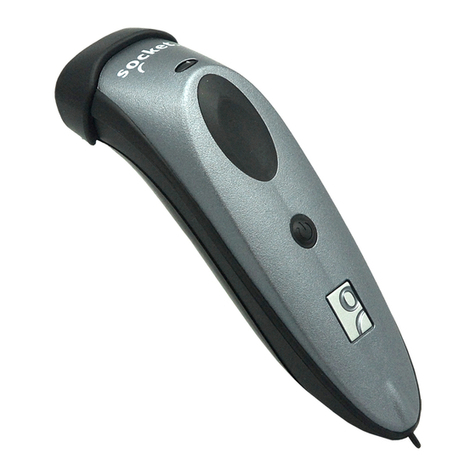
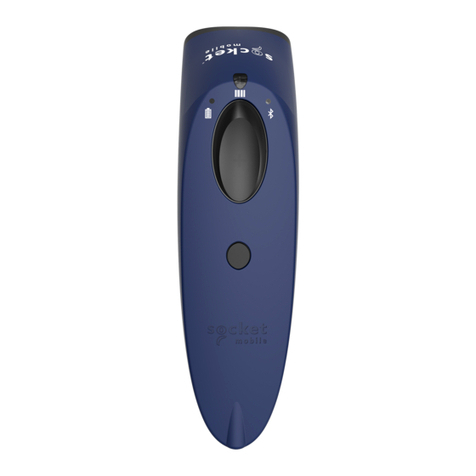
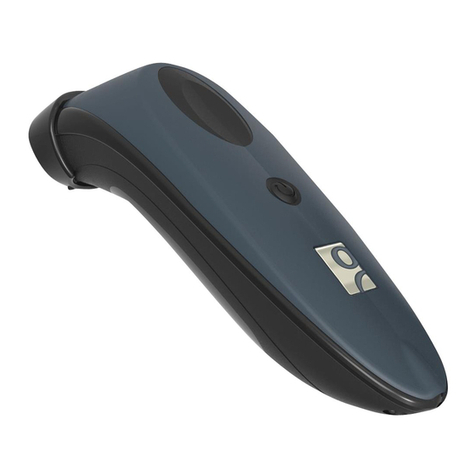
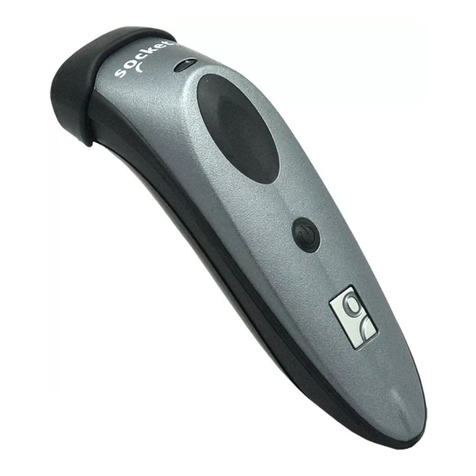
If you need to collect bar coded data but don't
want to be tied to your mobile or desktop
computer, Socket's Cordless Hand Scanner
(CHS) with Bluetooth wireless technology is just
what you're looking for. This innovative device
combines the power of laser bar code scanning
with the convenience of Bluetooth wireless
technology in a single compact, lightweight
device that is ergonomically designed to fit
comfortably in the palm of your hand.
Bar code scanning is the most efficient way to collect data from a mobile
computer. If the data to be entered is bar coded, using a laser scanner is 50
times faster and 10,000 times more accurate than manual data entry.
Bluetooth wireless technology transforms how devices connect with each
other, offering you new possibilities for using your mobile computer with
other devices. With Socket's Cordless Hand Scanner (CHS), you can scan
bar codes while connected to the Pocket PC in your pocket or your laptop or
desktop up to 300 feet away — all without the hassle of cables or the
awkwardness of a protruding antenna.
The Cordless Hand Scanner works with mobile computers running Windows
Mobile 2003 using either the Socket Drakar v1.4 Bluetooth stack (from
Socket’s SDIO and CF Connection Kits) or the Widcomm v1.4 Bluetooth
stack. Support for Windows XP, XP Tablet, Palm and Symbian as well as
other Bluetooth stacks are planned for future releases.
About the Software
SocketScan™ enters scanned data directly into any open
Windows program, as if the data were manually typed. You
can configure Prefix/Suffixes and assign a .WAV file to
signify good data reads.
The Socket CHS configuration utility makes it easy to
configure SocketScan for use with the Cordless Hand
Scanner. Simply identify which kind of Bluetooth hardware
you will be using on your mobile computer, and SocketScan
will automatically search for it when you try to connect. You
can also use the utility to configure other scanning settings
such as mechanisms to indicate a good read.
For software updates: http://www.socketcom.com/support/support_bar.asp

4
Hardware Features
Status Indicator LED
The scanner has a tri-color LED to indicate different states.
LED LED Activity Meaning
1 blink per second Less than 20% of battery life
remaining.
Solid red Batteries are charging.
Battery
Status
(Red)
Off when connected
to charger Batteries are fully charged.
1 blink per second Bluetooth radio is on, but not
connected.
Bluetooth
Status
(Blue)
1 blink per 5 seconds Bluetooth radio is on, connection
established.
Good Read
(Green)
Green Data successfully scanned and
transmitted to host device.
Status Indicator Beeps
The scanner beeps to signal the Bluetooth connection status. Optionally,
you can also set the scanner to beep every time it successfully scans data
and transmits it to the host device.
LED Beep Pattern Meaning
1 beep Scanner connected to host device.
Bluetooth
Status
(Blue)
2 beeps Scanner disconnected from host device.
Good Read
(Green)
1 beep Data successfully scanned and
transmitted to host device.
Rechargeable Battery and AC Adapter
Recharge the internal battery by using the included AC adapter. The adapter
rating is 5V, 2A, positive pole center. A fully charged battery should
provide roughly 8 hours of normal operation. AC and DC adapters of most
recent Pocket PCs from Casio, Compaq, Dell, Fujitsu, and Toshiba are also
compatible.
WARNING: Charge ONLY NiMH batteries in the CHS. Damage may
result if other battery types are charged. Do not store the CHS for over 30
days with the batteries installed

CHAPTER 1: INTRODUCTION 5
Package Contents
The Socket Cordless Hand Scanner package includes these items:
• Socket Cordless Hand Scanner with Bluetooth Wireless Technology
• AC charging adapter with international plugs
• Software Installation CD
• Booklets with copyright, warranty, and regulatory compliance
information
Product Registration
Socket highly recommends that all customers register their Socket products.
Registered users receive priority for technical support. Register online at:
http://www.socketcom.com/prodreg

6
2 | Setup for Windows Mobile
This chapter explains how to install and use the Cordless Hand Scanner
with a Bluetooth enabled Pocket PC 2003.
Setup Summary
STEP 1: Charge the scanner.
STEP 2: Uninstall other scanning software.
STEP 3: Install the software.
STEP 4: Connect scanner to Pocket PC via
Bluetooth.
STEP 5: Assign a trigger button.
STEP 6: Scan data into your application.
OPTIONAL:
• Select symbologies.
• Configure prefix/suffixes.
• Run Scan Demo application.
• Configure sounds.
• Use SocketScan Trigger.
STEP 1: Charge the scanner
Use the included AC adapter to charge the Cordless Hand Scanner. The
scanner’s NiMH batteries must be charged for at least 4 hours before the
first use. The Battery Status LED will emit a solid red light while charging,
and turn off when the batteries are fully charged.
WARNING:
Do not use the scanner when it is being charged, or the battery may have
problems achieving a full charge in the future.
Do not attempt to charge alkaline batteries — this may cause alkaline
batteries to leak and damage the CHS.

CHAPTER 2: SETUP FOR WINDOWS MOBILE 7
STEP 2: Uninstall Other Scanning Software
Delete any bar code scanning software you may already have installed on
your Pocket PC. You can uninstall either directly from your Pocket PC, or
indirectly via ActiveSync.
OPTION 1: Uninstall Directly from the Pocket PC
1. Make sure the bar code scanning software is closed.
2. Tap Start | Settings. Tap on the System tab or Control Panel.
3. Tap on the Remove Programs icon.
4. Select the bar code scanning software, then tap Remove.
5. Tap Yes to confirm removal of the program.
OPTION 2: Uninstall via ActiveSync
1. Make sure the bar code scanning software is closed.
2. Use ActiveSync and a serial/Ethernet/USB cable or cradle to make an
active connection between your Pocket PC and a host PC.
3. On the host PC, open Microsoft ActiveSync.
4. Click Tools | Add/Remove Programs.
5. Select the bar code scanning software and click Remove.
6. In the confirmation screen, click OK.
7. A screen will ask if you also want to remove the software from the host PC.
If desired, click NO to keep a copy of the software on the host PC that
can later be re-installed onto a Pocket PC.

8
STEP 3: Install the Software
1. Use ActiveSync and a serial/Ethernet/USB cable or cradle to make an
active connection between the mobile computer and a host PC.
2. Insert the installation CD into your host PC.
3. Use My Computer or Windows Explorer to access your CD-ROM drive.
In the CD, click on SETUP.EXE.
4. Follow the instructions on your screen to install the software for
Windows CE (also compatible with Windows Mobile 2003).
5. When software installation is complete, disconnect the Pocket PC from
the host PC. Soft reset the Pocket PC by pressing the reset button.

CHAPTER 2: SETUP FOR WINDOWS MOBILE 9
STEP 4: Configure Scanner Settings
1. Start the Socket CHS configuration utility.
Tap Start | Settings | System | Socket CHS.
2. In the General screen, for Type of scanner, select Using Socket CHS
Scanner.
3. In the Bluetooth stack field, select the Bluetooth hardware that your host
device will use to connect to the scanner. Depending on which option
you select, additional fields may appear.
• Socket: Select if you are using the Socket SDIO or CF Connection
Kit to connect your host device to the CHS.
• Built-in: Select if your device has Bluetooth built in. The checkbox
Automatically connect to CHS will appear. Check the box for your
device to automatically connect to the CHS whenever you start
SocketScan.
N
ote: Automatic
connections are only
p
ossible if you have
p
reviously
connected with the
CHS. Otherwise the
checkbox will be
disabled.

10
• Other: Select if using an add-on Bluetooth card or adapter not made by
Socket. The COM Port field will appear. Select the COM port that the
host device will use for outbound Bluetooth serial communications.
4. Tap on the Scanner tab. Enter the following settings:
• Trigger Operation:
− Scan always: Select if you would like the CHS to scan whether or not
it has a Bluetooth connection to the host device.
− Scan only when connected to host: Select if you would like the CHS
to detect a Bluetooth connection to the host device before it scans.
Scanning will be a few milliseconds slower. This option allows the
CHS to be triggered remotely if needed.
• Good Read Indicator: Select how you would like the scanner to indicate that
data has been successfully scanned and transmitted to the host device.
5. After modifying any settings, tap ok. If SocketScan is already open, you
must close and reopen SocketScan for the changes to take effect.
N
ote: The delay in the
‘good scan’ beep
increases with the
distance from the host,
g
iving the user valuable
f
eedback about the
strength of the
connection
Table of contents
Other Socket Barcode Reader manuals

Socket
Socket DuraScan D745 User manual

Socket
Socket CHS 7Ci User manual

Socket
Socket CHS 7Mi User manual

Socket
Socket 8 Series User manual

Socket
Socket PocketPak User manual

Socket
Socket SOCKETSCAN S800 User manual

Socket
Socket CHS 7Qi User manual

Socket
Socket 7Qi User manual

Socket
Socket CHS Series 7 User manual

Socket
Socket CHS Series 7 User manual

Socket
Socket CHS Series 7 User manual

Socket
Socket CF RFID User manual

Socket
Socket D700 Operating instructions

Socket
Socket 5 Series User manual

Socket
Socket CHS 7Ci User manual

Socket
Socket DURACASE 800 Series User manual

Socket
Socket DURASCAN D750 User manual

Socket
Socket CHS 7Mi User manual

Socket
Socket CHS 7Ci User manual

Socket
Socket 7Qi User manual