
Sharp PV300G User manual

Contents
Welcome! 4
Open & Close the Display 5
Prior to Using Your Device 6
Remove and Replace the Back Cover 6
Insert and Remove the SIM Card 6
Insert and Remove the Memory Card 7
Formatting the Memory Card 7
Insert and Remove the Battery 8
Charge the Battery 8
Device Controls 10
Phone Controls 12
Volume Controls 13
Wireless Controls 13
Display Controls 14
Mini Media Player Controls 14
Setting Up Your Device 15
Bluetooth®Technology Setup 15
Themes 16
Font Size 16
Backlighting 17
Device Privacy Code 17
Key Guard Mode 17
Sound Profiles 18
Alarm Clock 18
Location Based Services 19
Application Customization 20
The Device Interface 20
The Jump Screen 20
Indicators 21
Menus 22
Quick Jump 22
Quick Find 23
Empty Trash 23
Type and Edit Text 23
Navigate in Text Boxes 23
Delete Text 24
Cut, Copy, Paste, Undo 24
Check Spelling 24

2
AutoText & Spelling 25
Type Special Characters 26
Using the Applications 26
Instant Messaging
Sign On 26
Send an Instant Message 26
Switch Between IM Conversations 27
Phone
Make a Phone Call 27
Use Bluetooth Hands-Free Headset or Car Kit 28
Answer a Phone Call 28
Add a Number to Your Speed Dial List 28
Checking Your Voice Mail 29
Change Your Phone Ringtone 29
Import Contacts from Your SIM Card 29
Text Messaging
Send a Text Message 29
Picture Messaging
Send a Multimedia Message 30
Send an Audio Postcard 31
Address Book
Add a Contact to the Address Book 32
Assign a Contact as a “Favorite” 33
Address Book Tabs 33
Communicate with a Contact 33
Set and Send “My vCard” 34
Send any Contact’s vCard 34
Opera Mini™ Web Browser
Browse the Web 35
Set a Speed Dial Icon 35
Toolbars 35
Settings 36
Planning
Alarm Clock 37
Calendar 37
Notes 38
To Do 38
Camera
Albums 39
Take a Photo 40
Capture Video 41
Send Media Files via Bluetooth or MMS Message 41
Use Photo for Caller ID or Key Guard Background 42

3
Media Player
Copy Music or Video to the Memory Card 42
Play Music or Video Using the Media Player 43
Listen Using Stereo Bluetooth Headset 43
Create a Playlist 44
Games 44
Calculator 45
Keyboard Shortcuts 46
Handling and Safety Precautions 47
Regulatory and Compliance Information 50
90 Day Limited Warranty 53

4
Welcome!
Thank you for buying the PV300G. Your device will open up a whole new way
of communicating, staying organized and connecting to your world.
Designed to seamlessly connect to wireless 3G networks, your PV300G
delivers information to you faster than ever. An intuitive phone interface and
Bluetooth compatibility are only the beginning. Effortlessly exchange instant
messages, browse the Internet, and send multimedia messages. Capture the
moments of your life with the 3.2 megapixel camera and video recorder. A
fully functional media player lets you take your favorite tunes and videos
along for the ride while video streaming capability allows you to check out
those videos your friends are all talking about. Personal information
management (PIM) applications keep you organized and on track.
Here’s what you’ll find in the box:
PV300G device
SIM card*
Removable battery
microSD Card *
USB cable
Battery charger (wall adapter)
Hands-free stereo headset

5
Protective sleeve
•Start Guide
•Reference Guide (on www.pcdphones.com)
•Recycle bag
If any of these items are missing, please contact Customer Service.
*May not be included with all models.
Open & Close the Display
To open the display, press your left thumb on the lower-left corner of the
display and gently push up in a clockwise direction. Alternatively, use your
right index finger to push down gently on the upper-right corner of the
display. The display will spring smoothly into the open position.
The normal operating position of the device is horizontal, with the trackball
on the right, as shown above.
To close the display, reverse the motion to pivot the display counter-
clockwise and snap it into the closed position.
9Always carry your device in the sleeve to protect the display from
scratches!

6
Prior to Using Your
Device
Before you use your device, do the following:
•Insert the SIM Card
•Insert and charge the Battery
The following sections walk you through the above actions in addition to
providing other information about these elements.
This section also contains instructions on how insert the memory card.
Remove and Replace the Back Cover
In order to access the SIM card, memory card and battery, you must
remove the back cover of the device. To do this, turn the device over. With
the camera at the top, slide the battery cover to the right by carefully
pressing the raised dotted lines on the cover with your left thumb. Lift the
cover to remove it.
To replace the back cover, align the back cover with the body of the device
and slide it into place. Take the reverse steps to remove the back cover.
Insert and Remove the SIM Card
The SIM card slot is located just to the left of the battery slot. To access it,
do the following:
1. If the battery is installed, remove the battery by following the steps in
“Insert and Remove the Battery” on page 8.

7
2. Hold card with gold contacts facing down and card notch facing to the
upper right. Slide the card into the slot and push to lock in place.
3. To remove the SIM card, use your finger to press down gently and slide
the card right. When it’s free of the slot, lift the card to remove it.
Insert and Remove the Memory Card
Your device includes a slot for a Micro Secure Digital (microSD™) flash
memory card. The memory card is not required for the device to function
and can be inserted at any time.
The memory card slot is located next to the battery as shown below.
1. To insert the memory card, hold the card with the gold contacts facing
down and the card notch facing to the right. Insert the card into the slot
and push to lock into place.
2. To remove the memory card, push the card in slightly and release; the
card should spring partly out of the slot. Pull the card free of the device.
! Forcing the memory card out before pushing to release it may cause the
card or slot to break.
Formatting the Memory Card
For optimal performance, it is recommended that you format the memory
card on the device. Please note that formatting the card will permanently
erase all items that are on the card.
1. Press JUMP to go to the Jump screen. Press MENU to open the
menu, then select Settings >Memory Card.
2. The Memory Card screen displays the card space and format. You can use
the Card Name field to give the card a unique identifier.

8
3. Select the Format Now button to format the card. This action will erase all
card contents.
Insert and Remove the Battery
To replace your rechargeable battery, or if you need to insert or remove
your SIM card, first you will need to remove the installed battery. Begin by
powering down your device:
1. Press and hold the power button for three seconds to power down.
2. Remove the back cover following the steps on page 6.
3. Push the battery in slightly (1) using protrusion at the lower right hand
corner of the battery then lift the battery (2) from that same edge to
remove it.
4. Insert the battery with the notched edge first (the edge with the gold
contacts) and then push the battery down to lock into place.
5. Replace the back cover.
Charge the Battery
Your device comes with a removable, rechargeable lithium-ion battery.
When you first receive your device, it is important that you fully charge the
battery as described below.
! Only use the charger and battery provided with your device or you risk
damaging your device.
! Do not insert battery chargers from into the stereo headset jack.
If you attach your device to your computer via USB, be aware that the
power received may not be enough to charge your device. For example,
when computers are in “sleep” mode, only a trickle charge may be supplied
via USB. In this situation you could lose more power than you gain. To
connect the device to your computer, insert the USB plug into your device’s
USB port with the icon on the top of the plug.
1. Locate the battery charger that came in the box with your device. Insert
the charger’s USB plug into your device’s USB port, which is next to the
power button. Make sure the icon is on the top of the plug.

9
Now plug the power cord into a standard electrical wall outlet.
An orange charge indicator light will go on and a lightning bolt icon will
appear over the battery icon in the title bar, indicating the charger is
connected and the battery is charging. If your device has discharged
completely, it may take up to 15 minutes before you see any indication of
charging on the screen. When the battery is fully charged, the indicator
turns green. If any error occurs when charging, the indicator turns red.
2. Put the device in a safe place and let the battery charge for at least four
hours with the device powered on.
As the device is charging, the bars in the battery icon fill repeatedly from
left to right. When your device is fully charged, the lightning bolt icon will
disappear and the bars will stop moving and remain in the filled position.
9It is recommended that you charge your device nightly. If you plan to
leave it unattended for an extended period of time, be aware that the
battery may discharge within a few days if it is turned on and not
attached to the charger.

10
Device Controls
MENU button – Press MENU to open a list of actions you can take on
the current screen.
JUMP button – Press JUMP to go back to the Jump screen, your
starting point for launching all the device applications.
CANCEL button – Press CANCEL to dismiss any changes you have
made to a screen or dialog box.
DONE button – Press DONE to go back through the screens you were
previously viewing, until you reach the Jump screen. On a screen or in a
dialog box, press DONE to save your changes and dismiss the screen or
dialog box. Press and hold DONE to enter power-saving keyguard mode.
SEND/END buttons – When the buttons are lit, use them to initiate/end a
call. When unlit, press to page up or to page down.
TRACKBALL – Press the trackball to select a highlighted item or press
and hold to open a pop-up menu. Roll the trackball to reverse or advance
the current selection through the “selectable” items on a screen. Rolling the
trackball left or right with a folder highlighted opens/collapses folder
contents. Adjust trackball speed and acceleration from the Jump Menu >
Settings > Trackball & D-Pad screen. Read what the trackball colors
mean during sleep in “Trackball light indicators” on page 22.
Table of contents
Other Sharp Cell Phone manuals

Sharp
Sharp Aquos phone SL Service manual

Sharp
Sharp Vodafone 802SH User manual

Sharp
Sharp Aquos Phone Serie SHL22 Service manual

Sharp
Sharp sh906i Guide

Sharp
Sharp Docomo SH-05D User manual

Sharp
Sharp AQUOS Crystal User manual

Sharp
Sharp disney DM008SH User manual

Sharp
Sharp Aquos D10 User manual

Sharp
Sharp NTT docomo Aquos Pad User manual

Sharp
Sharp Aquos R2 Quick start guide
Sharp
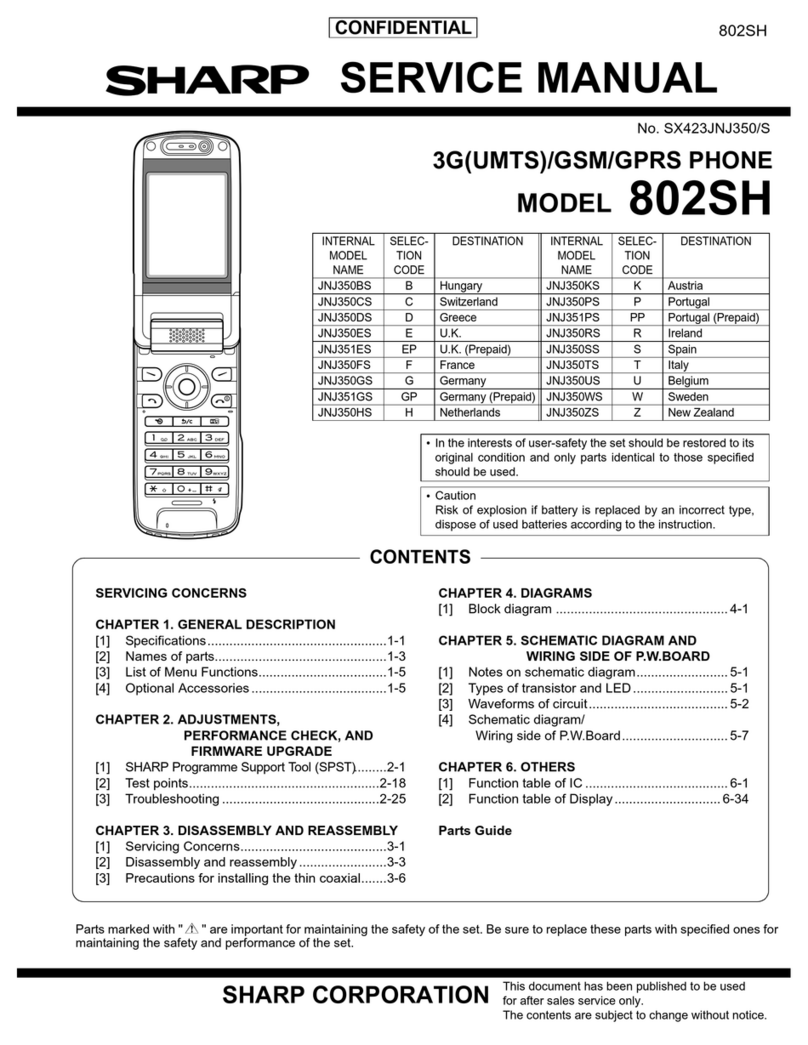
Sharp Vodafone 802SH User manual

Sharp
Sharp GX15 User manual

Sharp
Sharp Aquos SH-02K User manual

Sharp
Sharp AQUOS R Service manual

Sharp
Sharp SH0037D User manual

Sharp
Sharp Aquos U SHV37 Service manual

Sharp
Sharp GX29 User manual

Sharp
Sharp GX293 User manual

Sharp
Sharp GX18 User manual

Sharp
Sharp HRO00058 User manual


