
Purism Librem 5 User manual

Quick Start Guide

Warranty
This Limited Warranty applies to physical goods, and only for physical goods,
purchased from Purism, SPC (the “Physical Goods”).
What does this limited warranty cover?
This Limited Warranty covers any defects in material or workmanship under
normal use during the Warranty Period.
During the Warranty Period, Purism, SPC will repair or replace, at no charge,
products or parts of a product that proves defective because of improper ma-
terial or workmanship, under normal use and maintenance.
What will we do to correct problems?
Purism, SPC will repair the Product under warranty at no charge using new or
refurbished replacement parts.
How long does the coverage last?
The Warranty Period for Physical Goods purchased from Purism, SPC is one
year from the date of shipment.
A replacement Physical Good or part assumes the remaining warranty period
of the original Physical Good or 30 days from the date of replacement or repair,
whichever is longer.
What does this limited warranty not cover?
This Limited Warranty does not cover any problem that is caused by conditions,
malfunctions or damage not resulting from defects in material or workmanship.
What do you have to do?
To obtain warranty service, you must rst contact Purism, SPC to determine the
problem and the most appropriate solution for your circumstances.
Consumer Protection
This warranty gives you specic legal rights, and you may also have other rights
that vary by jurisdiction such as those relating to conformity.
Returns
If you are not satised with your purchase, you can return the Physical Goods
within thirty days after the purchase. Any Physical Goods you return must be
in the same condition you received it and in the original packaging. Restocking
fee, as well as shipping/handling fees may reduce your refund.
2

Package Contents
The Librem 5 is supplied with the following
components and accessories:
• Battery (installed)
• Tray for nano-SIM and microSD cards
(removable)
• SIM tray extraction tool
• USB-C cable
• Wall power adapter
• Headphones
If any of these are missing, please contact Purism
support for guidance.
You Will Also Need
You will need to provide:
• A nano-SIM card
• A microSD card (optional)
The nano-SIM card is supplied by your mobile network
provider or included as part of Librem AweSIM from
Purism.
You can use a microSD card to add additional storage
to the phone.
3

Install the nano-SIM and microSD Cards
Ensure that the phone is powered o.
Place the phone on a at, hard, level surface with the
screen facing down.
Insert the point of the extraction tool into the hole at
the end of the tray, at right angles to the side of the
phone.
SIM tray
Push the point rmly into the hole until the tray pops
out, then gently pull the tray out of the slot.
nano-SIM slot
microSD slot
1. Insert the nano-SIM card into the tray
2. Insert a microSD card into the tray (optional)
3. Insert the tray into the slot
The tray should click into place when closed.
4

Charge the Phone
You need to charge the phone before use:
1. Plug the charger into a suitable wall power outlet
2. Place the phone on a at, hard, level surface
3. Connect the phone to the charger via the USB
cable provided
The indicator light should appear red to show that the
phone is charging. It will turn o again when the
phone is fully charged.
Indicator light
4. Leave the phone to charge for an hour
5. Unplug the charger from the power outlet
6. Unplug the USB cable from the phone
For troubleshooting hints and tips, go online to
https://docs.puri.sm/Librem_5/Troubleshooting.html
5

Power on the Phone
Enable the Modem and WLAN by pushing those
switches away from the SIM slot, as shown.
Modem
WLAN/Bluetooth
Camera/Microphone
Ensure that the screen is visible.
Locate the power button.
Power button
Hold down the power button until the indicator light
appears green. The screen will light up shortly after.
6
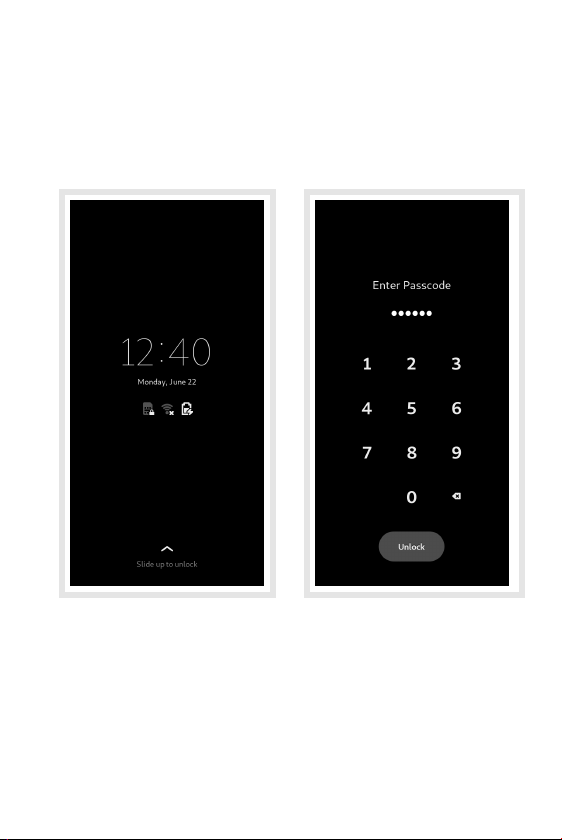
Unlock the Screen
The phone will show a lock screen.
To unlock it, swipe up from the bottom of the screen to
reveal the passcode entry screen.
Enter the default six digit passcode – 123456 – using
the numeric keypad then press the Unlock button to
unlock the phone.
Hint: You can change the passcode in the Settings
application later.
7

Initial Setup
The rst time you use your phone, the initial setup
application helps you to customize it.
You can change any of the settings later in the
Settings application.
Select the language that you wish to use.
If your language is not shown, expand the list to show
more languages by pressing the (view more) icon at
the bottom of the list.
Press the Next button to continue.
8

Text Input
The Typing page shows a selection of keyboards that
are relevant to your language.
Select the keyboard that you want to use.
Expand the list to nd the one you want, if necessary.
Press the Next button to continue.
9

Wireless Internet
If the WLAN switch is enabled, the Network page is
shown. This lets you congure your wireless
connection to the network.
The WLAN interface may take a few seconds to list
nearby wireless networks.
Select a network to begin the connection process, or
swipe the list upwards to nd the Other… item at the
bottom of the list. Select this to connect to a hidden
network.
10
Other manuals for Librem 5
1
Table of contents
Other Purism Cell Phone manuals


